

ADDRESS Function (Calligra Sheets)
Build address text in Calligra Sheets using A1 or R1C1 style, reference modes and a checked lookup example, with sheet-name quoting cautions.
Verification status: See the evidence and test scope described in this guide. How formula examples are checked
Quick answer: =ADDRESS(6;4) is expected to return the text $D$6. ADDRESS converts row and column numbers into address text; it does not retrieve the value stored in that cell.
Availability and verification scope
- Introduced: The original introduction release is not established by the inspected sources. Do not read the version checked here as the introduction date.
- Availability: Registered in Calligra Sheets 26.08.2. The relevant first-party released source was retrieved again on October 18, 2026.
- Retired or deprecated: Neither retirement nor deprecation is established by these sources; registration remains present. These terms are not interchangeable.
- Evidence: Source reviewed for 26.08.2. Selected formulas were executed in the Calligra Sheets 25.04.2 GUI on October 18, 2026 by opening the fixture XLSX, recalculating and saving ODS. The native-observation section distinguishes those results from independent expectations. This is not 26.08.2 execution or a general file-compatibility guarantee.
- Entry conventions: English function names, semicolon argument separators and decimal points. Use the installed function chooser if local entry conventions differ. Optional-argument brackets in syntax are explanatory and must not be typed.
Syntax and defaults
=ADDRESS(row; column[; absolute[; a1[; sheet_name]]])
| Argument | Role and default |
|---|---|
| row | Required row number; for ordinary A1 addresses use a positive integer |
| column | Required column number; 1 means A, 4 means D, 27 means AA |
| absolute | Optional reference mode; omitted means 1 |
| a1 | Optional Boolean; omitted or TRUE() selects A1, FALSE() selects R1C1 |
| sheet_name | Optional text; omitted means no sheet prefix |
Two through five arguments are accepted. To supply a later argument, provide the preceding positional arguments explicitly. The source converts row, column and absolute to integers, but this guide does not rely on fractional-number conversion. The output is a string. See registration and implementation.
Reference modes
| absolute | Row | Column | ADDRESS(6;4;absolute) |
With fourth argument FALSE() |
|---|---|---|---|---|
| 1 | Absolute | Absolute | $D$6 |
R6C4 |
| 2 | Absolute | Relative | D$6 |
R6C[4] |
| 3 | Relative | Absolute | $D6 |
R[6]C4 |
| 4 | Relative | Relative | D6 |
R[6]C[4] |
The R1C1 strings above are generated from the numbers supplied. The implementation does not calculate an offset from the current formula cell. In relative positions the numbers appear inside brackets, so understand the consumer’s interpretation before using that text elsewhere.
Step-by-step address-building worksheet
- Put 6 in A2 and 4 in B2.
- Put the reference modes 1, 2, 3, 4 in C2:C5.
- In D2 enter
=ADDRESS($A$2;$B$2;C2)and copy through D5. The locked coordinate inputs stay on row 2 while the mode changes by row. - Independently expect
$D$6,D$6,$D6andD6in that order. - In E2 enter
=ADDRESS($A$2;$B$2;C2;FALSE())and copy through E5. Compare with the R1C1 column above.
The dollar signs in the returned text are characters. They do not make D2 a live reference to D6. To demonstrate the distinction, type 42 in D6 and enter =ADDRESS(6;4) in F2: the expected result remains $D$6, not 42.
From address text to a value
With D6 containing 42, =INDIRECT(ADDRESS(6;4)) is mathematically and interface-wise expected to retrieve 42. This composition is a proposed native fixture, not an observed Calligra result. If a fixed reference is sufficient, =D6 is simpler and makes dependencies easier to inspect.
For column conversion, =ADDRESS(2;27;4) is expected to return AA2. The 27th column is AA because the column alphabet proceeds A through Z, then AA; it is not a zero-based index. An off-by-one input can produce a perfectly plausible but wrong address.
Advanced case: report the address of a matched item
On a fresh worksheet, set up the following lookup table so these cells do not overwrite the earlier address-building exercise:
| Cell | Value |
|---|---|
| A2 | North |
| A3 | South |
| A4 | West |
| D2 | 10 |
| D3 | 42 |
| D4 | 15 |
| F1 | South |
Enter =MATCH(F1;A2:A4;0) in F2; the expected relative match position is 2. Enter =ADDRESS(F2+1;4;4) in F3; expect D3. The added 1 translates a position in a range beginning at worksheet row 2 into its actual row. Finally, =INDIRECT(F3) in F4 is expected to return 42. These dependent formulas require their own native check.
If you move the lookup range, update the row-offset logic or derive the starting row with a verified ROW formula. ADDRESS itself has no knowledge of where the source range begins. Duplicate lookup keys and a missing match are MATCH concerns; ADDRESS will not resolve them for you.
Sheet names and important boundaries
=ADDRESS(6;4;2;FALSE();"Sheet1") is expected to produce Sheet1!R6C[4]. The source simply appends the supplied sheet text, then !, then the address. It does not add quoting or escape apostrophes.
Consequently, =ADDRESS(6;4;1;TRUE();"Sales 2025") is source-predicted to produce Sales 2025!$D$6, with no automatic quotes. That does not establish that INDIRECT will accept the result, or that it refers to an existing sheet. Names containing spaces, apostrophes or punctuation require a separately tested quoting strategy; this proposal does not invent one.
Other cautions:
- The body has no explicit validation of absolute mode 1–4 or positive coordinates. Do not promise a particular error for zero, negative or out-of-range rows/columns based on another application’s documentation.
- Use modes 1–4 and valid coordinates within your installed sheet’s limits. Maximum dimensions are not established by this guide.
- Sheet text is not checked for existence. A plausible-looking string can still be unusable as a reference.
- Empty sheet text produces no prefix. Supplying a nonempty string does not open an external workbook.
- Conversion of text numbers, blanks, fractional values and embedded errors needs native tests; the ordinary examples do not establish those rules.
Compatibility and official evidence
The documented A1/R1C1 and four-mode interface does not guarantee identical sheet-name quoting or invalid-input errors across spreadsheet products. Preserve the distinction between text generation and reference evaluation when importing formulas. No alternate function alias is registered for ADDRESS in the inspected module.
- INDIRECT turns usable address text into a reference.
- MATCH supplies a relative lookup position.
- INDEX can retrieve a value directly without constructing address text.
- KDE ADDRESS handbook explains the documented mode choices.
- Versioned reference implementation establishes the literal sheet-prefix behavior.
Selected native results and screenshot
The following values were observed in Calligra Sheets 25.04.2, not 26.08.2. The workbook was recalculated in the native application and saved as ODS; stored values and displayed error strings were read back from that saved workbook. Independent expected values elsewhere in this guide remain separate evidence. All other scenarios are source analysis or independent mathematics unless explicitly listed here.
| Entered formula | Native saved result |
|---|---|
=ADDRESS(6;4;1) |
$D$6 |
=ADDRESS(6;4;2) |
D$6 |
=ADDRESS(6;4;3) |
$D6 |
=ADDRESS(6;4;4) |
D6 |
=ADDRESS(6;4;2;FALSE();"Sheet1") |
Sheet1!R6C[4] |
=ADDRESS(6;4;1;TRUE();"Sales 2025") |
Sales 2025!$D$6 |
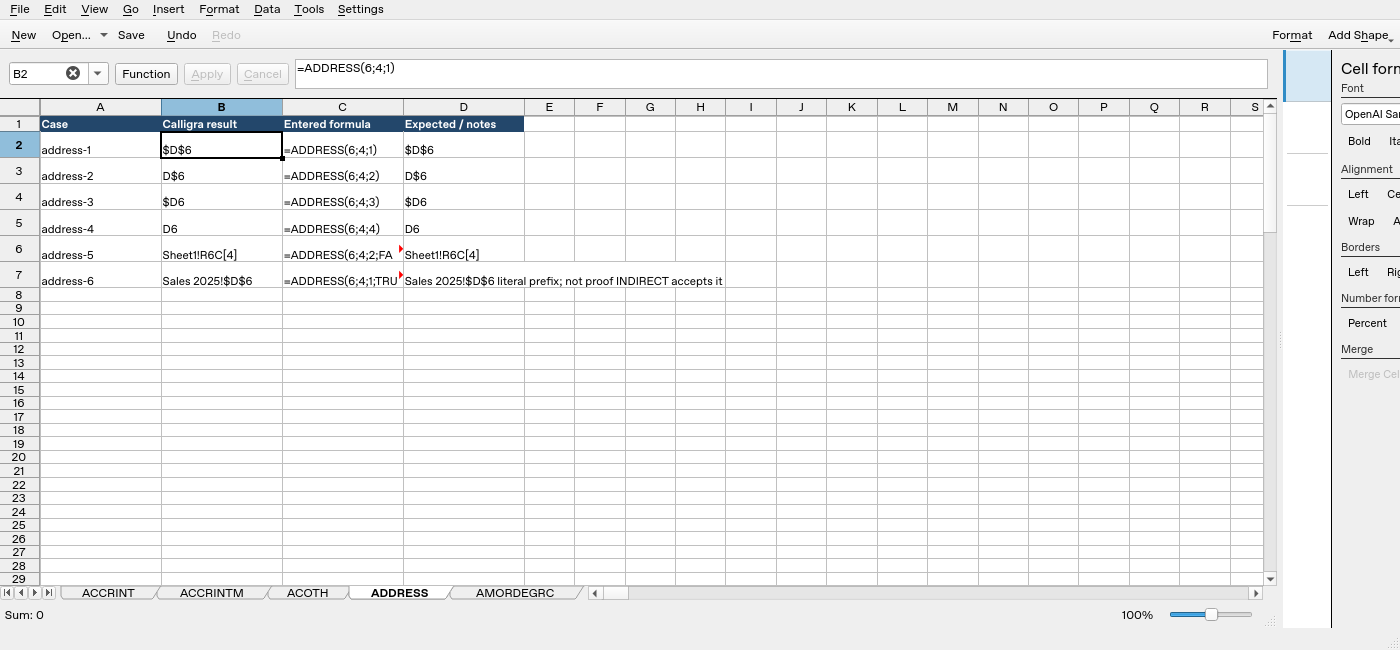
Screenshot: Genuine native 25.04.2 capture. Cell B2 contains =ADDRESS(6;4;1) and displays $D$6. Column B is the application result; column D contains fixture expectations and notes, not a second independent application run. The formula bar shows the selected formula in full.
Relevant released function source was independently compared byte-for-byte between 25.04.2 and 26.08.2. That supports the source discussion but does not turn this older-version GUI run into a 26.08.2 test. No other platform, locale, endpoint behavior or workbook round trip is certified.