

Your software learning hub
LibreOffice Calc
Master Every Cell
Learn formulas, functions, data tools, formatting, and advanced spreadsheet techniques for LibreOffice Calc.

Illustrative worksheet · Not an application screenshot
Start with one practical task
Enter a small task list, wrap long notes and check added rows.
Applies to: LibreOffice Calc desktop standard menus; Guide 26.2 and Help 26.8.
Evidence: Documentation-based; native workflow and save/reopen unverified.
What would you like to do?
Choose a task to explore the published guides.
About Software
An introduction to this program and the learning material available here.
Overview · Learning paths Explore the toolsFeatures Reference
Browse practical feature tutorials organized by category.
Categorized feature guides Find the right formulaFunction Guides
Find syntax, worked examples and notes for individual functions.
Function A–Z Learn by doingTutorials
Follow practical lessons for everyday spreadsheet tasks.
Step-by-step workflows Get unstuckTroubleshooting & Error Reference
Find published guides for diagnosing errors and unexpected results.
Troubleshooting guides Compare your optionsCompatibility & Migration
Compare formulas across programs and check documented differences and research gaps.
Cross-software formula comparisons Start with a useful workbookTemplates & Downloads
Browse published templates, practice files and downloadable resources.
Reusable spreadsheet resources Check what applies to youVersions & Availability
Find published version and platform guidance for this program.
Version and platform guidanceAbout LibreOffice Calc
LibreOffice Calc is the spreadsheet component of the free, open-source LibreOffice desktop suite. Use it to organize lists, calculate totals, compare changing assumptions and turn data into charts. A budget or stock list is a useful first project: keep the original entries visible and calculate answers in separate cells rather than replacing the source data.
What is free, and what is a Calc document?
The LibreOffice FAQ confirms that personal and business use require no license fee. Donations are optional; professional support is a separate choice. This section covers desktop Calc, not a promise that a mobile viewer or another online product has the same features.
A spreadsheet document contains sheets, each with cells arranged in rows and columns. A cell can hold a value or a formula; sheet tabs let you move between related datasets. The official Calc Guide 24.2 introduction explains this model, the formula bar, selecting cells and saving files. That guide describes LibreOffice 24.2 Community, not every later release: menus, appearance and feature availability can differ.
Start with one small, checkable task
- Identify your release using Versions & Availability, then use the official introduction to find the formula bar and sheet tabs.
- Follow the SUM guide to total a short list. Change one input and compare the new total with your own arithmetic.
- Learn to sort and filter records. Keep entire records together when sorting, not just one column from a larger dataset.
- Explore the Features Reference for tools, the function directory for individual calculations, and tutorials for complete workflows. Templates & Downloads offer separate starting files.
Know the limits before exchanging files
Calc can save in formats used by other spreadsheet programs, but its official introduction warns that another format may not retain all formatting or features. Keep a native-format original and check a converted copy in the receiving program. Do not infer support for a newer function from the fact that an older Calc release can open the file.
Use Compatibility & Migration before moving a workbook; use Troubleshooting and the Error Reference when results differ.
Verification status: Official sources checked October 21, 2026. This overview does not claim a native Calc test or a newly captured application screenshot. Individual guides carry their own evidence status.
Worked example: Highlight blocked tasks
A status rule makes a task list easier to scan. In this example, changing two statuses moves the pale-red highlighting to records T-101 and T-104; it is not a manual fill change. Follow the row-highlighting tutorial to set the rule and check it.
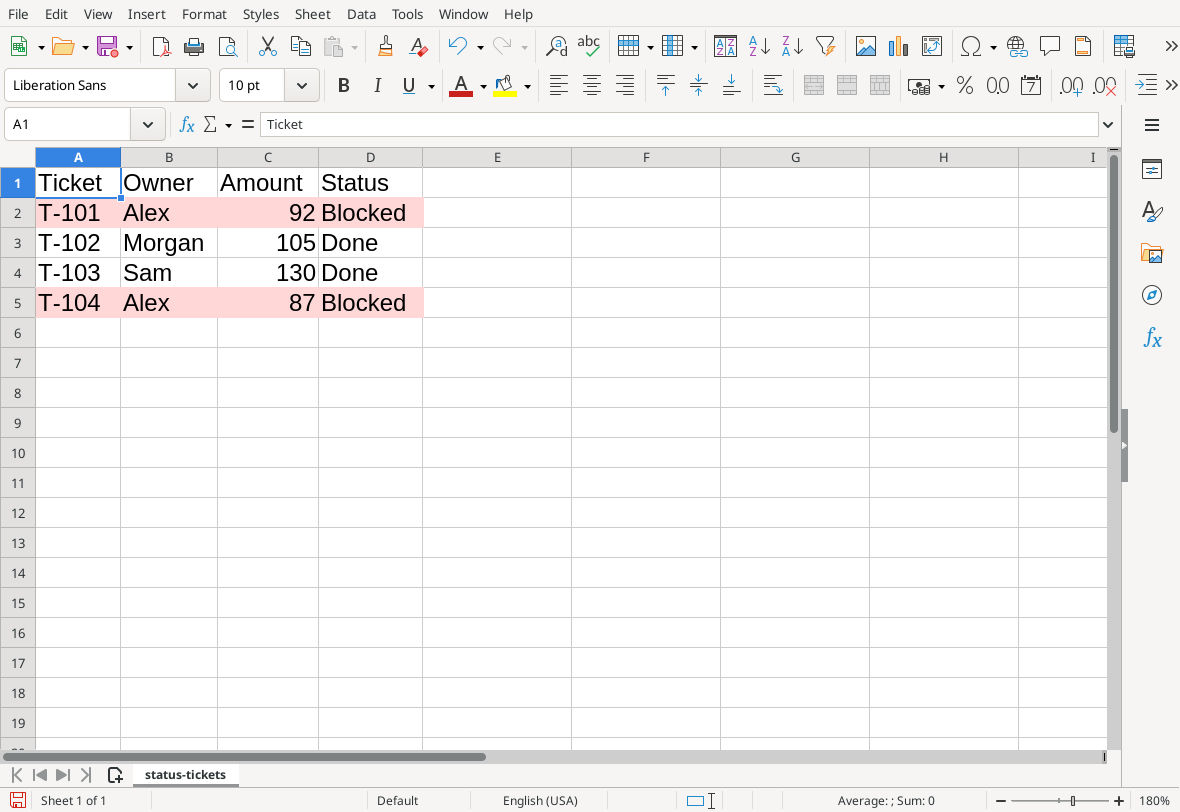
LibreOffice Calc 26.8.1.1 on Linux, English interface; native capture from 16 October 2026. Select the image for full size.
This reuses an existing guide’s historical native screenshot; adding it to this overview involved no new application run or capture. Its evidence applies to the selected example and recorded build, not every version or platform.
Troubleshooting guides
- Absolute and Relative Cell References in LibreOffice Calc
- Count Dates Between Two Dates with COUNTIFS in Calc
- Fix LibreOffice Calc Err:502 (Invalid Argument)
- Fix LibreOffice Calc Err:509 (Missing Operator)
- Inspect Nested Formulas with Calc's Function Wizard
- LibreOffice COUNTIF Returns Zero: Troubleshooting Guide
- Trace a Wrong Calc Result Back to Its Inputs with Detective