

LibreOffice Calc · Formula troubleshooting · Beginner
Inspect Nested Formulas with Calc's Function Wizard
Build a small IF formula, inspect its SUM argument and boundary result, and distinguish the Function Wizard from the sidebar Functions deck.
Documentation-qualified; arithmetic independently checked; native wizard not tested · Editorial standards
Use Insert → Function to build a formula one argument at a time or inspect the parts of an existing formula. Use View → Function List when you mainly need to find a function and read its short description. The sidebar list is not a substitute for checking nested arguments and intermediate results in the wizard.
This exercise follows Calc Guide 26.2, Chapter 9 and Help labelled 26.8, checked on 23 October 2026. Directions use desktop Calc’s English standard menus on Windows/Linux. Formulas use English names and semicolons; use your configured names and separator if different. Arithmetic and logical outcomes were independently checked, but no native wizard, sidebar or save/reopen run is claimed.
Recognize the wizard before entering arguments
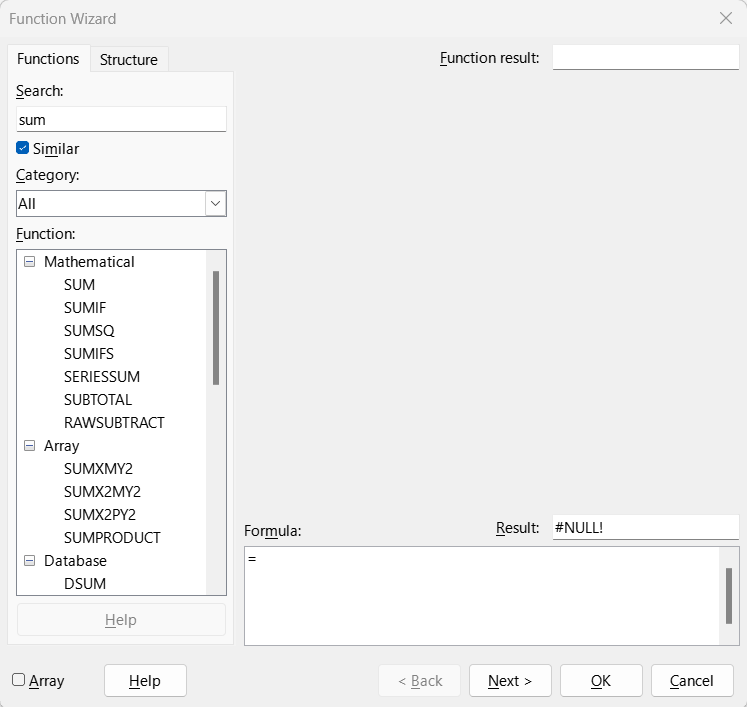
Publisher illustration reproduced unchanged from Calc Guide 26.2, Chapter 9, Figure 23. © 2026 LibreOffice Documentation Team, CC BY 4.0. This shows the publisher’s search for sum with Similar checked, not the IF/SUM exercise below. Its Formula field contains only =, its Function result field is blank, and its overall Result is #NULL!; it does not demonstrate a completed calculation. The guide was published in February 2026 and is based on LibreOffice 26.2; the image’s actual capture build and platform are unknown. This is not our native execution or a screenshot captured for this tutorial.
Prepare a deliberately small decision
Create a blank ODS workbook with a sheet named Dispatch. Enter:
| Cell | Entry |
|---|---|
| A1 | Item |
| B1 | Units |
| A2 | Box A |
| B2 | 4 |
| A3 | Box B |
| B3 | 7 |
| A4 | Box C |
| B4 | 9 |
| D1 | Minimum units |
| D2 | 20 |
| D4 | Dispatch decision |
Leave E4 empty for the formula. The rule is explicit: dispatch when total units are at least the minimum. The starting sum is 4 + 7 + 9 = 20, so a threshold of 20 must produce Dispatch, not Wait.
This is not a claim that any real shipment should be released at 20 units. It is synthetic data chosen to expose a boundary mistake.
Build the decision with separate argument fields
- Select E4 before opening Insert → Function. The selected cell is the destination; starting on an input cell risks replacing an input.
- On the Functions tab, search for IF. Select that function and advance to its argument fields, using Next or double-clicking the function name.
- In Test, enter
SUM(B2:B4)>=D2. - In Then value, enter
"Dispatch"; in Otherwise value, enter"Wait". The quotes mark literal text, not cell names. - Inspect the Formula field. The intended complete formula is
=IF(SUM(B2:B4)>=D2;"Dispatch";"Wait"). - Check the result preview, then click OK to put the formula in E4. Expect Dispatch.
Only the entire formula starts with =. The nested SUM is an argument expression, so it does not need another equals sign. IF’s Test receives a comparison, not just the sum: 20 is compared with the minimum 20 using >=.
The wizard also offers an f(x) button beside supported argument fields to insert a nested function through another level of the wizard. When the nested function has a range argument, the Shrink button lets you select B2:B4 on the sheet, and Expand returns to the dialog. Check the selected range after returning; a plausible total does not prove that the endpoints are correct. The typed expression above is a compact way to finish this specific comparison without confusing function insertion with the comparison operator.
Inspect the existing formula, not a new blank one
Select E4 and reopen Insert → Function. For a cell already containing a function, Help documents opening the Structure tab. Expand the formula’s tree and locate IF, the comparison and SUM. Then inspect the nested SUM by double-clicking it in the wizard’s Formula field; use Back/Next to move among formula components when needed.
Check these distinct things:
- SUM’s argument: B2:B4, covering all three units once.
- SUM’s intermediate result: 20.
- Comparison: total
>=D2, not>and not a comparison against a blank neighboring cell. - Text branches:
Dispatchfor a true test andWaitfor a false test. - Whole formula result: Dispatch.
The wizard’s Function Result preview concerns the selected function; the overall result can be text even when an inner function returns a number. Its structure display helps find components, but is not a guarantee of business correctness. A wrong comparison operator can still be valid syntax. See the Function Wizard reference for its field and navigation controls.
Use Cancel after an inspection if you do not intend to change anything. If you do edit an argument, review the full formula before OK. Double-clicking another function in the selection list can insert it into the current expression rather than replace the expression wholesale. Cancel and reopen a clean cell if you accidentally build an unwanted nest.
Prove the boundary and live references
Run these one-at-a-time tests, checking E4 after each change:
| Test | B2:B4 | D2 | Expected total | Expected E4 |
|---|---|---|---|---|
| Original | 4, 7, 9 | 20 | 20 | Dispatch |
| Higher minimum | 4, 7, 9 | 21 | 20 | Wait |
| Larger third box | 4, 7, 10 | 21 | 21 | Dispatch |
| Restore original | 4, 7, 9 | 20 | 20 | Dispatch |
Now deliberately change only >= to > in E4, using the wizard’s Formula field. With the original inputs, expect Wait despite an unchanged SUM of 20. This is a logical error, not a formula syntax error. Restore >= and confirm Dispatch again. The equality test is what catches the defect; testing only totals far above the minimum would miss it.
Save, close and reopen the ODS, then inspect the formula and repeat the higher-minimum test before restoring D2 to 20. These are reader verification steps, not observations from a native test performed for this guide.
Use the Functions deck for discovery
Select an empty practice cell, such as G2, and choose View → Function List. If the Sidebar is already open, its Functions icon opens the deck. Search for SUM, select it and read the description and argument list near the bottom. Drag the divider upward if the description area is too short.
Double-clicking a function inserts it with argument placeholders into the current cell. Replace the placeholder with B2:B4 and commit =SUM(B2:B4); expect 20. Do not leave the placeholder names as if they were your ranges. This small helper sum is convenient for comparison with the nested result, but it does not replace E4’s decision formula.
The deck is useful for browsing, searching and recalling recently used functions. The wizard adds separate argument fields, structured inspection and previews. Neither tool can know that your requirement says “at least” rather than “more than.”
Recover from common mistakes
- The formula appears as text: inspect whether formula display is enabled or the entry was stored as text before re-entering it. Do not overwrite a working formula with its current answer.
- SUM previews the wrong total: compare the selected range with B2:B4 and inspect the inputs. Use Detective if you need to trace dependencies beyond this one expression.
- The decision ignores a changed minimum: check that the comparison references D2 rather than a typed constant 20.
- Text branches produce a name error: inspect the quotation marks around the literal messages and your configured syntax.
- Copied formulas drift: that is reference behavior, not a wizard defect. See absolute and relative references.
Finish with original inputs, a total of 20, the >= comparison and the Dispatch result. Function details remain in the separate SUM and IF guides; this workflow is about inspecting how those parts fit together.