

LibreOffice Calc · Formula troubleshooting · Beginner
Trace a Wrong Calc Result Back to Its Inputs with Detective
Use Calc Detective to follow a wrong total through formulas to its source, distinguish wrong inputs from formula errors, and verify a correction.
Worked example tested in LibreOffice Calc 26.8.1.1 · Editorial standards
Select the wrong result and choose Tools → Detective → Trace Precedents. Follow the references one calculation at a time, comparing each input with the source it should represent. A formula can be mathematically valid and still use the wrong quantity or price; Detective shows the dependencies, not which business value is correct.
Set up a small fault you can reproduce
Use a disposable ODS copy in desktop Calc. These directions follow the standard menus in LibreOffice 26.8 Help. The example uses decimal points and English function names; adapt numeric entry to your locale. No macros, add-ins or external data are needed.
Enter this synthetic table in A1:D4. Type the formulas in column D yourself:
| Worksheet row | A | B | C | D |
|---|---|---|---|---|
| 1 | Item | Quantity | Unit price | Line total |
| 2 | Notebook | 2 | 4.50 | =B2*C2 |
| 3 | Pen | 3 | 12.50 | =B3*C3 |
| 4 | Folder | 1 | 2.00 | =B4*C4 |
In C6 enter Order total and in D6 enter =SUM(D2:D4). Format prices and totals with two decimals.
The independent source for this exercise says a pen costs 1.25, not 12.50. Leave C3 at the deliberately wrong 12.50 for now. Expected starting line totals are 9.00, 37.50 and 2.00, giving 48.50. The correct order total should be 14.75.
This example has no formula error to catch. Replacing the total with 14.75 would hide the cause and stop it responding to future edits.
1. Start at the result, then expand the dependency
- Select D6, the cell displaying 48.50.
- Choose Tools → Detective → Trace Precedents. The trace identifies the cells used by the SUM, here D2:D4. A frame can represent the referenced range; do not expect a separate arrow for every member.
- Read D6’s formula in the formula bar. Confirm that it sums all three line totals once, without including itself or another subtotal.
- With D6 still selected, run Trace Precedents again to expose another dependency level. Alternatively select D3 and run it there to focus on one line.
- Inspect D3’s formula:
=B3*C3. Its inputs are quantity 3 and price 12.50. Compare those inputs with the exercise’s stated source price.
Repeating the command follows deeper layers rather than changing the calculation. This layered behavior and the range frames are documented under Trace Precedents.
Select a screenshot to open the full-size image.
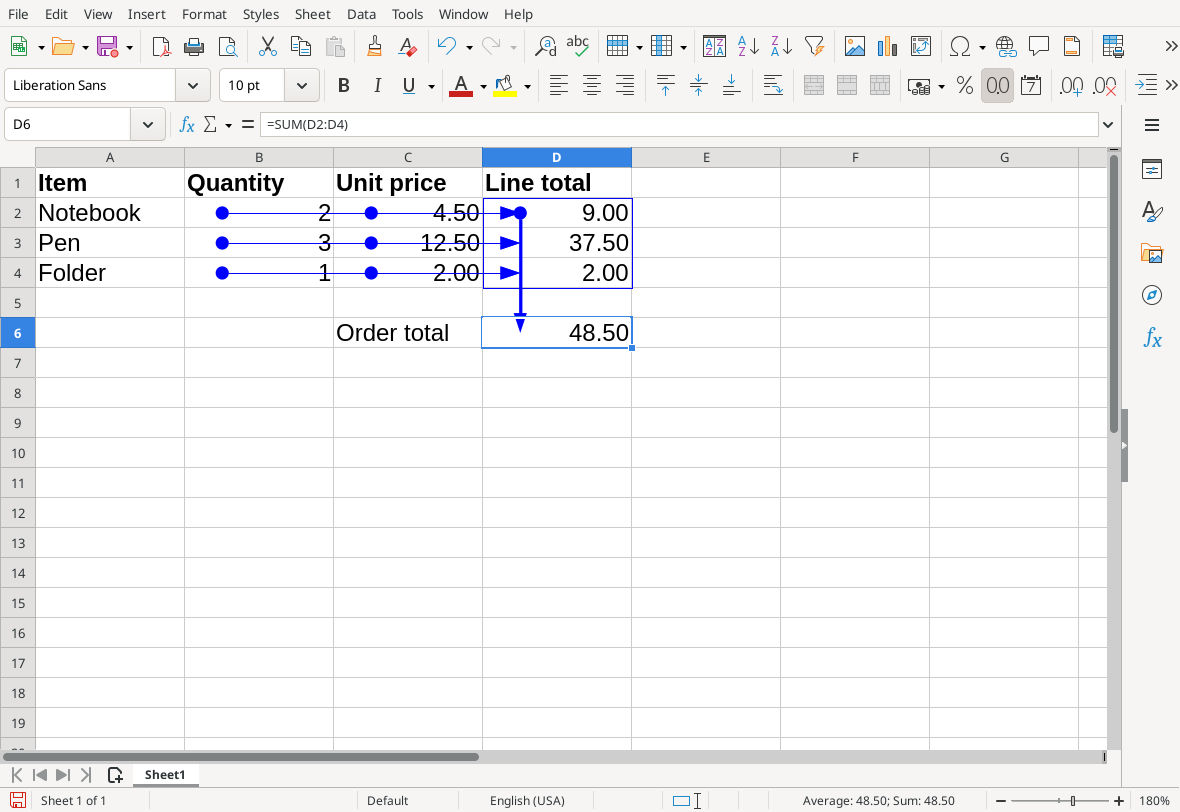
Native LibreOffice Calc 26.8.1.1: two Trace Precedents commands expose the inputs behind the total.
Checkpoint: you can explain the full chain: C3 → D3 → D6. The SUM is doing its job; C3 contains the wrong price. If your D3 instead refers to C2, that is a different fault: repair the reference rather than changing a valid price to compensate.
2. Correct the cause and reconcile the result
- Change C3 to 1.25, using your locale’s decimal separator.
- Check D3: it should become 3.75.
- Check D6: it should become 14.75.
- Independently verify
2 × 4.50 + 3 × 1.25 + 1 × 2.00 = 14.75. - Change B3 temporarily from 3 to 4. D3 should become 5.00 and D6 16.00. Restore B3 to 3 and confirm 14.75 again.
The temporary edit proves that the repaired cells still calculate; a displayed total alone could be a hard-coded replacement. Use SUM for the total, rather than typing the answer.
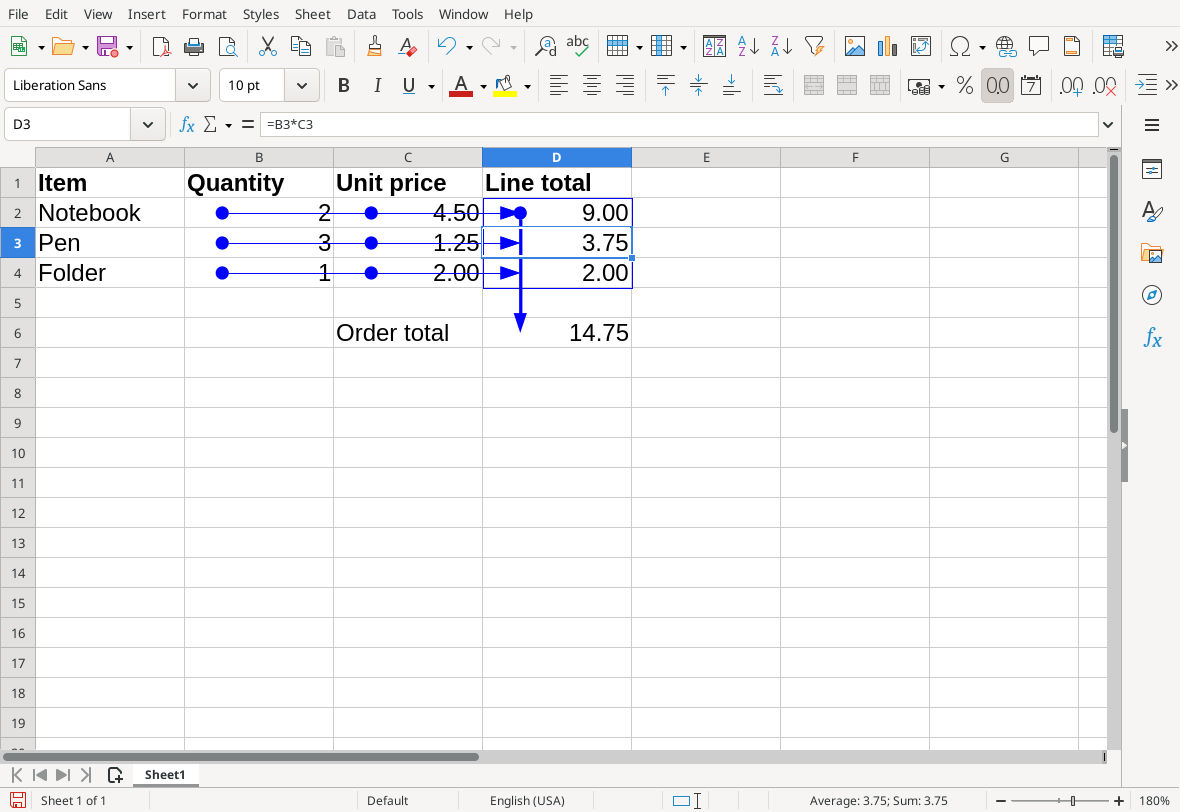
The corrected input changes both dependent results without replacing either formula.
If values do not update, inspect Data → Calculate → AutoCalculate. To recalculate the whole document explicitly, use Data → Calculate → Recalculate Hard. Recalculation and tracer-arrow refresh solve different problems. See Calculate and the details under Recalculate.
3. Check what a changed input affects
Select C3 and choose Tools → Detective → Trace Dependents. This starts at the price and identifies calculations that use it. Repeat to follow further levels toward the final total. It is useful before changing a shared input that may affect several reports. The distinction is directional: precedents explain a result; dependents show the impact of an input. See Trace Dependents.
After changing formula references, use Tools → Detective → Refresh Traces or enable AutoRefresh for traces. When finished, Remove All Traces clears the visual arrows without deleting the formulas. These controls are described in Detective.
If the result is an error instead of a wrong number
For a separate, reversible test, put =1/0 in C3. C3, D3 and D6 display #DIV/0!. Select D6 and use Tools → Detective → Trace Error. In the tested Calc 26.8.1.1 workflow, this shows a blue arrow from the D2:D4 range; repeating the command at D6 does not expose C3. Select D3 and use Trace Error there to add the red C3 → D3 arrow, then inspect the =B3*C3 formula. Restore C3 to 1.25 afterward. Trace Error is intended for error values; it cannot infer that a plausible price is a tenfold typo.
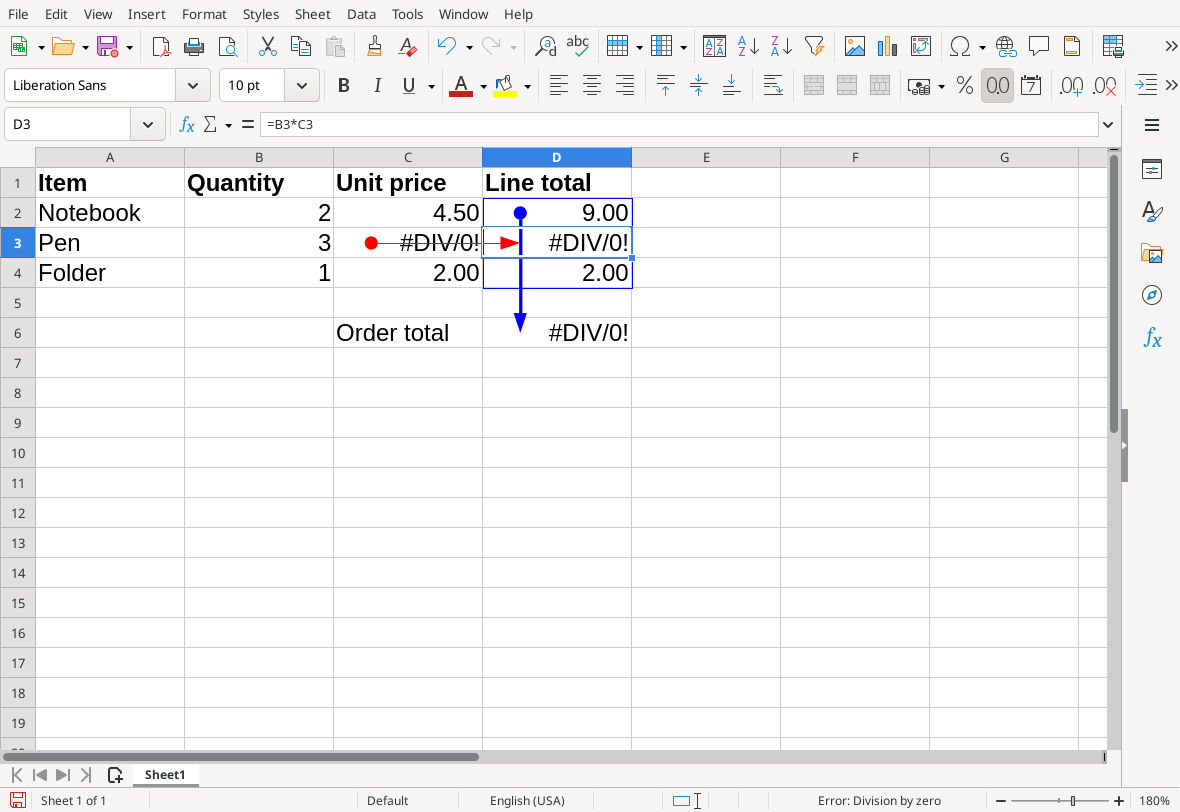
Select the intermediate error cell D3 to follow this error to C3; tracing the SUM alone shows its range.
Do not immediately wrap the total in IFERROR(...;0). That would turn a broken order calculation into an apparently valid zero. Use IFERROR only when you have identified the error and chosen a meaningful fallback.
Troubleshooting the investigation
- No useful precedents: inspect the formula bar. A constant such as 48.50 has no input references to trace. Restore the intended formula from a trusted copy.
- Arrows point to an unexpected row: compare the formula with the neighboring formulas. A copied reference may have shifted, or a shared rate may need an absolute reference.
- The referenced cell looks numeric: test it with ISNUMBER. FALSE is evidence of a type problem, even when the displayed characters look like a price.
- A total omits a new row: read the range endpoints in the formula itself. An arrow to D2:D4 cannot prove that row 5 was included.
- A reference leads to another sheet or file: inspect that source explicitly. Do not conclude that a short on-sheet trace is a complete audit, especially with named ranges, external links or references assembled as text.
- Only the screen arrows look stale: refresh traces. Do not change correct data to make an old arrow display look right.
Verification: the synthetic Detective example was tested in LibreOffice Calc 26.8.1.1 on Linux (English interface, English USA locale) on 16 October 2026. Native execution covered two-level precedents and dependents, the 48.50 → 14.75 correction, the temporary 16.00 response, the selected-cell error trace described above, and actual save/close/reopen with formulas and corrected results retained. The screenshots are unchanged native captures; the arithmetic was also checked independently. AutoCalculate and Hard Recalculate controls, trace AutoRefresh and changed-reference refresh, external or named references, other locales/platforms/versions and Excel interchange were not tested; those directions and cautions remain documentation-based.