

Your software learning hub
ONLYOFFICE Spreadsheet Editor
Practical formulas, dynamic arrays and spreadsheet workflows
Original spreadsheet function guides for ONLYOFFICE, with sample datasets, expected outputs, troubleshooting and official references.
Illustrative worksheet · Not an application screenshot
Start with one practical task
Enter a small number/date series, check its endpoints and undo a mistake.
Applies to: Free Desktop Editors 10.0.0 documentation; Windows/Linux local files.
Evidence: Documentation and expected values checked; native workflow unverified.
What would you like to do?
Choose a task to explore the published guides.
About Software
An introduction to this program and the learning material available here.
Overview · Learning paths Explore the toolsFeatures Reference
Browse practical feature tutorials organized by category.
Categorized feature guides Find the right formulaFunction Guides
Find syntax, worked examples and notes for individual functions.
Function A–Z Learn by doingTutorials
Follow practical lessons for everyday spreadsheet tasks.
Step-by-step workflows Get unstuckTroubleshooting & Error Reference
Find published guides for diagnosing errors and unexpected results.
Troubleshooting guides Compare your optionsCompatibility & Migration
Compare formulas across programs and check documented differences and research gaps.
Cross-software formula comparisons Start with a useful workbookTemplates & Downloads
Browse published templates, practice files and downloadable resources.
Reusable spreadsheet resources Check what applies to youVersions & Availability
Find published version and platform guidance for this program.
Version and platform guidanceAbout ONLYOFFICE Spreadsheet Editor
ONLYOFFICE Spreadsheet Editor is the spreadsheet component of ONLYOFFICE’s office tools. This section’s free starting point is ONLYOFFICE Desktop Editors, which edits local files on Windows, macOS and Linux. The official desktop page states that it is free for personal and professional use. That does not establish free access to every hosted service, enterprise deployment or AI integration.
What you work with
The desktop getting-started guide describes an open-source suite under AGPL v3 that can work on files stored on your computer without a constant internet connection. Connecting to a cloud service is a separate workflow for online collaboration; local editing does not by itself give you a shared online workspace.
A spreadsheet holds sheets accessed through sheet tabs. You can add and rename them to separate source records from calculations; the official sheet-management guide explains those operations. Do not confuse a sheet tab inside a workbook with an application tab containing another file.
Use formulas for tasks such as totaling orders, counting inventory categories or summarizing sales by criteria. The official function-entry guide explains functions, cell references and arguments. The function guides use its comma-separated argument syntax. This overview is documentation-checked; individual guides carry their own evidence status.
Start with local, checkable calculations
- Read Versions & Availability to distinguish Desktop Editors from other ONLYOFFICE products and identify your installed release.
- Follow the SUM guide with a small list, then change one value and check the total independently.
- Move to COUNTIF for one condition or SUMIFS for totals with several conditions.
- Use the Features Reference for tools, the function directory for formula details, and tutorials for workflows. Templates & Downloads provide separate starter material.
A supported format is not a compatibility guarantee
The supported-format reference distinguishes spreadsheet formats such as XLSX and ODS from plain-text CSV. A CSV export is not an equivalent multi-sheet workbook. Keep the original and inspect a converted copy before relying on exchanged formulas, formatting or other features.
For cross-program work, begin with Compatibility & Migration. For unexpected results, use Troubleshooting or the Error Reference and record the exact formula and application version.
Verification status: Official sources checked October 21, 2026. No installation, cloud connection, native workbook execution or new application screenshot is claimed by this overview.
Worked example: Set up a break-even check
Goal Seek can target profit at zero by changing one quantity input. This screenshot shows the setup, not a finished solution: B6 is the profit formula and B5 is quantity. Follow the break-even tutorial to inspect the result and check neighboring whole-unit quantities.
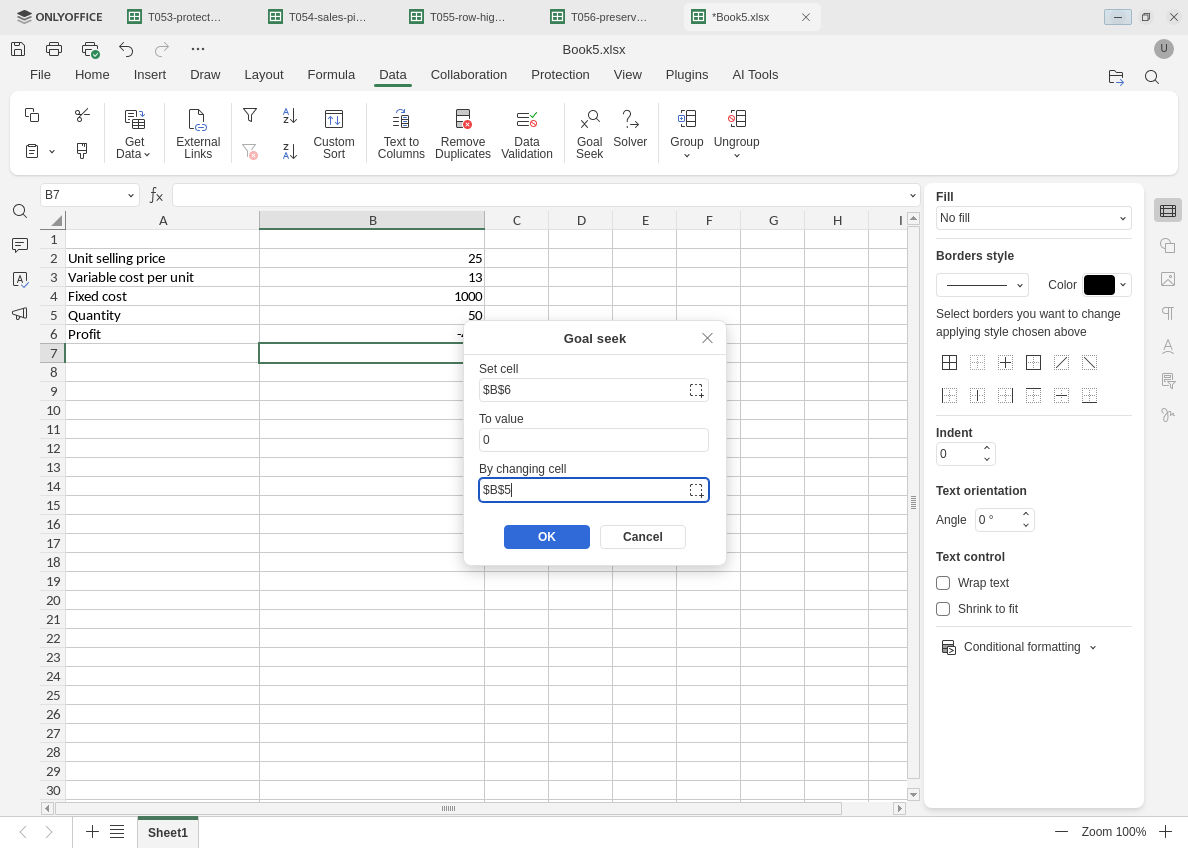
ONLYOFFICE Desktop Editors Community 10.0.0.169 (x64 deb) on Linux x86_64; native capture from 16 October 2026. This is the free desktop edition, not hosted or mobile evidence. Select the image for full size.
This reuses an existing guide’s historical native screenshot; adding it to this overview involved no new application run or capture. Its evidence applies to the selected example and recorded build, not every version or platform.