

ONLYOFFICE Spreadsheet Editor · Formula troubleshooting · Intermediate
Diagnose Excel Formula Errors in ONLYOFFICE
Separate missing functions, names, input types, regional syntax and array-entry differences before replacing a formula.
Official documentation reviewed; scoped native example verified · Editorial standards
Record the exact formula, error and ONLYOFFICE build before changing anything. An error in an Excel workbook can come from a missing name, bad input or different array entry behavior as well as an unsupported function.
Start with a copy and a small example
Keep the original Excel file unchanged. Open a copy in ONLYOFFICE and record whether the problem appears immediately or only after recalculation, editing or conversion. Use XLSX for the diagnostic copy rather than exporting to CSV, which cannot preserve the formula model. This guide follows current desktop-style editor help; installed desktop releases and hosted server versions can differ.
Record the working Excel result, the formula text, its precedents and any external workbook or custom-function dependency. Reduce sensitive data to a harmless example before sharing a reproducible problem with support.
Diagnose the symptom
| Symptom | First checks |
|---|---|
#NAME? |
Function spelling and availability; defined names and their scope |
#N/A in a lookup |
Missing key, exact-match mode, spaces and text-versus-number keys |
#REF! |
Deleted/moved references or a missing source range |
#DIV/0! |
A zero or empty denominator, not automatically a compatibility problem |
#VALUE! |
Input types, argument structure and array dimensions |
| A formula displayed as text | Leading apostrophe, text entry, or formula-display settings |
| One value where several were expected | Array-entry method and output range |
ONLYOFFICE’s IFERROR help lists its standard error values. Do not wrap every failure in IFERROR(...,0) during diagnosis: the zero could hide a broken workbook and alter totals. IFERROR is useful only once the intended fallback is clear.
Verify the actual function and version
- Look for the function in ONLYOFFICE’s function catalogue and in your editor’s function picker.
- Read its documented argument order and supported options. A current help page does not certify an older installed build.
- Compare your build with the relevant Desktop Editors changelog, or have the host identify its Docs server version. Desktop release numbers alone do not establish a hosted integration’s version.
- If a formula depends on a custom function, add-in or external source, identify that dependency before rewriting it. Opening XLSX is not proof that all dependencies are implemented.
Do not label XLOOKUP universally unsupported: ONLYOFFICE has a current XLOOKUP reference. Whether the installed version supports the needed behavior still needs checking.
Check names and regional syntax
If the formula contains a defined name, inspect Formula → Named ranges → Name manager, including its range and workbook/worksheet scope. ONLYOFFICE documents that deleting a referenced name produces #NAME?. Named-range help.
Under File → Advanced Settings, inspect Formula Language, Region and numeric separators. Formula Language controls entered and displayed function names; Region controls currency/date/time presentation, with configurable decimal and thousands separators. Use the function picker to construct a small local formula instead of blindly replacing punctuation in the entire workbook. Regional settings documentation.
Try a transparent lookup comparison
Enter this table at A1:B4:
| Code | Price |
|---|---|
| P100 | 12 |
| P200 | 18 |
| P300 | 9 |
Put P200 in E2 and, using English formula syntax, enter =INDEX(B2:B4,MATCH(E2,A2:A4,0)) in F2. Expected result: 18. The MATCH argument 0 requests an exact match. Changing E2 to P900 should expose a missing match rather than silently returning a nearby product’s price.
See INDEX and MATCH. This replacement illustrates a simple single-result, exact-match lookup. It is not a universal substitute for XLOOKUP’s search modes, array returns or fallback behavior. Compare duplicate-key and missing-key cases before using it in a real workbook.
Handle array formulas deliberately
The official array-formula guide describes selecting the output range and confirming with Ctrl+Shift+Enter; the editor inserts braces itself. Do not type braces manually or assume every Excel dynamic-array formula has identical spill behavior in your build. Follow the specific function’s help and test the intended output dimensions.
A useful control is quantities 2 and 3 with prices 10 and 4: the sum of products is 32. Verify both component products, 20 and 12, before trusting a compact array formula. Never overwrite a live array just to test a different entry method.
Native example and test limits
A small diagnostic workbook was created directly in ONLYOFFICE Desktop Editors Community 10.0.0.169 (x64 deb) on Linux x86_64, with English UI, on October 16, 2026. It was not an Excel-authored test file. The INDEX/MATCH example returned 18 for P200, changed to #N/A for P900 and returned to 18 when P200 was restored.
The component products 2 × 10 = 20 and 3 × 4 = 12 summed to 32. A separate single-cell array test used quantities in A8:A9 and prices in B8:B9: selecting F8, entering =SUM(A8:A9*B8:B9) and confirming with Ctrl+Shift+Enter returned 32. The editor supplied the displayed braces; none were typed. This was a scalar array sum, not a multi-cell output or dynamic-spill test.
The Name manager and Regional settings controls were inspected without changing names or settings. XLSX save, close and reopen retained the restored lookup result, component products, ordinary sum and array result. No execution in Excel or cross-product equivalence was established.
Select a screenshot to open the full-size image.
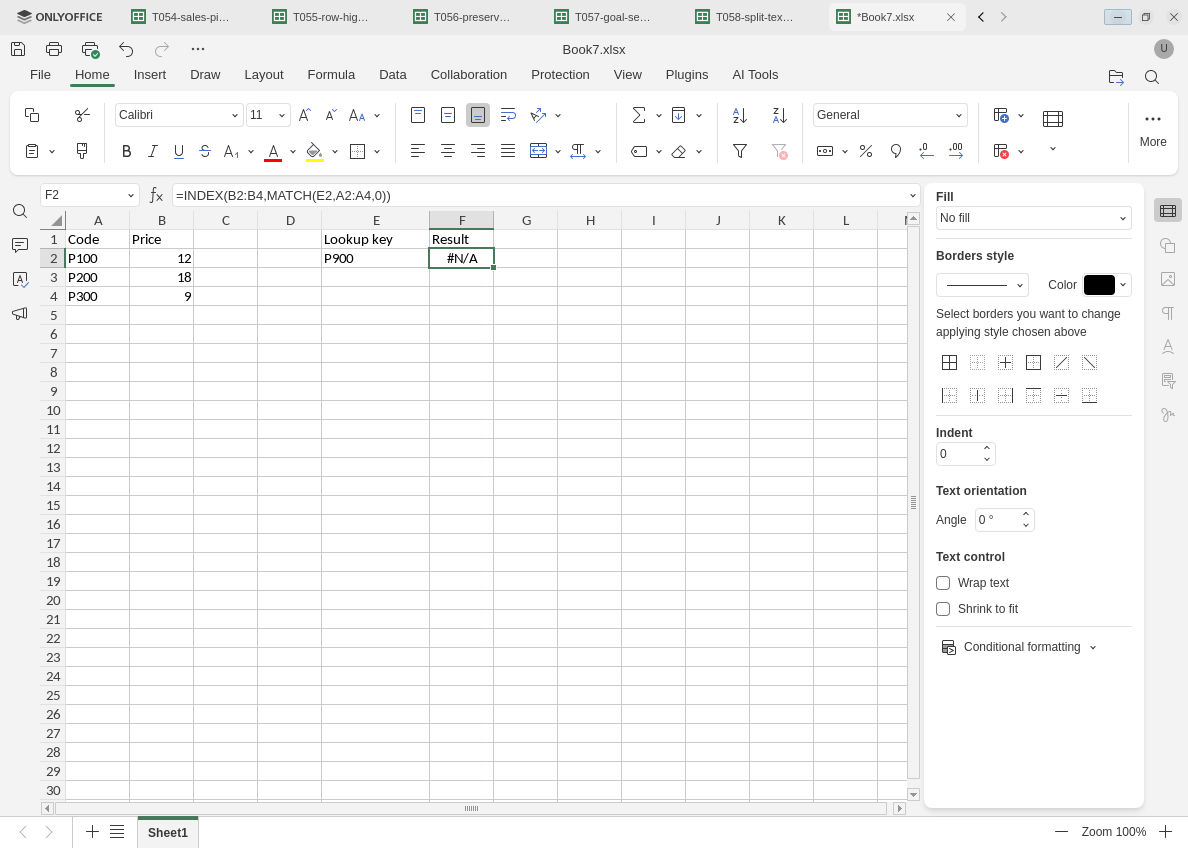
The deliberate missing-key test exposes #N/A rather than returning a neighboring product price.
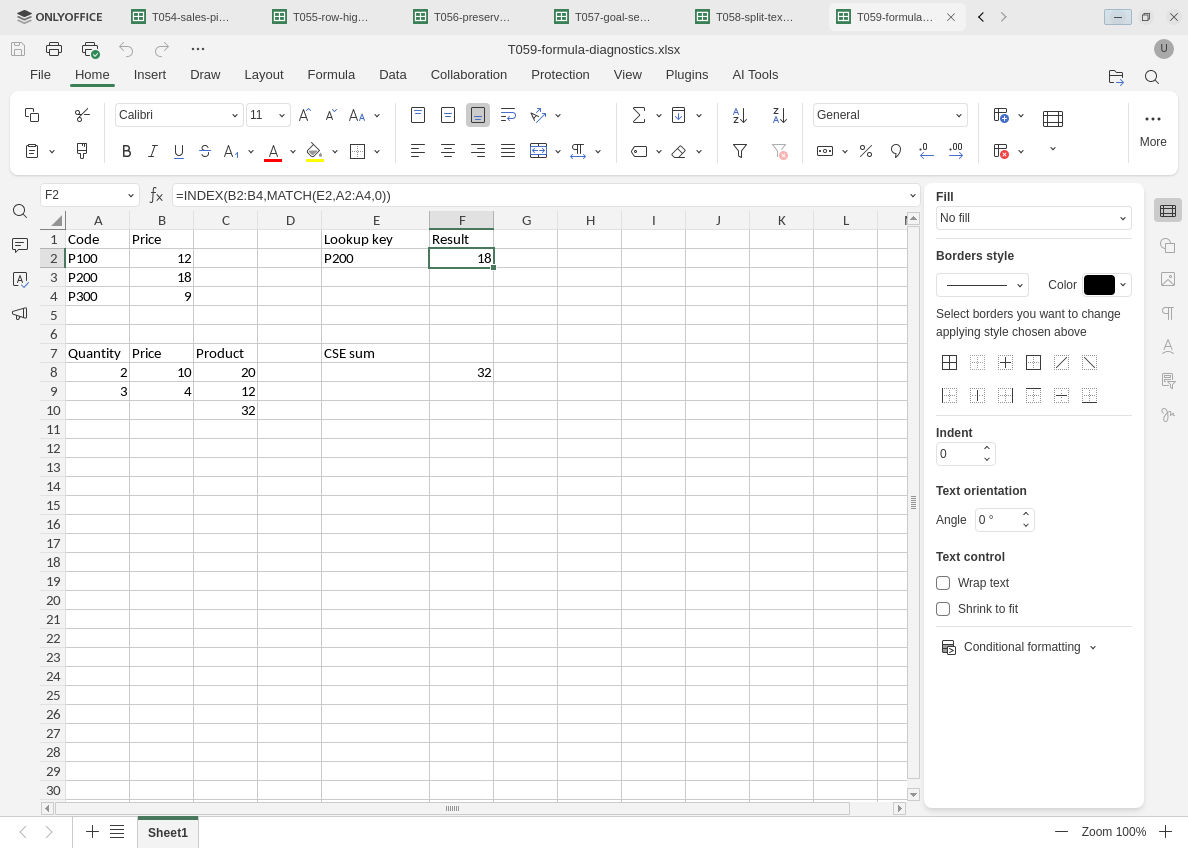
The restored exact lookup and independent arithmetic checks persist after reopening.
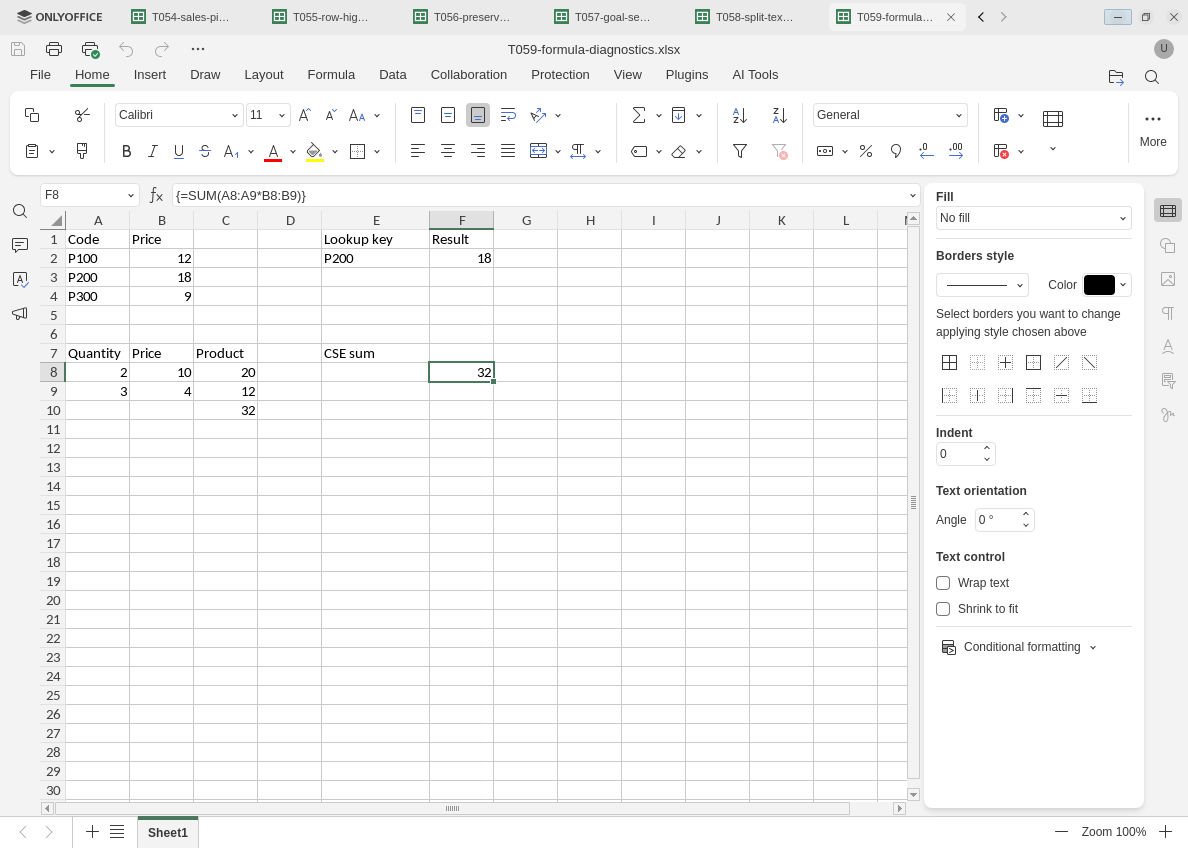
The bounded Ctrl+Shift+Enter example persists as a single-cell array formula; no dynamic spill is demonstrated.
Evidence and limits: Official documentation and independent lookup/arithmetic expectations were reviewed separately from native execution. Screenshots are unchanged original captures. This native test covers only the local exact-match example, its missing-key case, simple arithmetic, one scalar Ctrl+Shift+Enter formula and XLSX persistence. Name-manager and regional-control visibility does not test changing those settings. Duplicate keys, whitespace/type mismatches, missing-name deletion, custom functions, XLOOKUP, dynamic arrays, multi-cell array output, alternate regional syntax, external workbooks, macros, Excel, hosted/mobile builds and other editors were not tested. The missing-key edit was not repeated after reopening; this guide does not certify cross-product formula equivalence.