

FILTER Function in LibreOffice Calc — Tested Examples
An explanation of LibreOffice Calc FILTER, including tested formulas, examples, expected results and common mistakes.
Verification status: Selected examples were executed in LibreOffice Calc 25.2.3.2. This does not establish that every formula and edge case was tested. How formula examples are checked
Filters an array based on a Boolean (True/False) array. Use the example column B1:B5 containing 10,20,30,40,50. Values above 20 total 120; values at least 40 total 90.
Native-tested visual example: Filter a numeric range before summing
The measured values are 10, 20, 30, 40, and 50. The formula sums only values over 20.
Enter this formula in cell E5:
=SUM(FILTER(B5:B9;B5:B9>20))
Expected result: 120. FILTER selects 30, 40 and 50; SUM adds them to 120. The scalar SUM avoids needing to show an array spill.
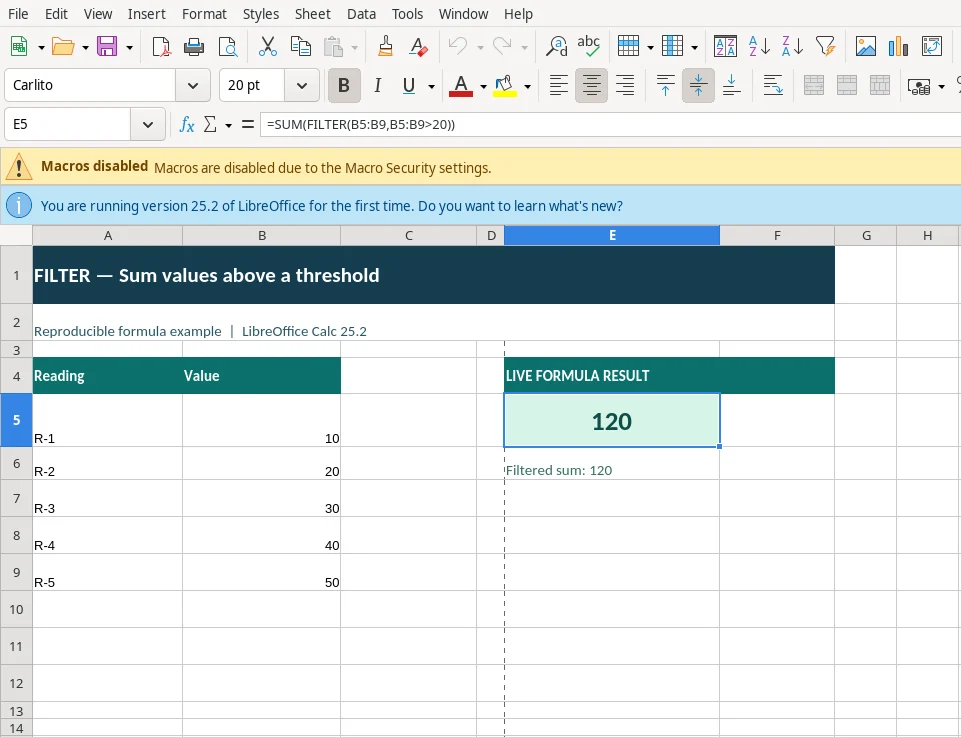
Real screenshot captured from LibreOffice Calc 25.2.3.2. The selected E5 cell shows the calculated result and the formula bar displays the entered formula.
Download the editable FILTER example (.ods) — change the sample input cells and watch the calculation update.
Why it works: FILTER selects 30, 40 and 50; SUM adds them to 120. The scalar SUM avoids needing to show an array spill. Watch for: This example tests a scalar result; displaying the filtered array itself may depend on how the destination range is entered.
Verification: Example calculated in LibreOffice Calc 25.2.3.2. Screenshot is a genuine application capture, not a mockup.
Syntax and arguments
=FILTER(Range; Include; Result_if_empty)
LibreOffice Calc formulas generally separate arguments with semicolons (;).
| Argument | Explanation |
|---|---|
Range |
The array, or range to filter. |
Include |
A Boolean array whose height or width is the same as the array. |
Result if empty |
The value to return if all values in the included array are empty (filter returns nothing). (optional) |
Worked examples
Reproduce these source cells: B1=10, B2=20, B3=30, B4=40, B5=50.
Full array output: FILTER, SORT and matrix functions may need a selected output range and Ctrl+Shift+Enter in LibreOffice Calc. The examples below return one scalar result that was tested directly.
Example 1: Sum numbers after filtering a range on a numeric criterion
=SUM(FILTER(B1:B5;B1:B5>20))
Expected result: 120. This value was returned in the LibreOffice Calc 25.2 test.
Example 2: Filter numeric values and sum only those at least 40
=SUM(FILTER(B1:B5;B1:B5>=40))
Expected result: 90. This value was returned in the LibreOffice Calc 25.2 test.
How to interpret the result
Use the example column B1:B5 containing 10,20,30,40,50. Values above 20 total 120; values at least 40 total 90.
Mistakes and troubleshooting
- Check inputs and assumptions: A filter mask must match the source dimensions. Calc may require Ctrl+Shift+Enter to display an array output.
- Check argument order and format: Strings go in quotes, cell references do not. Functions that return arrays may require special entry.
- Verify your own data: Reproduce the example first. If your formula returns an error, inspect the referenced cells and individual argument values.
Related functions
Tested version and primary reference
This function is available since LibreOffice 24.8, according to the LibreOffice function documentation.
2 example(s) on this page passed real calculations in LibreOffice Calc 25.2.3.2. This is not a claim about every possible input or other spreadsheet applications.