

LibreOffice Calc Versions and Free Downloads
Quick answer: Calc comes with the free LibreOffice desktop suite. Use the official download page, select the correct operating system and processor, and check the release notes before changing an installation used for important work. Donations are optional, not an activation fee.
Checked October 20, 2026. This page verifies published availability, not a new installation. No native screenshots or application test results were produced for this reference. The historical publisher illustration below is reproduced from an official guide, not captured by us.
Which release should I choose?
The official release notes list 26.8.1, released October 8, 2026, in the latest branch, and 26.2.6, released September 24, 2026, in the previous, more mature branch. The latest branch brings newer features but may still have bugs; the previous branch is the project’s more conservative choice. These are dated observations, not a promise that they remain the newest downloads.
For a workbook that depends on a newly introduced function, check that function’s version requirements rather than choosing solely by the word “stable.” For an established monthly report, test copies before moving every machine to a different branch. Archived releases are available, but the project identifies obsolete releases as unsupported; availability in an archive is not ongoing maintenance.
Free platforms and package choices
The download page offers Windows x86-64 and ARM64 packages, separate Intel and Apple Silicon macOS packages, and Linux DEB/RPM packages. The current system requirements list Windows 10/11, macOS 11 or newer, and Linux requirements that depend in part on the package provider. TDF’s current Linux x86-64 builds require an x86-64-v2 processor. Do not apply these requirements retrospectively to every old release.
On Linux, the installation instructions recommend the distribution’s normal installation method. Its packaged version may differ from the upstream download. On a Mac, choose the package for the actual processor rather than assuming every Mac uses the same installer.
The LibreOffice FAQ confirms that personal and business use do not require a license fee. Paid support and third-party offerings are separate choices. This page concerns desktop Calc, not proof of feature parity with a mobile viewer or another online product.
Why an older screenshot may look different
This historical illustration helps identify the menu bar, formula bar, sheet tabs and sidebar when comparing a tutorial with your installation. It comes from the Calc Guide 24.2, published March 2024 and based on LibreOffice 24.2 Community. It is not a screenshot of the current 26.x releases. Your release, platform and chosen interface layout may look different; this illustration does not establish feature availability in another version.
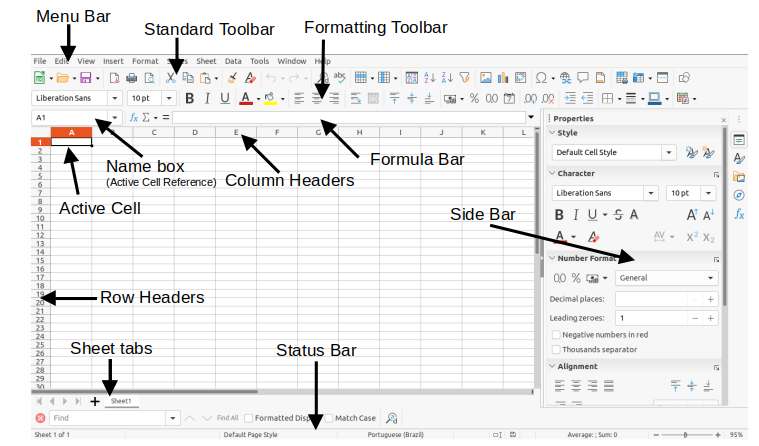
Figure 1, “Calc main window,” from Calc Guide 24.2, Chapter 1. Copyright © 2024 LibreOffice Documentation Team; reproduced under CC BY 4.0. The original image file and publisher’s callouts are unchanged. The exact capture operating system and build are unspecified. This is a publisher-supplied annotated guide illustration, not a screenshot captured or tested by Spreadsheet-Tutorials.com; no endorsement is implied. Trademarks remain with their respective owners.
Record the version before troubleshooting
Keep a small record of the installed version, operating system, processor architecture and installation source. Compare those details with the tutorial you are following. If a feature is missing, the installed release or distribution may differ: even LibreOffice Help cautions that distributions can differ from the shared Help content.
Do not overwrite your only important workbook to test an update. Keep a separate backup and use a disposable copy for any format conversion.
A small post-update check
This is a suggested manual smoke test, with independently calculated expected results, not a test we executed in Calc:
- In a blank workbook, enter
12in A1 and18in A2. - Enter
=SUM(A1:A2)in A3. The expected total is 30. - Change A2 to
20. A3 should become 32. - Save a disposable native-format workbook, close it, reopen it, and confirm the values and formula are retained.
If A3 displays the formula as text, investigate the cell’s entry/format rather than assuming the update failed. If an important workbook behaves differently, record the exact old and new versions and reproduce the issue in a copy. Passing this tiny check does not verify macros, charts, external links, or Excel round-tripping.
Continue with the SUM guide, Calc tutorials, or the LibreOffice Calc hub.