

CELL in Calligra Sheets: Inspect a Reference Address, Row or Column
Learn Calligra Sheets CELL with exact arguments, reproducible inputs, independently checked results and implementation-specific cautions.
Verification status: See the evidence and test scope described in this guide. How formula examples are checked
Quick answer
CELL returns selected metadata about a worksheet reference. In Calligra 26.08.2, use it to identify a cell’s row, column, sheet or address. Do not assume that every information keyword supported by another spreadsheet works here: the source leaves several familiar keywords unimplemented.
Syntax and supported selectors
=CELL(info_type[;reference])
The first argument is required text. The second is an optional reference; use an explicit single-cell reference in reusable formulas. The function lowercases the selector, so "COL" and "col" choose the same branch. This is unrelated to the case rules for conditional-count criteria.
| Selector | Meaning in this release |
|---|---|
"col" |
Column number, starting with A = 1 |
"row" |
Row number |
"sheet" |
Sheet-number query delegated to SHEET |
"address" |
Address text assembled from the supplied reference |
"filename" |
Filename string from the document calculation settings |
The registration accepts one or two arguments. For omitted references, row, column and address use the formula cell’s position in the inspected implementation. That differs from an assumption that the currently selected UI cell is used. The filename branch reads a document setting; no particular filename formatting or unsaved-document value is promised here. The worked examples use a same-sheet explicit reference to avoid these contextual differences.
Reproduce three reference checks
- In a blank worksheet put numeric 42 in C7.
- Enter the following formulas in F2:F4. Keep them on the same sheet as C7.
- Compare the outputs. They are source/documentation-derived expectations; selected native cases are recorded below.
| Cell | Formula | Expected result |
|---|---|---|
| F2 | =CELL("COL";C7) |
3 |
| F3 | =CELL("ROW";C7) |
7 |
| F4 | =CELL("ADDRESS";C7) |
$C$7 |
The value 42 is incidental. Replace it with 99 or a text label: the address remains C7 and the expected metadata stays the same. CELL("ADDRESS";C7) returns text describing the address; it does not return C7’s number and does not itself create a live reference to be summed.
For an omitted-reference check, enter =CELL("ROW") in F5. The inspected fallback uses the formula cell’s row, so the source-derived expectation is 5. Move that formula to F8 and its contextual expectation becomes 8. Prefer an explicit second argument when a report is meant to describe a fixed input cell rather than itself.
Advanced example: make an audit label follow an input
Suppose C7 contains the exchange-rate assumption for a model. Place this label beside a summary:
="Assumption cell: "&CELL("ADDRESS";C7)
Expected label: Assumption cell: $C$7. Beside it, use =C7 to display the actual assumption. Separating the label from the value makes clear which part is descriptive text and which part is used in calculation.
To diagnose an accidental reference change, compare CELL("ROW";C7) and CELL("COL";C7) with the intended row and column. Both can remain valid numbers when the formula points to the wrong place; an audit needs the intended coordinates too. If a cell is inserted or moved, recheck the formula after recalculation rather than treating address text as proof that all dependent formulas followed correctly.
Unsupported keywords are a portability issue
The 26.08.2 source explicitly leaves contents, color, format, width, type, protect, parenthesis and prefix in a TODO comment. They fall through to a value error rather than producing their familiar meanings from another product. For example:
=CELL("contents";C7)
The implementation-derived outcome is a value error, not 42. To read C7’s value, use =C7. Do not build a format-driven calculation around CELL("color";...) or CELL("format";...) in this release. These unsupported selector branches do not mean the entire CELL function is retired or deprecated.
Errors and reference limits
- Put selectors in quotes;
COLwithout quotes is parsed as an identifier rather than the literal selector text. - An unknown selector returns a value error in the inspected implementation.
- A numeric literal such as 42 is not a cell reference. Use C7, not C7’s displayed value, for a position query.
- Keep address examples to one cell. The source contains range/region address assembly that should be tested separately before claiming Excel-equivalent range-address output.
- A cross-sheet address may include a sheet prefix. Do not compare it with the exact same-sheet string
$C$7without accounting for context. - Filename information is neither a security boundary nor a guaranteed portable path. Avoid exposing it in shared reports if it reveals local directory information.
Compatibility
The KDE CELL handbook documents the basic row, column and address examples. The release source narrows the actual supported selectors. A workbook imported from another application can contain a recognized CELL function name but an unsupported selector. Audit the first argument, omitted-reference behavior, sheet context and filename assumptions when migrating.
Availability and verification
- Release checked: Calligra Sheets 26.08.2, using KDE’s release source package and release information, inspected on October 18, 2026. Relevant locations:
sheets/functions/reference.cpplines 57–61, 245–291 and delegated row/column functions. - Introduced: The original introduction version is not established by these sources. Current registration establishes presence in 26.08.2, not the first release.
- Lifecycle: Registered in the inspected release; no retirement or deprecation marker was found in this function’s registration. Retirement (removed support) and deprecation (discouraged but retained support) are different claims; neither is asserted here.
- Native testing: Selected cases were recalculated and saved in Calligra Sheets 25.04.2. The source discussion concerns 26.08.2. Unlisted examples and edge cases remain source-derived or independently calculated.
Related guides and sources
- ROW
- COLUMN
- INDIRECT
- Calligra function guide index
- KDE formula entry instructions, checked October 18, 2026. Examples use leading
=and semicolons, with a period for decimal numbers. Confirm regional separators in your installation before pasting.
Selected native results and screenshot
These results were observed in Calligra Sheets 25.04.2, after loading a corrected ODS input, recalculating and saving. Formula references and results were read back from the saved workbook. This is not a 26.08.2 native test or certification of XLSX import behavior. Other examples and unlisted edge cases remain separate source or mathematical evidence.
| Native formula | Observed display |
|---|---|
=CELL("COL";C7) |
3.0000000000 |
=CELL("ROW";C7) |
7.0000000000 |
=CELL("ADDRESS";C7) |
$C$7 |
=CELL("contents";C7) |
#VALUE! |
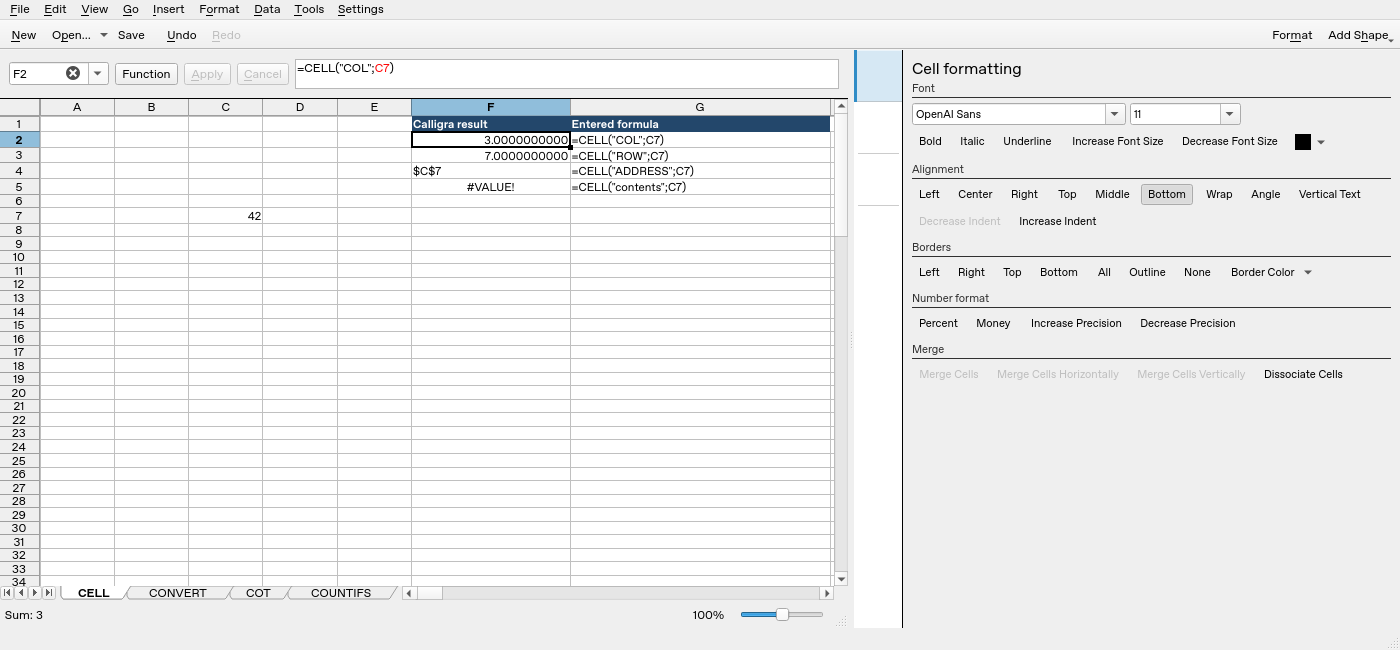
Screenshot: Genuine native 25.04.2 capture. Selected F2 contains =CELL("COL";C7) and displays 3.0000000000. Column F contains application results; column G contains descriptive formula labels. The selected formula is visible in the formula bar; long labels in other rows may be clipped by the panel.