

DATEVALUE in Calligra Sheets: Turn Date Text Into a Numeric Date Serial
Learn Calligra Sheets DATEVALUE with exact arguments, reproducible inputs, independently checked results and implementation-specific cautions.
Verification status: See the evidence and test scope described in this guide. How formula examples are checked
Quick answer
DATEVALUE parses date text and returns its numeric spreadsheet date value. Use it when a CSV or pasted list contains text dates that need sorting or date arithmetic. If a cell already contains a real numeric date, this function is unnecessary and the inspected implementation rejects it as a nonstring input.
Syntax and the date system
=DATEVALUE(date_text)
There is one required text argument and no optional format or locale parameter. Parsing uses Calligra’s date converter and document settings. The default reference date in the 26.08.2 source is 1899-12-30; a workbook can carry a different reference date. Therefore an exact serial number should always be paired with its date-system assumption.
The KDE DATEVALUE handbook entry describes a different origin in its prose. The current calculation-setting source is the basis for the default-origin numbers below. Do not treat that old sentence as proof that every workbook uses the same epoch.
Reproduce text-to-date conversion
- In B2 enter the formula below. The quoted argument ensures that DATEVALUE receives text regardless of worksheet auto-detection.
=DATEVALUE("2025-01-01")
- With the default 1899-12-30 reference date and successful ISO-style parsing, the independently calculated expected value is 45658. Format B2 as a plain number to inspect it.
- In B3 enter
=DATEVALUE("2025-01-02"), expected 45659 under the same conditions. - In C3 enter
=B3-B2, expected 1 day.
The serial expectations come from independent calendar-day subtraction, with selected native checks reported below. ISO-style text is less ambiguous than slash dates, but parsing must still be verified in your installed locale. If the text is not recognized, use DATE with separate year/month/day inputs rather than pretending that a conversion occurred.
For a column imported as text, use =DATEVALUE(A2) and fill down. First confirm A2 really is text: a date-looking display does not establish the underlying type. A value that was already auto-converted into a numeric date is a different case.
Advanced example: calculate a day interval
Suppose A2 contains text 2025-01-01 and A3 contains text 2025-01-15. Preserve those strings as imported source data. In B2 use =DATEVALUE(A2) and fill to B3. Then:
=B3-B2
Expected: 14 days, assuming both strings were parsed as intended. This difference is more robust than comparing absolute serials across date systems, provided both values use the same system. It is an elapsed calendar-day difference, not an inclusive count of dates, a business-day calculation or a timezone-aware duration.
Format B as dates for human review and the interval as an ordinary number. Changing a cell’s display format changes presentation; it does not repair a misinterpreted source string.
Errors and compatibility
- The source explicitly requires a string.
=DATEVALUE(DATE(2025;1;1))returns a value error in this implementation because DATE supplies a numeric date value, not text. - Unparseable text falls through to a value error. Do not replace it automatically with zero: that invents a date near the workbook epoch.
- Ambiguous strings such as
03/04/2025can mean different dates. Split the components or establish the source format before conversion. - This function’s contract is a date. Do not assume a time-of-day suffix, timezone suffix or arbitrary timestamp string will be accepted and preserved.
- Imported workbooks may use different reference dates. Compare displayed dates and known date differences, not only serial numbers.
- A two-digit year is inherently easier to misinterpret; use four-digit years in source data.
Other spreadsheets may accept different coercions or text formats. A matching function name does not guarantee identical locale parsing. Keep a few known examples with each import, including a day greater than twelve, to detect day/month reversals.
Availability and verification
- Release checked: Calligra Sheets 26.08.2, using KDE’s release source package and release information, inspected on October 18, 2026. Relevant locations:
sheets/functions/datetime.cpplines 90–91 and 397–406;sheets/engine/CalculationSettings.cppline 62;ValueConverter.cppdate conversion. - Introduced: The original introduction version is not established by these sources. Current registration establishes presence in 26.08.2, not the first release.
- Lifecycle: Registered in the inspected release; no retirement or deprecation marker was found in this function’s registration. Retirement (removed support) and deprecation (discouraged but retained support) are different claims; neither is asserted here.
- Native testing: Selected cases were observed in Calligra Sheets 25.04.2, as detailed below. The source discussion concerns 26.08.2; unlisted cases remain source-derived or independently calculated.
Related guides and sources
- DATE
- DAY
- MONTH
- YEAR
- Calligra function guide index
- KDE formula entry instructions, checked October 18, 2026. Examples use leading
=and semicolons, with a period for decimal numbers. Confirm regional separators in your installation before pasting.
Selected native results and screenshot
The following results were observed in Calligra Sheets 25.04.2 using an ODS workbook opened, calculated and saved by the application. The formula text below uses worksheet notation; saved ODF reference brackets are omitted for readability. Unlisted examples and edge cases retain their separate source or mathematical evidence.
| Native formula | Observed display |
|---|---|
=DATEVALUE("2025-01-01") |
45658.0000000000 |
=DATEVALUE("2025-01-02")-DATEVALUE("2025-01-01") |
1.0000000000 |
=DATEVALUE(DATE(2025;1;1)) |
#VALUE! |
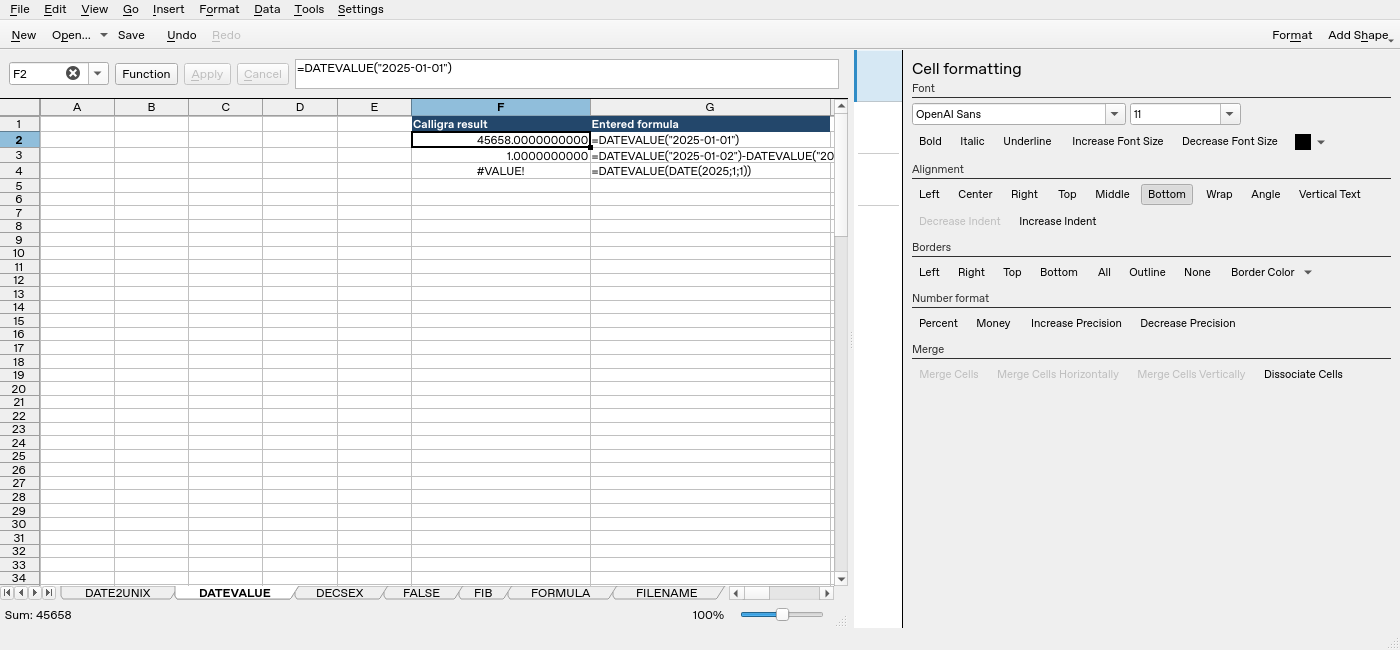
Screenshot: Native 25.04.2 capture with F2 selected. The formula bar shows =DATEVALUE("2025-01-01"); column F contains application results. Column G contains descriptive formula labels, some of which are clipped by the formatting panel.