

FORMULA in Calligra Sheets: Show a Cell Formula as Reviewable Text
Learn Calligra Sheets FORMULA with exact arguments, reproducible inputs, independently checked results and implementation-specific cautions.
Verification status: See the evidence and test scope described in this guide. How formula examples are checked
Quick answer
FORMULA returns the formula expression stored in a referenced cell as text. Use it to place a calculation and its expression side by side for review. It returns the expression, not the calculated value, and does not evaluate a formula stored as ordinary text.
Syntax and supported reference scope
=FORMULA(reference)
There is one required reference and no optional arguments or defaults. The 26.08.2 implementation obtains the referenced coordinates, checks whether the cell has a formula, and returns its stored expression.
Use a single cell on the same sheet in these examples. The inspected implementation constructs the target cell using the formula’s current sheet plus the extracted coordinates; it does not establish safe cross-sheet behavior. A range is not a request to return every formula in that range. Cross-sheet and multi-cell use remain outside this guide’s promised cases.
Reproduce a formula/value pair
- Put numeric 7 in A2.
- In B2 enter
=A2*3. Its expected numeric result is 21. - In C2 enter
=FORMULA(B2). - The expected expression text for this simple directly entered formula is
=A2*3, including the leading equals sign.
These expectations follow the source; selected native checks are reported below. The exact stored expression can be normalized by parsing or import, so retain a native readback when whitespace, separators or imported syntax matter. For this reason, enter the simple formula directly rather than relying on an external workbook’s cached expression.
Change A2 from 7 to 8. B2’s expected value becomes 24, while C2 still describes the same formula. This illustrates the difference between data changes and formula changes.
Advanced example: audit copied calculations
Put 7 and 9 in A2:A3. Enter =A2*3 in B2 and fill down to B3. In C2 enter =FORMULA(B2) and fill down to C3. Expected numeric values are 21 and 27, while the corresponding expression texts describe A2 and A3 respectively.
This layout can reveal an accidental fixed reference such as $A$2 in the copied formula. It does not prove that the formula implements the right business rule: a consistent expression can still be conceptually wrong. Keep labels explaining what each input means and why the multiplier is three.
If a cell was overwritten with a fixed number, FORMULA gives a useful diagnostic signal rather than manufacturing formula text. For example, replace B3 with numeric 27 and recalculate C3. The source-derived expectation is an unavailable-value error because B3 is no longer a formula cell.
Errors and limitations
=FORMULA(A2)returns an unavailable-value error when A2 contains the numeric literal 7; it does not return the text7.- A nonreference argument lacks usable coordinates and takes a value-error branch in the source. Pass B2, not the number displayed in B2.
- Text that merely starts with
=is not necessarily a stored formula. The implementation checks the cell’s formula status. - Exact expression strings can change during workbook import/export or parser normalization, even if the numerical meaning is unchanged. Do not use raw text equality as the only equivalence test.
- A formula may contain private identifiers, hard-coded data or paths. Inspect returned text before sharing an audit report.
- This function does not execute arbitrary text and is not a replacement for INDIRECT or a scripting evaluator.
Compatibility
The KDE FORMULA documentation describes expression-to-text behavior. Other spreadsheets may use another function name or different error behavior for nonformula cells. In a migration, check the original formulas as well as recalculated values, and keep the same-sheet reference limitation visible until the target build is tested.
Availability and verification
- Release checked: Calligra Sheets 26.08.2, using KDE’s release source package and release information, inspected on October 18, 2026. Relevant locations:
sheets/functions/information.cpplines 68–71 and 389–400;sheets/functions/information.xmlFORMULA help. - Introduced: The original introduction version is not established by these sources. Current registration establishes presence in 26.08.2, not the first release.
- Lifecycle: Registered in the inspected release; no retirement or deprecation marker was found in this function’s registration. Retirement (removed support) and deprecation (discouraged but retained support) are different claims; neither is asserted here.
- Native testing: Selected cases were observed in Calligra Sheets 25.04.2, as detailed below. The source discussion concerns 26.08.2; unlisted cases remain source-derived or independently calculated.
Related guides and sources
- ISFORMULA
- IF
- INDIRECT
- Calligra function guide index
- KDE formula entry instructions, checked October 18, 2026. Examples use leading
=and semicolons, with a period for decimal numbers. Confirm regional separators in your installation before pasting.
Selected native results and screenshot
The following results were observed in Calligra Sheets 25.04.2 using an ODS workbook opened, calculated and saved by the application. The formula text below uses worksheet notation; saved ODF reference brackets are omitted for readability. Unlisted examples and edge cases retain their separate source or mathematical evidence.
| Native formula | Observed display |
|---|---|
=FORMULA(B2) |
=A2*3 |
=FORMULA(A2) |
#N/A |
The same sheet contains A2 = 7 and B2 = =A2*3, whose native calculated value is 21. F2 returns the formula text =A2*3; F3 returns #N/A for the literal input cell A2. The selected formula bar shows =FORMULA(B2).
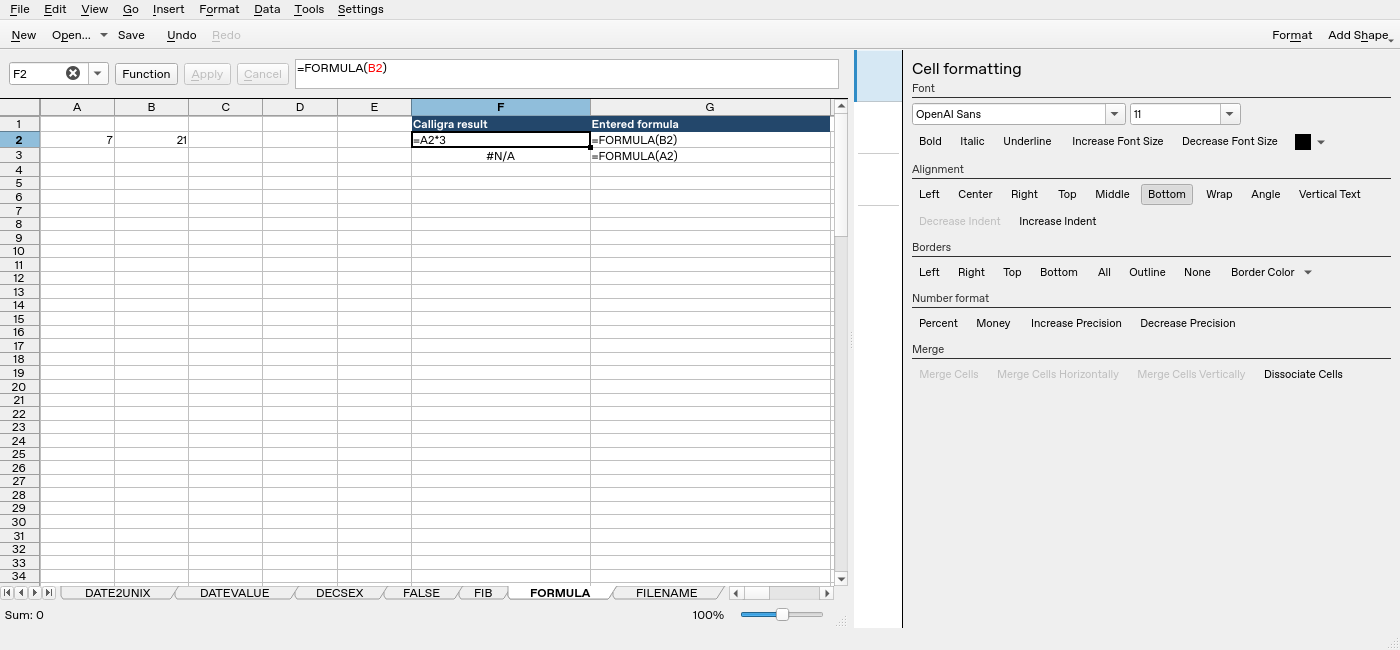
Screenshot: Native 25.04.2 capture with F2 selected. The formula bar shows =FORMULA(B2); column F contains application results. Column G contains descriptive formula labels, some of which are clipped by the formatting panel.