

TRUE in Calligra Sheets: Create an Explicit Boolean True Value
Learn Calligra Sheets TRUE with exact arguments, reproducible inputs, independently checked results and implementation-specific cautions.
Verification status: See the evidence and test scope described in this guide. How formula examples are checked
Quick answer
TRUE() returns the Boolean value true. Use it as an explicit logical constant, such as a visible switch enabling an optional calculation. It is not the text string "TRUE" and does not test whether another expression is correct.
Syntax
=TRUE()
This function takes zero arguments. The empty parentheses are intentional. The release registration sets the argument count to zero and the implementation returns Value(true). There are no optional inputs or default parameters.
Reproduce three logical expressions
| Cell | Formula | Expected result |
|---|---|---|
| B2 | =TRUE() |
Boolean true |
| B3 | =NOT(TRUE()) |
Boolean false |
| B4 | =IF(TRUE();"Enabled";"Disabled") |
Text Enabled |
These results follow the Boolean definition and inspected source; selected native checks are reported below. The visible true/false words can be localized, while the stored value remains Boolean. In B4, the quoted labels are text and the condition is the logical value returned by TRUE().
Practical example: include an optional amount
Put base amount 100 in A2, optional amount 20 in B2 and =TRUE() in C2. Then use:
=IF(C2;A2+B2;A2)
Expected: 120. Replacing C2 with =FALSE() changes the expected result to 100. Label the switch with the exact choice it controls, such as Include optional amount, so a reviewer understands the condition.
A permanent TRUE() is useful as a deliberate constant, but it cannot validate a business rule. If the calculation should depend on eligibility, availability or another input, write the actual condition. Do not use a true flag as proof that an external approval or authorization exists.
Errors and compatibility
=TRUE(1)supplies an argument to a zero-argument function. It is not a comparison or a test of 1.="TRUE"returns text. Other functions may coerce that text differently from a real Boolean.- Numeric 1 and Boolean true can behave similarly in some contexts without being interchangeable everywhere.
- A Boolean result is neither a formula-error indicator nor evidence that the formula’s intended business meaning is correct.
- When exporting or importing, preserve the logical type rather than replacing it with a localized display word.
The KDE TRUE reference and source establish the constant. The examples are intentionally small so the distinction between a logical value, text label and numeric amount remains visible.
Availability and verification
- Release checked: Calligra Sheets 26.08.2, using KDE’s release source package and release information, inspected on October 18, 2026. Relevant locations:
sheets/functions/logic.cpplines 38–40 and 249–252. - Introduced: The original introduction version is not established by these sources. Current registration establishes presence in 26.08.2, not the first release.
- Lifecycle: Registered in the inspected release; no retirement or deprecation marker was found in this function’s registration. Retirement (removed support) and deprecation (discouraged but retained support) are different claims; neither is asserted here.
- Native testing: Selected cases were observed in Calligra Sheets 25.04.2, as detailed below. The source discussion concerns 26.08.2; unlisted cases remain source-derived or independently calculated.
Related guides and sources
- NOT
- IF
- AND
- OR
- Calligra function guide index
- KDE formula entry instructions, checked October 18, 2026. Examples use leading
=and semicolons, with a period for decimal numbers. Confirm regional separators in your installation before pasting.
Selected native results and screenshot
The following results were observed in Calligra Sheets 25.04.2 using an ODS workbook opened, calculated and saved by the application. The formula text below uses worksheet notation; saved ODF reference brackets are omitted for readability. Unlisted examples and edge cases retain their separate source or mathematical evidence.
| Native formula | Observed display |
|---|---|
=TRUE() |
true |
=NOT(TRUE()) |
false |
=IF(TRUE();"Enabled";"Disabled") |
Enabled |
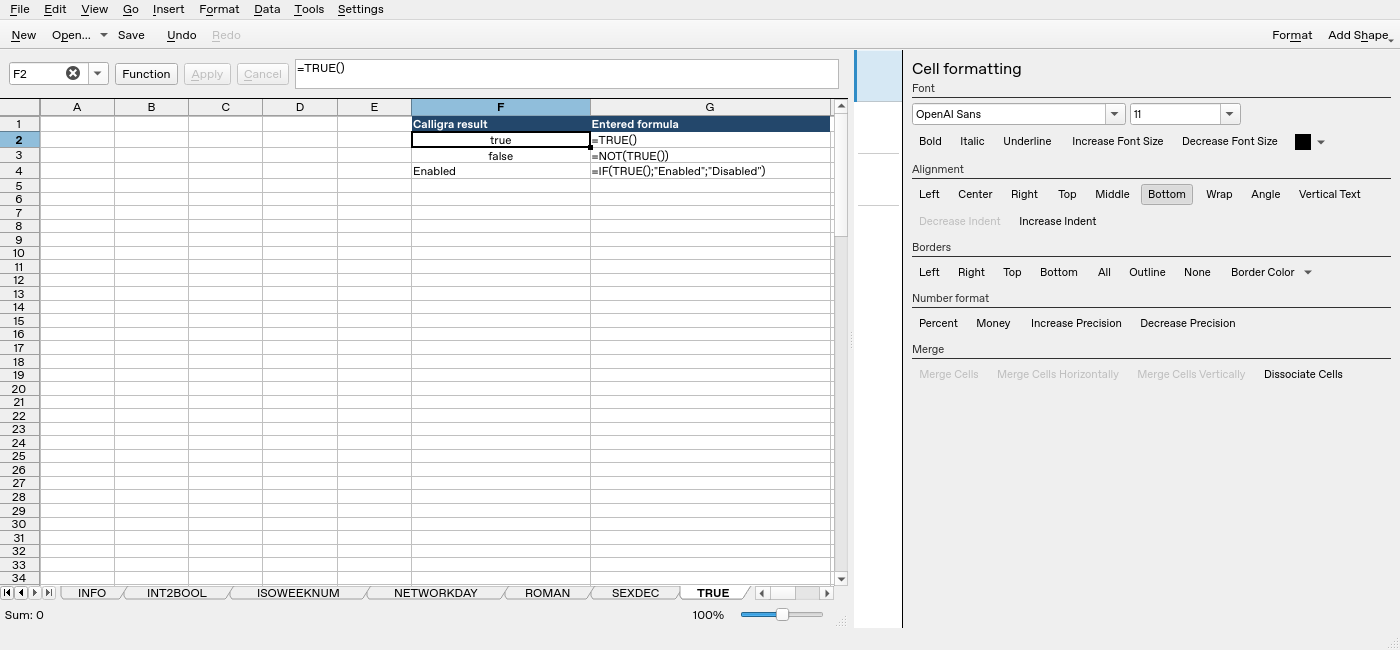
Screenshot: Native 25.04.2 capture with F2 selected. The formula bar shows =TRUE(); column F contains application results. Column G contains descriptive formula labels, some of which are clipped by the formatting panel.