

DOLLAR Function (Gnumeric)
Format numbers as currency text with Gnumeric DOLLAR, checking decimal rounding and locale-sensitive presentation.
Verification status: See the evidence and test scope described in this guide. How formula examples are checked
DOLLAR formats a number as currency and returns the formatted result as text. Use it for a sentence, export label, or a presentation field. Keep the original number for totals and further calculations: applying a currency number format to a numeric cell is usually preferable when the amount must remain numeric.
Syntax
DOLLAR(num, [decimals])
num is the number to display. decimals defaults to 2. Positive values specify digits after the decimal point, zero rounds to a whole unit, and negative values round to tens, hundreds, and so on. The implementation truncates a fractional decimals argument to an integer. For predictable workbooks, supply an integer explicitly.
The function name does not force a U.S. dollar symbol. Gnumeric obtains the currency symbol, placement, spacing, and numeric separators from its locale formatting facilities. DOLLAR also does not convert between currencies or record an ISO currency code. A value of 100 remains an amount of 100 in whatever unit your workbook assigns to it.
Worked example: a report label
Put 1234.567 in A2. In a U.S.-style currency locale, these are the expected display strings:
| Formula | Expected text in that locale |
|---|---|
=DOLLAR(A2) |
$1,234.57 |
=DOLLAR(A2,0) |
$1,235 |
=DOLLAR(A2,-2) |
$1,200 |
Other locales can produce a different symbol, separators, or symbol position. These are illustrative locale-specific strings, not universal outputs.
=ISTEXT(DOLLAR(A2)) returns TRUE. This check exposes the key distinction between formatting with DOLLAR and formatting the numeric A2 cell. A2 still contains the original 1234.567. The text result is a rounded representation, not a changed source value.
For an explanatory sentence, use ="Estimated total: "&DOLLAR(A2,2). Keep A2 in the calculation model and use the concatenated text only at the presentation boundary.
Advanced use: rounding policy and currency identity
For a report rounded to hundreds, =DOLLAR(A2,-2) handles the presentation in one operation. If later calculations must use that rounded amount, calculate the numeric rounding separately with ROUND and reference that number. Do not rely on reparsing a locale-formatted currency string in another environment.
Where a workbook contains several currencies, keep an explicit currency-code column. A locale-driven symbol cannot distinguish every currency, and changing a machine’s locale must not silently change the meaning of financial data. For a prescribed output format, use TEXT with a deliberately chosen format and review it in the destination locale.
The 1.12.57 implementation builds a parenthesized negative-number currency section. Negative values should therefore be tested against the report’s formatting requirements rather than assumed to use a leading minus sign.
Errors and troubleshooting
=DOLLAR(1,128)returns#VALUE!. The implementation rejects decimals arguments at or above 128; this is not a sensible precision setting for ordinary currency work.- If a sum ignores report labels, check their type. DOLLAR returns text, so keep a separate numeric amount column.
- If a symbol differs between machines, compare the locale settings before editing the formula.
- Rounding to two decimals does not establish a business or accounting policy. Supply the precision your workbook actually requires.
- Do not substitute a blank or zero for a failed currency conversion: DOLLAR performs no exchange-rate conversion in the first place.
Version and verification
The described default, precision guard, locale lookup, and text return come from official Gnumeric 1.12.57 source retrieved on 17 October 2026. The official release notes list DOLLAR among newly implemented functions in Gnumeric 0.19. No retirement or last-working-release claim is made. The worked display strings, negative-currency example, precision guard, and text-type checks were recalculated by Gnumeric 1.12.57 under C.UTF-8. That environment produced the dollar-symbol strings shown above; other locales were not tested. These multi-case checks are headless calculation evidence. The selected currency-text example was additionally displayed in the actual application, as shown below.
Related guides
Official references
Native application screenshot
This separate screenshot worksheet uses A2 = 1234.567. In B2, =DOLLAR(A2,2) returns $1,234.57. The screenshot layout is independent of the cell positions in the earlier tutorial. Only this selected example is GUI-verified; the other checks retain their stated engine-test scope.
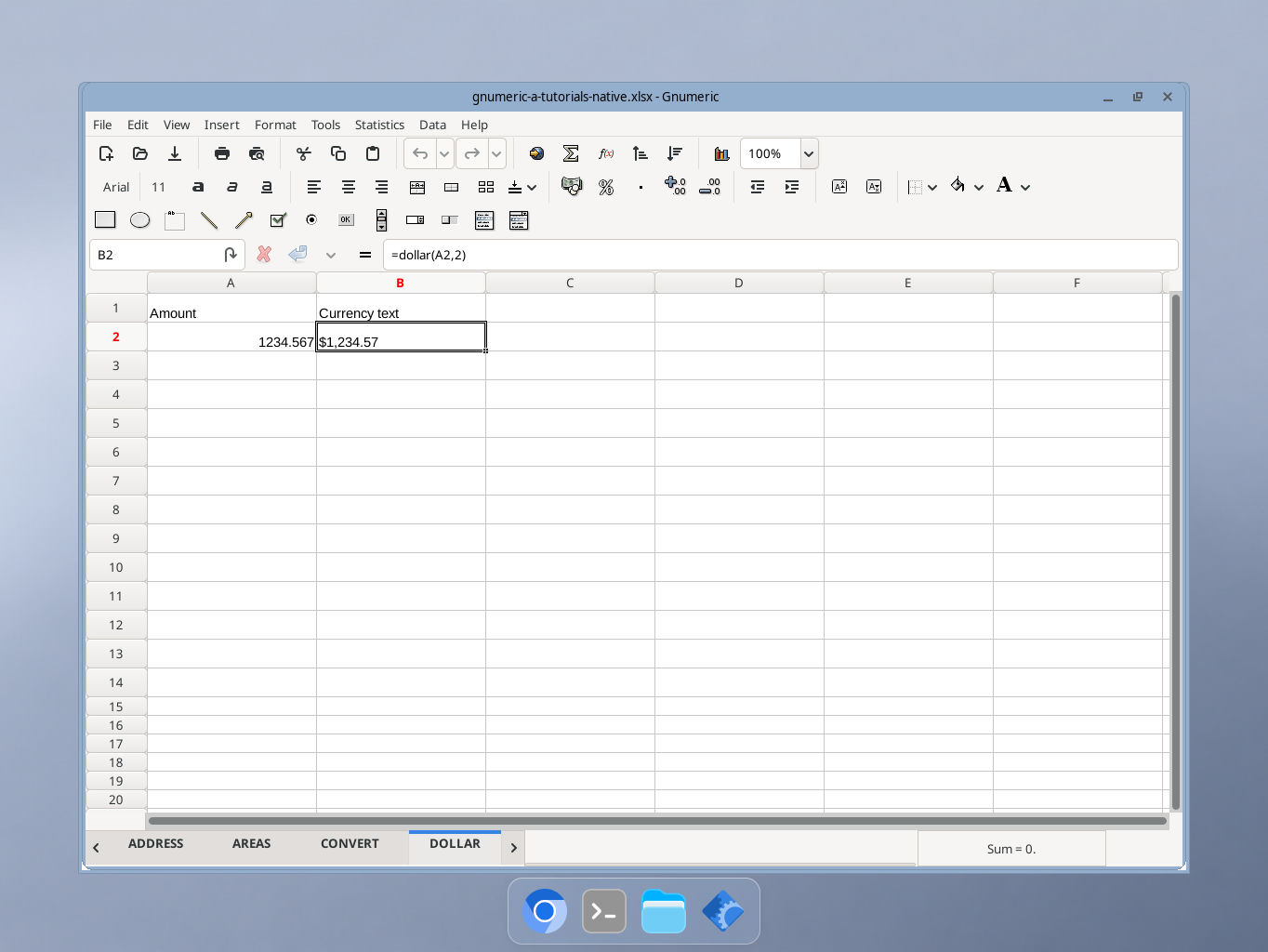
Actual Gnumeric 1.12.57 application, captured 17 October 2026. GUI locale was not independently recorded.