

Gnumeric · Data entry and validation · Beginner
Create Restricted Entries and Dropdowns in Gnumeric
Restrict quantities to whole numbers from 1 to 10, or use a source-range dropdown in Gnumeric, with Stop alerts and clear tests.
Numeric and list validation verified in Gnumeric 1.12.57, including representative save/reopen checks · Editorial standards
Gnumeric can restrict entries with validation rules. In the 1.12.62 source, it also has In a list and In-cell dropdown controls. A visible list and an error action serve different purposes: use Stop when an invalid typed entry should be rejected.
Scope and sample
The numeric and list workflows were tested on 2026-10-16 in Gnumeric 1.12.57, Debian 13.6 Linux, English interface/C locale, including representative rejection checks after saving and reopening a native workbook. The 1.12 manual and 1.12.62 source were also reviewed; 1.12.62 was not the tested runtime. Blank deletion, paste/copy bypasses and other-format round trips were not tested.
Download synthetic entry data or enter this table in A1:C4:
| Item | Quantity | Status |
|---|---|---|
| Paper | 1 | Queued |
| Ink | 5 | Active |
| Labels | 10 | Done |
The CSV contains only data. It does not install validation rules or dropdowns.
Restrict quantities to 1 through 10
- Select B2:B4, leaving the heading out.
- Choose Data → Validate. This opened Format Cells with Validation and Input Message tabs in the tested 1.12.57 build. Ctrl+1 exposed only the ordinary formatting tabs in this test, so use the Data route here.
- In Allow, select Whole numbers. Choose the inclusive between condition (
min <= val <= max) and enter 1 for the minimum and 10 for the maximum. - Clear Ignore blank cells if a blank is not intended to be permitted. Test empty-entry handling in your installed build before relying on it for a mandatory field.
- In the error-alert Action, choose Stop. Add the title
Quantity out of rangeand messageEnter a whole number from 1 through 10. - Apply the settings with OK. Try entering
5, then11, then2.5into B2. The native test accepted 5 and rejected 11 and 2.5. Choose Discard in the error dialog to keep the previous value. Both endpoints, 1 and 10, were also accepted. Restore B2 to1afterward.
The rule allows both endpoints: 1 and 10 are valid; 0 is not. Choosing ordinary Numbers instead of Whole numbers would permit fractional values inside the range.
Add a status dropdown from cells
- Enter
Queued,Active, andDonein E2:E4, one value per cell. E1 can be the headingAllowed status. - Select C2:C4 and choose Data → Validate.
- Set Allow to In a list. The first expression field becomes Source in the 1.12.62 implementation. Select E2:E4 or enter
$E$2:$E$4as the source range, without including E1. - Enable In-cell dropdown. This checkbox is enabled for list validation in the source; it is not a control that should be assumed for every rule type.
- Choose Stop, provide a message such as
Choose Queued, Active or Done., and confirm the dialog. - Select an entry cell and inspect the list control. Choose
Active, then try typingUnknown. The native test selected Active and rejected Unknown. Its expanded popup showed Active, Done, Queued alphabetically rather than in source order; do not assume the source order will be preserved. Check all three target cells before distributing the workbook; this test checked representative entries rather than every cell.
Using a source range avoids ambiguities about separators inside a typed inline list. Keep E2:E4 available and avoid accidentally overwriting it. Save as a Gnumeric workbook; CSV export cannot preserve either rule.
Verified rule settings and reopened workbook
Select a screenshot to open the full-size image.
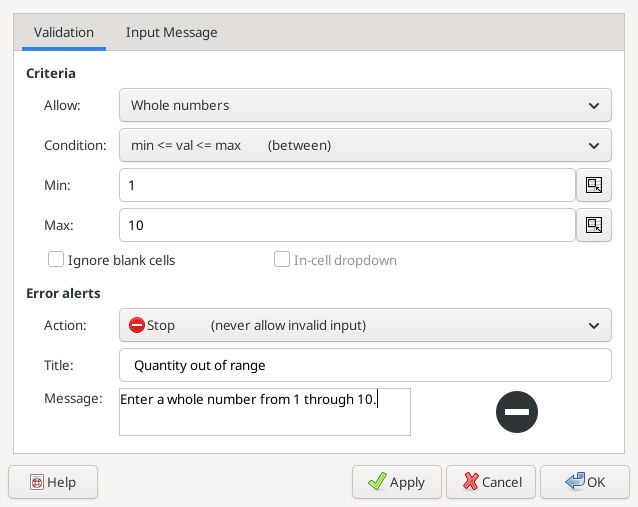
Actual numeric-rule settings in Gnumeric 1.12.57, captured 2026-10-16.
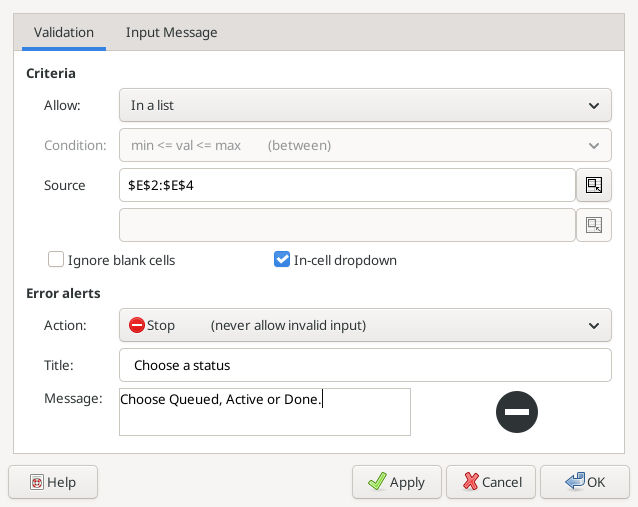
Actual list source and Stop alert. The source range is E2:E4.
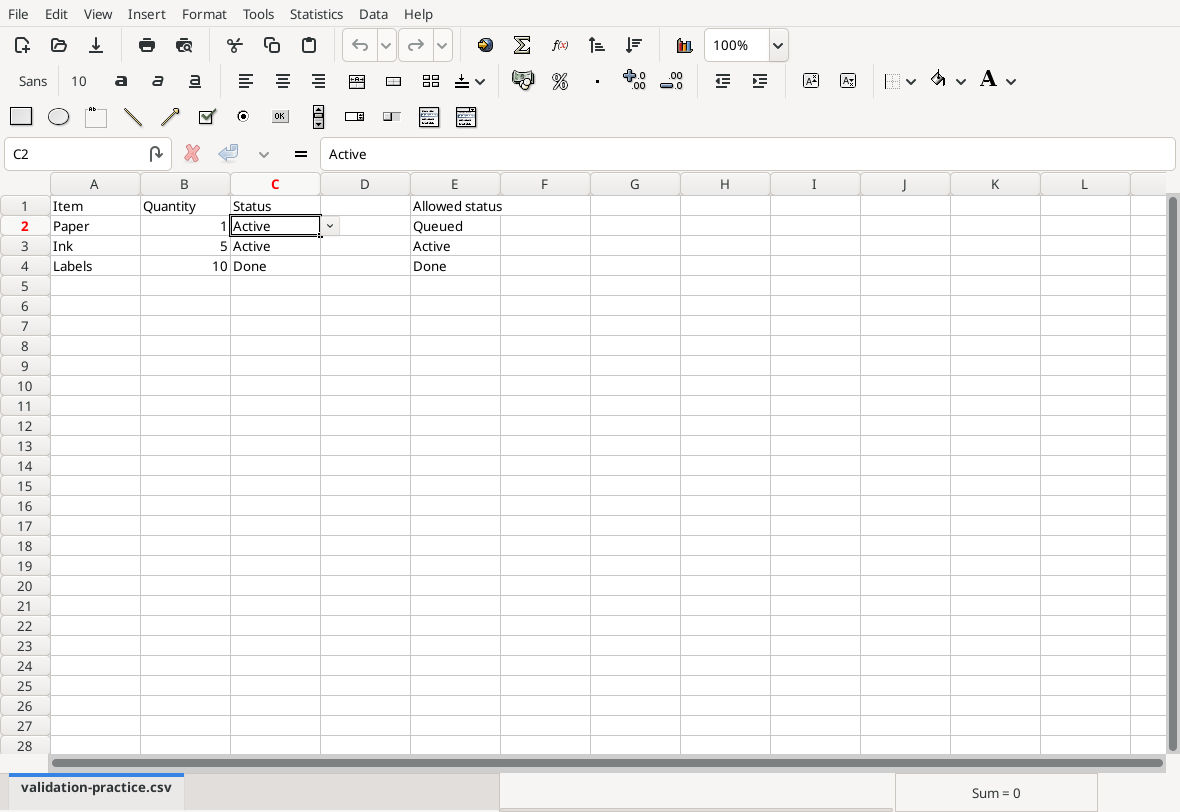
After closing and reopening the native workbook, entering 11 in B2 and Unknown in C2 was still rejected, preserving 1 and Active.
Download the tested native validation workbook. The saved rules cover B2:B4 and C2:C4; the checks above do not establish behavior for blank deletion, pasted blocks or export to another format.
Understand error actions
None permits an invalid entry silently. Warning lets the person choose whether to keep it. Information permits it with a notice. Stop rejects it. A dropdown alone should not be treated as proof that all entry routes enforce the allowed values.
Validation is an entry aid, not a security boundary or a substitute for auditing imported data. Existing incorrect values, pasted blocks, copied formatting, blanks and exports all deserve separate checks. If the list arrow is missing, confirm the rule type, the dropdown checkbox and your installed version; you can still use the numeric restricted-value workflow above.
For a separate data-quality check, see COUNTIF. Do not use a formula check as evidence that a validation dialog was tested.
Official references
- Gnumeric Format Cells: Validation, for criteria and error actions.
- Official 1.12.62 source archive:
src/dialogs/cell-format.uicontains Whole numbers, In a list and In-cell dropdown;src/dialogs/dialog-cell-format.csets the Source label, enables the dropdown for list rules and stores the selected behavior.
The older manual’s limited discussion of list controls should not be read as proof that the current program lacks them.