

DATE Function (LibreOffice Calc)
The DATE function constructs a valid date from year, month, and day components. It automatically normalizes overflow values and is the foundation for all date arithmetic in LibreOffice Calc.
This guide provides syntax, examples, edge cases, and best practices, making it one of the most complete DATE references available for LibreOffice Calc.
Native-tested visual example: Build a valid calendar date
Quick answer: Combine numeric year, month and day fields. The following example was run in LibreOffice Calc 25.2.3.2, not simulated or inferred from a formula description.
Enter the sample data
The downloadable workbook uses these exact rows on its Example sheet. Enter the values or download the editable DATE ODS practice workbook instead.
| Sheet row | A: Year | B: Month | C: Day | D: Description |
|---|---|---|---|---|
| 5 | 2024 | 12 | 31 | Prior year |
| 6 | 2025 | 1 | 1 | New year |
| 7 | 2025 | 12 | 31 | Prior period |
| 8 | 2026 | 10 | 10 | Sample event |
| 9 | 2026 | 11 | 1 | Next month |
| 10 | 2027 | 1 | 1 | Future |
Formula and result
Select E5 in the practice workbook. The formula is:
=DATE(A8;B8;C8)
Verified output: 2026-10-10. DATE combines the numbers in A8, B8 and C8 into one true Calc date serial.
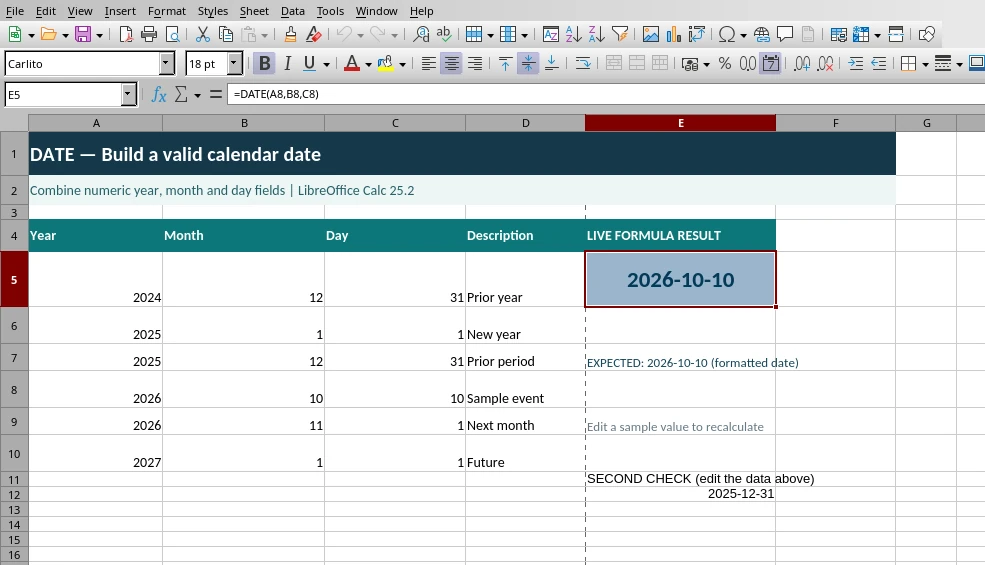
Screenshot captured from LibreOffice Calc 25.2.3.2. The formula, input values and E5 result are visible in the actual application.
Second example you can try
The workbook also includes this independently tested variation in E12:
=DATE(A7;B7;C7)
Verified output: 2025-12-31. Change the related input cell and press Enter to see the result update.
Common mistake: DATE returns a number internally; format the result as a date, not plain text.
Official documentation: LibreOffice Calc reference for DATE. Test scope: These two worked examples were recalculated in Calc 25.2.3.2; other historical formulas elsewhere on this page may still require separate testing. This file includes no generated or artificial application screenshot.
What the DATE Function Does
- Creates a valid date from year, month, day
- Automatically normalizes overflow values
- Supports negative and zero month/day offsets
- Enables dynamic date arithmetic
- Returns a serial date number formatted as a date
It is designed to be robust, predictable, and ideal for all calendar-based workflows.
Syntax
DATE(year; month; day)
Arguments
-
year:
Integer representing the year (0–9999).
Values 0–1899 are interpreted literally.
Values 1900–9999 are interpreted as full years. -
month:
Integer representing the month.
Can overflow (e.g., 13 = January of next year). -
day:
Integer representing the day.
Can overflow (e.g., 32 = next month).
Basic Examples
Construct a date
=DATE(2024; 5; 10)
Returns 2024‑05‑10.
Overflow month (13 → next year)
=DATE(2024; 13; 1)
Returns 2025‑01‑01.
Overflow day (32 → next month)
=DATE(2024; 1; 32)
Returns 2024‑02‑01.
Zero or negative month offsets
=DATE(2024; 0; 15)
Returns 2023‑12‑15.
Zero or negative day offsets
=DATE(2024; 3; 0)
Returns 2024‑02‑29 (day 0 = last day of previous month).
Advanced Examples
Add months safely
=DATE(YEAR(A1); MONTH(A1)+B1; DAY(A1))
Equivalent to EDATE but manual.
Last day of month (classic pattern)
=DATE(YEAR(A1); MONTH(A1)+1; 0)
First day of next month
=DATE(YEAR(A1); MONTH(A1)+1; 1)
First day of current month
=DATE(YEAR(A1); MONTH(A1); 1)
Add days to a date
=DATE(YEAR(A1); MONTH(A1); DAY(A1)+B1)
Build a date from text components
=DATE(VALUE(A1); VALUE(B1); VALUE(C1))
Convert week number + weekday to a date
=DATE(A1; 1; 1) + (B1-1)*7 + C1 - WEEKDAY(DATE(A1;1;1);2)
Create a date from ISO year-week-day
=DATE(A1;1;4) - WEEKDAY(DATE(A1;1;4);2) + (B1-1)*7 + C1
Generate a monthly calendar grid
=DATE($A$1; $B$1; 1) - WEEKDAY(DATE($A$1; $B$1; 1); 2) + ROW()*7 + COLUMN()
Build dynamic fiscal year boundaries
=DATE(YEAR(A1)+(MONTH(A1)>=4); 4; 1)
Convert Excel serial date to Calc date
=DATE(1899;12;30) + A1
Edge Cases and Behavior Details
DATE normalizes overflow automatically
- Month 0 → previous December
- Month 13 → next January
- Day 0 → last day of previous month
- Day 32 → next month
DATE returns a serial number
=TYPE(DATE(2024;1;1)) → 1 (number)
Year interpretation
- 0–1899 → literal
- 1900–9999 → literal
- No two‑digit year shorthand (unlike Excel)
Invalid results
- DATE with year < 0 → Err:502
- DATE with year > 9999 → Err:502
Leap-year handling
=DATE(2024; 2; 29) → valid
=DATE(2023; 2; 29) → becomes 2023‑03‑01
DATE of an error → error propagates
Locale affects display, not value
Underlying serial number is universal.
Common Errors and Fixes
Err:502 — Invalid argument
Occurs when:
- year < 0 or > 9999
- Non-numeric arguments
- Overflow too large to normalize
Wrong date due to text input
Fix:
- Wrap with VALUE()
- Ensure cell is numeric
Unexpected month rollover
Cause:
- Month arithmetic without normalization awareness
Fix:
- Use DATE(YEAR(); MONTH()+n; DAY()) pattern
Best Practices
- Use DATE for all date construction
- Use overflow behavior intentionally for offsets
- Use DATE(YEAR(); MONTH()+n; DAY()) for safe month arithmetic
- Use DATE(YEAR(); MONTH()+1; 0) for end‑of‑month logic
- Use DATE with VALUE() when parsing text components
- Use DATE instead of manually adding serial numbers
Related Patterns and Alternatives
- Use DATEVALUE to convert text to dates
- Use EDATE and EOMONTH for month offsets
- Use TODAY and NOW for dynamic dates
- Use YEAR, MONTH, DAY to extract components
- Use DATEDIF for interval calculations
By mastering DATE and its companion functions, you can build powerful, reliable, and fully dynamic date workflows in LibreOffice Calc.
Reproducible example (tested in LibreOffice Calc)
This standalone example was calculated in LibreOffice Calc 25.2.3.2 and matched the expected value. It is a practical cross-check of one usage, not proof that every example elsewhere on this page is correct.
=YEAR(DATE(2025;1;15))
Expected result: 2025.
Construct a valid spreadsheet date from year, month and day components.
If the result differs, check the referenced cells, argument separators and number formatting. For more information, consult the LibreOffice Calc official help.