

IRR Function (LibreOffice Calc)
Learn the IRR function in LibreOffice Calc: Returns the actuarial rate of interest of an investment excluding costs or profits.
The IRR function in LibreOffice Calc is used for this task: Returns the actuarial rate of interest of an investment excluding costs or profits. Find the internal rate of return from a simple series of cash flows.
This guide explains how to read the formula, reproduce a concrete example, interpret its result and recognize common input mistakes.
Tested visual example: Rate of return for periodic cash flows
What this example answers: Estimate the discount rate that balances a project cash-flow schedule. The formula was entered and recalculated in LibreOffice Calc 25.2.3.2, not simulated or inferred from a reference page.
Sample sheet you can reproduce
Create a sheet named Example, put these headings on row 4, and enter the sample values in rows 5–10. Or download the editable IRR practice workbook with the formulas already entered.
| Sheet row | A: Year | B: Net cash flow | C: Project | D: Note |
|---|---|---|---|---|
| 5 | 0 | -1000 | Upgrade | Initial purchase |
| 6 | 1 | 250 | Upgrade | Year 1 savings |
| 7 | 2 | 300 | Upgrade | Year 2 savings |
| 8 | 3 | 350 | Upgrade | Year 3 savings |
| 9 | 4 | 400 | Upgrade | Year 4 savings |
| 10 | 5 | 450 | Upgrade | Year 5 savings |
Example 1 — Formula and expected result
Select cell E5, enter the formula and press Enter:
=IRR(B5:B10)
Verified result: 19.71% (stored as 0.197111).
IRR finds the rate that makes the net present value of the entire stream equal zero.
Reading the screenshot: Calc displays 0.1971 as a numeric rate. Format E5 as a percentage to display about 19.71%. The second result is about 10.48%.
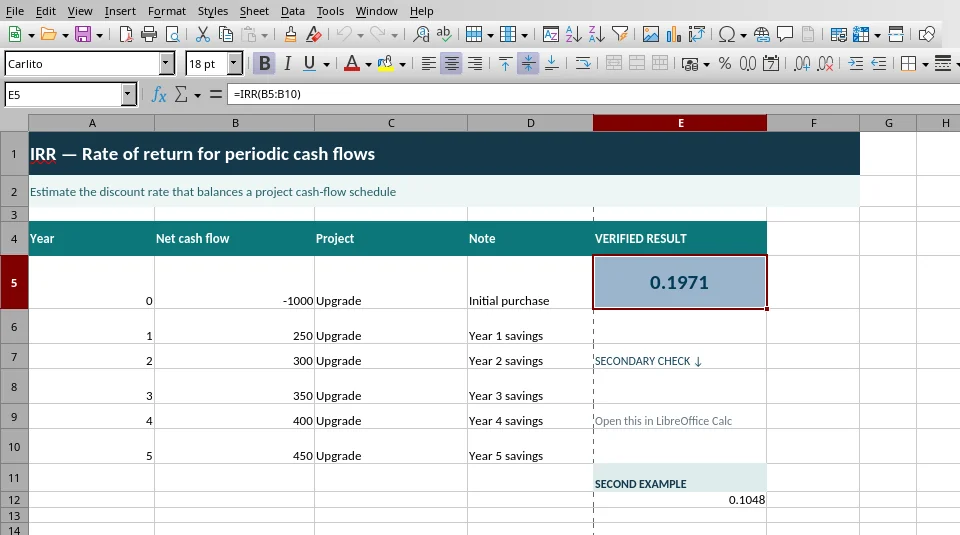
Genuine screenshot from LibreOffice Calc 25.2.3.2: the formula bar, input table and computed output are visible. No interface imagery was generated.
Example 2 — Change the inputs
The same downloadable .ods file has this second formula in E12:
=IRR(B5:B9)
Verified result: 10.48% (stored as 0.104845). Exclude the final year’s 450 receipt. The shorter schedule has a lower internal rate of return.
How to avoid misleading results
- Watch for this mistake: IRR needs a mix of positive and negative cash flows; unusual sign changes can produce multiple possible rates.
- Scope and limitations: IRR assumes equally spaced periods. XIRR handles irregular calendar dates.
- Argument separators: These examples use semicolons (
;) in the LibreOffice Calc locale tested. Other locales may use different settings. - Verification scope: The two formulas in this section were executed and checked in LibreOffice Calc 25.2.3.2. Older examples elsewhere in this article have not all been independently retested.
Official function reference: LibreOffice Help — IRR.
Syntax and arguments
IRR(values; [guess])
| Argument | Required? | Meaning |
|---|---|---|
Values |
Yes | An array or reference to cells whose contents correspond to the payments. |
Guess |
Optional | Guess. An estimated value of the rate of return to be used for the iteration calculation. |
Calc formulas normally use semicolons (;) between arguments in common configurations; the displayed separator may depend on settings or locale.
Worked example
For the cash-flow example, enter −100, 60, and 55 into A15, A16, and A17, respectively. The first amount is the initial outflow; the others are later inflows.
=IRR(A15:A17)
Expected result: 0.1.
Why it works: Find the internal rate of return from a simple series of cash flows. The specified sample table supplies the referenced cells. For decimal results, display formatting can change how many digits appear without changing the underlying number.
How to use it in your own spreadsheet
- Identify the cells or inputs that correspond to the sample values above.
- Enter the formula in an empty cell, changing the references or literal values to match your sheet.
- Compare the output with a manual check on a small known example.
- Extend the formula to a larger dataset only after you understand the result.
Common problems and practical checks
- Confirm that the data represents the intended sample, population, rate or cash-flow timing.
- Keep units and percentage conventions consistent; a mathematically valid result can still answer the wrong question.
- A pasted formula may produce an error when it uses the other program’s argument separator or unsupported options.
Related functions
Documentation and verification
- LibreOffice Calc Help
- The standalone example was calculated using LibreOffice Calc 25.2.3.2 on October 9, 2026 and its computed result matched the expected value. This does not certify every option, version, or other example.