

LEFT Function (LibreOffice Calc)
The LEFT function in LibreOffice Calc extracts a specified number of characters from the beginning (left side) of a text string. It is essential for text parsing, data cleaning, and string manipulation.
Verification status: Consult the documentation, examples and any stated test scope below. How formula examples are checked
Availability and version history
- Introduced: Documented by LibreOffice 26.8.1.1; original introduction not established.
- Availability: Supported in LibreOffice 26.8.1.1, verified against its function registry. This identifies a supported release, not a final working version.
- Scope: Desktop Calc, using the English function name. Availability in other spreadsheet applications is separate.
- Checked: 2026-10-14 — function reference; versioned support. Documentation/source check; not a new native test. Existing example-specific test claims below retain their stated scope.
Native-tested visual example: Extract a two-letter region code
Quick answer: Take the initial two characters from shipment identifiers. The following example was run in LibreOffice Calc 25.2.3.2, not simulated or inferred from a formula description.
Enter the sample data
The downloadable workbook uses these exact rows on its Example sheet. Enter the values or download the editable LEFT ODS practice workbook instead.
| Sheet row | A: Order | B: Shipment ID | C: Destination | D: State |
|---|---|---|---|---|
| 5 | O-01 | US-2026-101 | New York | Open |
| 6 | O-02 | FR-2026-102 | Paris | Open |
| 7 | O-03 | GB-2026-103 | London | Closed |
| 8 | O-04 | CA-2026-001 | Ottawa | Open |
| 9 | O-05 | US-2026-105 | Boston | Closed |
| 10 | O-06 | CA-2026-006 | Toronto | Open |
Formula and result
Select E5 in the practice workbook. The formula is:
=LEFT(B8;2)
Verified output: CA. LEFT takes the first two characters of B8 (CA-2026-001), not the last two.
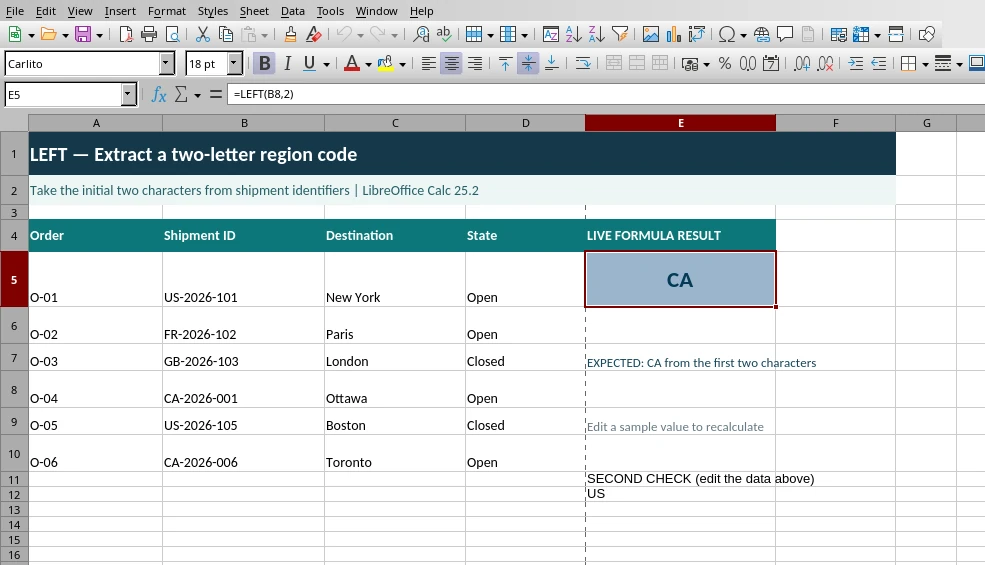
Screenshot captured from LibreOffice Calc 25.2.3.2. The formula, input values and E5 result are visible in the actual application.
Second example you can try
The workbook also includes this independently tested variation in E12:
=LEFT(B5;2)
Verified output: US. Change the related input cell and press Enter to see the result update.
Common mistake: LEFT always returns text. Do not assume every code has the same prefix length.
Official documentation: LibreOffice Calc reference for LEFT. Test scope: These two worked examples were recalculated in Calc 25.2.3.2; other historical formulas elsewhere on this page may still require separate testing. This file includes no generated or artificial application screenshot.
What the LEFT Function Does
- Extracts characters from the left side of a string
- Works with text, numbers (converted to text), and formulas
- Useful for parsing codes, prefixes, dates, and structured text
- Supports optional length argument
It is designed to be simple, predictable, and widely compatible.
Syntax
LEFT(text; [num_chars])
Arguments
-
text:
The text string to extract from. -
num_chars: (optional)
Number of characters to extract.
Defaults to 1 if omitted.
Basic Examples
Extract the first character
=LEFT("Hello")
Returns "H".
Extract the first 3 characters
=LEFT("Hello"; 3)
Returns "Hel".
Extract from a cell
=LEFT(A1; 2)
Extract from a number (converted to text)
=LEFT(2024; 2)
Returns "20".
Advanced Examples
Extract a prefix from a code
=LEFT(A1; 4)
Useful for SKU codes, IDs, etc.
Extract the first word (with FIND)
=LEFT(A1; FIND(" "; A1) - 1)
Extract year from YYYY-MM-DD
=LEFT(A1; 4)
Extract area code from phone number
=LEFT(A1; 3)
Extract text before a delimiter
=LEFT(A1; FIND("-"; A1) - 1)
Extract variable-length prefixes
=LEFT(A1; FIND("_"; A1) - 1)
Use LEFT with TRIM to clean data
=LEFT(TRIM(A1); 5)
Extract first N characters dynamically
=LEFT(A1; B1)
Where B1 contains the number of characters.
Edge Cases and Behavior Details
num_chars omitted → defaults to 1
=LEFT("ABC") → "A"
num_chars larger than text length
=LEFT("ABC"; 10) → "ABC"
num_chars = 0
=LEFT("ABC"; 0) → ""
num_chars negative → Err:502
=LEFT("ABC"; -1)
text is a number → converted to text
=LEFT(12345; 2) → "12"
text is empty
=LEFT(""); 3 → ""
text is an error → error propagates
=LEFT(#N/A; 2) → #N/A
text is a formula returning ""
=LEFT(A1; 3)
Returns "" if A1 is empty-string.
Common Errors and Fixes
Err:502 — Invalid argument
Occurs when:
- num_chars is negative
- num_chars is non-numeric
- text is missing
LEFT returns fewer characters than expected
Cause:
- Leading spaces
- Hidden characters
- TRIM not applied
Fix:
Use TRIM(A1) or CLEAN(A1).
LEFT returns unexpected characters
Cause:
- Non‑ASCII characters
- Unicode combining marks
- Hidden formatting
Best Practices
- Use LEFT for prefix extraction and structured text parsing
- Combine with FIND/SEARCH for delimiter‑based extraction
- Use TRIM to clean input before slicing
- Use LEN to validate expected lengths
- Use LEFT with MID/RIGHT for full string decomposition
Related Patterns and Alternatives
- Use RIGHT to extract from the end
- Use MID for middle extraction
- Use FIND or SEARCH to locate delimiters
- Use LEN to measure text length
- Use TEXT to format numbers before slicing
By mastering LEFT and its companion functions, you can build clean, powerful, and flexible text‑processing workflows in LibreOffice Calc.
Reproducible example (tested in LibreOffice Calc)
This standalone example was calculated in LibreOffice Calc 25.2.3.2 and matched the expected value. It is a practical cross-check of one usage, not proof that every example elsewhere on this page is correct.
=LEFT("Spreadsheet";6)
Expected result: Spread.
Extract characters from the beginning of text.
If the result differs, check the referenced cells, argument separators and number formatting. For more information, consult the LibreOffice Calc official help.