

SUMPRODUCT Function (LibreOffice Calc)
The SUMPRODUCT function in LibreOffice Calc multiplies corresponding elements in arrays and returns the sum of those products. It is one of the most powerful functions for weighted calculations, conditional logic, and array-based formulas.
Verification status: Selected examples were executed in LibreOffice Calc 25.2.3.2. This does not establish that every formula and edge case was tested. How formula examples are checked
Native-tested visual example: Multiply quantities by prices and sum
For three products, total revenue is the sum of each row’s units multiplied by its unit price.
Enter this formula in cell E5:
=SUMPRODUCT(B5:B7;C5:C7)
Expected result: 72.25. The row totals are 37.50, 16.00 and 18.75; together they equal 72.25.
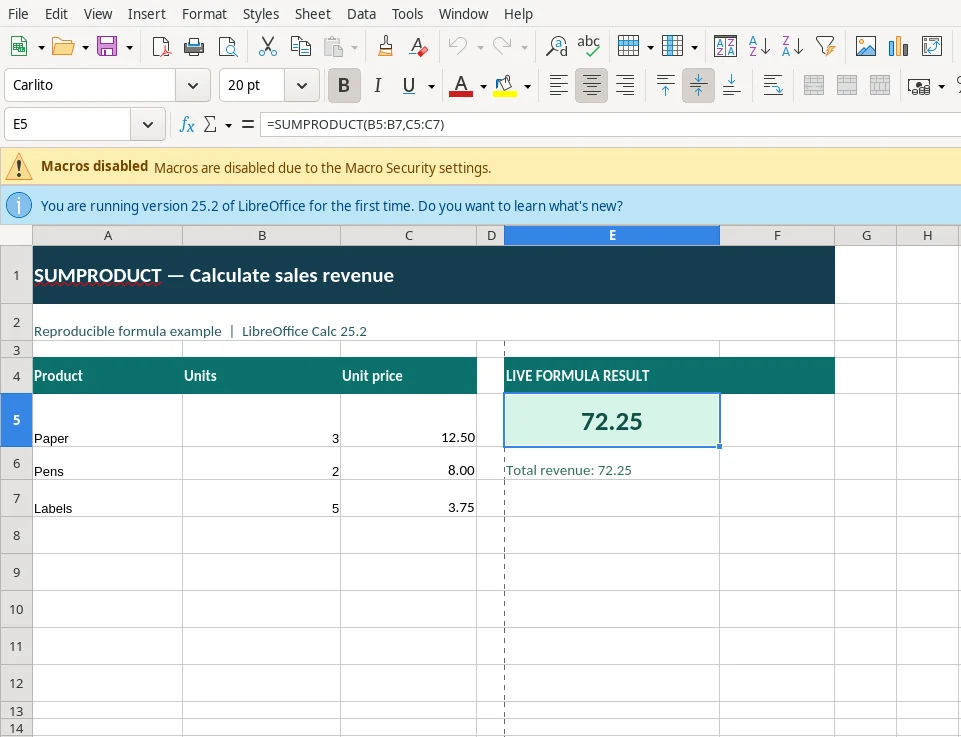
Real screenshot captured from LibreOffice Calc 25.2.3.2. The selected E5 cell shows the calculated result and the formula bar displays the entered formula.
Download the editable SUMPRODUCT example (.ods) — change the sample input cells and watch the calculation update.
Why it works: The row totals are 37.50, 16.00 and 18.75; together they equal 72.25. Watch for: The arrays must cover the same number of rows, and numeric values should be actual numbers rather than text.
Verification: Example calculated in LibreOffice Calc 25.2.3.2. Screenshot is a genuine application capture, not a mockup.
What the SUMPRODUCT Function Does
- Multiplies corresponding elements in arrays
- Sums the resulting products
- Supports multiple arrays
- Allows conditional logic without SUMIFS
- Works with numeric arrays, expressions, and Boolean logic
- Does not require Ctrl+Shift+Enter
It is designed to be flexible, powerful, and universally compatible.
Syntax
SUMPRODUCT(array1; [array2]; ...)
Arguments
- array1, array2, …
Ranges or arrays of equal dimensions.
Boolean expressions are allowed and automatically coerced to 1 (TRUE) or 0 (FALSE).
Basic Examples
Weighted sum
=SUMPRODUCT(A1:A5; B1:B5)
Multiplies each A value by its corresponding B value and sums the results.
Dot product
=SUMPRODUCT(A1:A3; B1:B3)
Computes the vector dot product.
Sum of products across multiple arrays
=SUMPRODUCT(A1:A5; B1:B5; C1:C5)
Multiplies A×B×C element-wise, then sums.
Advanced Examples
Conditional SUM (single condition)
=SUMPRODUCT(A1:A10; A1:A10 > 5)
Equivalent to summing only values greater than 5.
Conditional SUM (multiple conditions)
=SUMPRODUCT(A1:A10; (B1:B10="X") * (C1:C10>0))
Equivalent to SUMIFS but more flexible.
Conditional COUNT
=SUMPRODUCT(B1:B10="Yes")
Counts how many cells equal “Yes”.
Conditional AVERAGE
=SUMPRODUCT(A1:A10; B1:B10="X") / SUMPRODUCT(B1:B10="X")
Average of A where B = “X”.
SUMPRODUCT with MOD (periodic grouping)
=SUMPRODUCT(A1:A100; MOD(ROW(A1:A100); 2)=0)
Sums every second row.
SUMPRODUCT for matrix multiplication (single cell)
=SUMPRODUCT(A1:C1; A1:A3)
Equivalent to a 1×3 × 3×1 multiplication.
SUMPRODUCT for correlation components
=SUMPRODUCT((A1:A10 - AVERAGE(A1:A10)); (B1:B10 - AVERAGE(B1:B10)))
Forms the numerator of the correlation coefficient.
SUMPRODUCT for logical OR
=SUMPRODUCT((A1:A10="X") + (A1:A10="Y") > 0)
Counts rows where A is X or Y.
Common Errors and Fixes
SUMPRODUCT returns Err:502
Occurs when:
- Arrays have mismatched dimensions
- A range reference is malformed
- A semicolon or colon is misplaced
SUMPRODUCT returns 0 unexpectedly
Possible causes:
- Boolean logic not coerced properly
- Text values in numeric arrays
- Empty cells treated as 0
Fix:
Use VALUE() or double‑unary (–) to coerce text to numbers.
SUMPRODUCT ignores text values
Cause:
- SUMPRODUCT treats text as 0
- Boolean expressions must be numeric
Fix:
Wrap text with VALUE() if needed.
Best Practices
- Use SUMPRODUCT for multi-condition logic without SUMIFS
- Use Boolean expressions for filtering
- Ensure arrays have matching dimensions
- Use SUMPRODUCT for weighted averages and dot products
- Avoid mixing text and numbers in arrays
Related Patterns and Alternatives
- Use PRODUCT for simple multiplication
- Use SUM for additive aggregation
- Use SUMIFS for structured conditional sums
- Use COUNTIFS for conditional counting
- Use MMULT for full matrix multiplication (Calc supports it)
By mastering SUMPRODUCT and its combinations with other math functions, you can build advanced, flexible models in LibreOffice Calc that handle weighted, conditional, and array-based logic with exceptional power.
Reproducible example (tested in LibreOffice Calc)
This standalone example was calculated in LibreOffice Calc 25.2.3.2 and matched the expected value. It is a practical cross-check of one usage, not proof that every example elsewhere on this page is correct.
Use this small practice sheet for the ranges referenced in the formula:
| Row | A (Quantity) | B (Amount) | C (Category) |
|---|---|---|---|
| 1 | 1 | 10 | apple |
| 2 | 2 | 20 | pear |
| 3 | 3 | 30 | apple |
| 4 | 4 | 40 | pear |
| 5 | 5 | 50 | apple |
=SUMPRODUCT(A1:A3;B1:B3)
Expected result: 140.
Multiply paired values and add those products.
If the result differs, check the referenced cells, argument separators and number formatting. For more information, consult the LibreOffice Calc official help.