

Quartile and percentile practice workbook for LibreOffice Calc
Use this small workbook to compare inclusive and exclusive quartiles and percentiles on the same nine numbers. It contains live formulas, an editable practice range and a change-and-restore exercise. The data are invented for this download and are separate from the worked datasets in the linked function guides.
Download the workbook and reference
The ODS contains one sheet, Quantile practice. It is an ordinary editable workbook, not an installed .ots template. The PDF is a static reference of the original values, not an editable spreadsheet. Neither download requires a paid edition or subscription. The workbook contains no macros, scripts or external workbook links.
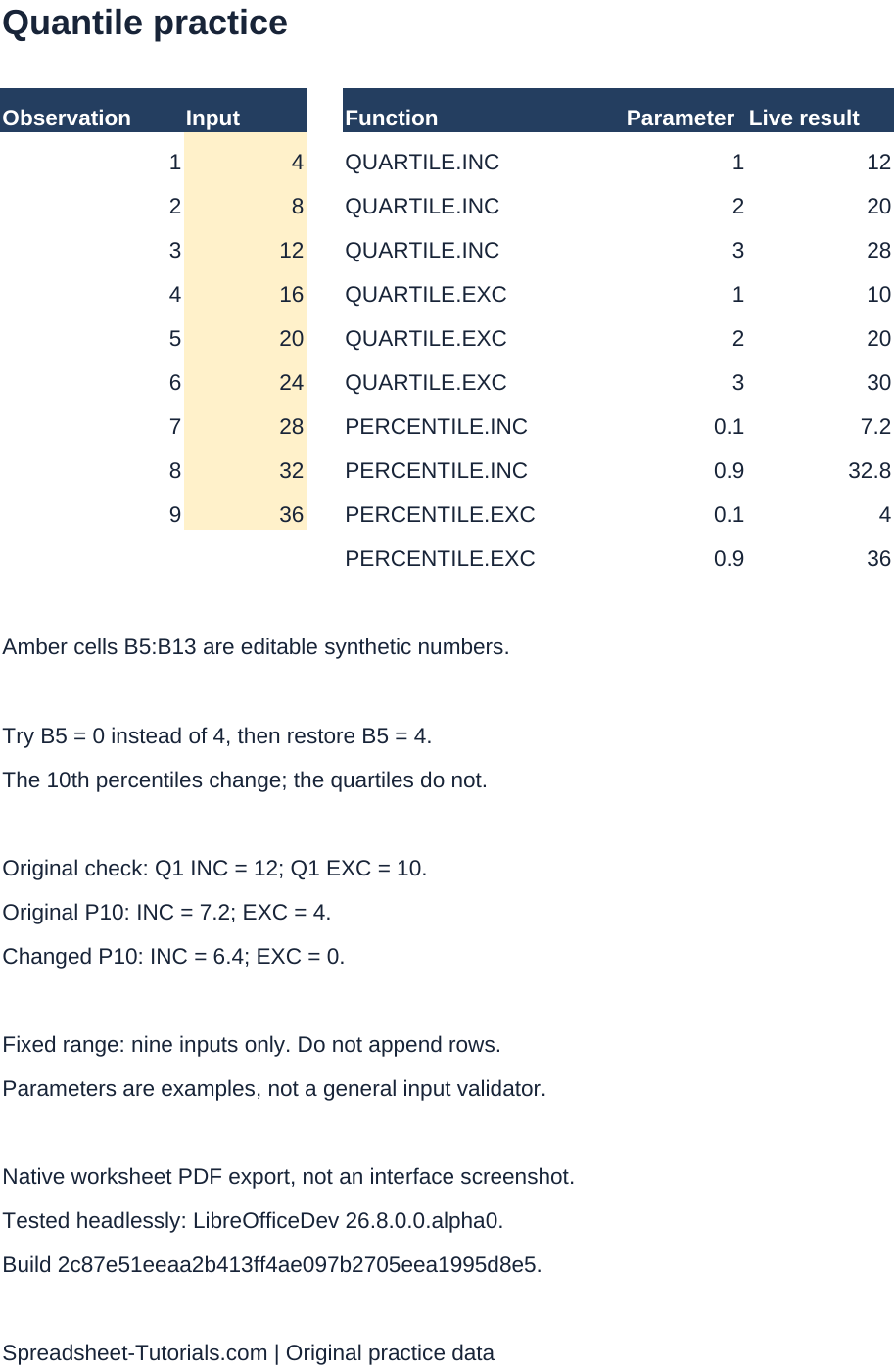
This is a native worksheet PDF export, not application-interface screenshot. The image was rasterized from the supplied PDF; no application controls are depicted.
Use the practice sheet
- Save a working copy of the ODS and open it in Calc.
- The amber cells B5:B13 contain 4, 8, 12, 16, 20, 24, 28, 32 and 36. Keep these as numeric values. Column A numbers the observations.
- Read the function names in D5:D14, parameters in E5:E14 and live results in F5:F14. Select a result cell to inspect its formula. For example, F5 calculates
=QUARTILE.INC($B$5:$B$13;E5)in Calc’s semicolon syntax. - Recalculate after changes and compare the results below. If the displayed result is stale, use Calc’s recalculation commands before treating it as an answer; do not replace a formula with the expected number.
The references deliberately cover only nine input cells. Appending observations below row 13 does not extend the formulas. The parameter column supplies valid examples, not a general-purpose validation form. Keep the supplied parameters for this exercise. Read the individual function guides before changing sample size or requesting other percentiles.
Check the original results
| Result cell | Function | Parameter | Original result |
|---|---|---|---|
| F5 | QUARTILE.INC | 1 | 12 |
| F6 | QUARTILE.INC | 2 | 20 |
| F7 | QUARTILE.INC | 3 | 28 |
| F8 | QUARTILE.EXC | 1 | 10 |
| F9 | QUARTILE.EXC | 2 | 20 |
| F10 | QUARTILE.EXC | 3 | 30 |
| F11 | PERCENTILE.INC | 0.1 | 7.2 |
| F12 | PERCENTILE.INC | 0.9 | 32.8 |
| F13 | PERCENTILE.EXC | 0.1 | 4 |
| F14 | PERCENTILE.EXC | 0.9 | 36 |
For nine observations, the exclusive 10th and 90th percentiles are the admissible endpoints: they return the smallest and largest observations. Exclusive does not mean discarding those observations. Inclusive percentiles use different plotting positions, so their answers differ here.
Change one input, then restore it
Change B5 from 4 to 0, leaving all other inputs and parameters alone. After recalculation:
- F11 changes from 7.2 to 6.4.
- F13 changes from 4 to 0. Zero is a real observation, not a blank.
- The other eight results remain unchanged.
Restore B5 to 4, recalculate and confirm that all ten original results return. The printed reference notes remain static while the results are formulas. The PDF also remains unchanged when you edit the ODS.
If your results differ, first check that B5:B13 contains exactly the nine supplied numeric values, that the parameters have not changed, and that F5:F14 still contains formulas. Blank cells, text stored as numbers and modified sample sizes can change the data being calculated. Do not delete observations simply to make an exclusive-percentile error disappear.
Learn the individual functions
- QUARTILE.INC: inclusive quartiles
- QUARTILE.EXC: exclusive quartiles
- PERCENTILE.INC: inclusive percentiles
- PERCENTILE.EXC: exclusive percentiles and sample-size limits
The official Calc statistical-function reference documents these functions. This download demonstrates a small valid numeric case; it is not exhaustive error-handling or cross-application compatibility coverage.
What was tested
The supplied ODS was generated from an original formula workbook, calculated and saved by LibreOfficeDev 26.8.0.0.alpha0 on Linux, build 2c87e51eeaa2b413ff4ae097b2705eea1995d8e5, using the installed free application headlessly. Its ten saved formula results were compared with an independent exact-rational interpolation calculation. A native reopen/save preserved the inputs, formulas and results. Separate changed-input and restored-input test copies were also calculated in that application and checked against the same independent method. The PDF was exported by that native application and its one-page image was visually inspected.
This verifies those numeric calculations and the PDF export in that specific development build. It does not certify the GUI workflow, every stable Calc release, Windows or macOS behavior, or formula parity in another spreadsheet program. No application-interface screenshot was obtained. Check the values when using a different version, and retain a clean original before experimenting.