

LibreOffice Calc · Formula compatibility · Intermediate
Understand Excel Formula Separators and Syntax in LibreOffice Calc
Separate argument separators, decimal marks and sheet-reference syntax in Calc, then diagnose a pasted or imported Excel formula with a small control example.
Worked example tested in LibreOffice Calc 26.8.1.1 · Editorial standards
A formula can use different punctuation in Calc without changing its intended calculation. Check Tools → Options → LibreOffice Calc → Formula for the argument separator and reference syntax. Check the locale separately for decimal entry. Do not replace every comma or period in an Excel workbook.
Opening an XLSX file and pasting formula text are different operations: the former uses a file importer; the latter asks Calc to parse the characters you pasted using its current settings. A changed separator alone is not evidence that the result is wrong, and matching punctuation is not proof that every Excel feature converted correctly.
Start with a copy and identify the kind of punctuation
Use desktop Calc and keep the original XLSX unchanged. The directions follow LibreOffice 26.8 Help and standard menus; on macOS, application settings are under LibreOffice → Preferences. Menu labels can differ in older versions. Record existing settings before changing any application-wide option.
| Punctuation role | Example | What it means |
|---|---|---|
| Argument separator | =SUM(A2;B2) |
Separates inputs to a function |
| Decimal mark | 1.5 or 1,5 |
Part of one numeric value |
| Range operator | A2:B2 |
All cells between the endpoints |
| Sheet-reference syntax | =$Rates.C4 or =Rates!C4 |
Cell C4 on a sheet named Rates |
| Literal text | "North, retail" |
The comma belongs to the text |
These are separate roles. For example, =SUM(1;5) adds two numbers and returns 6; it is not another spelling of the decimal value 1.5. The colon in A2:B2 is not an argument separator either. See Addresses and References.
1. Inspect the settings before repairing a formula
- Open Tools → Options → LibreOffice Calc → Formula.
- Record Formula syntax, the Function separator under Separators, and whether Use English function names is selected.
- Cancel if you only wanted to inspect. If you intentionally change a setting for a test, record its previous value and restore it afterward.
Calc offers Calc A1, Excel A1 and Excel R1C1 reference notation. Its function argument separator is configurable independently; choosing Excel A1 is not a substitute for checking the separator field. Function-name language is another separate option. Formula Options documents these controls.
In the tested profile, Formula syntax was Calc A1, Function separator was comma, and Use English function names was unchecked with an English interface. These are observations of this profile, not universal defaults. The Options pages were inspected and canceled without changing or applying settings. The other settings visible in the screenshot are not recommendations.
Select a screenshot to open the full-size image.
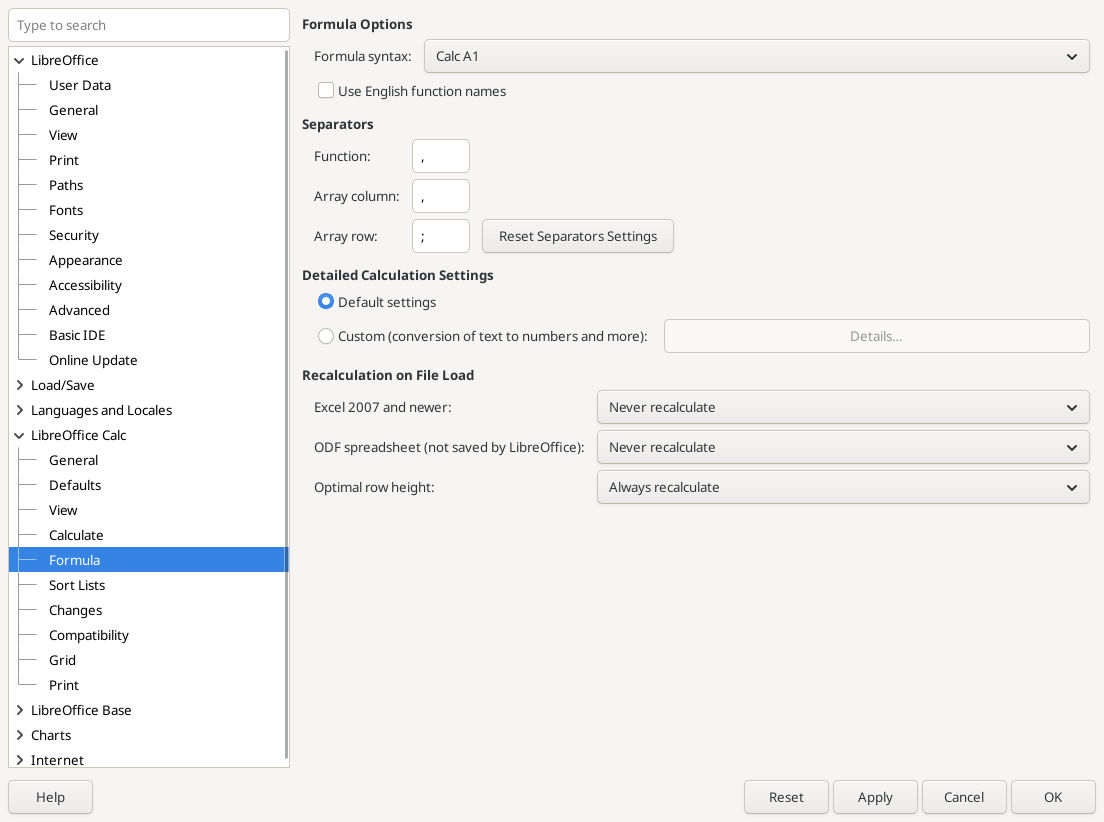
Native Calc 26.8.1.1: inspect your current settings and cancel if no change is needed. These observed values are not a factory-default or recommended-settings claim.
For decimal entry, inspect Tools → Options → Languages and Locales → General → Locale setting. The interface language and locale are different choices. Changing locale has wider effects on numbers, currency and date recognition, so do not change it merely to make one copied formula look familiar. See Languages and Locales.
2. Test a formula that contains no decimal punctuation
In an empty scratch sheet, enter:
| Cell | Content |
|---|---|
| A1 | First amount |
| B1 | Second amount |
| A2 | =3/2 |
| B2 | =9/4 |
A2 and B2 are numeric 1.5 and 2.25. Their displayed decimal marks depend on locale, but those fractions avoid ambiguity during entry.
- In C1 enter
Total. - In C2 enter
=SUM(A2;B2)if the configured function separator is semicolon, or=SUM(A2,B2)if it is comma. Use the local function name if English names are not enabled. - Expect 3.75, displayed as 3,75 in a decimal-comma locale.
- Change B2 to
=11/4. Expect 4.25, then restore=9/4and check 3.75 again. - Test
=ISNUMBER(A2)and=ISNUMBER(B2); both should return TRUE.
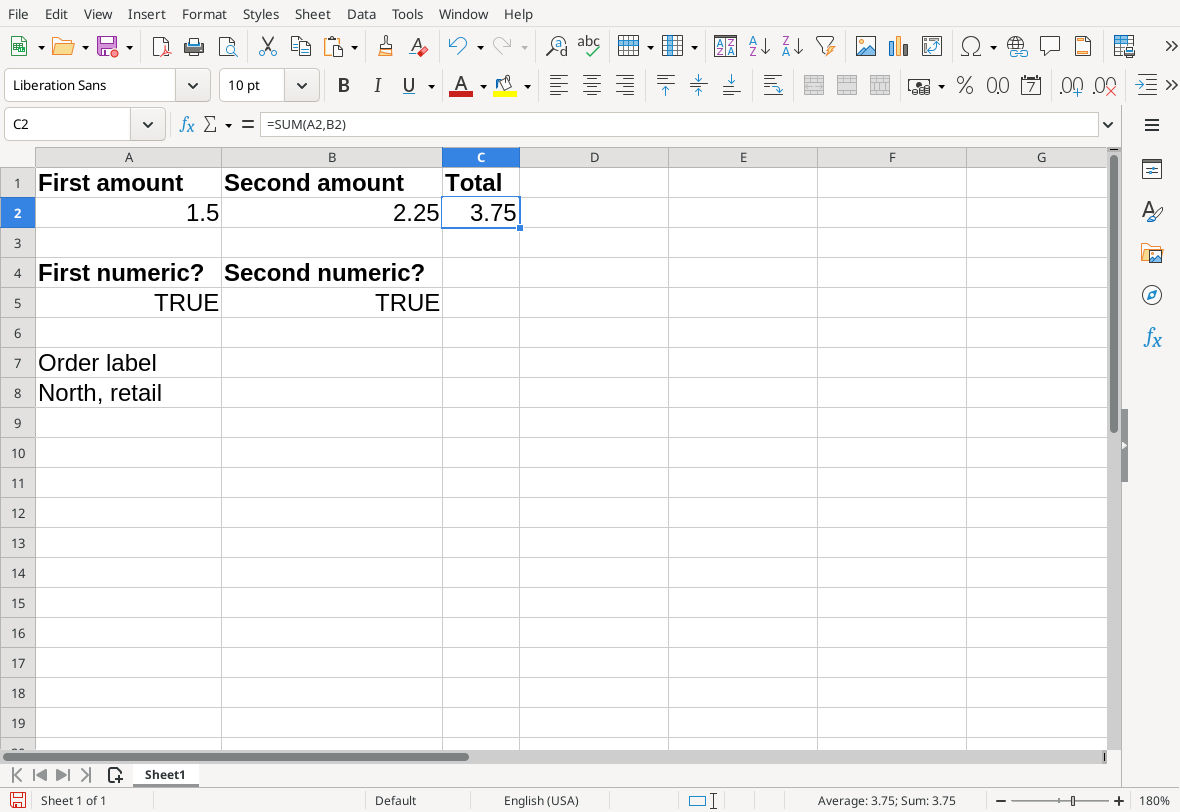
This profile accepts =SUM(A2,B2); changing B2 temporarily to 11/4 recalculated the sum to 4.25.
This isolates argument punctuation from decimal entry and imported data types. See the SUM and ISNUMBER guides for their roles. If this small formula fails, resolve its separator or function-name setting before editing a long imported formula.
3. Adapt one pasted formula without changing its text
Suppose an Excel example contains:
=IF(A2>0,"North, retail","No order")
With English names and semicolon arguments, the corresponding input is:
=IF(A2>0;"North, retail";"No order")
Only the two separators outside the quoted strings change. The comma in North, retail stays. With A2 equal to 1.5, the result should be North, retail; with A2 equal to 0, No order. Restore A2 afterward. The IF function explains the condition and two result branches. The native test used the comma-separated version shown first, matching its inspected Function separator; both branches returned the expected text.
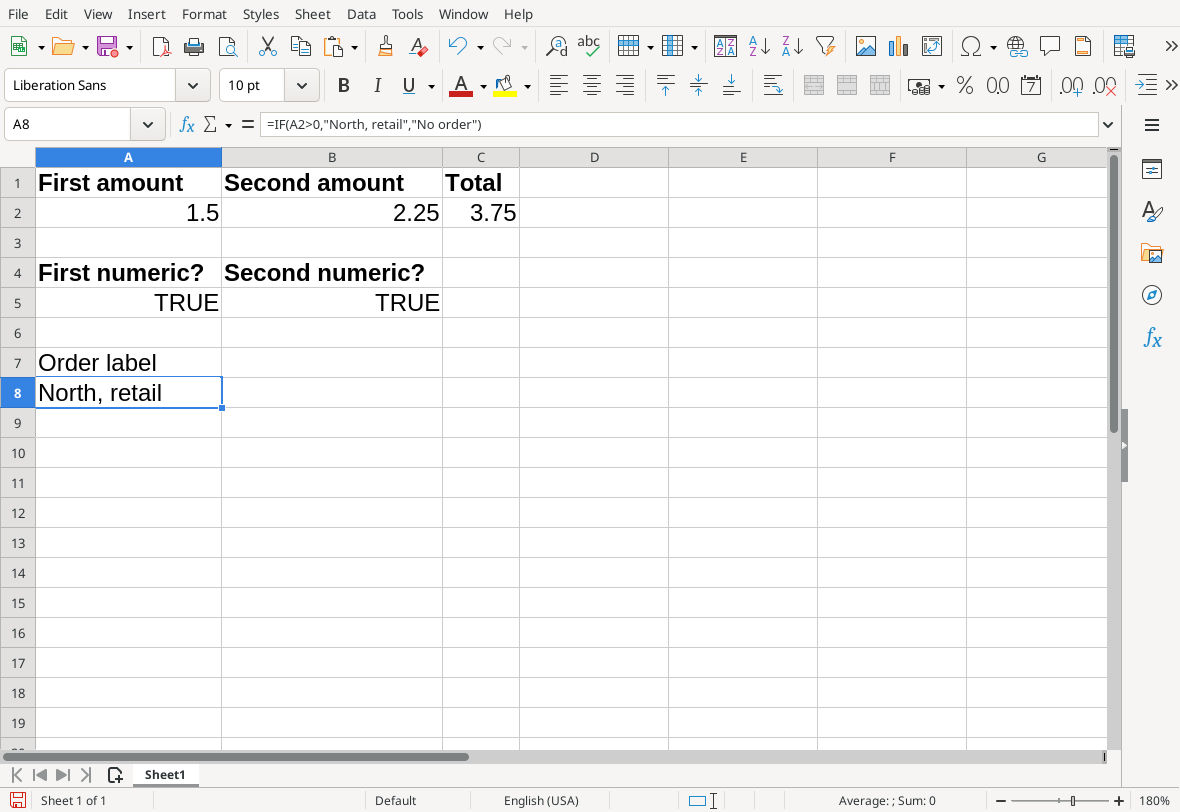
The comma inside the quoted label stays part of the text. The separate zero-input test returned No order.
Do not use a whole-sheet replacement of commas with semicolons. Besides quoted labels, a formula can contain decimal values, inline arrays and reference text with their own punctuation. Work on one formula, verify its result and dependencies, then apply only a transformation whose scope you understand.
If literal =SUM(...) appears in the cell, check for an apostrophe or Text cell format. Enter it in a fresh normally formatted cell as a formula, starting with =. Calc’s formula-entry rules are described in Entering Formulas.
4. Distinguish an imported workbook from a pasted example
For an XLSX file, open a copy with File → Open rather than extracting all formulas and replacing punctuation. Then choose a few important result cells and compare them with trusted control totals from the source workbook.
- Inspect the formula bar and the referenced input values together.
- If a result might be cached, use Data → Calculate → Recalculate Hard in the copy, then compare it again. This recalculates all formulas; it does not make an unsupported function compatible. See Calculate.
- Test a representative input change and restore it. A correct-looking initial value alone does not prove recalculation works.
- Save an ODS working copy. If you must deliver XLSX, save a separate XLSX copy and check the reopened file in the recipient’s application when available.
LibreOffice documents that some Excel formulas and features can have conversion differences in About Converting Microsoft Office Documents. Reference notation and separators do not solve those semantic differences.
Common symptoms and the next useful check
- Parse error after pasting: inspect argument separators, function-name language, balanced parentheses and straight double quotation marks. Avoid a broad replacement as the first fix.
- A sheet reference fails: check Formula syntax and the actual sheet name. A period belongs to Calc A1 sheet notation; an exclamation mark belongs to Excel A1 notation. Names containing spaces require appropriate quoting.
- The formula runs but returns the wrong amount: inspect input types and decimal interpretation. Two numeric arguments and one decimal number can both be syntactically valid but mean different things.
- The function is unknown: confirm its name and Calc support. A separator change cannot supply a missing function or add-in.
- Only displayed punctuation differs: compare underlying values and arithmetic. Number display has its own locale setting, described in Numbers.
Verification: the existing Formula and locale options were inspected without applying changes in LibreOffice Calc 26.8.1.1 on Linux (English interface, English USA locale) on 16 October 2026. With this profile’s comma Function separator, native SUM results changed 3.75 → 4.25 → 3.75, both ISNUMBER controls were TRUE, and IF preserved North, retail and returned No order for zero. Actual ODS save/close/reopen retained the restored formulas and results. The screenshots are unchanged native captures; expected arithmetic was independently checked. Switching separators or reference syntax, other function-name languages or locales, and genuine Excel-file import/export or recipient round trips were not tested. Those procedures remain documentation-based; this core formula check is not an Excel compatibility test.