

LibreOffice Calc · Data management · Intermediate
Import an XML Record Snapshot with Mapped Cells in LibreOffice Calc
Map repeated XML records into Calc, check the extra header row and numeric totals, and distinguish a one-time snapshot from a refreshable link.
Documentation-qualified workflow; XML structure and arithmetic independently checked, native import not executed · Editorial standards
Data → XML Source lets you choose a repeated XML record and map it into an existing sheet. Treat the result as a one-time imported snapshot, not a connection that will update when the source file changes.
This recipe uses the English desktop menus documented in Calc Guide 26.2 and online Help labelled 26.8, checked on 21 October 2026. It is for the free desktop Calc application, not a browser editor. The XML structure, record counts and arithmetic below were independently checked; the dialog, imported cell types, saved-file reopening and screenshots were not tested natively for this recipe.
Prepare a small, local source
In a plain-text editor, save the following original fictional example as UTF-8 text named delivery-practice.xml. Do not save it as a rich-text document or silently append .txt.
<?xml version="1.0" encoding="UTF-8"?>
<deliveries>
  <record><code>A-01</code><units>4</units></record>
  <record><code>B-02</code><units>6</units></record>
  <record><code>C-03</code><units>3</units></record>
</deliveries>
There are three records, each with a code and a units value. The units total is 13. This example deliberately avoids dates, currencies, namespaces, attributes and nested repeating groups, so the first import has an easily checked target. It has no external entities, remote references or executable content. Use this local practice file, not an unfamiliar production export.
Create an ODS workbook with one sheet named Snapshot1. Keep A1:D8 empty and put Outside import area in F1. Save the workbook before import. The marker is a quick check for selecting an unexpectedly wide destination, not a protection mechanism.
Map the repeated record, not one field
- Choose Data → XML Source.
- Use the source-file chooser to open
delivery-practice.xml. - Expand the tree under Map to Document and select the recurring record element. Do not select only
units, and do not assume the enclosingdeliverieselement represents the repeated records. - Set Mapped cell to A1 on Snapshot1, using the sheet range picker. Verify the displayed sheet and address before proceeding.
- Click Import.
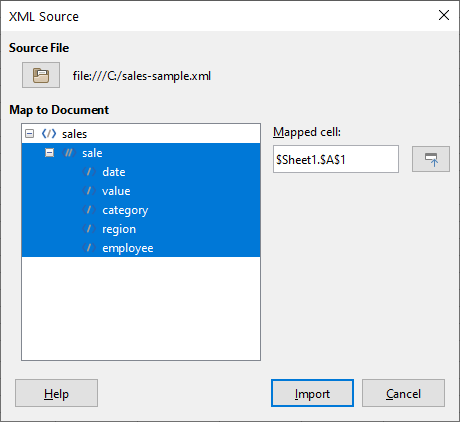
Publisher illustration from Calc Guide 26.2, Chapter 12, Figure 50: XML Source dialog (populated). © 2026 LibreOffice Documentation Team; CC BY 4.0. Original image unchanged. The publisher uses sales-sample.xml, not our delivery-practice.xml fixture; follow the record mapping above for this exercise. Capture OS and exact build are not stated. The guide edition is not proof of current-version behavior, and this is not a screenshot or native test performed for this tutorial.
The XML Source help describes the recurring-element marker and how its mapped cell identifies the upper-left destination. A repeated record produces its records plus an additional header row. With this fixture, look for one header row and three data rows, not three rows including the header.
Inspect the imported headers and values before adding formulas. You should find fields named code and units, the three codes A-01/B-02/C-03, and their paired quantities 4/6/3. Check the pairing, not just the overall total. F1 should still contain its marker.
Check content and number types
The following checks assume the visible units header is in B1, with the three quantities in B2:B4. If the actual field order differs, point the formulas at the observed units column instead; do not rename a code column to make the example fit.
Enter the checks in F3:G5, outside the import footprint:
| Check | Formula | Expected |
|---|---|---|
| Numeric units present | =COUNT(B2:B4) |
3 |
| Units total | =SUM(B2:B4) |
13 |
| Last record quantity | =B4 |
3 |
The expected arithmetic is 4 + 6 + 3 = 13. COUNT matters because a visually plausible imported value can still be text. If it is not 3, inspect the cells and use the numbers-stored-as-text workflow before trusting SUM. Do not convert identifiers such as A-01 into numbers.
Also count the three code/quantity pairs manually. A sum alone cannot detect every missing-and-duplicated-record combination. Save an ODS checkpoint only after the fields, pairings and counts agree.
Prove the snapshot boundary with a separate import
In the XML file, change only the final <units>3</units> to <units>5</units> and save it. Its new total is 15. Do not edit Snapshot1 to imitate an update.
The Calc Guide’s XML Source section says this import does not retain the data-source information after import. Therefore an old snapshot is not evidence that a later XML revision was loaded. Keep Snapshot1 as the first result, create a new blank sheet named Snapshot2, and repeat the mapping at its A1 using the modified file. Check for the same three codes, quantities 4/6/5, numeric count 3 and total 15. Snapshot1 should still represent the original 4/6/3 data, total 13.
Using a separate blank sheet avoids assuming that reimport clears leftover rows from a larger earlier dataset. Record which source revision each snapshot represents. If you need a refreshable table instead, investigate linked external data tables rather than treating XML Source as that mechanism.
Troubleshoot before accepting the result
- Only one value appears: inspect whether you mapped a single field instead of the recurring record.
- There are four rows instead of three: distinguish the header from the three data records. Do not include a numeric-looking header in your data check.
- The tree is empty or the file fails to load: verify the actual filename and plain-text XML, including matching closing tags. Do not enable remote content or change security settings to make this simple fixture work.
- The totals are wrong: compare every code/quantity pair, the source revision, the selected target sheet and numeric cell types. Reimport into another empty sheet rather than overwrite an unexplained result.
- A complex export maps differently: this simple repeated-record fixture does not establish support for every XML schema, nested collection or namespace arrangement. Preserve the original export and validate a small sample first.
Finally save the ODS copy, then close and reopen it and recheck the two snapshots and formulas. That is a user acceptance step, not a reopening test performed for this article. XML Source, generic file opening and database imports are different workflows; see registered Base sources for the database case.