

LibreOffice Calc · Printing and PDF output · Beginner
Fit a Wide LibreOffice Calc Sheet onto a Readable PDF Page
Define a Calc print range, choose landscape paper, control width and height scaling, and check the actual PDF before sharing it.
Worked example tested in LibreOffice Calc 26.8.1.1 · Editorial standards
Select the report and choose Format → Print Ranges → Define. In Format → Page Style, choose landscape paper, then set the Sheet tab’s width/height scaling to 1 page wide and 1 page high. Preview and export the PDF with Whole sheet export and Hybrid PDF (embed ODF file) off.
One page is only useful if readers can still read it. If a tall report shrinks too far, keep the width at one page and remove the height limit, then repeat its column headings on later pages.
Start with a reproducible report
Use desktop LibreOffice Calc and an ODS working copy. The worked example was tested with LibreOffice Community Calc 26.8.1.1 on Linux, using the standard menu bar and English (USA) locale. The sources below are current LibreOffice 26.8 Help. Paper size, font metrics and interface wording can differ between installations, so inspect the actual PDF rather than relying on a page-count setting alone.
Open the synthetic 30-row wide-report CSV. It has six columns and occupies A1:F31:
| Date | Customer | Item | Quantity | Unit Price | Total |
|---|---|---|---|---|---|
| 2026-10-01 | Example customer 01 | Notebook | 2 | 4.50 | 9.00 |
| 2026-10-02 | Example customer 02 | Pen | 3 | 1.25 | 3.75 |
| … | … | … | … | … | … |
| 2026-10-30 | Example customer 30 | Pen | 3 | 1.25 | 3.75 |
The download contains all 30 records. The ellipsis above is not a row to type. Import as UTF-8 with a comma delimiter; use an English (USA) import locale for the decimal-point prices, or explicitly convert them according to your locale. Dates can remain text for this layout exercise. CSV stores no widths, print settings or number formats, so save an ODS copy before preparing the output.
Make the headings bold, display E:F with two decimals, and widen the columns until dates, customer names and totals are visible. Aim for a table wider than portrait paper, rather than solving the exercise with columns so narrow that labels are clipped. The tested sheet used six columns about 3.65 cm (1.44 in) wide each, roughly 21.88 cm in total, with 10 pt text. You can select A:F and drag the column boundaries; the exact widths are less important than complete labels and readable output. As an independent content check, =SUM(F2:F31) in H2 should return 191.25; H2 will remain outside the print range.
1. Define exactly what should print
- Select
A1:F31using the Name Box or the mouse. - Choose Format → Print Ranges → Define.
- Open Format → Print Ranges → Edit and confirm the range ends at F31. Do not include entire empty rows or columns.
- Check other sheets for print ranges if the workbook contains more than this report.
The print range keeps scratch calculations such as H2 out of the output. LibreOffice documents an important format difference: in an Excel-format workbook, sheets without defined print ranges may still print or export. Check every output page rather than assuming the active tab is the only exported sheet. See Defining Print Ranges.
2. Choose paper and orientation
- Choose Format → Page Style → Page.
- Select the paper size your readers will use, such as A4 or Letter, then Landscape.
- Set sensible margins that leave room for the report. Do not reduce them below what your eventual printer can handle.
- Review the Header and Footer tabs. Turn off unnecessary headers/footers or keep them compact; they consume vertical space.
Landscape gives a wide table more horizontal room before scaling. Page styles can be shared by multiple sheets, so check which sheets use the edited style. See Printing Sheets in Landscape Format.
3. Fit the report to one page
- In the same Page Style dialog, open the Sheet tab.
- Under Scale, choose Shrink print range(s) to width/height. Older versions may use Fit in the label.
- Enable Width in pages and set it to 1.
- Enable Height in pages and set it to 1.
- Under the print details, leave Formulas off so calculated results print. Include gridlines, objects and comments only if the report needs them.
- Confirm and open File → Print Preview.
Width and height are page limits, not column and row counts. Calc scales proportionally; a width limit alone does not force a long report onto one page. The Sheet tab documentation explains both width/height and total-page scaling modes. Printing Sheet Details covers the content switches.
Select a screenshot to open the full-size image.
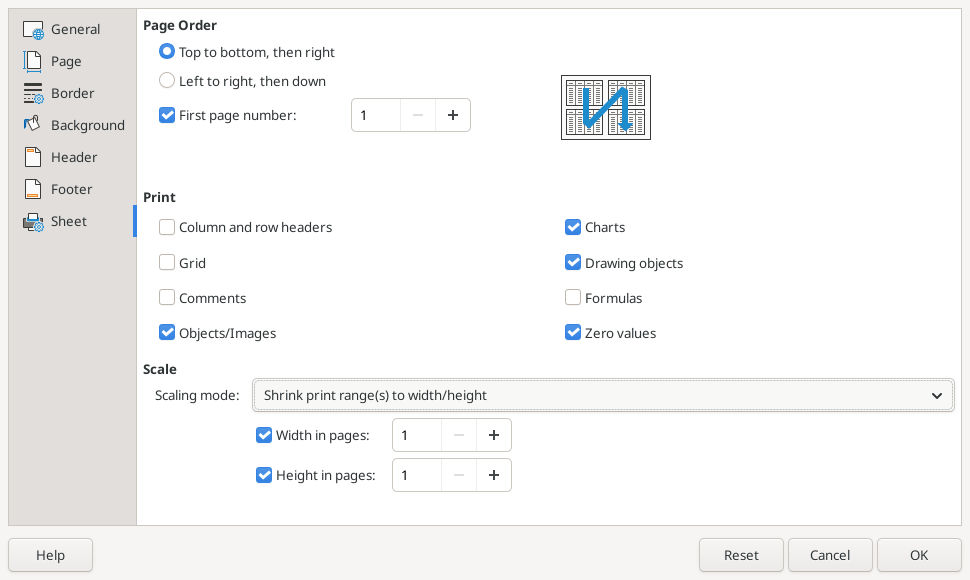
LibreOffice Calc 26.8.1.1: both width and height are limited to one page.
Checkpoint: the preview should contain the header, all 30 records and column F on one landscape page. Inspect the last record and the right edge, not only the top-left corner.
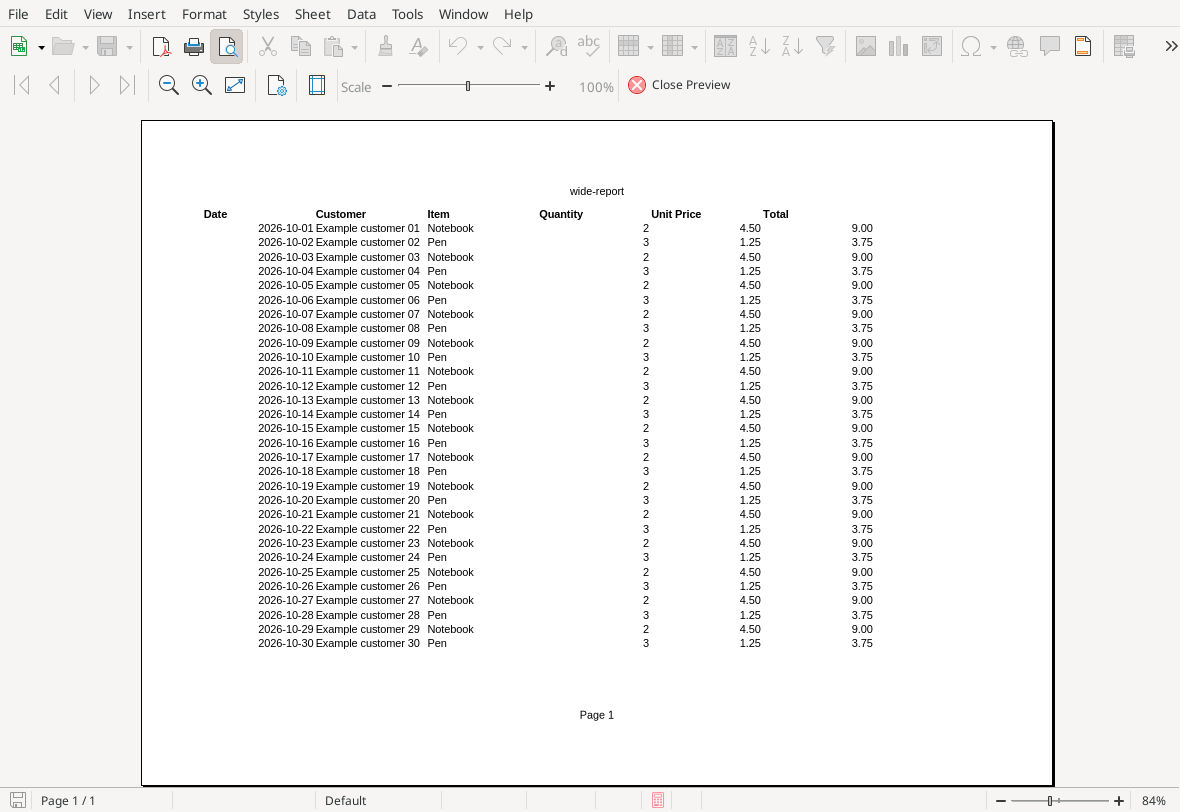
LibreOffice Calc 26.8.1.1: the native preview contains the complete report on one landscape page.
4. Export an ordinary page-sized PDF
- Choose File → Export As → Export as PDF so you can inspect its options.
- On General, use All for the defined print ranges in this single-report workbook. If the workbook contains other print ranges, review the full preview and choose the appropriate pages deliberately.
- Leave Whole sheet export unchecked. Also turn off Hybrid PDF (embed ODF file) when sharing only this report, so the editable workbook is not embedded in the PDF.
- Enable View PDF after export if useful, export, and open the saved PDF in a viewer.
- Verify the PDF’s page count and paper size, then inspect its text at normal reading size. Confirm the first record, last record, all six columns and two-decimal amounts are present. For a share-only report, confirm both special export options stayed off; visual inspection alone cannot reveal an embedded ODF workbook.
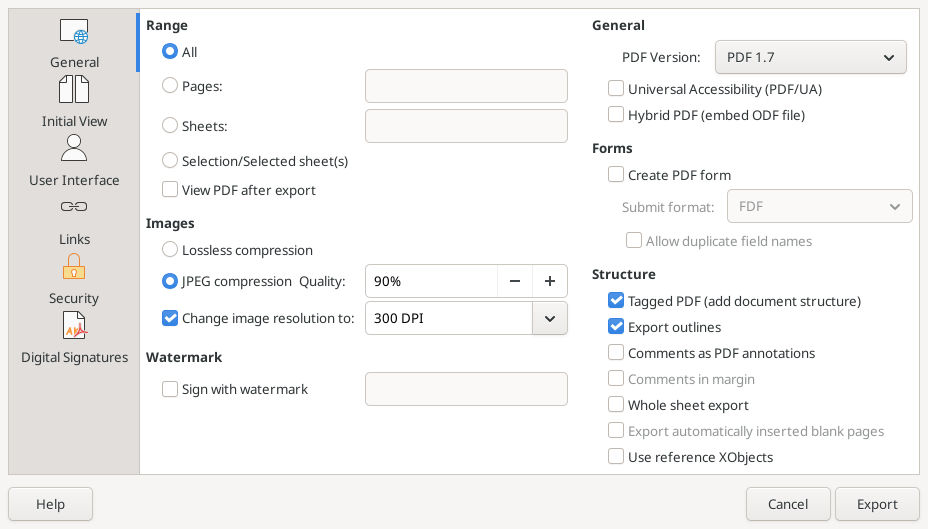
LibreOffice Calc 26.8.1.1: the final export uses the normal page layout and does not embed the editable workbook.
Open the actual one-page PDF from this example to compare your output. It contains all 30 records on A4 landscape paper, with bold headings and two-decimal amounts.
Whole sheet export is a different output mode. It ignores the configured paper size and print ranges, fits each sheet’s contents onto its own potentially very large page, and can include hidden sheets. It is unsuitable for this ordinary A4/Letter report and can expose material you intended to leave out. Hybrid PDF is a separate risk: it embeds an ODF copy alongside the visible PDF. A PDF that looks correctly limited to the report can therefore still carry editable workbook content. Keep that option off unless you deliberately intend to share the workbook too. Both modes are described in PDF Export General.
If one page makes the text too small
First remove unnecessary columns or blank space, shorten headings and wrap long labels where that remains clear. Then choose the smallest change that preserves readability:
- Return to Page Style → Sheet.
- Keep Width in pages = 1, but disable the Height in pages limit. Calc may now use additional pages downward.
- Choose Format → Print Ranges → Edit. Set Rows to repeat to
$1:$1, or select row 1 with the range picker. - Preview again and check that every later page starts with the six column headings.
- Export a new PDF and inspect the page boundary for missing or duplicated records.
Repeating a sheet row is separate from a page-style header, and freezing row 1 on screen does not repeat it in print. See Printing Rows or Columns on Every Page.
For a report that genuinely must be one physical page, a larger paper size or a shorter summary may be the honest solution. Scaling hundreds of rows down to unreadable text does not meet a readability requirement.
Common output problems
- The report spans pages sideways: confirm the active sheet’s style, the width limit, and that Whole sheet export is off. The dialog’s settings and the exported output must describe the same mode.
- Unexpected blank or extra pages: inspect the full print range, other sheet ranges, comments and objects, and manual page breaks in View → Page Break Preview. A stray distant cell can be enough to expand unbounded output.
- A number shows
###or a label is clipped: widen or reformat its source column before shrinking. Page scaling does not restore text already clipped by the sheet layout. - Only formulas appear: clear the Sheet tab’s Formulas print option.
- Column letters and row numbers print: clear Column and row headers if you want report headings only; this control is not the repeat-row feature.
- A PDF has one page but prints at tiny scale: inspect its physical dimensions. A giant Whole sheet export page can be scaled down again by the PDF viewer’s print dialog.
- A revised ODS or XLSX exports differently: repeat the preview and PDF checks after conversion, font substitution or changed printer settings.
Use SUM for a content-total check before and after preparing output. ROUND is relevant when the report requires rounded calculation results; a displayed two-decimal format alone does not change the arithmetic.
Verification: the one-page workflow was tested in LibreOffice Community Calc 26.8.1.1 on Linux, en-US. The actual PDF was opened through a read-only renderer and checked independently: one A4 landscape page, all 30 records matching the CSV, bold headings, two-decimal amounts, 10 pt text and no clipped page-edge text. Attachment and ODF-stream checks found no embedded workbook. The CSV total is 191.25. The unlimited-height/repeated-heading alternative, hidden-sheet export behavior, XLSX conversion, physical printing, other locales and close/reopen persistence were not tested natively; those cautions and alternatives are based on the linked documentation.