

LibreOffice Calc · Sheet and cell protection · Beginner
Protect Formulas but Leave Input Cells Editable in LibreOffice Calc
Build a two-area Calc template, unlock its quantity inputs, protect formula cells, and test editing and recalculation before sharing.
Worked example tested in LibreOffice Calc 26.8.1.1 · Editorial standards
Select the input cells, open Format → Cells → Cell Protection, and clear Protected. Leave that setting enabled for the formula cells, then choose Tools → Protect Sheet. Both levels matter: a cell’s Protected setting does nothing until sheet protection is active.
Use this to prevent accidental overwrites in a template. Sheet protection does not encrypt the file or securely hide confidential formulas from someone who has the document.
Prepare a two-area template
Use desktop LibreOffice Calc, a new ODS workbook and the standard menu bar. These directions follow current LibreOffice 26.8 Help. For the practice file, use no password so you can undo the protection while learning.
Enter this layout in A1:C3, or start with the input-template CSV and enter the two formulas yourself.
| Cell | Entry |
|---|---|
| A1 | Item |
| B1 | Quantity input |
| C1 | Calculated total |
| A2 | Notebook |
| B2 | 2 |
| C2 | =B2*4.50 |
| A3 | Pen |
| B3 | 3 |
| C3 | =B3*1.25 |
Expected results are 9.00 and 3.75. Format C2:C3 with two decimal places, and give B2:B3 a light fill so the intended input area is obvious. In a decimal-comma locale, enter the rates as 4,50 and 1,25 in these formulas. The CSV fixture contains only labels and quantity values; it has no formulas, formatting or protection.
If you want a summary, add Total in B5 and =SUM(C2:C3) in C5 now, before enabling protection. Its initial result is 12.75. Leave C5 protected like the other formulas; only B2:B3 should be unlocked. See SUM.
1. Leave the formulas locked and unlock only the inputs
- Select
C2:C3, open Format → Cells → Cell Protection, and check that Protected is enabled. Leave Hide all, Hide formula and Hide when printing off for this exercise, then confirm. - Select
B2:B3and reopen the same tab. - Clear Protected, then confirm. Do not select all of column B unless every cell in that column is intended to remain editable.
- If you have a second, separate input area in a real template, repeat this step for that exact range.
Select a screenshot to open the full-size image.
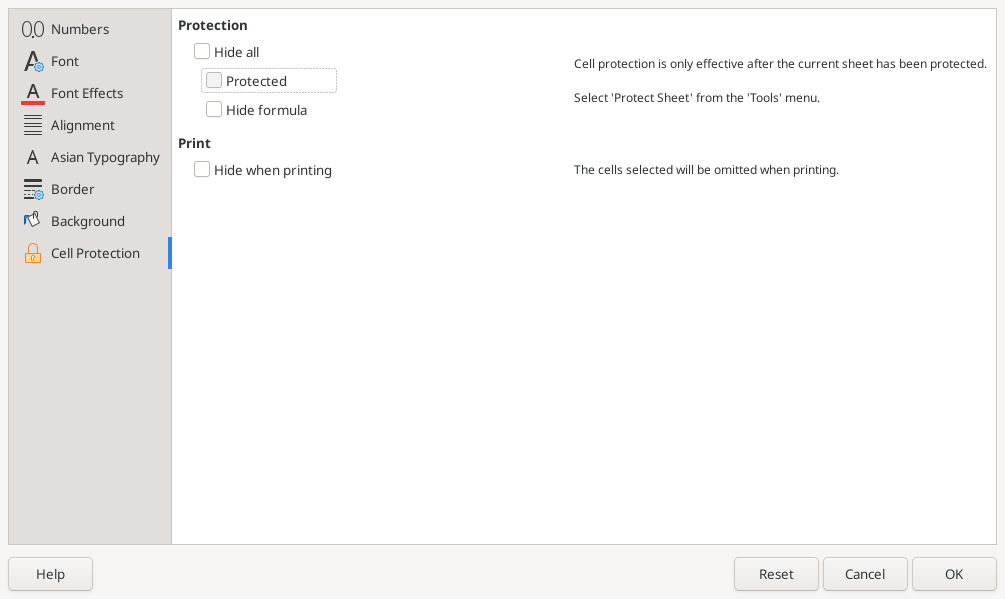
Native LibreOffice Calc 26.8.1.1 on Linux, captured 16 October 2026. Clear Protected only for the cells that should accept input.
New Calc cells have Protected enabled by default. In a new workbook, unlocking just the two inputs leaves the labels and formulas protected. In an existing template, inspect the attributes rather than assuming nobody previously unlocked formula cells. See Protecting Cells from Changes.
2. Activate sheet protection
- Choose Tools → Protect Sheet.
- Enable Protect this sheet and contents of the protected cells if the dialog offers that checkbox.
- Leave the password boxes empty for the practice workbook.
- Allow Select unprotected cells so a user can reach B2:B3. Leave Select protected cells enabled for this exercise too, so you can select a formula and test the edit restriction.
- Keep row/column insertion and deletion permissions restrictive unless the real template needs them. Confirm the dialog.
Selection permission and edit permission are different: allowing someone to select C2 does not unlock its formula. The Protect Sheet documentation lists these controls. In the tabbed interface, look under Review → Protect Sheet.
3. Test the template as its recipient would
- Change B2 from 2 to 4. The edit should succeed and C2 should recalculate to 18.00.
- Change B3 from 3 to 5. C3 should become 6.25.
- Select C2 and try to replace its formula with 999. Calc should refuse the edit; C2 must still calculate from B2.
- Try changing A2. The item label should also be protected.
- Save as ODS, close the workbook, reopen it, and repeat one permitted input edit and one refused formula edit.
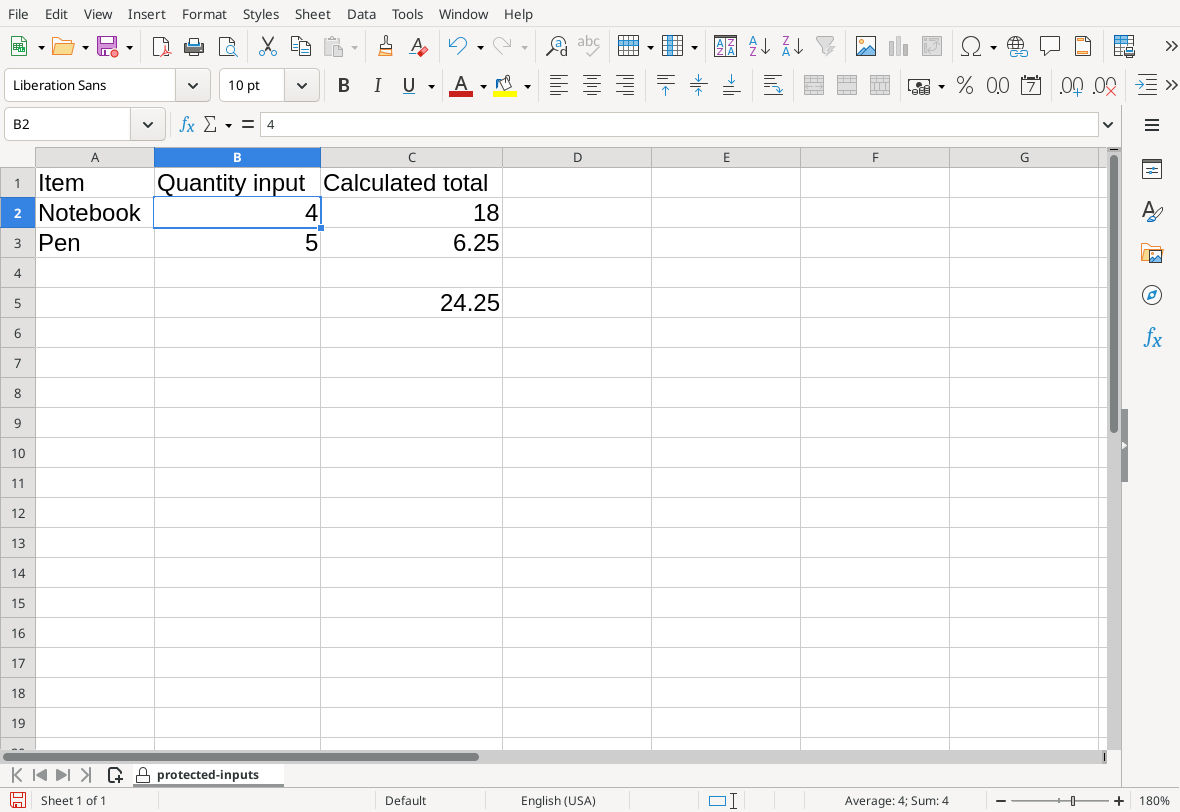
LibreOffice Calc 26.8.1.1 shows these results in General format; formatting 18 with two decimals displays 18.00.
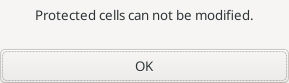
LibreOffice Calc 26.8.1.1 refuses a direct edit to the protected C2 formula.
This test checks the two intended behaviors together. A template in which nothing can be edited is just as wrong for this task as a template in which formulas can be overwritten.
Why formulas still recalculate
Protection limits editing of the formula cell; it does not turn its formula into a fixed value. Changing an unlocked input can therefore change a protected result. If C2 stays at 9 after B2 becomes 4, inspect whether C2 still contains =B2*4.50 and whether Data → Calculate → AutoCalculate is enabled.
If you added the optional C5 summary before protecting the sheet, it should now show 24.25 with quantities 4 and 5. If you decide to add it later, first remove sheet protection, enter the formula, confirm C5 is Protected, then protect the sheet and retest. If the real template requires monetary rounding, choose an explicit rounding rule rather than assuming a two-decimal display changes the underlying value; see ROUND.
Repair common setup mistakes
- Input cells are locked: turn sheet protection off, select B2:B3, clear their Protected attribute, then protect the sheet again. Also check that selecting unprotected cells is allowed.
- Formula cells are editable: confirm that protection is active on this particular sheet and that C2:C3 have Protected enabled. Protecting a different sheet does not protect this one.
- Results or formulas disappear: inspect Hide all and Hide formula after turning protection off. Hiding a formula is a separate option from preventing edits. Hide when printing affects printed output. See Cell Protection.
- You need to revise a formula: use Tools → Protect Sheet to remove the active protection, make the authorized edit, then restore protection and retest. A password-protected sheet asks for its password when protection is removed.
- New rows have unexpected permissions: inspect the inserted cells. Depending on the insertion location, they inherit protected or unprotected attributes. Extend the input area deliberately and rerun the input/formula test.
- An XLSX copy behaves differently: reopen that copy in the receiving application. Do not assume every permission survives every format conversion.
For a real password-protected template, keep a controlled editable master and a recoverable password. Without a password, anyone can remove the sheet protection through the menu; that is acceptable for the practice goal of preventing slips.
Protecting a sheet is not securing its contents
Tools → Protect Spreadsheet Structure addresses the workbook’s sheet arrangement, such as names and order. It is a separate decision from which cells are editable. Password-protecting an ODS file when saving addresses opening the document. Do not replace file-access controls or encryption with sheet protection, and do not distribute private data merely because its cells are hidden or locked. LibreOffice explicitly describes sheet/cell protection as a safeguard against accidental actions in its protection guide.
Verification: the input unlock, password-free sheet protection, input edits, formula recalculation (including C5) and rejection of a C2 overwrite were tested in LibreOffice Calc 26.8.1.1 on Linux (English interface) on 16 October 2026. The screenshots are native captures and the amounts were independently checked. Close/reopen persistence, password handling and cross-format behavior were not tested.