

IMPORTRANGE in ONLYOFFICE: Import Cells from Another Workbook
Use ONLYOFFICE IMPORTRANGE with a controlled source workbook, documented URL and range arguments, external-link prerequisites, and refresh checks.
Verification status: See the evidence and test scope described in this guide. How formula examples are checked
IMPORTRANGE imports cells from another spreadsheet. In ONLYOFFICE, its arguments identify the source spreadsheet and the range to retrieve. It is useful when a summary workbook needs a few values maintained in a separate workbook, provided the editor can resolve and access that source.
The examples below use a workbook you create yourself. Their expected values are conditional on a functioning source connection; they are not newly observed ONLYOFFICE results. The documentation and a pinned implementation were checked on October 19, 2026.
Availability and version evidence
The ONLYOFFICE Docs 8.1 release FAQ explicitly confirms IMPORTRANGE was added in version 8.1. The Desktop Editors changelog separately lists the function under 8.1.0, June 19, 2024. These records identify announced additions in those product families; they do not certify every integration or subsequent build.
The function remains in current help. No final supported-version endpoint is established. Mobile availability and earlier-build behavior are outside this guide’s verified scope.
Syntax and arguments
IMPORTRANGE("spreadsheet_url", "range_string")
The official function reference defines two required text arguments:
- spreadsheet_url: the URL identifying the spreadsheet to import from.
- range_string: the cells to retrieve, expressed as text, such as
"B2"or"A1:B4".
Enter a leading equals sign in the worksheet. The quotation marks belong around literal text arguments; commas separate them in the English syntax used here.
A source URL is not a request to scrape a web page. The pinned ONLYOFFICE implementation resolves an external workbook entry and reads its worksheet data. When no sheet is specified, that implementation selects the source’s first sheet. This guide deliberately uses one source sheet, avoiding assumptions about a particular deployment’s multi-sheet reference handling.
Confirm the source-link prerequisite
ONLYOFFICE’s external-links instructions distinguish two environments:
- In the online editor, external links connect files within the current portal. The integration must implement external-link insertion.
- In Desktop Editors, the documented external-link workflow connects local files.
For an external-link diagnostic, open both workbooks, copy one source cell, paste it into the destination, and choose Paste Special → Paste link. Keep this diagnostic cell outside the example outputs. This checks the editor’s ordinary linking workflow; it does not by itself prove that a manually typed IMPORTRANGE URL is supported.
Use the spreadsheet URL supplied by your supported online environment for the exercise below. If you cannot identify an accessible source URL that the integration accepts, stop at that prerequisite. Do not substitute a guessed local-file URL, an ordinary web-page address, or Google Sheets permission steps. The local Desktop Paste link workflow is documented, but the function reference does not establish a universal Desktop path-string format for manual IMPORTRANGE entry.
Create a small source workbook
Create a new workbook named ImportSource.xlsx with a single sheet named Source. Put this data in A1:B4:
| Cell | Value | Cell | Value |
|---|---|---|---|
| A1 | Item | B1 | Quantity |
| A2 | Pencils | B2 | 12 |
| A3 | Pens | B3 | 8 |
| A4 | Folders | B4 | 5 |
Save the source where your supported environment can access it. Create a separate destination workbook named ImportCheck.xlsx. Keep the source open while establishing the link, and record its actual URL and the editor’s version in the destination for your own audit. Do not publish a private source URL in a shared example or screenshot.
Three single-cell imports
In each formula below, replace SOURCE_URL with your actual supported source spreadsheet URL, retaining the double quotes. SOURCE_URL is a placeholder, not a working address. Using single cells keeps these examples independent of multi-cell placement rules.
| Destination cell | Formula template | Conditional expected value |
|---|---|---|
| D2 | =IMPORTRANGE("SOURCE_URL","B2") |
12 |
| D3 | =IMPORTRANGE("SOURCE_URL","B3") |
8 |
| D4 | =IMPORTRANGE("SOURCE_URL","A2") |
Pencils |
The expected values follow directly from the source fixture: B2 contains 12, B3 contains 8, and A2 contains Pencils. They require successful workbook resolution and retrieval; a formula-shaped string in a cell is not a successful import.
After D2 and D3 display numeric values, enter =SUM(D2:D3) in D6. Its independently calculated expected total is 20. Label C6 Pencils plus pens, since the folders row is intentionally excluded. This check catches accidentally pointing at the header or at the wrong quantity cells.
Check updates separately from calculation
Change source B2 from 12 to 15 and save it. ONLYOFFICE documents link management under Data → External Links, including selected-value updates and an automatic-update option. For this exercise, use the available update control rather than assuming that editing the source instantly refreshes every destination.
After a successful retrieval of the changed source, D2 should be 15, D3 should remain 8, and D6 should become 23. These are conditional expectations, not a promise about refresh timing. If D2 is still 12, investigate the source-link update before changing the SUM formula.
Breaking an external link stops its updates; ONLYOFFICE’s documented workflow retains values. Use a disposable copy if you want to examine that operation, rather than breaking the connection needed for this exercise.
What the vendor’s range example establishes
The official illustration displays =IMPORTRANGE("https://example","D3:D10"). The visible destination cells show 46, 27, 26, 19, 17, 12. This is the vendor’s range illustration. Its example URL is not a usable exercise source, and the image does not show all eight requested positions or the source workbook.
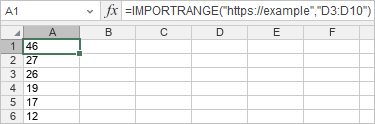
You can try "A1:B4" in a separate empty area after the single-cell checks succeed. The intended data is the four-row, two-column source fixture above. Inspect the actual build’s result and placement before incorporating it into a report; this guide does not infer spill, overwrite, blank-cell, or blocked-output behavior from the vendor image.
Troubleshooting without hiding the problem
- No usable source connection: first verify access and integration support. A syntactically valid URL does not establish permission or a registered external workbook.
- Wrong values: compare the actual source URL, source workbook and requested cell. The simple exercise has exactly one source sheet.
- Old values: inspect the external-link update state and saved source data. Arithmetic recalculation is not evidence that external data was fetched again.
- Reference failure: the pinned implementation returns a reference error when it cannot resolve the external workbook or worksheet. That code path does not identify every possible integration or network failure.
- Malformed range: the checked implementation parses the range text before lookup and rejects an unrecognized reference. Start with the exact single-cell strings in the exercise.
- Unexpected multi-cell output: return to the single-cell checks and record the exact editor version. Do not replace a visible error with zero before understanding it; zero would look like a real quantity.
For a handoff, preserve the source fixture, formulas, observed outputs, editor version and update steps. FORMULATEXT can help display a formula beside its result; take care that this may expose the private source URL. The source URL may need to remain private. This lets someone distinguish a formula issue from missing permissions, unavailable integration features or stale external data.