

ONLYOFFICE RANK: Numeric Order, Ties and Changing Comparison Groups
Use RANK in ONLYOFFICE with numeric direction controls, complete fixed-range examples, tied positions and an expanded comparison group.
Verification status: See the evidence and test scope described in this guide. How formula examples are checked
RANK gives a number’s position in a comparison range. Highest-first ranking is the default; a nonzero numeric order requests lowest-first ranking. A rank is a position, not a unique record identifier.
Availability and version history
- Introduced: The Desktop Editors changelog explicitly lists RANK among functions added in version 4.4.1. Docs and mobile introduction dates remain unknown.
- Availability: Documented in the current ONLYOFFICE Spreadsheet Editor help; no final supported-version endpoint is established.
- Scope: Desktop and Docs release separately. This history does not establish identical behavior across older builds, mobile clients or every deployment.
- Checked: October 14, 2026, against the official RANK reference and cited evidence. Examples were independently calculated; no native execution of these rank formulas was performed.
Syntax and numeric direction
=RANK(number, ref, [order])
| Argument | Meaning |
|---|---|
number |
Value whose rank you want; the examples use a value present in the range. |
ref |
Comparison range containing that value. |
order |
Optional numeric direction: 0 or omitted means descending; any other numeric value means ascending. |
These rules follow the official RANK entry. Use 0 or 1 in shared formulas to make the intent clear. A negative order is still nonzero; it does not request a special third ordering.
Reproduce a tied vendor example
On VendorRANK, put 7, 6, 5 and 5 in A1:A4. In C1 enter =RANK(A3,A1:A4,0). The official illustration shows 3. Both fives occupy the third/fourth sorted positions, and this example uses the best position, three.
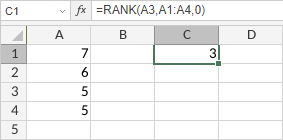
The current short RANK text does not spell out the tie policy as fully as RANK.EQ. The pinned official implementation uses the same best-position calculation for both names. This is supporting source evidence for the clean numeric examples below, not a claim of tested equivalence across every deployed build.
Rank each row against a fixed comparison group
Create ScoreRanks using A1:F7. Label A:F Score, Descending, Ascending, Omitted order, Negative order and Count reconstruction. Enter the scores below in A2:A7.
- B2:
=RANK(A2,$A$2:$A$7,0) - C2:
=RANK(A2,$A$2:$A$7,1) - D2:
=RANK(A2,$A$2:$A$7) - E2:
=RANK(A2,$A$2:$A$7,-1) - F2:
=COUNTIF($A$2:$A$7,">"&A2)+1
Fill B2:F2 through row 7. The dollar signs preserve the full comparison group as the target cell changes.
| Row | Score | Expected B | Expected C | Expected D | Expected E | Expected F |
|---|---|---|---|---|---|---|
| 2 | 40 | 4 | 2 | 4 | 2 | 4 |
| 3 | 55 | 2 | 4 | 2 | 4 | 2 |
| 4 | 55 | 2 | 4 | 2 | 4 | 2 |
| 5 | 70 | 1 | 6 | 1 | 6 | 1 |
| 6 | 25 | 6 | 1 | 6 | 1 | 6 |
| 7 | 40 | 4 | 2 | 4 | 2 | 4 |
Two 55s share rank two. The next value, 40, starts at rank four, so this is competition ranking with gaps. RANK.AVG would instead average the positions occupied by each tie.
F reconstructs the descending position as one plus the number of larger observations. It is an audit helper for these present numeric targets, not a replacement contract for values absent from the range. The help does not establish a universal absent-target error.
Changing the comparison group changes the rank
Copy ScoreRanks to ExpandedScores, preserving the original sheet. Put 80 in A8. In B2:F2 update every locked range to $A$2:$A$8, then fill through row 8. Use the same formula patterns, including the omitted and negative-order controls.
- Descending ranks B2:B8 become 5,3,3,2,7,5,1.
- Ascending ranks C2:C8 become 2,4,4,6,1,2,7.
- D and F match B; E matches C.
The six old measurements did not change. A new highest value pushed all their descending ranks down by one. Leaving the old range endpoint at row 7 would fail to include the new comparison record.
For a reordering control, create ReorderedScores with the original scores in this order: 70,40,25,55,40,55 in A2:A7. Put =RANK(A2,$A$2:$A$7,0) in B2 and fill through B7; expect 1,4,6,2,4,2. Moving rows does not break a numeric tie. Keep whole records together whenever you sort a real dataset.
Limits and related choices
- Preserve stored precision. Two displayed scores can look equal while their underlying values differ.
- Choose ascending order when a smaller measurement should come first, such as elapsed hours.
- Ties are not resolved by row order here. A unique award position needs an explicit additional policy.
- Mixed text/logical cells, empty-only ranges, absent targets and exact errors are outside these clean-input examples. The short help does not establish all of those boundaries.
- Use COUNTIF to inspect comparison counts and LARGE when starting from a position and asking for a value instead.