

ONLYOFFICE Spreadsheet Editor · Formatting · Intermediate
Highlight a Whole Row by Status in ONLYOFFICE
Apply a formula-based format across a row range, anchor the status column and check rule scope and precedence.
Official documentation reviewed; scoped native example verified · Editorial standards
Select the complete data rectangle and apply the formula =$C2="Blocked". The dollar sign fixes the status column C; the row number stays relative so each row checks its own status.
Scope and practice data
This guide follows the current English desktop-style ONLYOFFICE Spreadsheet Editor help. Use an editable workbook copy with no existing conditional rules in the practice range. Hosted and desktop layouts can differ; mobile menus are outside this walkthrough. Save as XLSX because CSV does not preserve formatting rules.
Enter this table in A1:C5, or open the synthetic task CSV:
| Task | Hours | Status |
|---|---|---|
| Check labels | 2 | New |
| Review figures | 4 | Blocked |
| Confirm dates | 1 | Done |
| File report | 3 | Blocked |
Apply a row-wide rule
- Select A2:C5, beginning at A2. Exclude the header.
- Choose Home → Conditional Formatting → New rule. At the tested window width, Home → More exposed the Conditional formatting control.
- Set the rule type to Formula and enter
=$C2="Blocked"in its formula/data field. - Choose a readable fill and contrasting text color in Format, inspect the preview, and confirm.
- Open Conditional Formatting → Manage rules (the plural label in Desktop Editors 10.0.0.169). Verify Apply to covers A2:C5, and the formula starts with row 2. The tested manager displayed
=$A$2:$C$5.
The official conditional-formatting help documents Formula rules, row-highlighting examples and the rule manager. It also offers equivalent access through the right-sidebar Cell Settings.
Why the reference matters
The rule is evaluated across the selected rectangle. At A3, B3 and C3, the intended condition is the same: C3 contains Blocked. The fixed column keeps the check from drifting sideways. The unfixed row makes the row-5 check look at C5.
| Formula mistake | What to inspect |
|---|---|
=$C$2="Blocked" |
Every row checks C2, which is New in this sample |
=C2="Blocked" |
Column can move as the rule applies across the row |
=$C1="Blocked" |
Starting row does not match A2:C5 |
| Correct formula applied only to C2:C5 | Only status cells receive the format |
“Whole row” here means A:C within the task table, not every column of the worksheet. Extend Apply to deliberately if your table grows.
Verify the result
Only A3:C3 and A5:C5 should be highlighted initially. Change C4 from Done to Blocked: A4:C4 should join them. Change C3 to Done: its row should stop matching. Restore the original statuses after the test.
=COUNTIF(C2:C5,"Blocked") should return 2 for the original data. COUNTIF gives a separate record-count check; it does not prove the visual rule is applied to all three columns. Inspect both the first and last cells of each highlighted row.
Keep a simple numeric rule when that is enough
For a separate threshold exercise, put 92, 105, 130 and 87 in B2:B5 on another sheet. Select those cells and choose a Value is rule for greater than 100. Choose a format and confirm. The expected highlighted values are 105 and 130 only. This preserves a straightforward alternative when the decision depends on the formatted cell itself.
Other documented rule families include Top/Bottom, Average, Text, Date, Blank/Error, Duplicate/Unique, Data Bars, Color Scales and Icon Sets. A Formula rule is useful when the format depends on another cell rather than a simple value threshold.
Troubleshooting
- Nothing matches: inspect the actual status text for trailing spaces, missing letters or a different label. Do not replace business data just to fit a color rule.
- Several formats compete: show the worksheet’s rules in Manage rules, inspect their ranges and top-to-bottom precedence, and edit the intended rule rather than adding duplicates.
- New tasks have no color: update the target range and verify the formula still matches its first row.
- Imported Hours values do not match the threshold: check whether they are stored as text. Formatting cannot fix an incorrectly imported value.
Native example and test limits
The supplied task CSV and both formatting exercises were tested in ONLYOFFICE Desktop Editors Community 10.0.0.169 (x64 deb) on Linux x86_64, with English UI, on October 16, 2026. The formula =$C2="Blocked" applied to A2:C5 initially highlighted all three cells in rows 3 and 5. COUNTIF returned 2.
Changing C4 to Blocked added the entire fourth row and raised the count to 3. Changing C3 to Done removed the third row’s highlight and returned the count to 2. After restoring the original statuses, the separate greater-than-100 rule highlighted 105 and 130 only, leaving 92 and 87 uncolored.
XLSX save, close and reopen retained both visual rules: original rows 3 and 5 were highlighted across A:C, and only the two qualifying scores were highlighted on the second sheet. The entered comma-separated COUNTIF formula calculated correctly; its reopened formula-bar display used a semicolon. No global separator setting was changed.
Select a screenshot to open the full-size image.
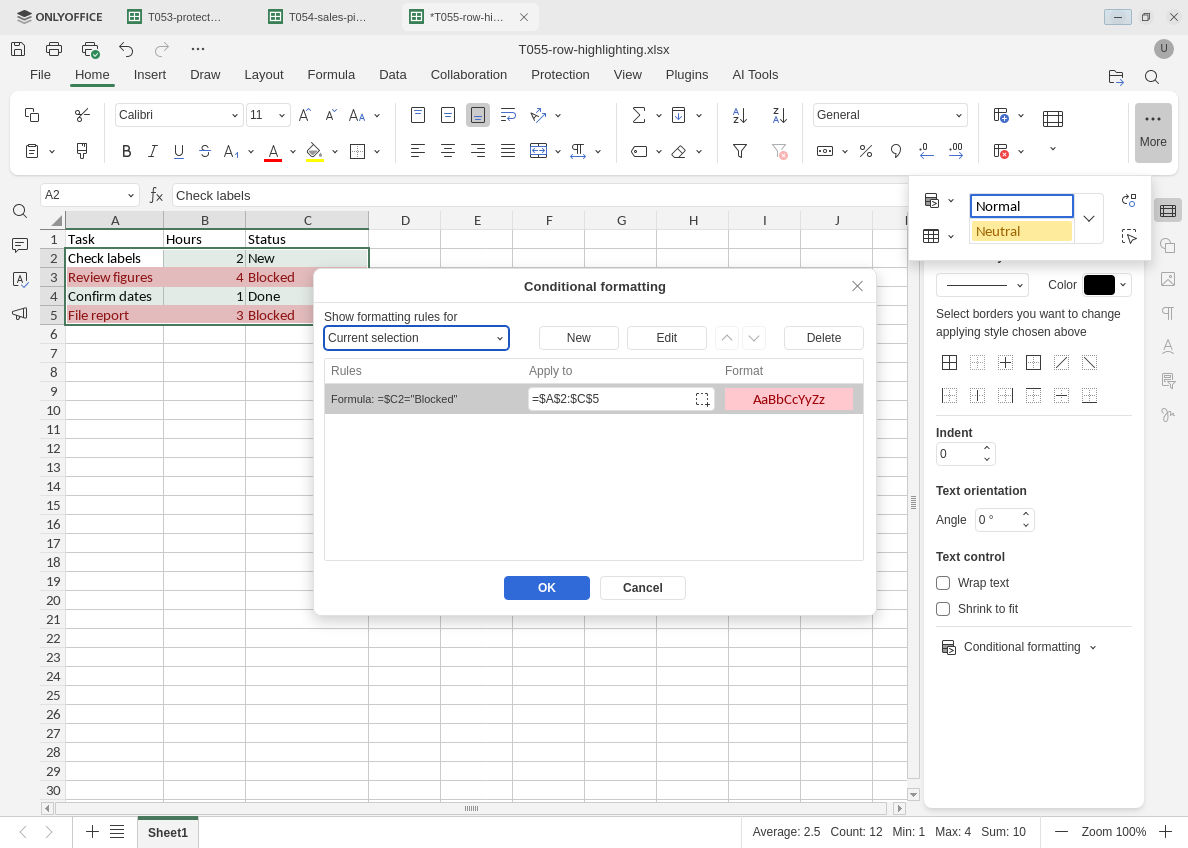
Check both the formula and the complete destination range in Manage rules.
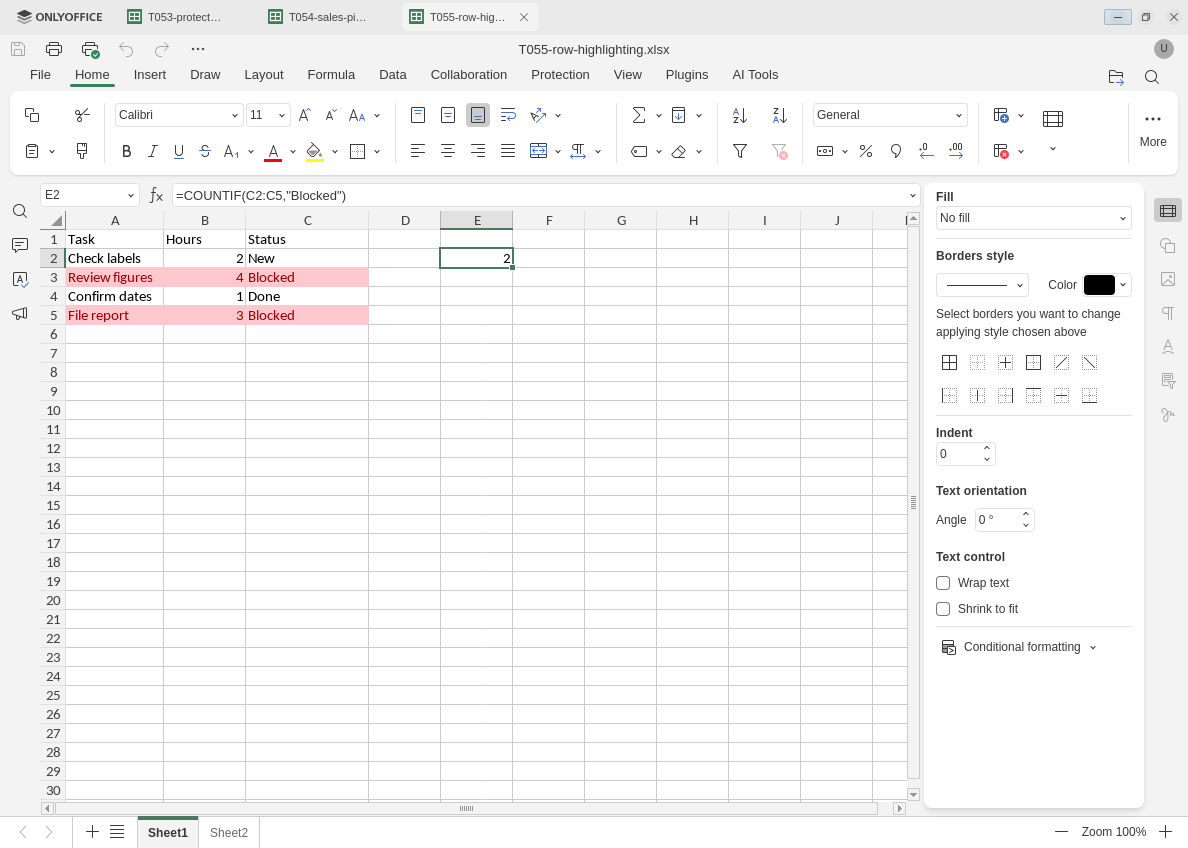
The original row-wide formatting and separate count check persist after XLSX reopen.
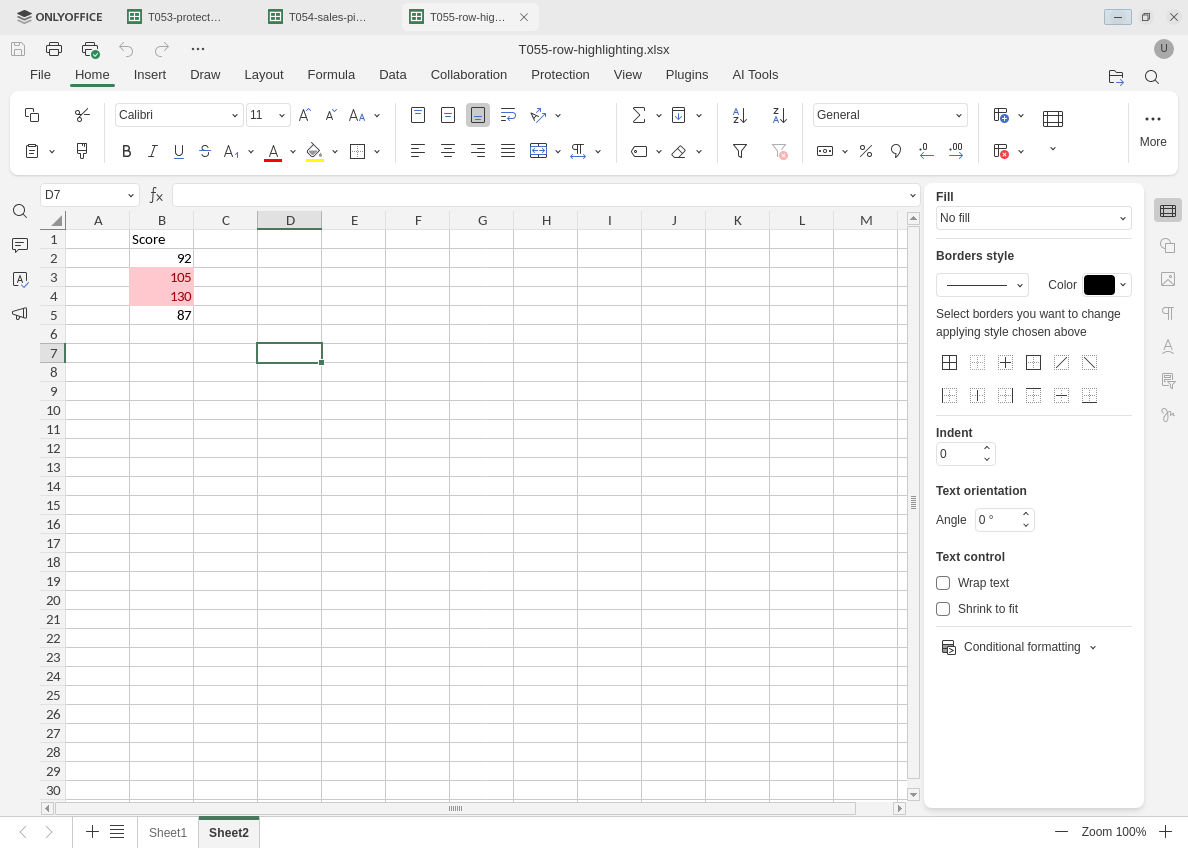
The separate greater-than-100 rule also persists after reopening.
Evidence and limits: Official documentation and independently calculated row/threshold matches were checked separately from native execution. Screenshots retain their original bytes. Native testing covered this single row-expression rule, its two status changes, the separate numeric threshold rule and one XLSX save/reopen cycle. Rule precedence or overlapping rules, other rule families, range growth, erroneous formulas, text-number repair, alternate presets, hosted/mobile builds and other editors were not tested. A matching COUNTIF result supplements the visual checks; it does not prove the formatting range by itself.