

ONLYOFFICE Spreadsheet Editor · Import and data cleanup · Intermediate
Preserve CSV Product IDs and Date Text in ONLYOFFICE
Use an untouched CSV original, a prefixed transport copy and text extraction checks instead of assuming an unavailable import type selector.
Official documentation reviewed; scoped native example verified · Editorial standards
Keep the original CSV untouched. For identifiers and date strings whose exact characters matter, import a separate copy with explicit text prefixes, then remove those prefixes with text formulas and compare every result with the original.
ONLYOFFICE’s current import help does not document a per-column Text or date-type selector. This guide therefore uses a controlled transport-copy workflow, not a promise that ordinary CSV opening preserves types. Merely changing a damaged cell’s display format cannot recover missing digits or the original meaning of an ambiguous date.
Scope and limits
Use an editable workbook in the desktop-style online or desktop Spreadsheet Editor with Data → Get data. The example preserves dates as text; it deliberately does not decide whether 03/04/2026 means 3 April or March 4. The input is synthetic, comma-separated UTF-8, with no multiline fields. A large or complicated production CSV needs a CSV-aware text-preserving preparation process, followed by full comparisons, rather than a blind search-and-replace.
Download the untouched original and the prepared transport copy. Open the original in a plain-text editor to verify these literal fields:
| ProductID | DateText | Quantity |
|---|---|---|
| 00123 | 03/04/2026 | 2 |
| 12345678901234567 | 2026-04-03 | 5 |
| 00009 | 04/03/2026 | 1 |
The transport copy adds ID: before every ProductID and DT: before every DateText. For example, its second data row starts ID:12345678901234567,DT:2026-04-03. The original remains the authority. A transport copy must be prepared before numeric or date conversion; it cannot repair an already-altered export.
Import the transport copy
- In a blank workbook choose Data → Get data → From Local TXT/CSV and select the transport file.
- Set encoding to UTF-8 and delimiter to Comma. In Advanced, use the source’s numeric separators and choose the double-quote text qualifier if the source uses quoted fields.
- Inspect the preview: there must be three columns, with the ID: and DT: prefixes visible. Choose A1 on an empty sheet as the destination, then import.
- Inspect A2:B4 before continuing. Stop if any prefix, zero or digit differs from the transport file.
These are the documented import controls. A text qualifier handles quoted fields; it is not a data-type setting. Ordinary CSV opening documents delimiter and encoding options, not a guarantee against conversion.
Extract the original strings
Add RestoredID in D1 and RestoredDateText in E1. Enter:
- D2:
=MID(A2,4,LEN(A2)-3) - E2:
=MID(B2,4,LEN(B2)-3)
Fill both formulas down to row 4. They take the text after the three-character prefix. The MID and LEN guides explain extraction and character counts. The vendor documents MID and LEN as text functions.
Do not use VALUE, arithmetic coercion or a numeric format to remove the prefix. Those would change the purpose of preserving literal identifiers and dates.
Require these checks before use
For every row, compare D and E with the original plain-text fields, character by character. For this sample, all of these must be true:
- D2 is
00123, D3 is12345678901234567, and D4 is00009. - Their lengths are 5, 17 and 5.
- E2 is
03/04/2026, E3 is2026-04-03, and E4 is04/03/2026; each has 10 characters. =ISTEXT(D2)and=ISTEXT(E2)return TRUE; repeat for all rows.=EXACT(D3,"12345678901234567")returns TRUE. Use an equivalent comparison with each expected ID and date string, not only the long-ID row.
ISTEXT checks the value type; EXACT checks literal equality. See the vendor’s ISTEXT and EXACT definitions. A matching display or a TRUE type check alone is insufficient.
Save and transfer safely
Save the working workbook as XLSX, reopen it, and repeat the checks. Retain the transport columns and original file until the downstream result is verified. If dates must become actual dates for calculations, first agree their day/month order and create a separate converted column.
If you export CSV, inspect the exported file in a plain-text editor or a text-preserving CSV parser. Check field values and row count against the original before delivery. Reopening that CSV in a spreadsheet can infer types again: this workflow does not make CSV a type-preserving format. Stop and return to the untouched source if any check fails.
Native example and test limits
The three-record prefixed transport CSV was imported through Data → Get Data → From Local TXT/CSV in ONLYOFFICE Desktop Editors Community 10.0.0.169 (x64 deb) on Linux x86_64, with English UI, on October 16, 2026. The native Text Import preview showed UTF-8, Comma, three fields and all ID:/DT: prefixes. No per-column type selector was observed in the inspected import controls. The original CSV remained untouched.
MID and LEN formulas filled through D2:E4 returned all six original strings exactly, including 00123, the 17-digit ID, and the three literal date strings. All six ISTEXT checks and all six EXACT comparisons returned TRUE; ID lengths were 5, 17 and 5, and date lengths were 10, 10 and 10. Quantity values stayed numeric 2, 5 and 1, with COUNT 3 and SUM 8.
Saving XLSX, closing and reopening preserved the prefixes, restored text strings, all 18 text/length/equality checks and the quantity checks. Dates remained text; the test did not choose a day/month interpretation.
Select a screenshot to open the full-size image.
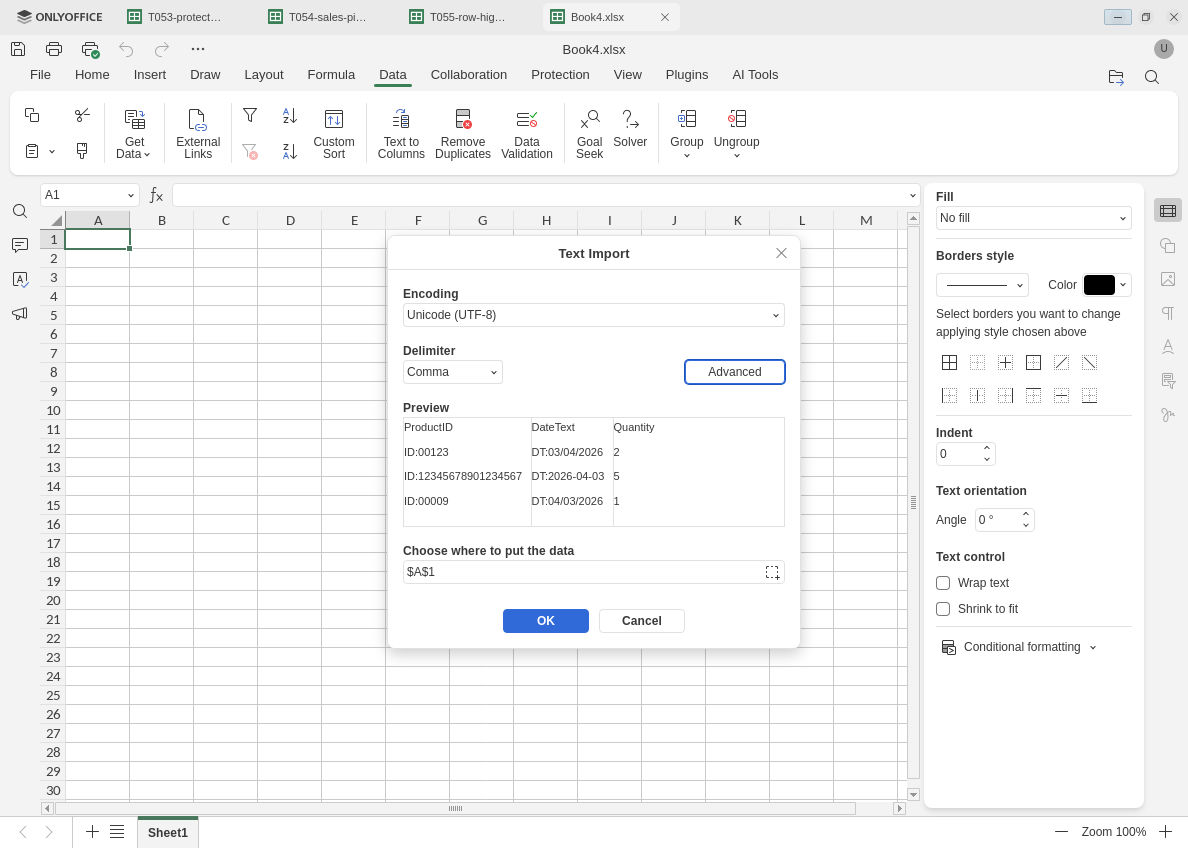
Inspect the prefixes and field boundaries in the transport-copy preview before importing.
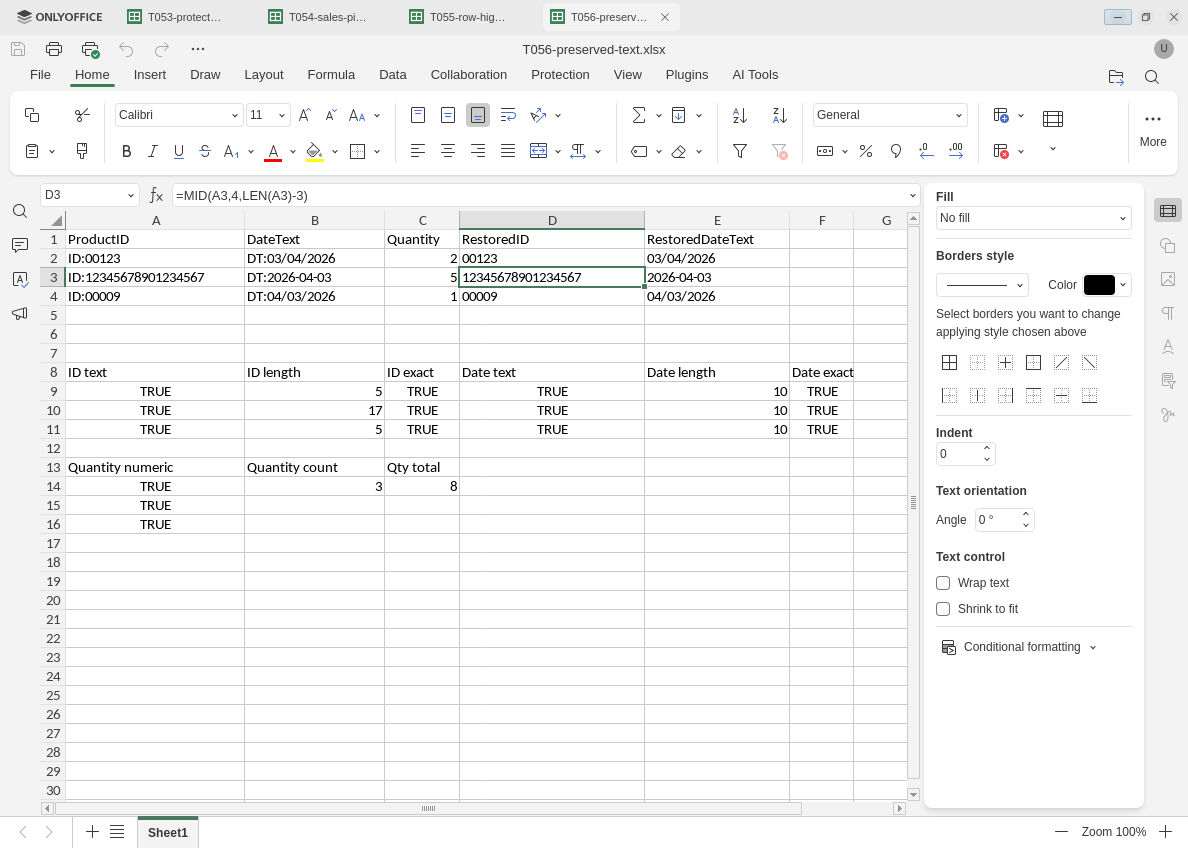
All original text outputs and checks persist after XLSX reopen; quantity checks separately confirm numeric values.
Evidence and limits: Official documentation and independent CSV/text comparisons were completed separately from native execution. Screenshots preserve original capture bytes. The native check covers only this three-record prefixed transport import, text formulas, exact comparisons and XLSX persistence. CSV export, a CSV round trip, unprefixed automatic conversion, actual-date interpretation, quoted or multiline parser edge cases, large production transformations, hosted/mobile builds and other editors were not tested. No post-reopen input change or forced recalculation was performed. This does not make CSV a type-preserving format.