

ONLYOFFICE Spreadsheet Editor · Data entry and validation · Beginner
Create and Update an ONLYOFFICE Drop-Down List
Build a source-range status dropdown, reject invalid typing and extend the allowed choices without assuming automatic range growth.
Official documentation reviewed; scoped native example verified · Editorial standards
Use Data Validation → List with a source range you can maintain. Editing a choice inside that range and adding a choice outside it are different jobs: the second needs an expanded source reference.
Scope and practice layout
These instructions follow the current English ONLYOFFICE Spreadsheet Editor desktop-style interface. They require an editable, unprotected working area; a view-only document cannot be configured this way. Ribbon layout can differ between hosted and desktop builds. Mobile menus and every historical version are not covered.
In a new workbook, enter task names in A2:A5 and leave B2:B5 empty. Put Task, Status, and Allowed status in A1, B1, and D1 respectively. Enter these choices in D2:D5:
| Cell | Value |
|---|---|
| D2 | New |
| D3 | In progress |
| D4 | Blocked |
| D5 | Done |
Download the choice list if useful. Open it as comma-separated UTF-8 text and copy the four choices, without the header, into D2:D5. CSV does not contain a validation rule. Save the working workbook as XLSX.
Add the rule
- Select B2:B5 and open Data → Data Validation.
- In Settings, set Allow to List. Use the range selector beside Source to select D2:D5, excluding D1. Check that the reference ends at row 5; in the tested Desktop Editors build, the selector produced
=$D$2:$D$5, including the leading equals sign. - Keep Show drop-down list in cell enabled. Decide whether blank entries are acceptable using Ignore blank.
- In Input Message, add a short instruction such as
Choose a status from the listand leave its display option enabled. - In Error Alert, enable the alert and choose Stop. Set an explanatory message such as
Choose a status from the allowed list, then confirm the dialog.
These are the product’s documented validation settings; Alert and Message are alternative styles, so do not treat every visible alert as strict rejection.
Test typing and selection
Open B2’s dropdown and choose New. Choose In progress, Blocked and Done in B3:B5. The source list has four choices, and each should appear once. Type Waiting into B2 as a deliberate invalid-entry test: with the Stop rule active, the new value should not be accepted. Cancel the invalid entry and retain New.
Check the first and last destination cells, not only B2. =COUNTIF(B2:B5,"Done") should be 1 after the selections above; see COUNTIF. This checks stored values rather than testing the rule itself.
Change an existing choice
Change D4 from Blocked to On hold, then reopen the dropdown in B2. The expected choices are New, In progress, On hold and Done. B4’s previously stored Blocked value should not be treated as automatically renamed by this maintenance step. Inspect existing entries and replace old terminology deliberately. Before replacement, =COUNTIF(B2:B5,"Blocked") identifies how many old labels remain.
In the native example below, changing D4 immediately updated the menu to On hold while the stored B4 value remained Blocked. If your menu still shows Blocked, reopen Data Validation and verify the rule points at D2:D5 rather than an embedded literal list or another sheet.
Add a fifth choice
Put Cancelled in D6. D6 lies outside the original four-cell range. Reopen the validation rule for B2:B5 and change Source to D2:D6 using the selector. Confirm, reopen B2 and B5, and check for all five choices. Update any input or error message that names the old number of choices; message text does not expand with the range. Do not assume typing below the list expands a fixed reference.
The documented option to apply changes to other cells with identical settings can propagate a rule change. Use it only when those other cells should also change; otherwise select the intended destination range explicitly. When adding future task rows, configure validation on those new destination cells too. Enlarging the source list does not itself assign a rule to B6.
Troubleshooting and limits
- No arrow: check the in-cell dropdown setting and whether the selected cell has the rule.
- Invalid typing accepted: inspect the alert’s enabled state, style and actual source. Test direct typing separately from paste/import; validation is not a guarantee that every imported value was audited.
- Cannot choose a valid option: a locked cell on a protected sheet is not an editable input. Resolve the protection design with the owner.
- Wrong kind of constraint: use the documented numeric, date, time, text-length or formula-based Other validation types instead of a list where appropriate.
Native example and test limits
The synthetic status-list example was tested in ONLYOFFICE Desktop Editors Community 10.0.0.169 (x64 deb) on Linux x86_64, with English UI, on October 16, 2026. The original four choices were selected in B2:B5. Directly typing Waiting triggered the Stop-style warning; Cancel retained the prior value.
Renaming D4 to On hold immediately changed the dropdown, while B4 kept its previously stored Blocked value. Adding Cancelled in D6 did not expand the fixed source. Explicitly extending the rule to =$D$2:$D$6 made all five choices available in both B2 and B5. The error message was changed to count-neutral wording before saving.
After XLSX save, close and reopen, both endpoint menus retained all five choices, and the B5 invalid-typing test was still rejected. The Done and historical Blocked counts both remained 1. Comma-separated COUNTIF formulas were accepted during entry; the reopened formula bar displayed semicolons. This is an observed entry/display difference in the tested build, not a universal separator rule.
Select a screenshot to open the full-size image.
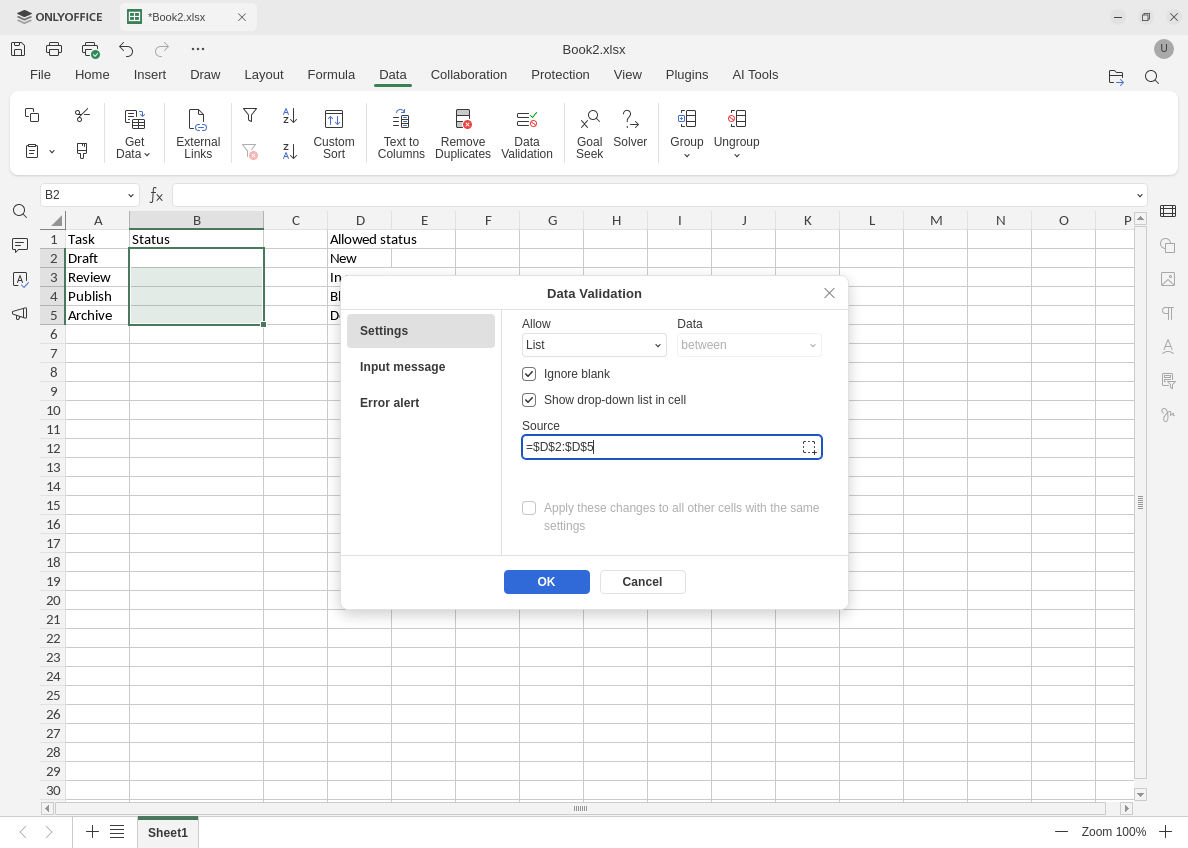
Native 10.0.0.169 initial setup: the range selector supplies the leading equals sign.
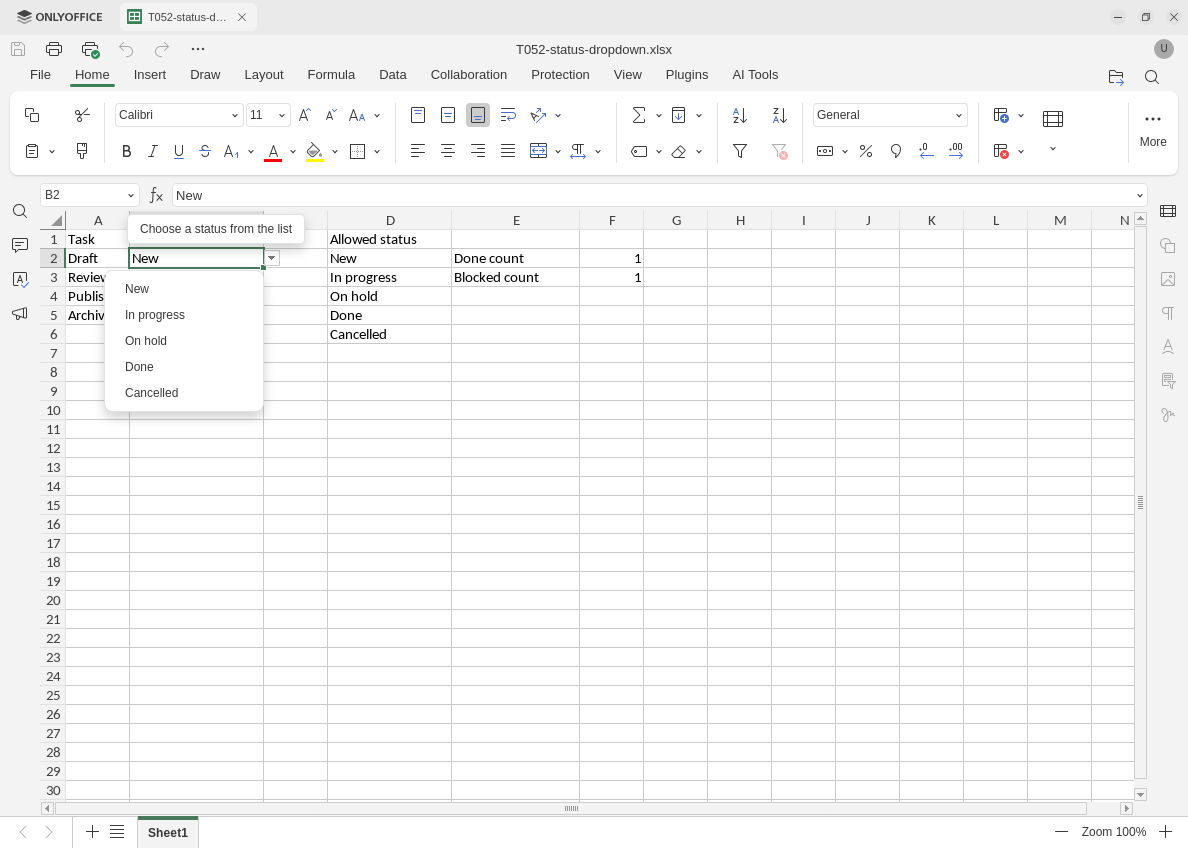
After explicit source expansion and XLSX reopen, the dropdown shows all five choices.
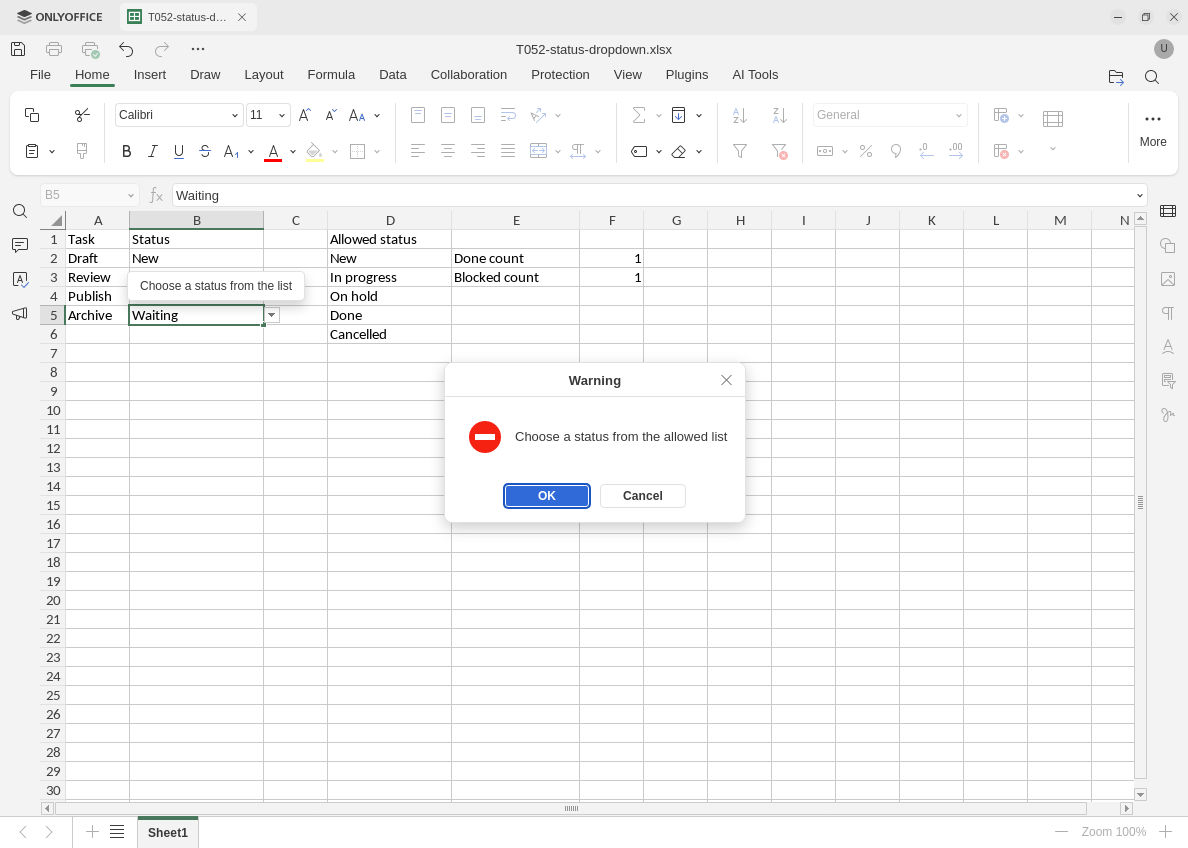
The visible Waiting text is the attempted edit during the warning, not an accepted value. Cancel retained Done.

Changing an allowed choice does not rename the old stored value: B4 still contains Blocked.
Evidence and limits: Official documentation and independent membership/count checks were reviewed separately from native execution. Screenshots preserve the original capture bytes. The native test covered only this same-sheet fixed-range example, direct typing, source maintenance and one XLSX save/reopen cycle. CSV import, blank enforcement, paste/import enforcement, automatic table or named-range growth, rules on new destination rows, propagation to unselected cells, other alert styles, hosted/mobile builds and other versions were not tested.