

ONLYOFFICE Spreadsheet Editor · Import and data cleanup · Intermediate
Remove Duplicate Rows Safely in ONLYOFFICE
Keep an untouched copy, select the complete record range and distinguish exact duplicate records from repeated business keys.
Official documentation reviewed; scoped native example verified · Editorial standards
Work on a separate copy, select every column belonging to the records, and choose the columns that define a duplicate. Removing duplicate IDs is different from removing completely identical rows; the first can discard conflicting information.
Scope and backup
This guide follows the current English desktop-style ONLYOFFICE Spreadsheet Editor help. Use an editable XLSX working copy with all practice records visible. Do not perform the exercise in a shared live list, and do not rely on a filter to protect hidden records. Mobile menus and every historical build are outside the verified scope.
Keep the original file unchanged. Put the complete record block on a dedicated worksheet with no unrelated data alongside or below it. Do not rely on Undo as the only backup.
Enter this table at A1:D6 or open the synthetic duplicate-record CSV:
| OrderID | Product | Quantity | Note |
|---|---|---|---|
| O101 | Pen | 2 | Original |
| O102 | Pad | 1 | Original |
| O101 | Pen | 2 | Original |
| O101 | Pen | 3 | Correction |
| O103 | Clip | 4 | Original |
There are five data records, including one exact repeated record and a conflicting quantity for O101. Save a workbook copy before deleting anything. CSV contains values, not a protected original or an audit history.
First remove only exact repeated records
- Select A1:D6, including the header and every record field.
- Choose Data → Remove Duplicates.
- If the editor asks about a partial selection, choose the complete intended record range. Do not remove only the ID cells while leaving their adjacent fields unchanged.
- Enable My data has headers and leave all four columns selected for comparison.
- Confirm, then record the dialog’s removed/remaining counts and compare the surviving rows with your backup.
The official removal instructions document selection expansion, comparison columns, the count report and immediate Undo.
Expected result: one repeated row removed, four data records remaining. Both O101/quantity-2/Original and O101/quantity-3/Correction must remain because they are different complete records. The remaining quantities sum to 10, compared with 12 in the original five rows.
What changes if you compare only OrderID?
Return to a fresh copy of the original five rows. Still select the complete A1:D6 block, but select only OrderID in the comparison-column list. This tells the operation to identify repeats by ID while moving/removing the full selected records.
For a first-occurrence retention rule, the expected surviving IDs are O101, O102 and O103 with quantities 2, 1 and 4. Two rows are removed; the quantity total becomes 7. The Correction row would be lost. This is why a repeated business key needs review before deletion.
The reviewed ONLYOFFICE source implementation scans rows forward and marks later matching rows for removal. That is source-code evidence for first-occurrence retention at that revision, not a guarantee for every released build. The native example below separately confirmed the identifiable first O101 survivor in Desktop Editors 10.0.0.169. Verify the survivor in your own copy before using the result. Sorting first can change which row is first; do not sort casually if retention order matters.
Review duplicates before choosing a key
=COUNTIF($A$2:$A$6,A2) filled down beside the untouched original should give 3, 1, 3, 3 and 1. COUNTIF flags repeated IDs; it does not decide whether those rows are mistakes. Leave this helper outside the deletion range or remove it from a separate working copy before the all-columns exercise.
Decide whether the real key is one column, several columns, or the complete record. If two rows disagree about an amount, date or status, resolve the conflict or keep both for review instead of assuming the first is correct. For case-sensitive identifiers or mixed text/number representations, test the exact matching behavior in your build before applying a broad cleanup.
Final checks and recovery
- Compare original count, removed count and retained count: 5 = 1 + 4 for the exact-record test, or 5 = 2 + 3 for the ID-only test.
- Verify complete surviving rows, especially the O101 quantity and Note. A plausible row count can hide the wrong retention choice.
- Inspect related formulas and charts after rows move. This isolated fixture does not prove a complex workbook’s dependencies remain correct.
- If the result is wrong, use Undo immediately and verify the restored records; otherwise return to the untouched backup.
- Save the cleaned output under a new filename. Retain the original and the chosen duplicate-key definition until the cleanup is approved.
Native example and test limits
The synthetic five-record CSV was tested in ONLYOFFICE Desktop Editors Community 10.0.0.169 (x64 deb) on Linux x86_64, with English UI, on October 16, 2026. The original record block was preserved. Two separate fresh XLSX copies began with the same five records and no helper columns. The original audit produced COUNTIF results 3, 1, 3, 3, 1 and quantity total 12.
With A1:D6 selected, the header option enabled and all four columns compared, the native report counted 1 deleted and 4 remaining. Both O101 records with quantities 2 and 3 survived, including the Correction note; the quantity total was 10.
On the independent fresh copy, selecting the same complete block but comparing OrderID only produced 2 deleted and 3 remaining. The first O101/Pen/2/Original record survived; the O101 quantity-3 Correction record was removed. O102/Pad/1/Original and O103/Clip/4/Original also remained, for a quantity total of 7. Each cleaned output was saved under a distinct filename, closed and reopened; every surviving field, header and total persisted.
Select a screenshot to open the full-size image.
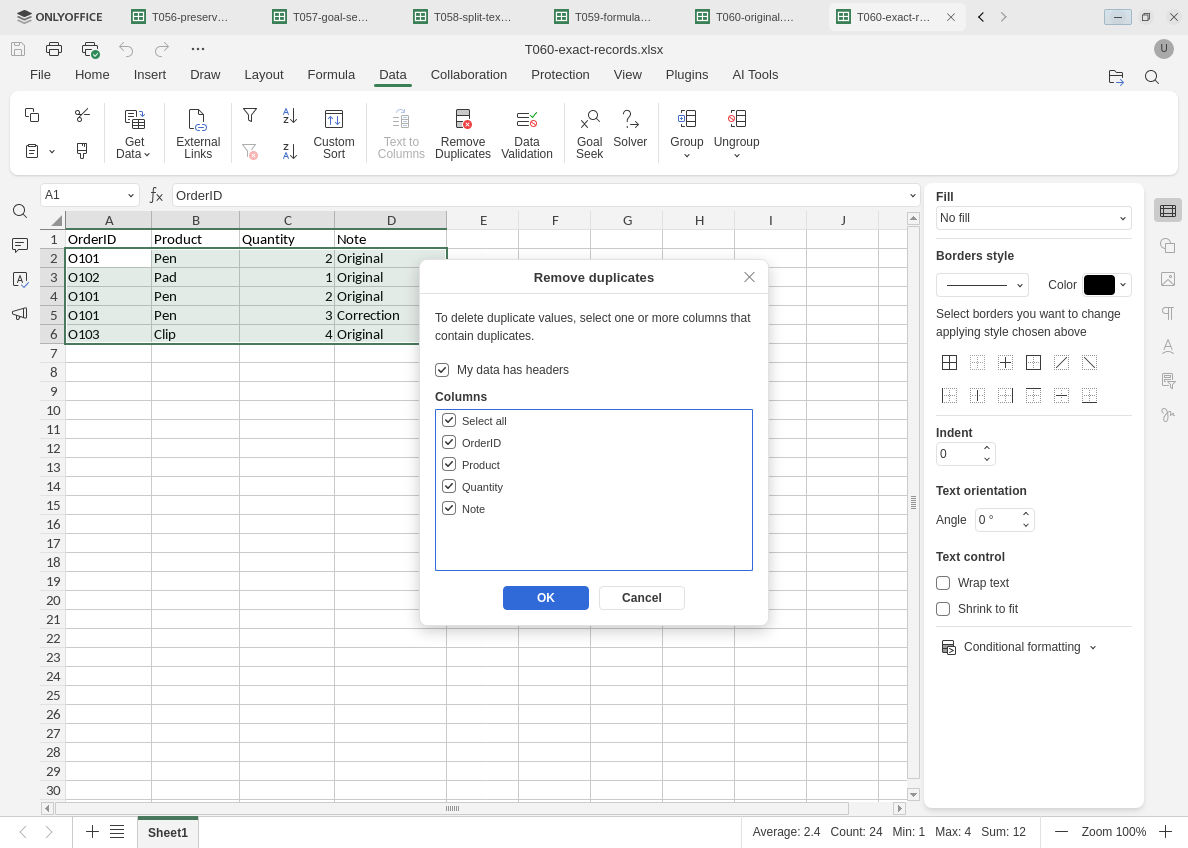
All-column comparison removes only an identical complete record in this fixture.
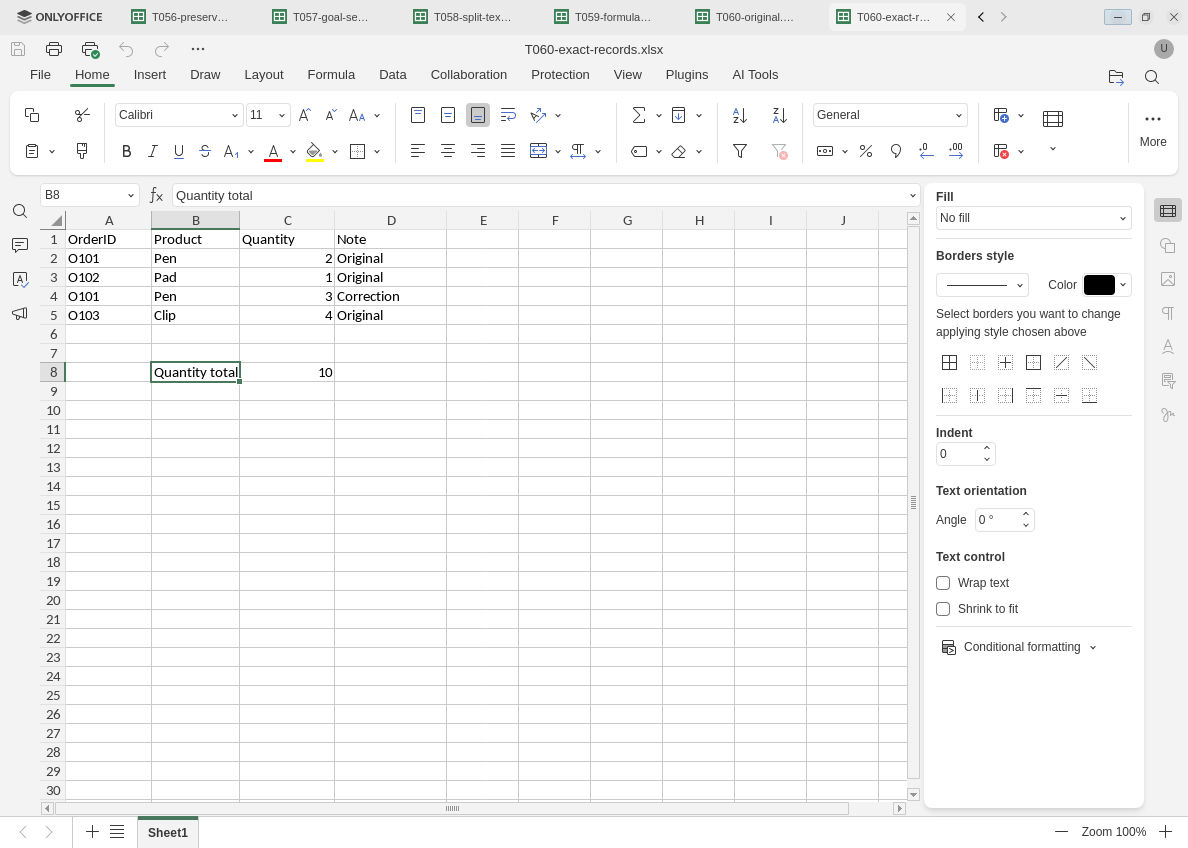
Both distinct O101 records survive the all-column comparison.
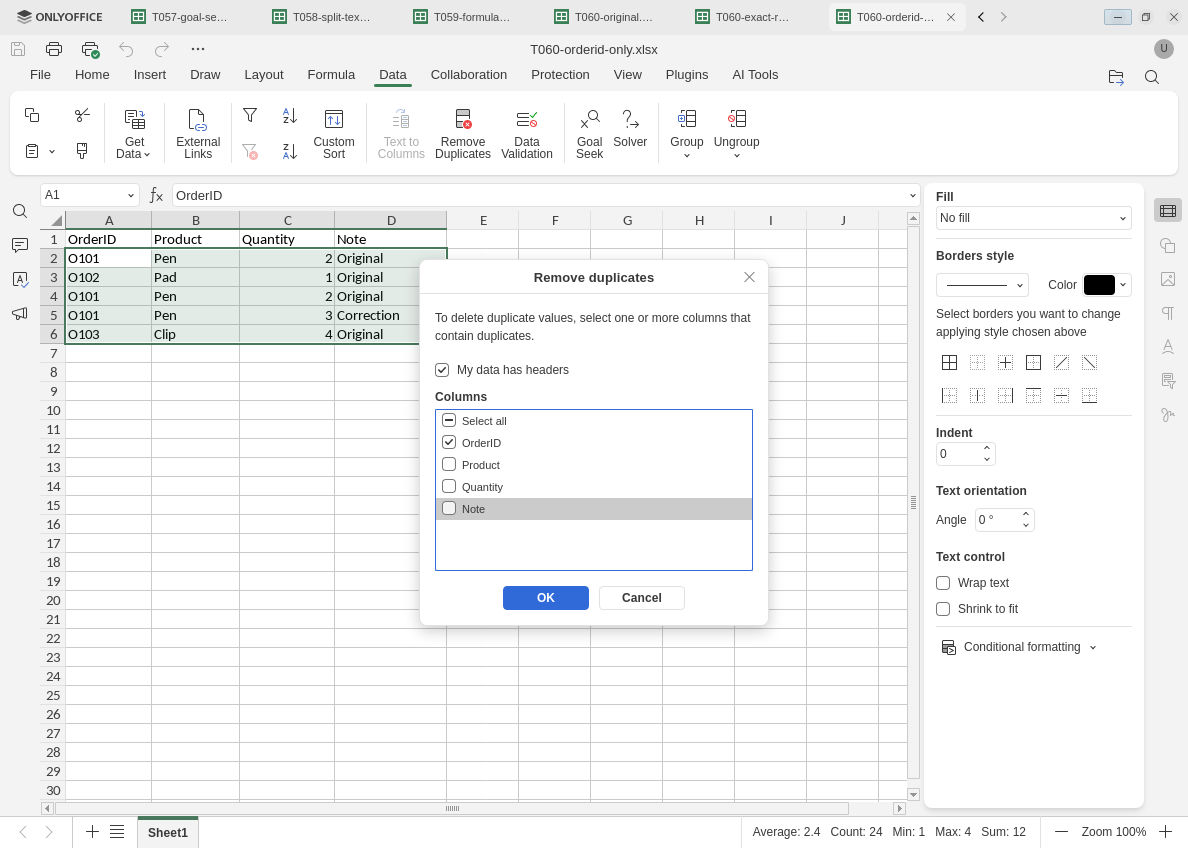
The second fresh copy compares only the business key while keeping each selected record together.
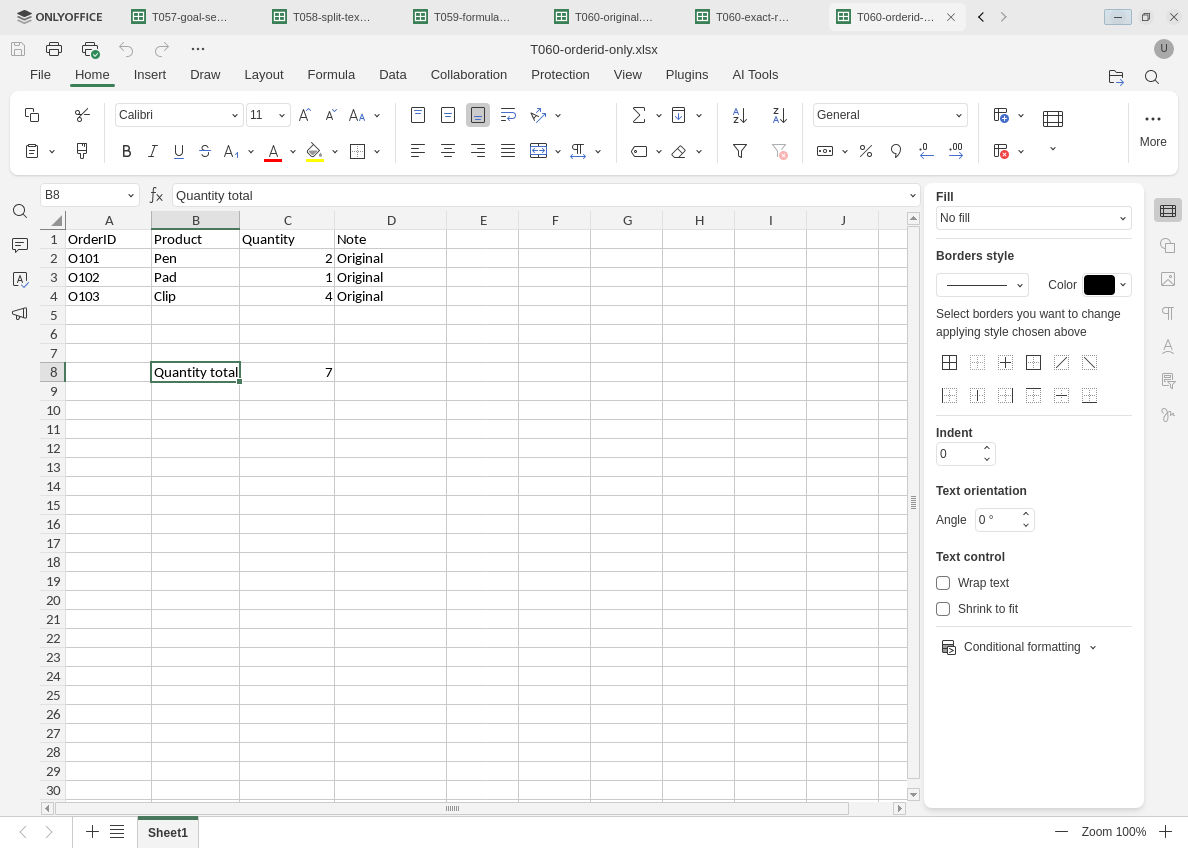
The conflicting Correction record is gone: key-only deduplication changes the information retained.
Evidence and limits: Official documentation, pinned source-code review and independent record/quantity calculations were checked separately from native execution. Screenshots preserve original bytes. First-occurrence retention is verified only for this visible controlled fixture and tested version. Case sensitivity, mixed types, hidden/filtered rows, sorted order, formula-value equality, blank keys, partial-selection expansion warnings, unrelated adjacent data, complex dependencies, removal Undo recovery, shared/hosted/mobile builds and other editors were not tested. The original audit workbook was not reopened; both cleaned outputs were.