

ONLYOFFICE Spreadsheet Editor · Sheet and cell protection · Beginner
Protect ONLYOFFICE Formulas While Keeping Inputs Editable
Unlock input cells before enabling sheet protection, then check formula preservation, allowed edits and protection limits.
Official documentation reviewed; scoped native example verified · Editorial standards
Unlock the input cells, leave the formula cells locked, and then enable Protect Sheet. The cell-level Locked setting has no effect until sheet protection is on.
Scope and safe starting point
This guide follows the current desktop-style ONLYOFFICE Spreadsheet Editor documentation. The Protection tab is documented for both online and desktop editors; a hosted integration can hide it with its protection permission. You need editing rights and authorization to change the sheet’s protection. A view-only or already-protected workbook needs the owner’s help first. This is not a mobile-interface walkthrough.
Make a copy and create this small example, preserving the distinction between input and formula:
| Cell/row | A: Item | B: Quantity input | C: Calculated total |
|---|---|---|---|
| 1 | Item | Quantity input | Calculated total |
| 2 | Notebook | 2 | =B2*4.50 |
| 3 | Pen | 3 | =B3*1.25 |
Enter formulas in C2 and C3; do not type their expected results. In locales that use a decimal comma, use the corresponding local decimal notation. Expected totals are 9 and 3.75. In C4 enter =SUM(C2:C3) for 12.75; see SUM. B2:B3 are the only intended inputs in this example.
Configure cells before protecting the sheet
- If this authorized copy is already protected, unprotect it first with the appropriate password. Do not change a live sheet merely to experiment.
- Select B2:B3. On Protection, clear Locked Cell.
- Select C2:C4 and ensure Locked Cell is checked. Other cells remain locked by default, so headings and item labels stay protected too.
- Leave Hidden Formulas off for this exercise. If enabled, it hides the formula in the formula bar under sheet protection; it is unnecessary just to prevent accidental editing.
The lock prerequisites and defaults are documented in Protecting a spreadsheet.
Enable sheet protection
- Choose Protection → Protect Sheet.
- For this disposable example, you can omit the password. In a real workbook, decide whether a password is needed and store it safely: without one, anyone can unprotect the sheet; ONLYOFFICE warns that a forgotten password cannot be restored.
- In the allowed-operations list, keep selection of unlocked cells enabled. Permit only operations the intended users need; leave structural edits such as deleting rows disabled for this example.
- Click Protect. The toolbar control should show the protected state.
To revise the design later, use Protect Sheet again to unprotect, supply the password if requested, make the change, and reapply protection. See Protecting a sheet.
Verify both permitted and blocked edits
Run all of these checks in the copy:
| Test | Expected result |
|---|---|
| Change B2 from 2 to 4 | Allowed; C2 becomes 18 |
| Leave B3 at 3 | C3 remains 3.75 |
| Check C4 | 21.75 after the input change |
| Try replacing C2 with 0 | Blocked by active sheet protection |
| Select C2 | Formula remains visible if formula hiding is off and locked-cell selection is allowed |
| Save, close and reopen XLSX | Repeat input and formula-edit checks before distribution |
If a protected formula unexpectedly accepts an edit, stop and inspect the protection state and Locked Cell setting. Restore the correct formula in the authorized copy before trying again. A correct total alone does not establish that protection is enabled.
Understand the other protection tools
Protect Workbook concerns workbook structure; Encrypt concerns opening the file. Neither is the unlocked-input recipe above. Protect Range is a different user-specific permission feature; full-access users can configure who may edit a range. ONLYOFFICE explicitly warns that third-party editors do not support that range protection, so do not rely on it when distributing the file outside ONLYOFFICE. Range-protection documentation.
Password-based Allow edit ranges is another option for granting access to locked ranges under sheet protection. It is not necessary for ordinary unlocked B2:B3 inputs. Keep these mechanisms separate rather than stacking restrictions without testing them.
Common failures
- Everything is read-only: unprotect the authorized copy, unlock the actual input cells, then protect again. File-level viewing permissions can independently prevent editing.
- Formulas still change: locking attributes alone are insufficient; enable sheet protection.
- A required command is unavailable: check the integration’s protection permission and the workbook state with the owner.
- Sorting/filtering is required: the sheet-protection help includes a warning about those operations on protected sheets. Test that separate workflow rather than promising the permission checkboxes guarantee it.
- Exporting to another format: recheck the protections in the receiving program. Sheet protection is an accidental-edit safeguard, not a confidentiality guarantee.
Native example and test limits
The synthetic two-item workbook was tested in ONLYOFFICE Desktop Editors Community 10.0.0.169 (x64 deb) on Linux x86_64, with English UI, on October 16, 2026. Initial formula results were 9, 3.75 and 12.75. B2:B3 were unlocked, C2:C4 retained their locked settings, and formula hiding was off. Sheet protection was applied without a password, with selection of both locked and unlocked cells allowed.
Changing B2 to 4 succeeded and recalculated 18, 3.75 and 21.75. Attempting to type 0 in C2 was immediately blocked; its original formula remained visible. After saving XLSX, closing and reopening, the protected state and values persisted. Changing B2 to 5 then produced 22.5, 3.75 and 26.25, while the C2 overwrite remained blocked. B2 was restored to 4 and the workbook saved with 18, 3.75 and 21.75. There was no second reopen after that final restore/save.
Select a screenshot to open the full-size image.
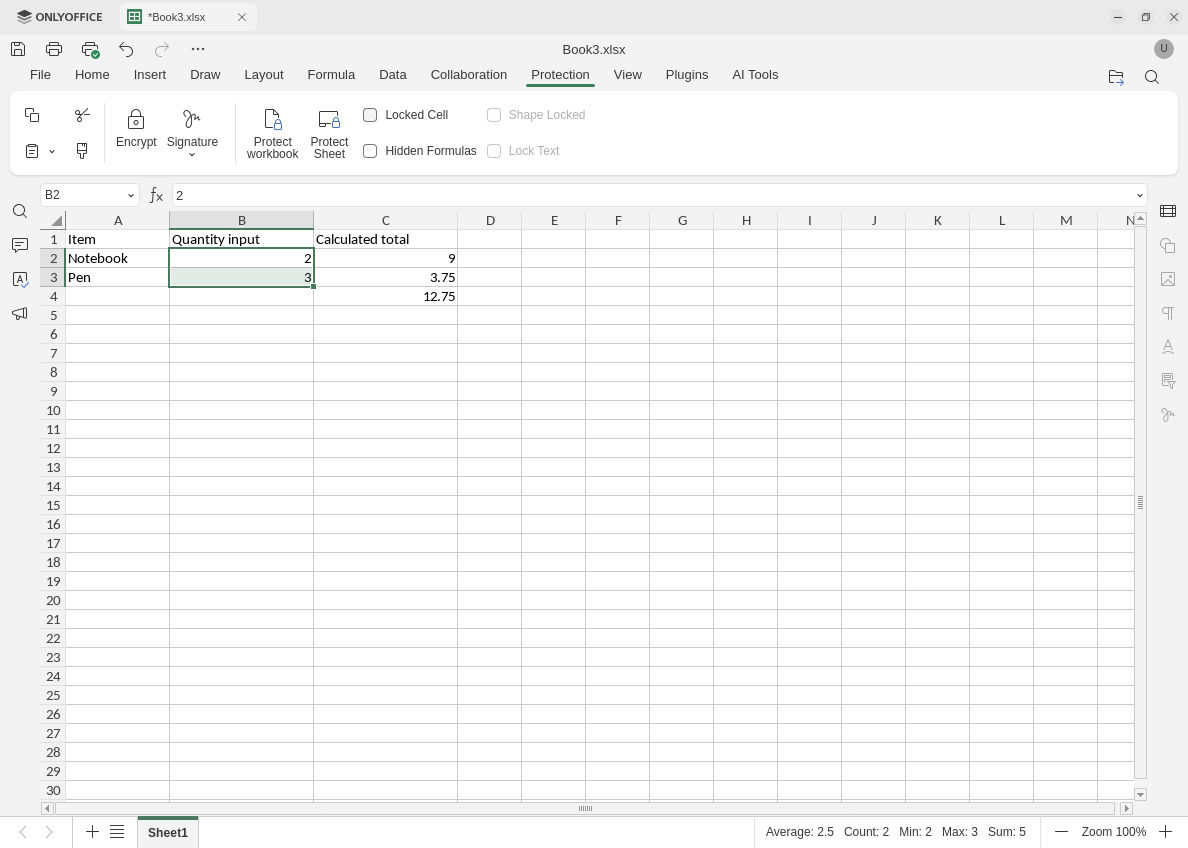
Native setup: unlock the intended input cells before enabling sheet protection.
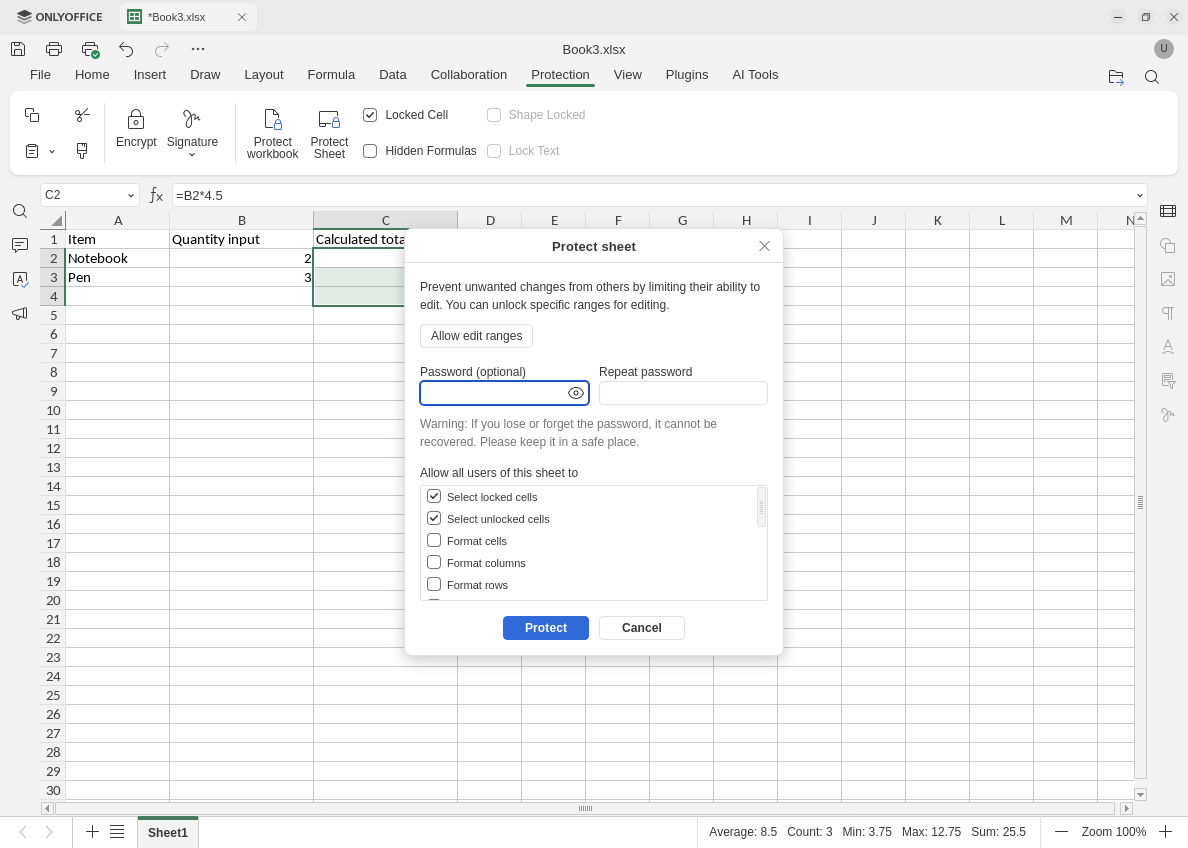
The disposable example uses no password and allows selecting both kinds of cells; other operations retain restricted defaults.
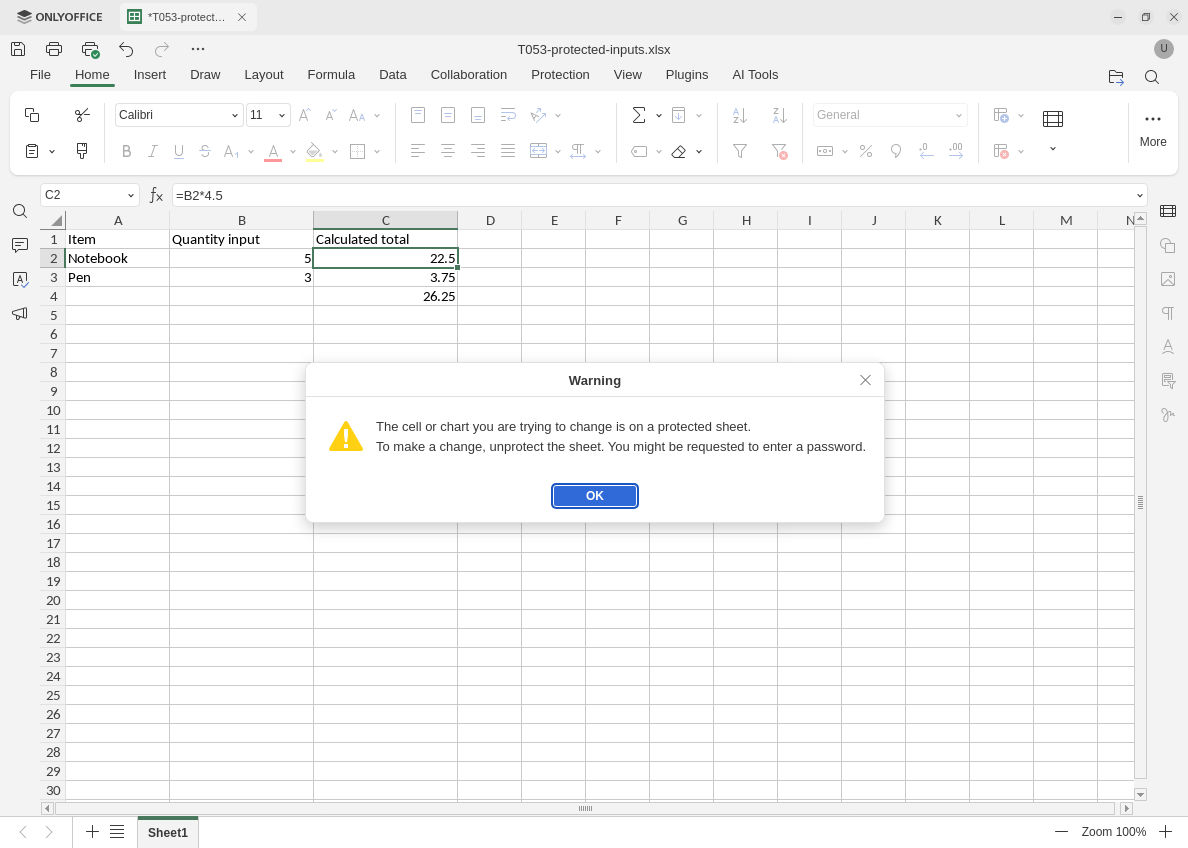
After reopening, the input edit succeeds but the attempted formula overwrite is blocked.
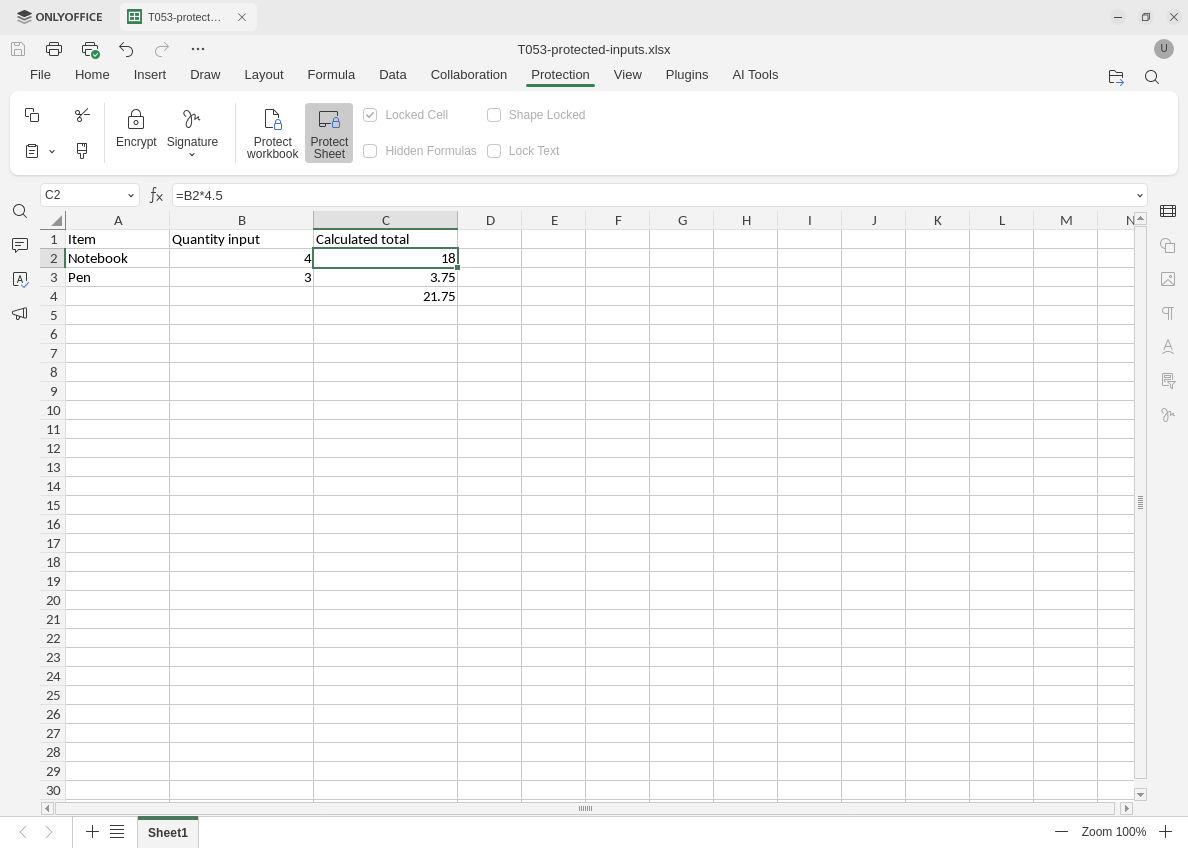
Final restored and saved state: B2 is 4, the original formula remains visible, and protection is still active.
Evidence and limits: Official documentation and arithmetic checks were completed separately from the native test. Screenshots are original, unmodified captures. Enforcement was challenged by editing B2 and attempting to overwrite C2. B3 was unlocked and C3:C4 remained locked in the saved file, but those cells were not individually edited or challenged. Passwords, encryption, workbook-structure protection, user-specific range permissions, hidden-formula behavior, paste, structural edits, sorting/filtering, hosted/mobile versions and other editors were not tested. Sheet protection remains an accidental-edit safeguard, not a confidentiality guarantee.