

ONLYOFFICE Spreadsheet Editor · Import and data cleanup · Intermediate
Split One Column into Several Columns in ONLYOFFICE
Use Text to Columns on a safe copy, preview delimiters and avoid overwriting neighboring data; handle quoted fields through the documented import route.
Official documentation reviewed; scoped native example verified · Editorial standards
Copy the source column to an empty worksheet, then use Data → Text to Columns. Check the preview and clear space for every output column before confirming: ONLYOFFICE warns that data to the right can be overwritten.
Prepare a safe test
This walkthrough follows the current English desktop-style Spreadsheet Editor. Use an editable workbook copy; mobile controls and every older build are not covered. Keep the original column unchanged, and save the working workbook as XLSX.
Enter these two literal strings into A2 and A3 on an otherwise empty sheet, one complete string per cell:
North;Retail;120South;Online;90
You can also use the plain-text fixture. If pasting delimited text causes automatic splitting, use the documented Keep text only paste option so each record occupies one cell before starting. Verify the formula bar contains the complete semicolon-separated record.
Split the column
- Select A2:A3, not the entire worksheet.
- Choose Data → Text to Columns.
- Select Semicolon as the delimiter. Disable other delimiters you do not intend to use, especially Space when labels can contain spaces.
- Inspect the preview. There must be three fields in each row.
- If numeric punctuation needs adjustment, use Advanced to set decimal and thousands separators appropriate to the source.
- Confirm only after A:C in the target rows is safe to replace.
The copy/paste and text-splitting guide documents the wizard, preview and overwrite warning. The separate Split cells help lists supported delimiters and Other for a custom character.
Expected output:
| Row | A | B | C |
|---|---|---|---|
| 2 | North | Retail | 120 |
| 3 | South | Online | 90 |
The original semicolon-containing strings have been replaced in the working area, so keep your unchanged source sheet. Confirm row count and field order, not just the number of columns. If amounts are needed for arithmetic, test that they are numeric rather than assuming that their display proves their type.
What if a quoted field contains the delimiter?
Consider the record "North;Coast";Retail;120. Its intended first field is the single label North;Coast, not two columns. A naive split at every semicolon would corrupt the record.
The reviewed Text to Columns documentation describes delimiter and numeric-separator controls without establishing the qualifier control. In the native Desktop Editors 10.0.0.169 test, Advanced did expose Text qualifier, with double quotes selected. That observation establishes the control’s presence; quoted input was not tested through Text to Columns. Do not assume the two routes have identical parser behavior.
For the quoted-field fixture, use the explicitly documented Get Data route tested below:
- Start with an empty destination sheet and choose Data → Get data → From Local TXT/CSV.
- Set UTF-8 encoding and Semicolon delimiter.
- In Advanced, set Text qualifier to double quotes.
- Inspect the preview before importing. The first row’s Region must be
North;Coastin one field; Channel is Retail and Amount is 120. - Import into a blank destination and verify both records against the raw text file.
Get data import help specifically documents the qualifier. If your build does not produce that three-field preview, cancel rather than guessing. The header and two records should yield three worksheet rows, with South as the second Region and 90 as its Amount.
Recovery and edge cases
- Neighboring data disappeared: stop immediately and try Undo; if the prior state is uncertain, restore the saved copy. Do not rely on an overwrite prompt.
- Everything stayed in one column: check the actual delimiter, not the extension. A .csv file can use semicolons.
- Extra columns appeared: check extra selected delimiters and quoted delimiter-containing text.
- Empty fields or multiline quoted records: test their placement explicitly in a copy. This small fixture does not establish every parser edge case.
- Product codes lost zeros or date-like text changed: splitting and numeric separators do not guarantee text-type preservation. Return to the original text and use a separately verified preservation workflow.
For a simple text-content check, LEN can confirm that North;Coast has 11 characters. A length check supplements, rather than replaces, a full comparison.
Native example and test limits
Both bounded workflows were tested in ONLYOFFICE Desktop Editors Community 10.0.0.169 (x64 deb) on Linux x86_64, with English UI, on October 16, 2026. The original two unsplit strings were preserved on an Original sheet. On a separate blank sheet, Text to Columns with Semicolon only produced the expected North/Retail/120 and South/Online/90 records. Both amounts were numeric; COUNT returned 2 and SUM 210.
The quoted CSV was imported separately through Get Data → From Local TXT/CSV, with UTF-8, Semicolon and the double-quote qualifier. It preserved North;Coast as a single field, with LEN 11 and EXACT TRUE, and produced numeric amounts 120 and 90. This is evidence for the Get Data route, not a quoted Text to Columns test.
XLSX save, close and reopen preserved the original unsplit strings, both output sheets and their exact text and numeric checks. Because destination cells were blank, no overwrite warning was encountered.
Select a screenshot to open the full-size image.
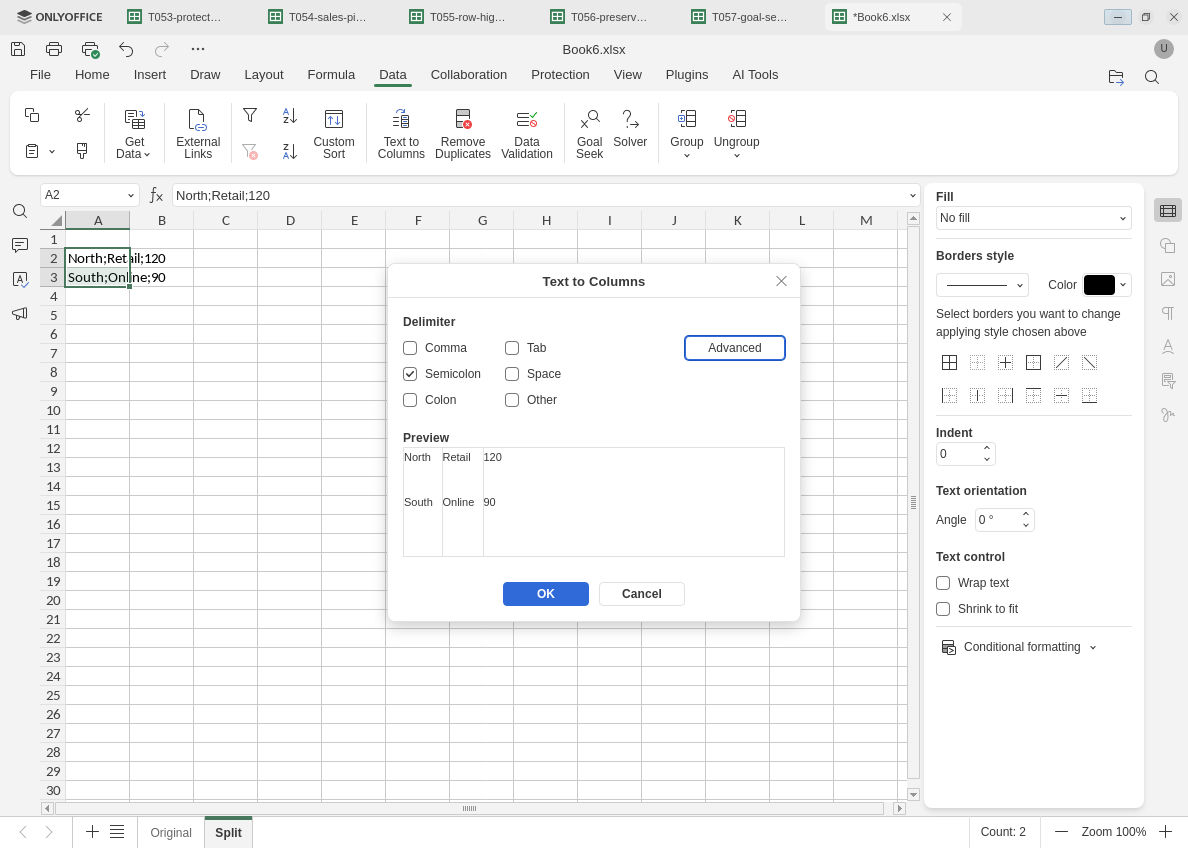
Preview the simple split before replacing the working cells; the original strings stay on a separate sheet.
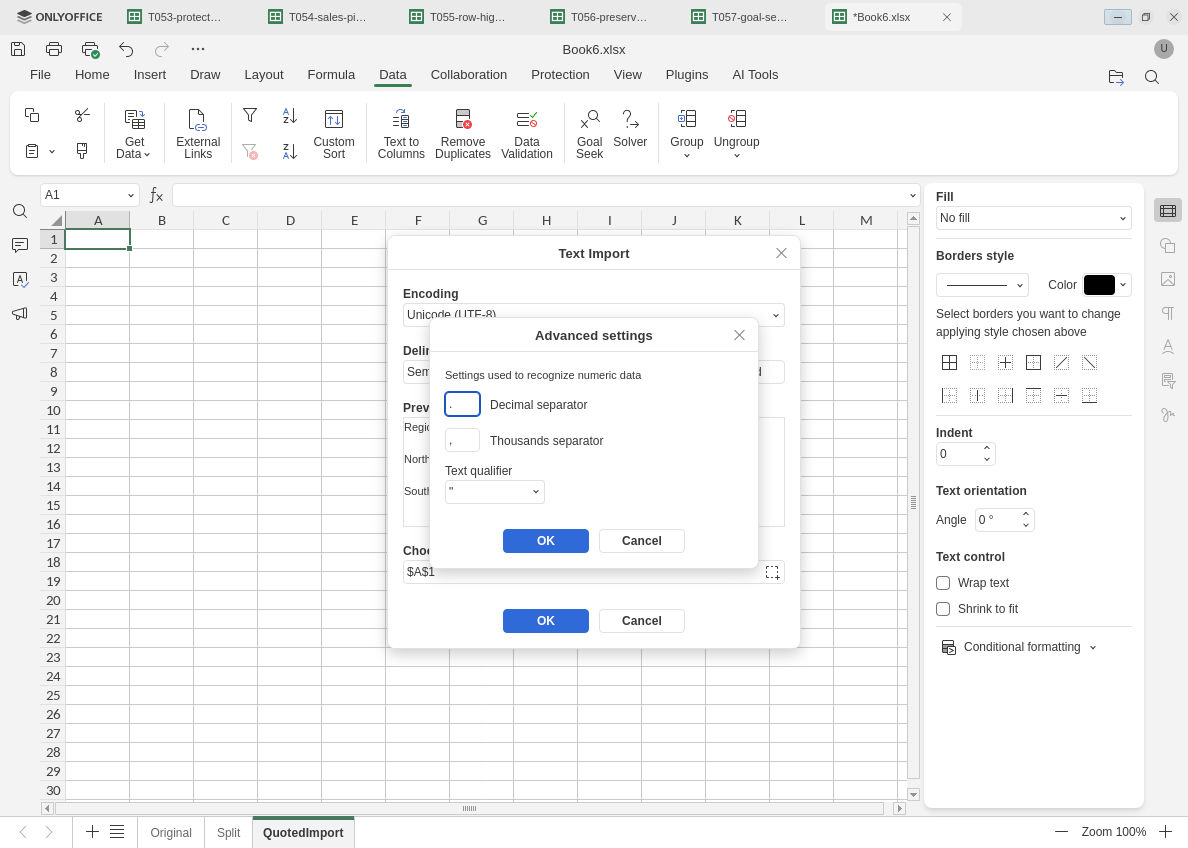
This qualifier screenshot belongs to the separately tested Get Data import route.
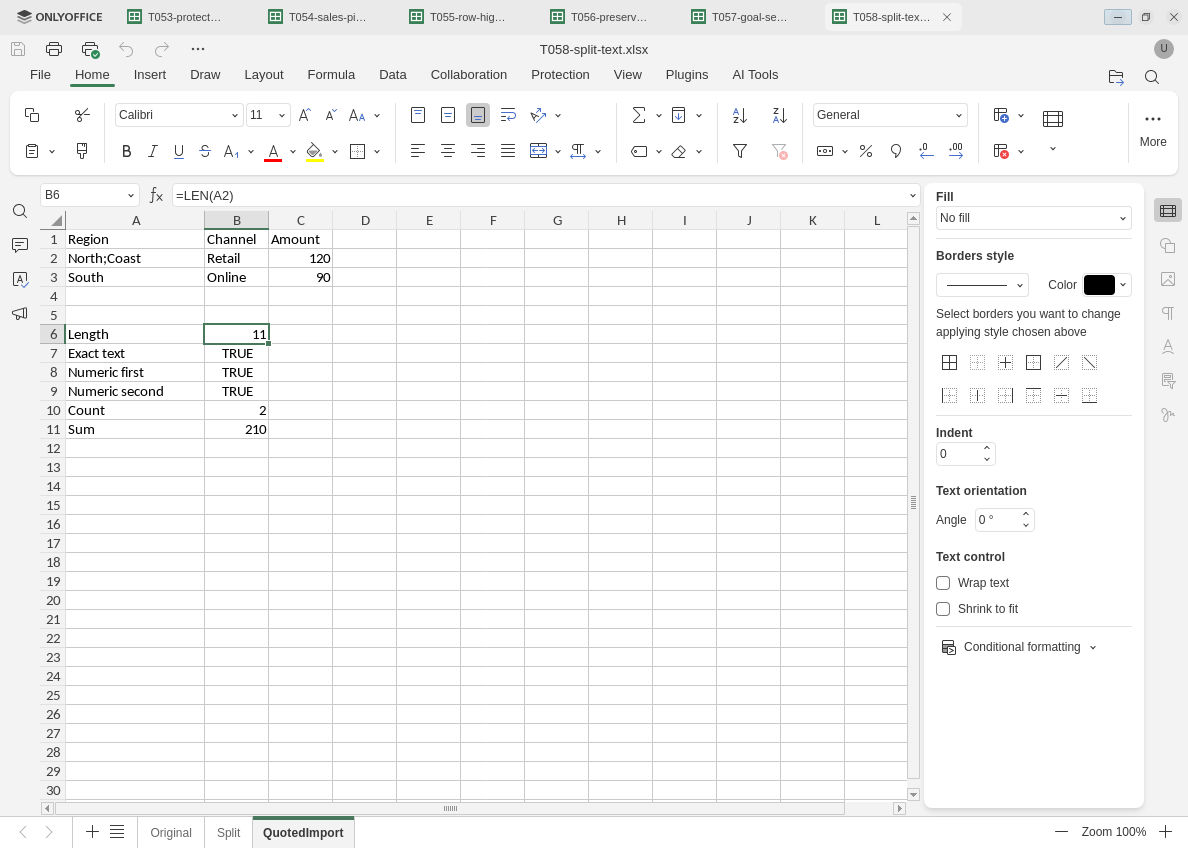
The quoted delimiter stays inside the field after Get Data import and XLSX reopen.
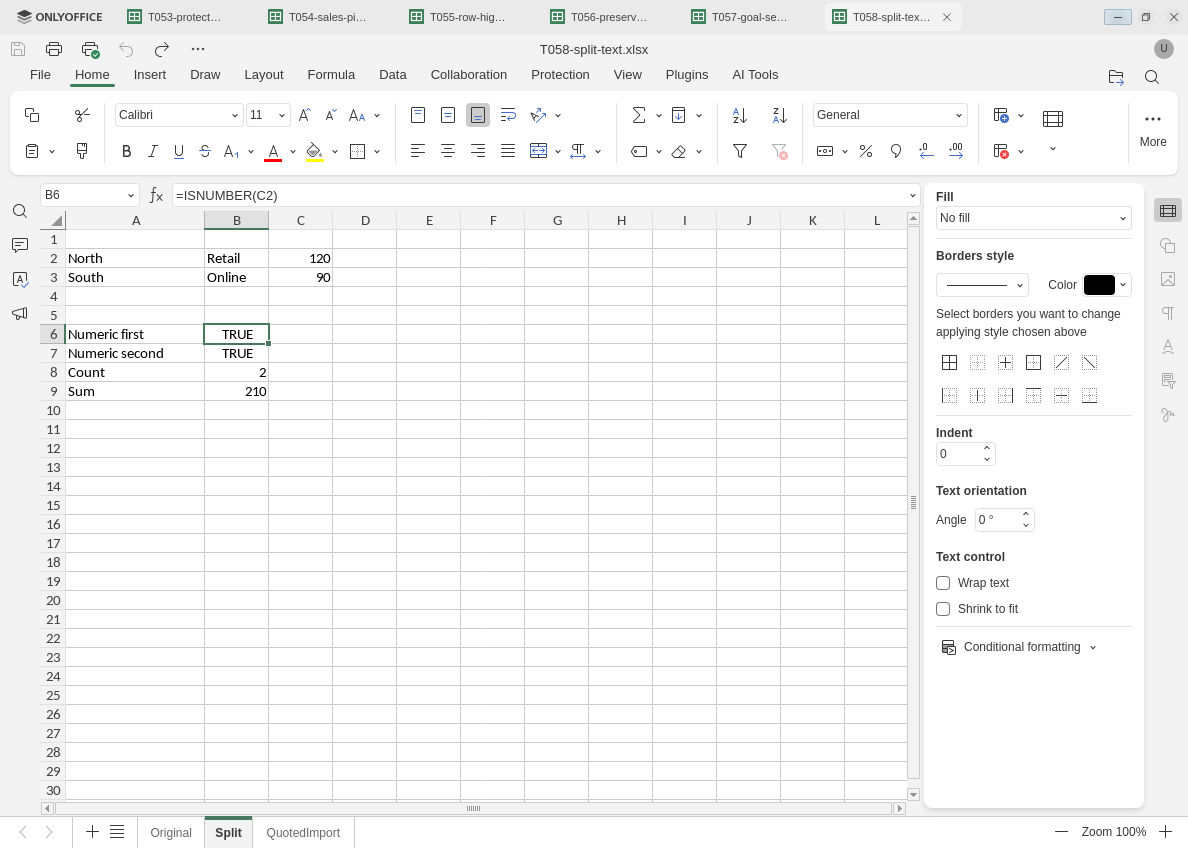
The ordinary Text to Columns outputs and numeric checks also persist.
Evidence and limits: Official documentation and independent text-parser expectations were checked separately from native execution. Screenshots preserve original bytes. Text to Columns Advanced exposed a qualifier, but quoted input through that wizard was not tested. Escaped quotes, multiline fields, other delimiters, fixed-width splitting, nonblank destination overwrite handling, paste auto-splitting or Keep text only, larger files, other encodings/locales, hosted/mobile builds and other editors remain untested. The Get Data quoted-import result must not be generalized to the other parser.