

OpenOffice Calc · Number, date and currency formatting · Beginner
Preserve Product IDs and Format Values in OpenOffice Calc
Keep long product identifiers and leading zeros as text, and distinguish number display from stored values in Apache OpenOffice Calc.
Treat a product ID as text before entering or importing it, even when it consists entirely of digits. Widening a column or changing scientific notation can improve a number’s display, but cannot reconstruct identifier digits already lost during numeric conversion.
Scope and sample identifiers
This guide targets Apache OpenOffice Calc 4.1 desktop, using English menu labels and versioned 4.1.16 Help. The synthetic identifier and formatting examples were tested in Apache OpenOffice Calc 4.1.17 on Linux x86_64 with English UI on October 16, 2026; see the exact scope below. Work on a copy and keep the original export available.
Download the synthetic product-ID CSV:
| ProductID | Item |
|---|---|
| 00123 | Cable |
| 123456789012345678 | Adapter |
| 123456789012345679 | Stand |
| 000000000000000001 | Hub |
The two middle identifiers differ only in their last digit. That difference is essential even if the spreadsheet would display both in a similar scientific form. Do not assume an 18-digit identifier can be represented exactly as a normal spreadsheet number.
Enter new IDs safely
- Select the empty destination cells, for example A2:A5.
- Choose Format → Cells → Numbers.
- Select Text in Category, then confirm.
- Type each original identifier and press Enter.
- Widen column A until you can see every character. Inspect the input line as well.
For an isolated manual entry, a straight apostrophe before the digits also requests text, such as '00123. The apostrophe is an entry marker rather than part of the displayed ID. Applying Text after an ID has already been interpreted as a number is too late to guarantee preservation. Apache OpenOffice 4.1.16 Help: Formatting Numbers as Text.
Import the CSV without numeric conversion
- Choose File → Open and select the original CSV as Text CSV if necessary.
- In Text Import, choose Unicode (UTF-8), Separated by, and Comma only for this fixture.
- Click the ProductID column heading in the preview and set Column type → Text. Check that the preview header shows Text before confirming.
- Import the file. Do not rely on quotes around CSV fields as a substitute for explicitly setting the ID column type.
- Save the verified working file as OpenDocument Spreadsheet (.ods); keep the original CSV untouched.
The text-import column type determines interpretation before the values enter the sheet. CSV itself carries no cell-type instruction for the next application that opens it. Text Import Help.
Verify identity, not merely appearance
Put these checks in unused columns, using English function names:
| Formula or check | Expected |
|---|---|
=ISTEXT(A2) |
TRUE |
=LEN(A2) |
5 |
=LEN(A3) |
18 |
=EXACT(A3;A4) |
FALSE |
=EXACT(A3;"123456789012345678") |
TRUE |
=EXACT(A5;"000000000000000001") |
TRUE |
An 18-character display alone is not proof that the original 18 characters survived. Compare against the source string. If they differ, reopen the original with Text selected; do not invent replacement trailing digits. See ISTEXT, LEN and EXACT.
Preserve the formatting benchmark for real quantities
Identifiers need text; quantities, money and dates need their appropriate underlying values. Try the following in separate cells with ordinary number formatting:
- Enter
1234.5in a decimal-point locale and apply Currency with two decimals. Select the intended currency and language; the amount should remain 1234.5. - Enter
0.075and apply Percentage with one decimal place. The displayed percentage should be 7.5%. Entering 7.5 first would represent 750%. - Enter
=DATE(2026;10;14)and apply a short or long date format. Both displays should describe October 14, 2026. The DATE formula avoids relying on how a date-like text string is parsed. - For
00123, use the text workflow above when it is an ID. A numeric custom format that displays five digits is a presentation choice, not preservation of arbitrary source identifiers.
Use Format → Cells → Numbers for these categories. Check Language and decimal places. In decimal-comma locales, enter the numeric samples using the locale’s decimal separator. Formatting text as Currency does not turn incorrectly imported text into a valid amount. Official formatting guide.
Reducing displayed decimal places normally changes presentation, not the stored calculation value. Avoid enabling a precision-as-shown calculation option merely to make a report look tidy. For intentional numeric rounding, use ROUND.
Native example and test limits
Tested in Apache OpenOffice Calc 4.1.17, AOO4117m2, Build 9818, revision 49c05bc6fd, on Linux x86_64, with English UI and English (USA) number settings, on October 16, 2026. The original CSV was imported with UTF-8, comma separation and ProductID explicitly set to Text. The six worksheet checks returned TRUE, 5, 18, FALSE, TRUE, TRUE, matching the independent string expectations.
A separate sheet verified Text formatting before manual entry of all four IDs and apostrophe entry of 00123. The formatting benchmark displayed numeric 1234.5 as $1,234.50 in USD, numeric 0.075 as 7.5%, and DATE(2026;10;14) as 2026-10-14. Both sheets and formats survived saving as ODS, closing and reopening; the two literal-string EXACT checks were re-entered afterward and again returned TRUE.
Select a screenshot to open the full-size image.
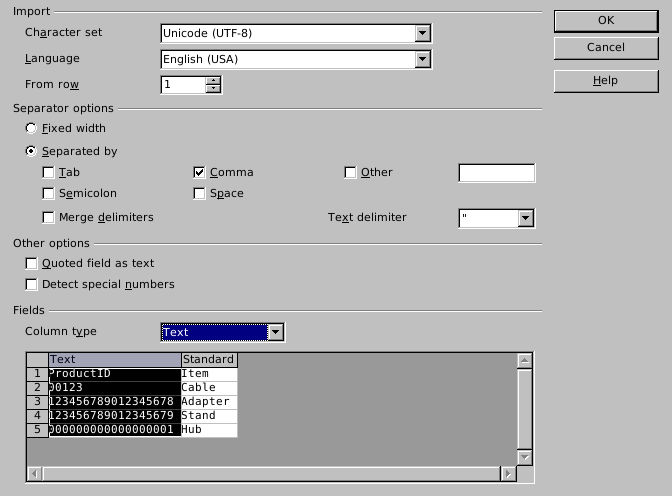
Native 4.1.17: the identifier column is Text before import; English (USA) is selected for this fixture.
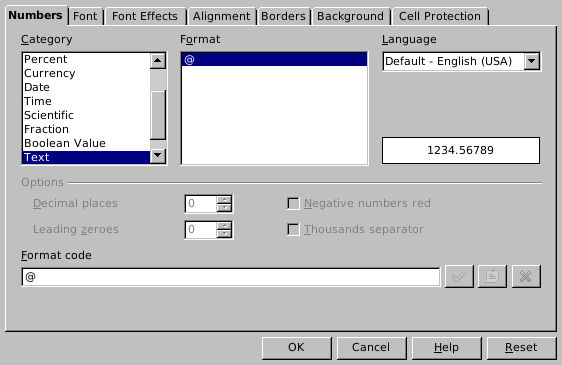
Native 4.1.17: preformat the empty manual-entry cells as Text.
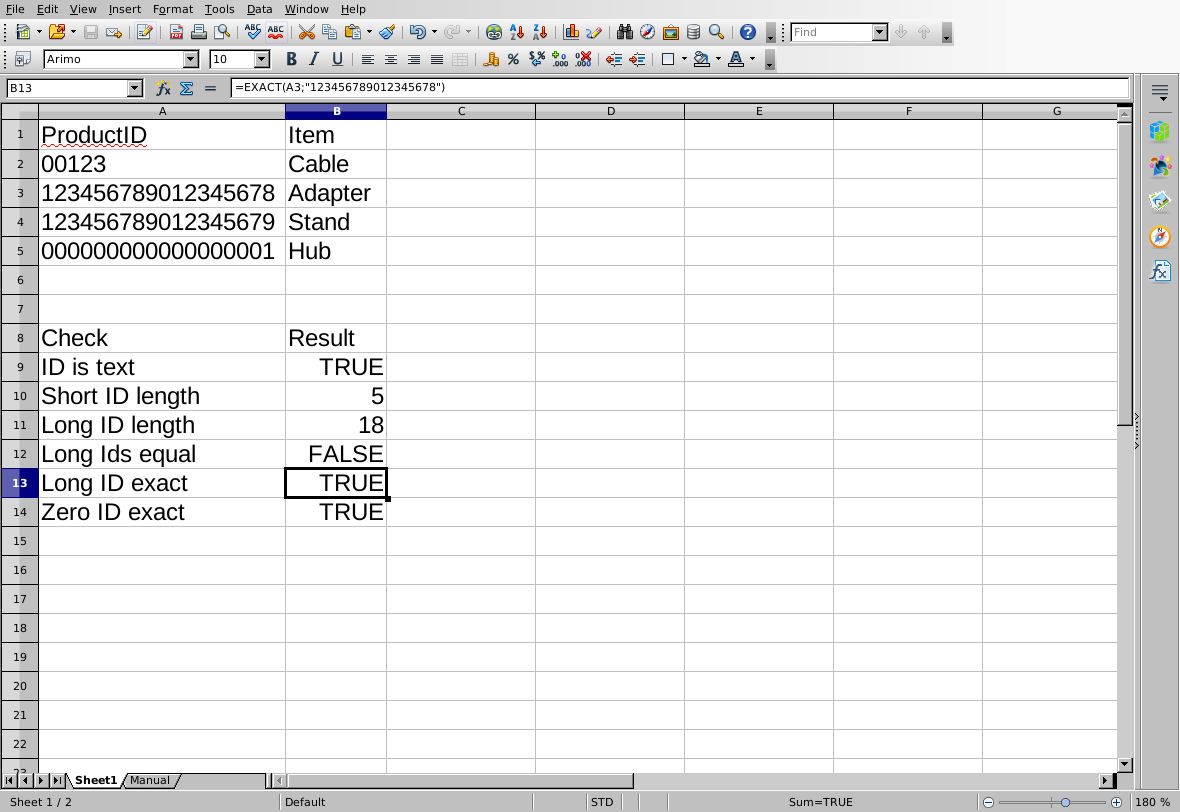
Native 4.1.17 after ODS reopen: compare the actual source characters, not just the displayed width.
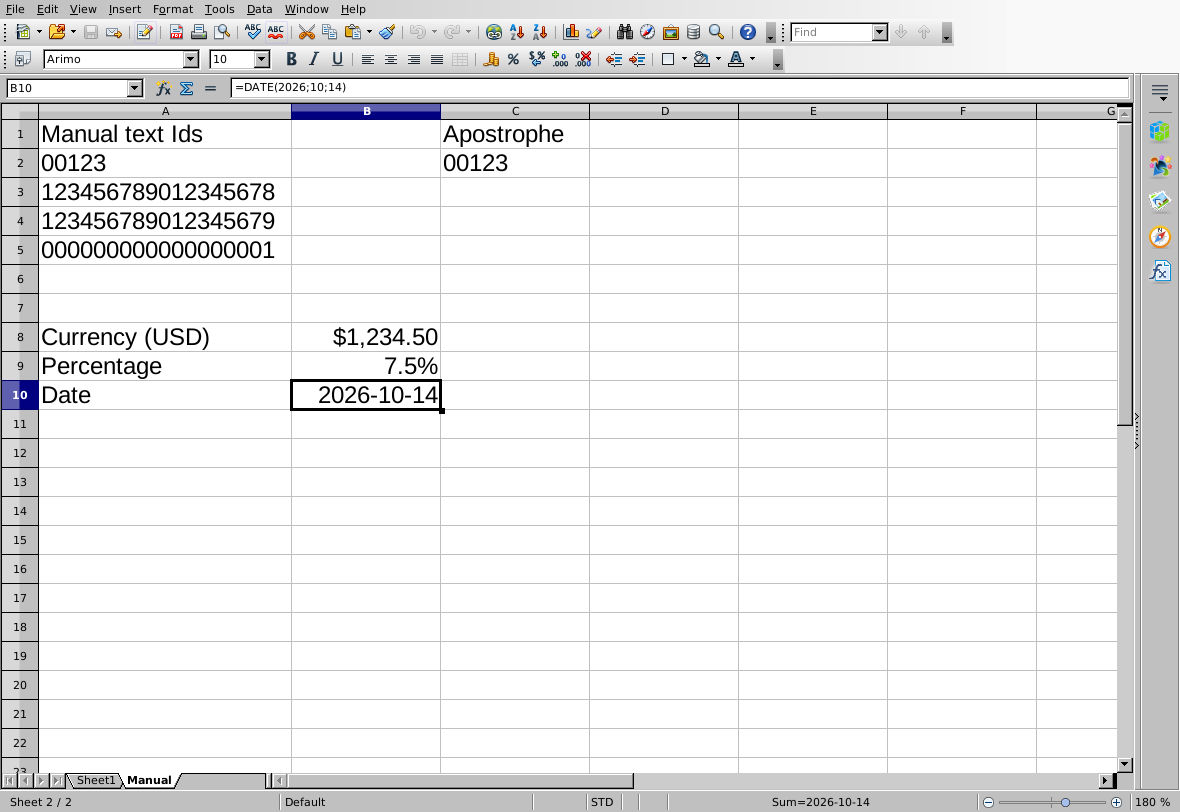
Native 4.1.17 after ODS reopen: text identifiers and numeric currency, percentage and date examples coexist on the separate Manual sheet.
Evidence and limits: Independent string, percentage and date expectations were checked separately from native execution. Screenshots are genuine, unmodified captures. The test covers these four synthetic IDs, USD, one percentage format and one date format under English (USA). It does not test recovery of already-rounded identifiers, CSV export/reimport, other locales or currencies, alternate date displays, other platforms or other applications. The six worksheet check formulas were on the imported sheet; the manual-entry sheet was checked by native display and saved cell strings/types.