

OpenOffice Calc · Printing and PDF output · Beginner
Repeat Printed Headings and Check PDF Output in OpenOffice Calc
Repeat heading rows on every printed page in Apache OpenOffice Calc, define the print range and verify a multipage PDF.
Choose Format → Print Ranges → Edit and enter $1 under Rows to repeat to repeat row 1 on each printed page. Use $1:$2 when both a title row and a heading row must repeat. Freezing rows for on-screen scrolling is a separate setting.
Scope and a multipage practice report
This guide uses Apache OpenOffice Calc 4.1 desktop English menus and the 4.1.16 print-range Help source. The synthetic report was tested in Apache OpenOffice Calc 4.1.17 on Linux x86_64 with English UI on October 16, 2026, including native preview/export, ODS reopen and inspection of the actual exported PDF; see the precise scope below.
Download the synthetic print report CSV. It preserves the original practice layout’s six columns: Date, Customer, Item, Quantity, Unit Price, Total. It contains 90 data rows rather than only 30 so later-page checks are easier to exercise. Open as comma-separated UTF-8; import Date using Date (YMD), with numeric quantity and price columns. For this fixture choose English (USA) for decimal-point amounts.
The first record is 2026-10-01, Customer 001, Notebook, quantity 2, unit price 4.50, total 9.00. The final record is Customer 090. Every row has quantity 2 and total 9.00; expected totals are quantity 180 and amount 810.00. CSV totals are fixed sample values, not formula cells.
Set the printed area and repeated headings
- Select A1:F91, including the heading row and all 90 records.
- Choose Format → Print Ranges → Define.
- Choose Format → Print Ranges → Edit.
- Confirm Print range covers A1:F91. In Rows to repeat, type
$1; its selection changes to user-defined. - Leave Columns to repeat unset for a report that fits across one page. If a deliberately wide report spans horizontal pages and needs its first column repeated, enter
$Athere. - Confirm the dialog.
The repeat fields describe entire rows or columns, not a rectangle such as A1:F1. Repeating headings does not add records to the source table. Official repeating-row guide and versioned Edit Print Ranges Help.
Make the report readable before export
- Choose Format → Page. On the Page tab, select the intended paper size and orientation; landscape can help if customer names make the table wide.
- On the Sheet tab, review scaling. For a clear first test, use Reduce/enlarge printout at 100% rather than forcing the entire report onto one page.
- Widen columns to make headings and values readable. If the table extends onto horizontal pages, adjust widths or use a suitable width/height scaling option without forcing all rows onto one page.
- Choose File → Page Preview. Inspect page 1 and at least one later page. If only one page exists, remove one-page scaling or increase row height until the test actually spans pages.
Be careful with the upper slider in Page Preview: it changes the print scale and can change pagination. Use the bottom-right Zoom & View Layout control to change viewing magnification, and recheck the Sheet scaling value before export.
No exact page count is promised: paper size, margins, font metrics, printer settings and row heights affect pagination. The success condition is readable repeated headings on the actual later pages, with all source records included. Official page-order, detail and scale controls.
Export, reopen and inspect the PDF
Use File → Export as PDF to review PDF options rather than assuming the quick-export button’s defaults fit your report. Check the export range, complete the export, then open the resulting PDF separately.
- Confirm page 1 begins with the expected headings and first record.
- Confirm a later page repeats Date through Total and does not start with unexplained amounts.
- Find Customer 090 to check the end of the report was included.
- Check page edges for clipped values and unexpected blank pages.
- Review whether comments, formulas, gridlines and objects are included as intended. Printed row/column coordinates such as A, B and 1, 2 are not the same as your table’s heading labels.
For physical output, use File → Print and check the printer and chosen pages before printing. Exporting successfully does not prove the resulting PDF is correct. Official printing and PDF guide.
Fix common problems
If headings appear only on page 1, inspect Rows to repeat rather than the freeze setting. If another sheet prints unexpectedly, review the selected sheets and print ranges. If text is tiny, relax scaling instead of fitting all 90 rows onto one page. To stop repetition, return to Edit Print Ranges and choose none for Rows to repeat; this does not erase the heading cells.
Save the configured workbook as .ods. CSV cannot retain page styles or repeated-row settings. For source-total checks before export, see SUM.
Native example and test limits
Tested in Apache OpenOffice Calc 4.1.17, AOO4117m2, Build 9818, revision 49c05bc6fd, on Linux x86_64, with English UI and English (USA) defaults, on October 16, 2026. The original 90-record CSV used Date (YMD) and numeric amounts. The test used A4 portrait, 0.79-inch margins, 100% Reduce/enlarge printout, six 1-inch-wide columns, 10-point body text, bold headings, YYYY-MM-DD dates and two-decimal prices/totals. The default sheet-name header and page-number footer remained enabled.
The native preview and actual exported PDF contained two pages: Customer 001–055 on page 1 and Customer 056–090 on page 2, with all six table headings repeated. Independent text extraction and visual inspection of both rendered PDF pages confirmed all 90 records exactly once, quantity total 180, amount total 810, readable text, no clipping and no blank page. The PDF contained no embedded workbook attachment or form fields. This page count describes the tested layout, not every printer or workbook.
Saving as ODS, closing and reopening retained A1:F91 as the print range and row 1 as the repeating heading. The screenshots below are native application captures; the PDF checks used the actual exported file, not a screenshot substituted for an export.
Select a screenshot to open the full-size image.
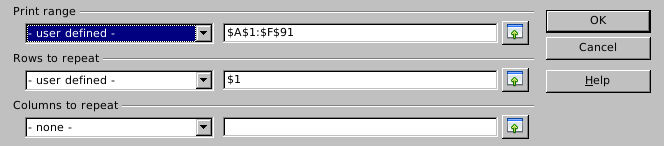
Native 4.1.17 after ODS reopen: the print area and repeating row remain configured.
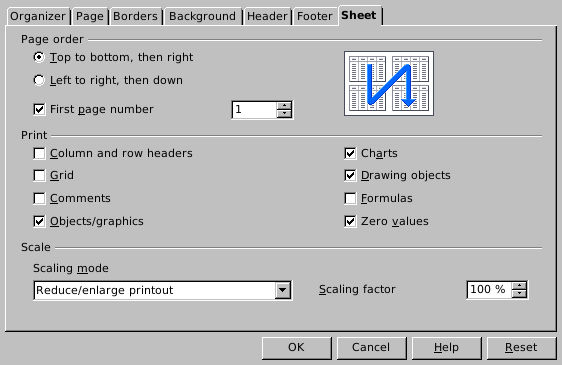
Native 4.1.17: the final print scale is 100%, with printed row/column coordinates, grid, comments and formulas disabled.
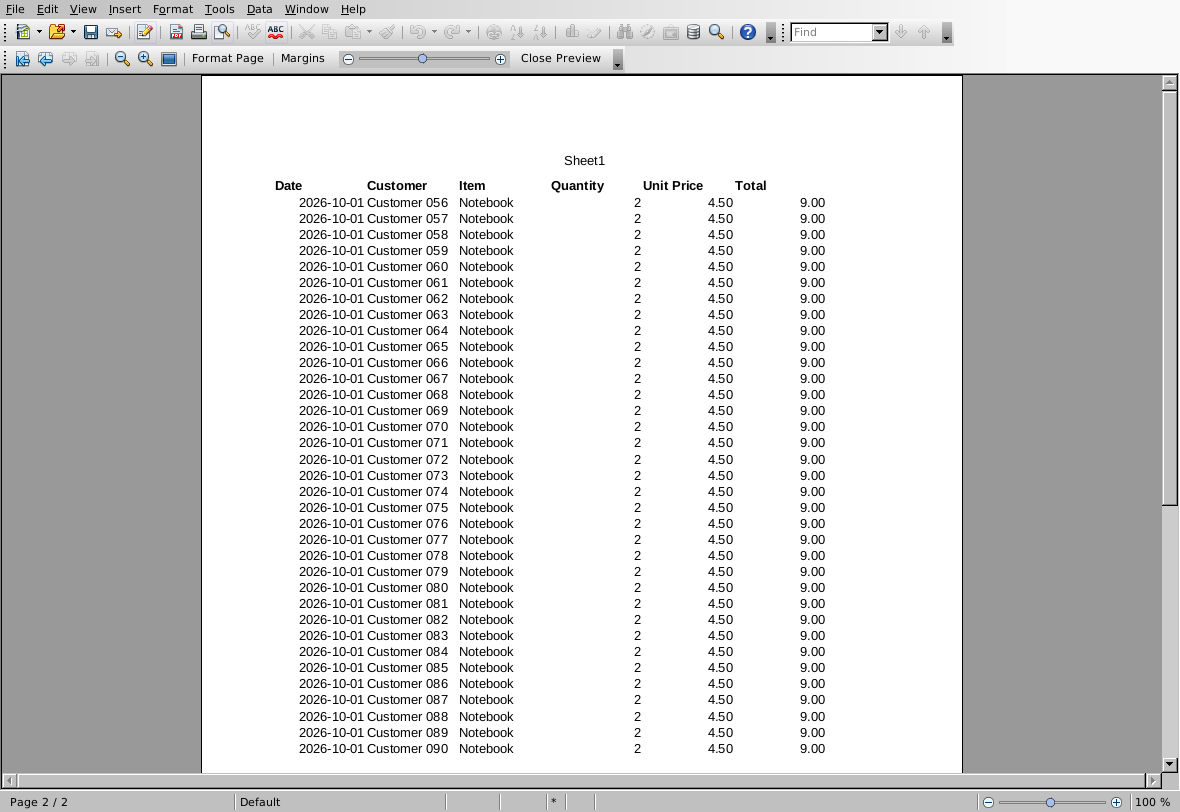
Native 4.1.17: final later-page preview at 100% print scale. All six headings and the final record are present.
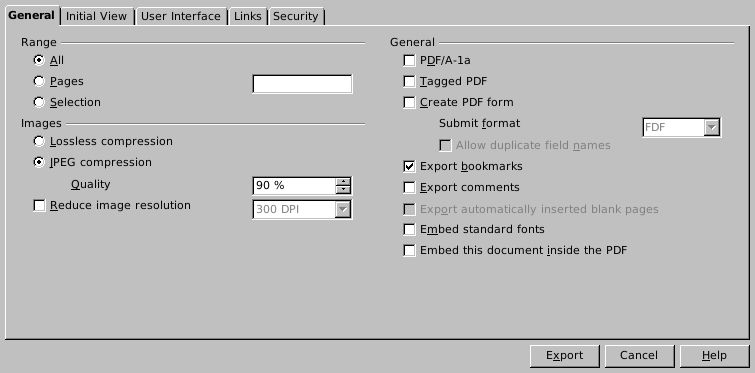
Native 4.1.17: the exported example contains the complete report without an embedded source workbook or PDF form.
Evidence and limits: Native preview/export and ODS reopen passed; the actual PDF was independently rendered and inspected. A separate browser-view attempt was blocked and is not counted as a successful viewing test. Physical printing, other paper orientations, repeated multiple rows or columns, other platforms and other applications were not tested. Screenshots are genuine, unmodified captures. Pagination remains dependent on fonts, widths, margins, scale and printer settings.