

OpenOffice Calc · Data cleanup · Intermediate
Review Duplicate Rows without Deleting OpenOffice Calc Data
Mark matching records with case-sensitive helper formulas in Apache OpenOffice Calc, distinguish duplicate groups from later copies and preserve originals.
Add helper columns that count matching records, then review the flags on a working copy. Do not delete rows merely because they match: repeated records may be legitimate. Define which fields make a duplicate before choosing a formula.
Scope and matching rule
This guide targets Apache OpenOffice Calc 4.1 with English function names and semicolon argument separators. The synthetic three-field duplicate-review example was tested in Apache OpenOffice Calc 4.1.17 on Linux x86_64 with English UI on October 16, 2026; see the precise scope below. The formulas combine documented EXACT and SUMPRODUCT behavior; the sample results were checked independently outside Calc.
For this example, two rows match when Account and Item are exactly equal as text, including case and spaces, and Quantity has the same numeric value. All three fields are required and nonblank. Formatting, comments and other fields are not compared. If your real definition includes another field, add it to every comparison before using the flags.
Download the synthetic duplicate-review CSV, open as comma-separated UTF-8 and place it in A1:C8:
| Worksheet row | Account | Item | Quantity |
|---|---|---|---|
| 2 | AC01 | Cable | 2 |
| 3 | AC02 | Hub | 1 |
| 4 | AC01 | Cable | 2 |
| 5 | AC01 | Cable | 3 |
| 6 | AC02 | Hub | 1 |
| 7 | ac01 | Cable | 2 |
| 8 | AC03 | Adapter | 1 |
Import Account and Item as Text and Quantity as Standard numeric data. Keep the original file unchanged; the helpers belong in a review copy. The lowercase account in row 7 is intentionally different.
Count every matching occurrence
Enter Matching rows in D1. In D2 enter this formula, then fill down through D8:
=SUMPRODUCT(EXACT($A$2:$A$8;A2)*EXACT($B$2:$B$8;B2)*($C$2:$C$8=C2))
Press Enter normally. To fill this helper down, select D2:D8, including its first formula, and choose Edit → Fill → Down. Use the same menu for the later helper columns after entering their first formulas. SUMPRODUCT evaluates its argument as an array calculation without requiring Ctrl+Shift+Enter. EXACT returns a case-sensitive text comparison; multiplication combines the three conditions so a row contributes 1 only when every condition is true. The fixed ranges inspect all seven records, while A2/B2/C2 move to the current row as you fill down. Official SUMPRODUCT reference and EXACT reference.
Put Review group in E1 and enter =IF(D2>1;"Review";"Single") in E2, filling through E8. A count of 2 flags both members of a pair, including the first occurrence.
Distinguish later copies from the first occurrence
If you want a separate suggestion for later occurrences, put Seen so far in F1 and enter this in F2, then fill through F8:
=SUMPRODUCT(EXACT($A$2:A2;A2)*EXACT($B$2:B2;B2)*($C$2:C2=C2))
The starting row is fixed but the ending row grows. Put Occurrence in G1 and enter =IF(F2>1;"Later copy";"First") in G2, filling through G8. This label is based on current row order; it is not a judgment about which record is authoritative.
Check the full expected results
| Row | Matching rows (D) | Review group (E) | Seen so far (F) | Occurrence (G) |
|---|---|---|---|---|
| 2 | 2 | Review | 1 | First |
| 3 | 2 | Review | 1 | First |
| 4 | 2 | Review | 2 | Later copy |
| 5 | 1 | Single | 1 | First |
| 6 | 2 | Review | 2 | Later copy |
| 7 | 1 | Single | 1 | First |
| 8 | 1 | Single | 1 | First |
There are two duplicate groups, four rows in those groups, and two later copies. These are different counts. Row 5 has a different quantity and row 7 differs in case, so neither is a duplicate under this rule.
Review without removing originals
Select the complete A1:G8 block, choose Data → Filter → AutoFilter, and filter Review group to Review. Inspect rows 2, 3, 4 and 6 against the original records. Restore All to show every row again. Filtering is a review aid, not deletion.
If you need a candidate cleaned list for this tiny example, create a new sheet and copy the five first-occurrence records individually: original rows 2, 3, 5, 7 and 8. Keep the review sheet and original intact. Label the new list as a candidate until someone checks whether the repeated orders should actually be consolidated. Do not use a bulk filtered selection with deletion as a shortcut.
Limitations and recovery checks
- Blank or error cells require an explicit policy first. Do not extend this formula over unused rows and interpret repeated blanks as business duplicates.
2stored as text and numeric 2 need a consistent quantity policy. Validate Quantity before counting; use ISNUMBER on suspect values.- Trailing spaces and letter case matter here. Do not trim or change case unless the business rule permits it.
- Comparing fields separately avoids collisions from joining them with a delimiter that might appear in the data. Regex metacharacters in text are literal under EXACT.
- After adding records, extend every fixed end row together. After sorting, reevaluate which row is First: the growing-range formula is order-dependent.
- Bounded ranges are intentional. Repeating whole-table comparisons for many thousands of rows can be slow; test on a copy before scaling up.
See EXACT, SUMPRODUCT and IF for the individual formula components. Save the working review as .ods to retain helper formulas.
Native example and test limits
Tested in Apache OpenOffice Calc 4.1.17, AOO4117m2, Build 9818, revision 49c05bc6fd, on Linux x86_64, with English UI and English (USA) defaults, on October 16, 2026. Account and Item were imported as Text and Quantity as Standard. The SUMPRODUCT/EXACT helpers were submitted with ordinary Enter, then filled using Edit → Fill → Down. Native matching counts were 2, 2, 2, 1, 2, 1, 1 and running counts 1, 1, 2, 1, 2, 1, 1, matching the independent expectations.
Filtering Review group to Review showed original rows 2, 3, 4 and 6; All restored all seven rows. Only rows 4 and 6 were labelled Later copy. The lowercase account and the different quantity remained distinct.
With all originals visible, the headers and A:C fields from original rows 2, 3, 5, 7 and 8 were copied individually to a separate Candidate sheet. It contained five records and no helper formulas; no original row was deleted. Saving as ODS, closing and reopening preserved the seven-row audit, formulas and five-row candidate. Review/All filtering was repeated after reopening; the saved file ends with all originals visible.
Select a screenshot to open the full-size image.
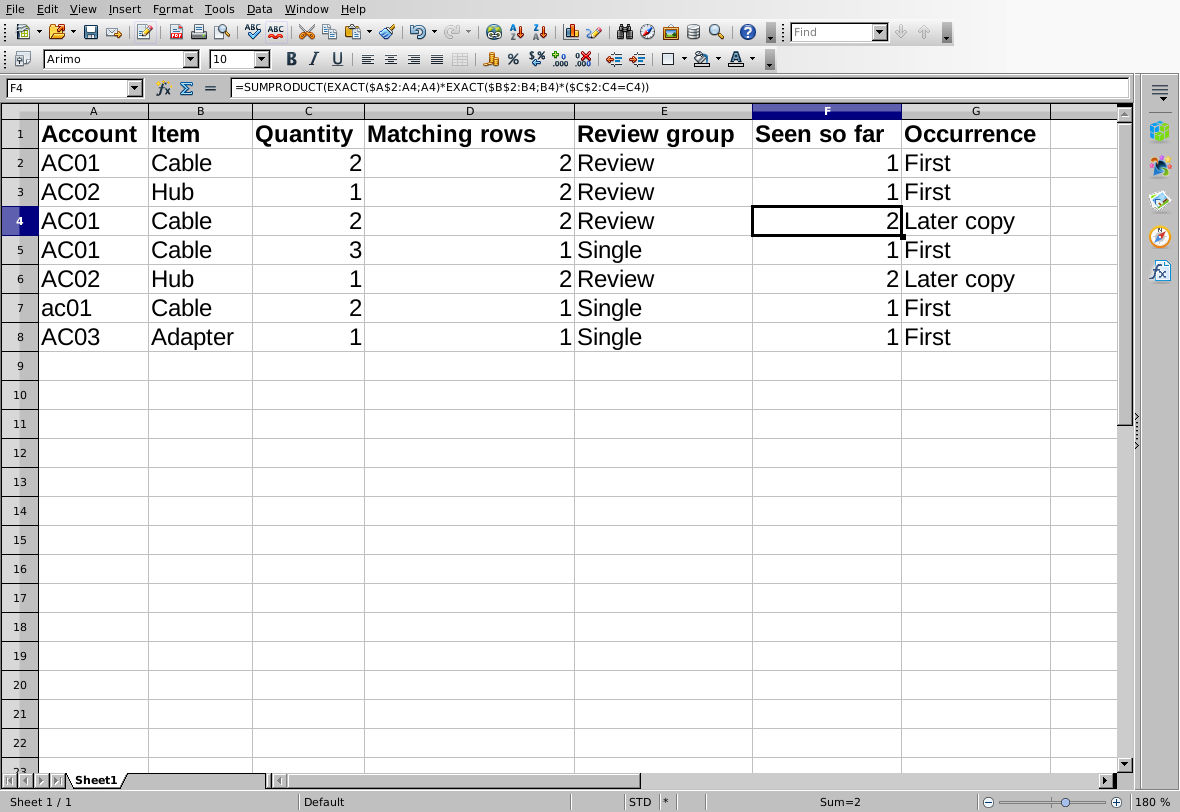
Native 4.1.17: ordinary formula entry and Fill Down produce the expected running counts; case and quantity differences remain distinct.
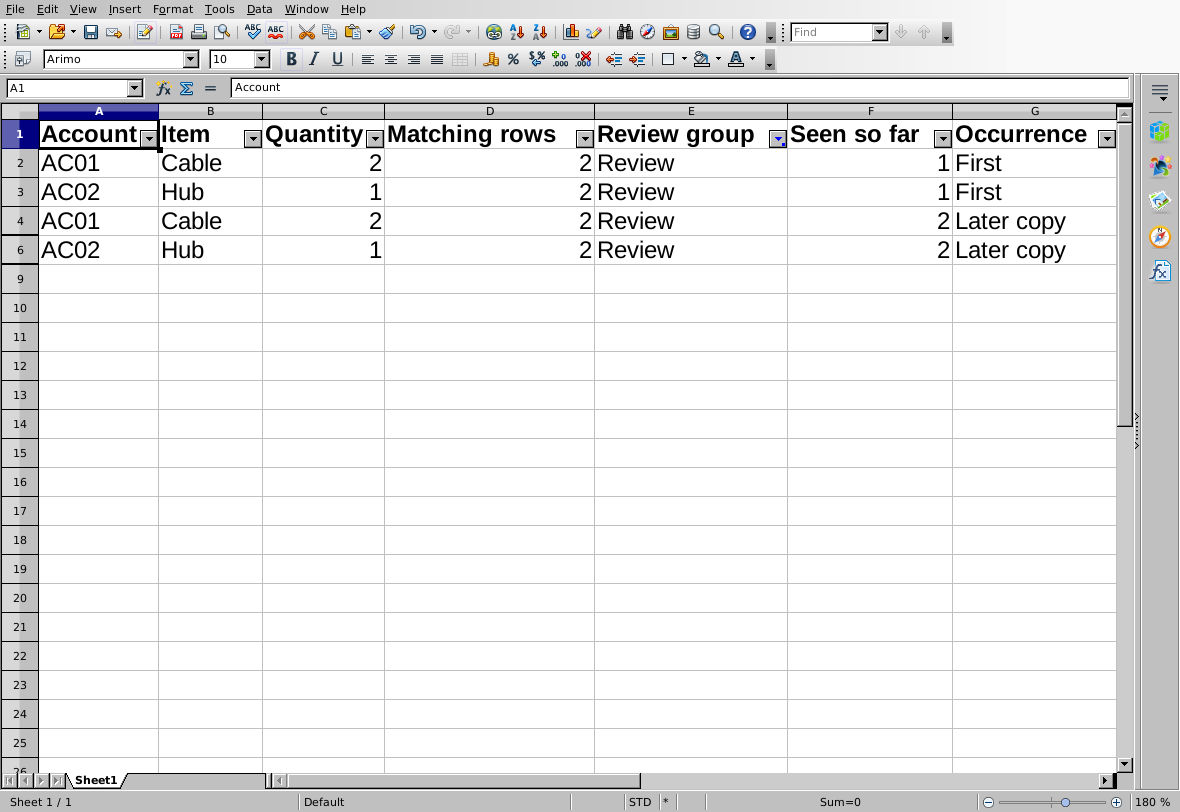
Native 4.1.17: filtering exposes four group members without deleting the other records.
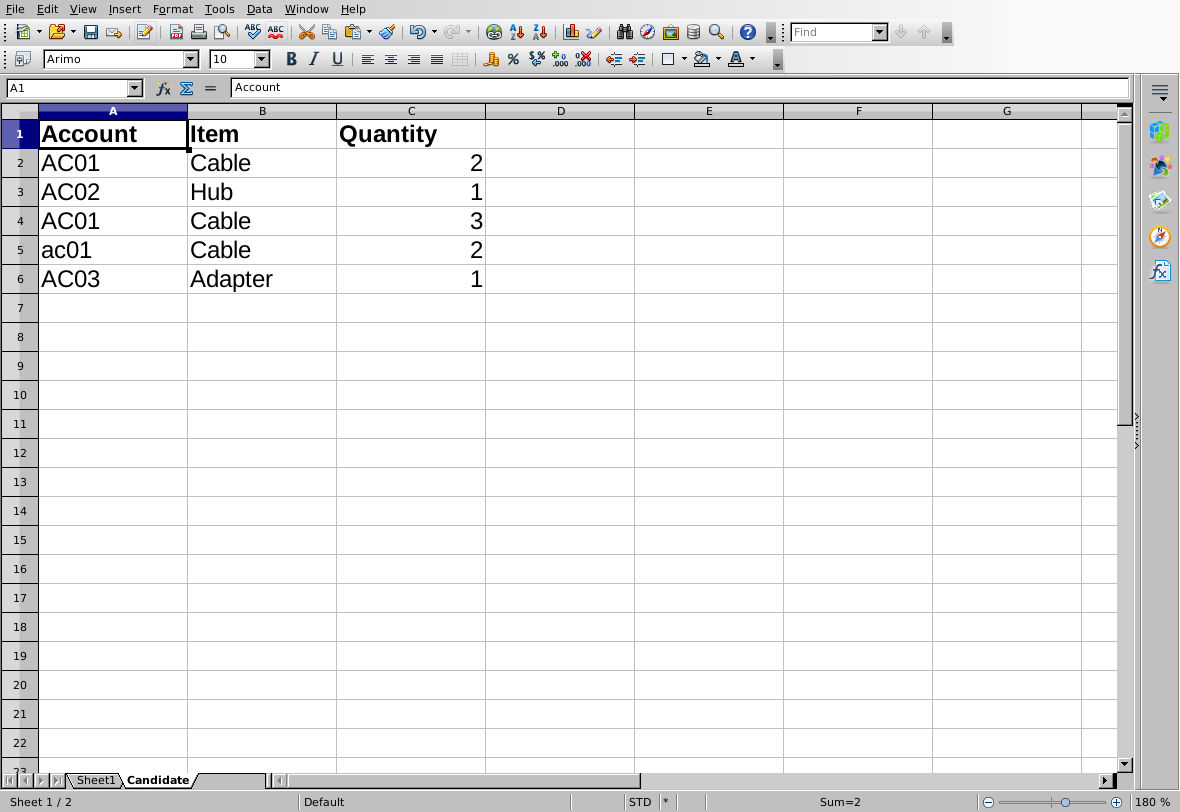
Native 4.1.17 after ODS reopen: the candidate is a separate copied review output, not a replacement for the source.
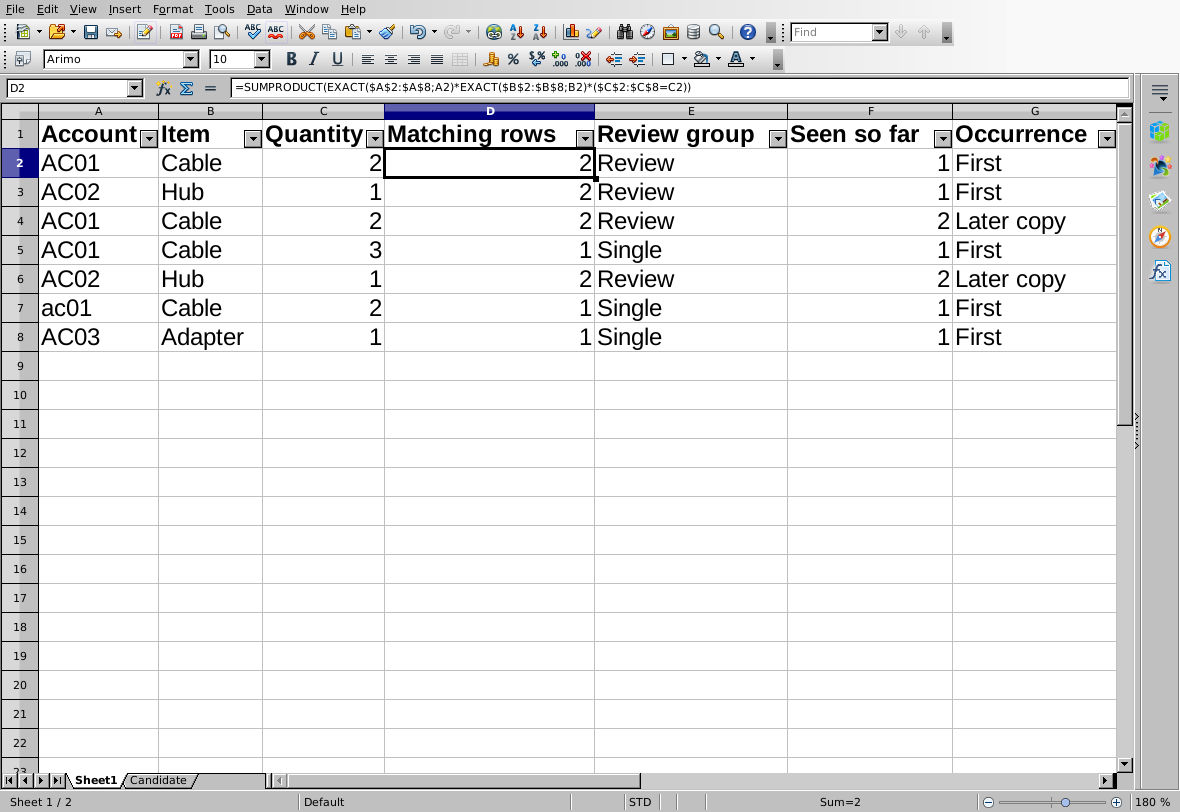
Native 4.1.17 after ODS reopen: all originals remain; the full-range matching formula is visible in the input line.
Evidence and limits: Independent matching calculations were checked separately from native formula execution. Screenshots are genuine, unmodified captures. This test covers only the supplied nonblank, consistently typed, case-sensitive three-field sample. Blank/mixed-type keys, whitespace normalization, errors, large-sheet performance, later source edits or appended records, sorting effects, automatic Candidate synchronization, other platforms/locales and other applications were not tested. No deletion or automatic deduplication is claimed.