

OpenOffice Calc · Import and data cleanup · Beginner
Import Semicolon CSV with Decimal Commas in OpenOffice Calc
Import semicolon-delimited UTF-8 data with decimal commas, preserve identifiers as text and verify numeric totals in OpenOffice Calc.
For a semicolon-delimited file containing amounts such as 12,50, choose Semicolon as the separator and a decimal-comma Language such as German (Germany) in Calc’s Text Import dialog. Set identifier columns to Text before importing. Separators control column boundaries; language controls numeric interpretation.
Scope and practice file
These instructions target Apache OpenOffice Calc 4.1 desktop with English dialog labels, checked against the versioned 4.1.16 Text Import Help source. The included synthetic CSV was imported and checked in Apache OpenOffice Calc 4.1.17 on Linux x86_64 with English UI on October 16, 2026; see the native test scope below. Do not assume another Calc product has identical import options.
Download the synthetic semicolon and decimal-comma CSV. Its UTF-8 contents are:
InvoiceID;Item;Amount;Note
000123;Notebook;12,50;Office
000124;Pen;3,75;"Blue; fine tip"
123456789012345678;Folder;-2,25;Adjustment
000126;Café supplies;1000,00;
There are four fields per row, four data rows and a header. The semicolon inside the quoted note belongs to that note. The final row has a deliberately empty Note field. InvoiceID is an identifier, even when its characters look like a number.
Import the original file
- Keep an untouched copy of the CSV. In Calc choose File → Open and select the file. If necessary, choose the Text CSV file type so it opens in Calc with the Text Import dialog.
- Set Character set to Unicode (UTF-8) and From row to 1.
- Set Language to German (Germany) for this example. Do not leave an English default when the file’s numeric convention uses a decimal comma.
- Select Separated by and enable Semicolon only. Clear Comma, Tab, Space and any Other separator. Leave Merge delimiters off.
- Set Text delimiter to the straight double quotation mark (
"). Confirm thatBlue; fine tipstays in a single preview field and that the four headings occupy four columns. - Click the InvoiceID column heading in the preview and set Column type → Text. Confirm its preview header now identifies Text. Set Item and Note to Text as well; leave Amount as Standard.
- Leave Detect special numbers off for this simple file. Its amounts are ordinary decimal numbers; no date or scientific-notation recognition is needed. Click OK only after checking the column layout and types.
The official Calc guide’s opening-CSV section illustrates the import dialog. The versioned Text Import Help explains the Language, Text and Standard settings. Disabling special-number detection still permits decimal-number conversion according to the selected language.
Verify values, not just appearance
Use cells outside A1:D5 for these checks:
| Check | Expected result |
|---|---|
| A2 | Exactly 000123 |
| A4 | Exactly 123456789012345678 |
| B5 | Café supplies, with the accented character intact |
| D3 | One cell containing Blue; fine tip |
| D5 | Empty |
=ISTEXT(A4) |
TRUE |
=COUNT(C2:C5) |
4 |
=SUM(C2:C5) |
Numeric 1014 |
=ISNUMBER(C2) |
TRUE |
The independent arithmetic is 12.50 + 3.75 − 2.25 + 1000.00 = 1014.00. A locale or cell format may display that total as 1014, 1014.00 or 1014,00; those can represent the same number. In the native test, German (Germany) controlled import parsing while the worksheet retained its English default display, so the imported amounts displayed decimal points. Changing the import Language did not change the application’s overall locale. A sum alone is insufficient because missing text amounts might be ignored. Pair it with COUNT and inspect the individual values.
For details of these checks, see COUNT, SUM, ISNUMBER and ISTEXT.
Diagnose a failed import
- All data is in column A: reopen the original and choose separated fields with Semicolon enabled.
- Extra columns appear around amounts: Comma was probably selected as a separator. A decimal comma is part of Amount, not a field boundary.
- The quoted note splits: check the text delimiter and the file’s matching straight quotes.
- Amounts are text or have the wrong magnitude: reopen with the appropriate import Language and Standard for Amount. Changing the display format after import does not reconstruct the original parse.
- Leading zeros disappear or a long ID changes: discard that imported copy and import the original again with InvoiceID set to Text. Formatting an already-converted number as Text cannot reliably restore lost digits.
- Accented text is garbled: verify the actual file encoding; this fixture is UTF-8, but real exports may use another character set.
Do not globally replace commas with periods in the CSV. That can change text and other fields while leaving the actual delimiter problem unresolved. Files with mixed numeric conventions need separate cleaning decisions; one Language setting cannot describe contradictory conventions in the same amount column.
Save a verified working copy as .ods, retaining the original CSV separately. CSV does not carry cell types, formulas, formatting or multiple sheets. In particular, exporting IDs to CSV does not ensure that the next person will import them as text.
Native example and test limits
The original UTF-8 fixture was tested in Apache OpenOffice Calc 4.1.17, AOO4117m2, Build 9818, revision 49c05bc6fd, on Linux x86_64, with English UI, on October 16, 2026. The import used German (Germany), semicolon separation only, Text for InvoiceID/Item/Note, Standard for Amount, and Detect special numbers off.
All four source records imported correctly, including the 18-digit text ID, leading zeros, Café accent, quoted semicolon and trailing blank Note. Native ISTEXT, COUNT, SUM and ISNUMBER checks returned TRUE, 4, 1014 and TRUE, matching the independently calculated expectations. Saving as ODS, closing and reopening preserved those values, types and checks.
Select a screenshot to open the full-size image.
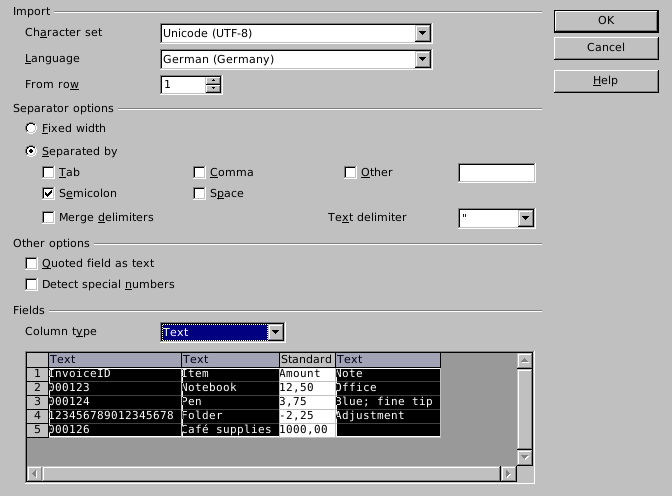
Native 4.1.17: inspect separators, language and preview column types before importing. The quoted note stays in one field.
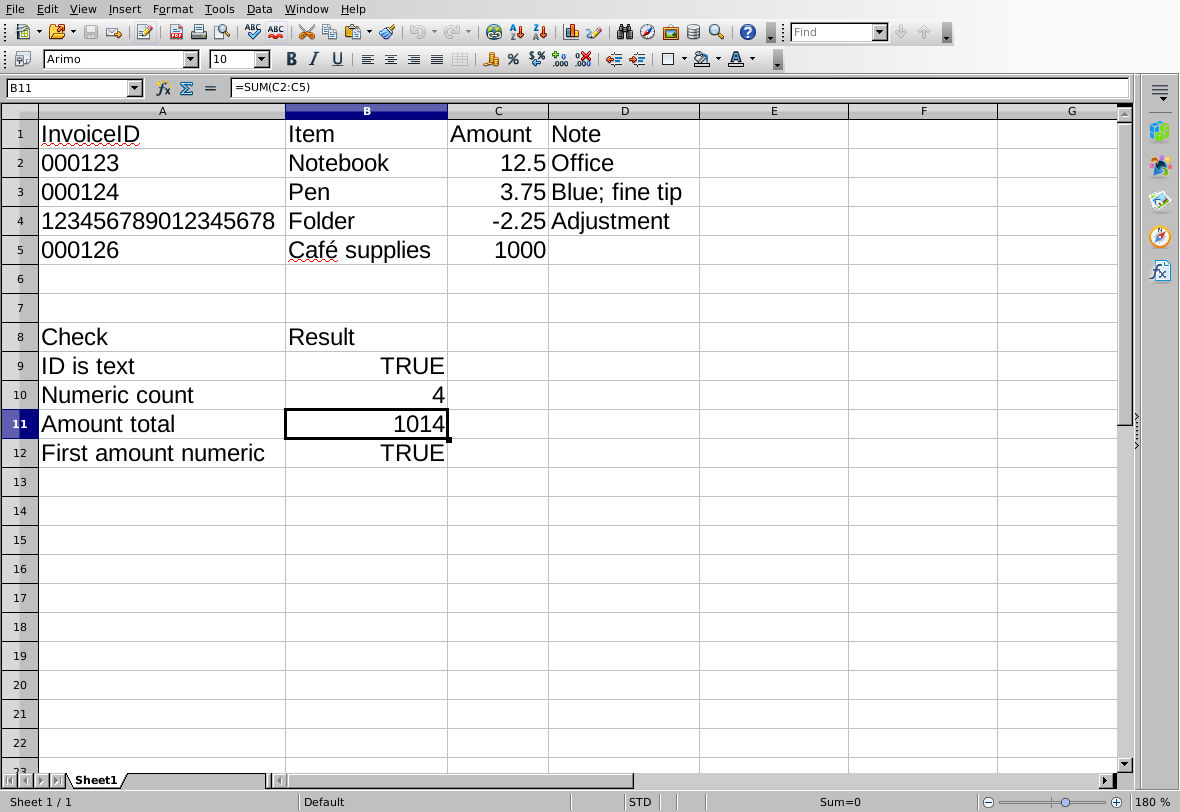
Native 4.1.17 after ODS reopen: numeric amounts and exact text survive. The selected sum formula is visible in the input line.
Evidence and limits: Official documentation and independent CSV/arithmetic checks were completed separately from the native import. Screenshots are genuine, unmodified captures. Only this fixture and German (Germany) import parsing were tested; the application’s default English display remained in place. Mixed numeric conventions, other parsing locales, bulk cleanup, export/reimport, quoted-field-as-text mode, special-number detection enabled, other platforms and other applications were not tested.