

OpenOffice Calc · Sheet and cell protection · Beginner
Protect Formulas but Allow Inputs in OpenOffice Calc
Unlock input cells, retain protected formula cells and enforce sheet protection in Apache OpenOffice Calc with a two-row calculation test.
Clear Protected for input cells, keep it enabled for formula cells, then turn on Tools → Protect Document → Sheet. Cell attributes alone do not enforce the restriction. This protects against accidental edits; it is not file encryption or a secure way to hide confidential information.
Scope and practice layout
These steps use Apache OpenOffice Calc 4.1 desktop English menus, checked against 4.1.16 Help. The synthetic input/formula example was tested in Apache OpenOffice Calc 4.1.17 on Linux x86_64 with English UI on October 16, 2026; see the precise scope below. Begin with a copy of the workbook, or build this small example in a new sheet:
| Row | A: Item | B: Quantity input | C: Calculated total |
|---|---|---|---|
| 1 | Item | Quantity input | Calculated total |
| 2 | Notebook | 2 | =B2*4.50 |
| 3 | Pen | 3 | =B3*1.25 |
The expected initial totals are 9.00 and 3.75, with a combined total of 12.75. Formula constants above use decimal points; use the decimal separator appropriate to your Calc locale. The optional input-values CSV contains A:B only. Add C1:C3 yourself; CSV does not create formulas or protection settings.
Unlock only the input cells
- If this is an existing protected sheet, remove its protection using Tools → Protect Document → Sheet and the authorized password if required. Do not attempt to bypass someone else’s protection.
- Select B2:B3, the only cells users should edit.
- Open Format → Cells → Cell Protection.
- Clear Protected, leave the hiding options off, and confirm with OK.
- Select C2:C3 and check that Protected is enabled. In a new sheet it is enabled by default, but an existing template may have different settings.
OpenOffice’s default protected attribute applies to cells throughout a fresh sheet. Unchecking it selectively creates input areas; it does not activate the protection mechanism. Versioned cell-protection Help.
Enable sheet protection and test both sides
- Choose Tools → Protect Document → Sheet.
- For this disposable practice file, leave the optional password blank and confirm. This makes it easy to remove the practice restriction.
- Change B2 from 2 to 4. It should remain editable, and C2 should calculate 18.00.
- Try replacing the formula in C2. With protection active, the edit should be rejected; C2 should still contain its formula.
- Change B3 from 3 to 5. C3 should become 6.25, and the two totals together should be 24.25.
- Restore quantities to 2 and 3 when the checks are finished.
The purpose is to protect the formula definition while allowing its result to change as inputs change. A cell that never updates is not evidence that protection is working correctly. Protecting Cells from Changes.
Make later template changes deliberately
To add an input area, remove sheet protection, select the new input cells, clear their Protected attribute, and protect the sheet again. Recheck both an allowed input and a disallowed formula edit.
For a working template, decide whether an optional sheet password helps your workflow, and keep it somewhere you can recover it. Do not put a real password in a public tutorial file. A forgotten protection password can block normal maintenance. The sheet command toggles protection; removing password-protected sheet protection requires its password. Protecting Sheet Help.
Troubleshooting and distribution checks
- Inputs are blocked: remove sheet protection and confirm the exact input range is not marked Protected.
- Formulas can still be overwritten: check both the formula cell attribute and active sheet protection.
- Formula disappears from view: review Hide formula and Hide all separately; hiding is not required for this exercise.
- Workbook structure needs restrictions: the Document command under Protect Document addresses structure. It is not interchangeable with the Sheet command used here.
- Someone must not read the data: use an appropriate access/encryption workflow; do not rely on cell protection or hidden formulas.
Save as .ods, close, reopen and repeat an input edit plus a rejected formula edit before distributing the file. If you export to another spreadsheet format, test the exported copy in its destination application; no cross-format protection guarantee is made here. Avoid sending confidential source data just because a sheet is protected.
For adding a separate total, see SUM. Include that new formula cell in the protection check too.
Native example and test limits
Tested in Apache OpenOffice Calc 4.1.17, AOO4117m2, Build 9818, revision 49c05bc6fd, on Linux x86_64, with English UI and English (USA) number settings, on October 16, 2026. The two input rows were entered manually; C2/C3 contained the documented formulas and C5 contained SUM(C2:C3) before sheet protection was enabled without a password.
B2:B3 remained editable while C2:C3 retained their Protected attribute. Inputs 2 and 3 produced 9, 3.75 and total 12.75; changing them to 4 and 5 produced 18, 6.25 and total 24.25. An ordinary typed overwrite of C2 was rejected, leaving its formula intact. Saving as ODS, closing and reopening retained the restriction: both input changes and the rejected formula edit were repeated successfully. The saved test ends with inputs 4 and 5.
Select a screenshot to open the full-size image.
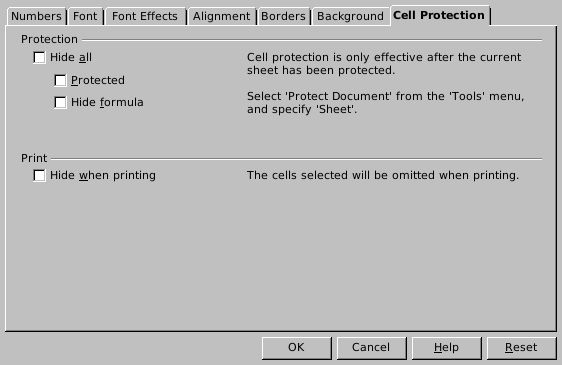
Native 4.1.17: clear Protected for B2:B3 before enforcing sheet protection.
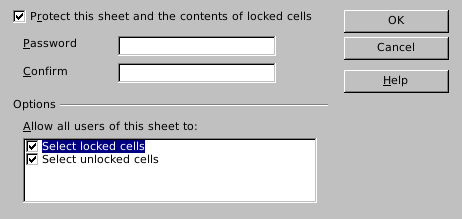
Native 4.1.17: this disposable practice sheet used no password; selecting locked and unlocked cells remained allowed.
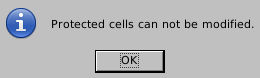
Native 4.1.17: the attempted ordinary edit to C2 was rejected.
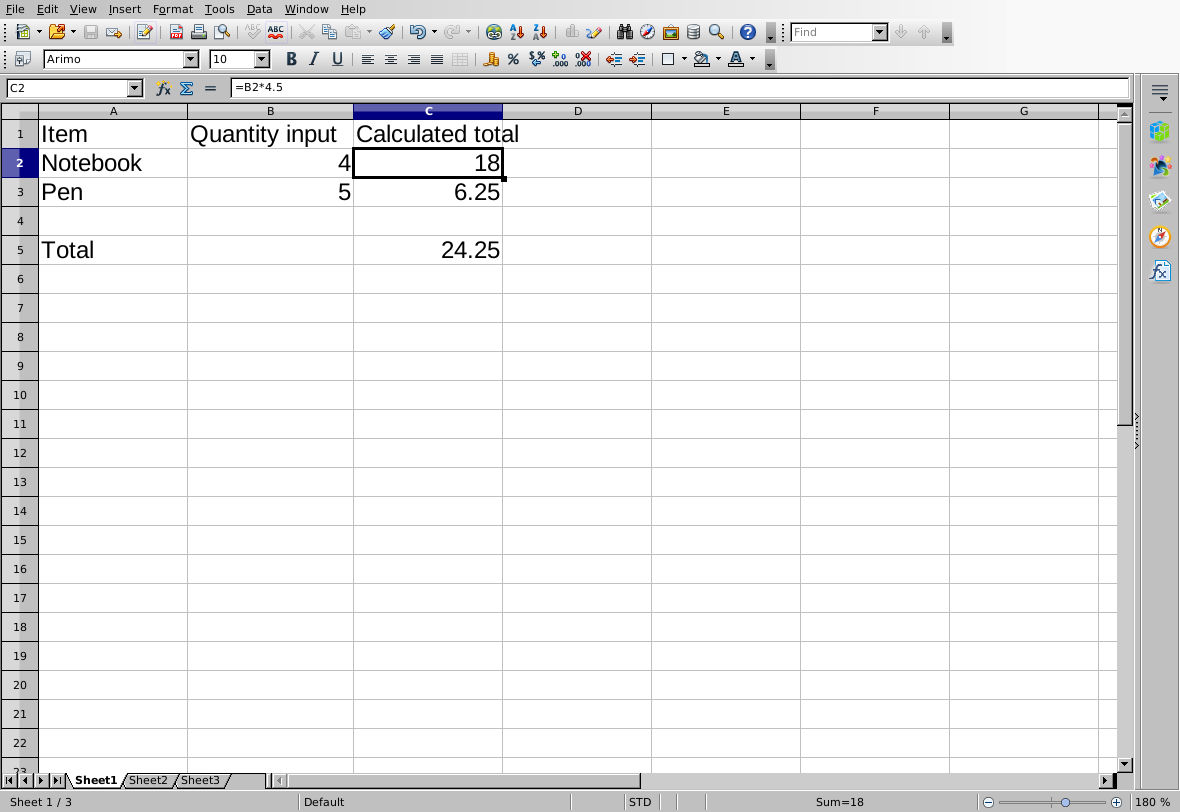
Native 4.1.17 after ODS reopen and fresh input changes: formulas still calculate and the attempted C2 overwrite remains blocked.
Evidence and limits: Independent arithmetic was checked separately from the native edit test. Screenshots are genuine, unmodified captures. This verifies the demonstrated ordinary cell edits and ODS persistence only. Password handling, encryption, confidentiality, paste/import behavior, workbook-structure protection, other platforms/locales and cross-format protection were not tested. Sheet protection is an accidental-edit safeguard, not a security guarantee.