

OpenOffice Calc · Data management · Beginner
Sort Whole Records Safely in OpenOffice Calc
Sort a complete labeled table in Apache OpenOffice Calc without separating related columns, then verify records and filter the results.
Select the entire table, not just the column you want to sort, then use Data → Sort with Range contains column labels enabled. A row is one record: its ID, product, amount and status must move together.
Scope and complete sample
This guide targets Apache OpenOffice Calc 4.1 desktop with English labels, checked against the 4.1 guide and 4.1.16 Help. The six-record sort/filter example was tested in Apache OpenOffice Calc 4.1.17 on Linux x86_64 with English UI on October 16, 2026; see the exact scope below. Save a copy before reorganizing real records.
Enter this table in A1:E7, or open the synthetic order CSV using comma-separated UTF-8 text:
| Order | Region | Product | Amount | Status |
|---|---|---|---|---|
| 1001 | East | Cable | 120 | Open |
| 1002 | West | Adapter | 85 | Closed |
| 1003 | East | Stand | 160 | Open |
| 1004 | North | Cable | 95 | Open |
| 1005 | West | Hub | 140 | Closed |
| 1006 | North | Adapter | 70 | Open |
The six amounts total 670. Keep this original table or CSV for comparison. A total check alone cannot detect that an amount has become attached to the wrong order.
Sort by region, then amount
- Remove any active filters so you can see all six records. Select A1:E7 explicitly, including headings and every field belonging to each order.
- Choose Data → Sort.
- On Options, set Direction to Top to bottom (sort rows) and enable Range contains column labels.
- On Sort Criteria, choose Region, Ascending, as the first key. Choose Amount, Descending, as the second key. Leave a third key unused for this example.
- Confirm. Check that row 1 is still the heading row and that all five fields move together.
If the key selector shows Column A rather than your field names, recheck the label option and selected range. OpenOffice documents three sort keys. The Options tab also controls case sensitivity, language and custom sort order; keep a normal alphabetical order for this fixture. Official sorting guide and Sort Options Help.
Compare the complete expected result
| Order | Region | Product | Amount | Status |
|---|---|---|---|---|
| 1003 | East | Stand | 160 | Open |
| 1001 | East | Cable | 120 | Open |
| 1004 | North | Cable | 95 | Open |
| 1006 | North | Adapter | 70 | Open |
| 1005 | West | Hub | 140 | Closed |
| 1002 | West | Adapter | 85 | Closed |
The order IDs should be 1003, 1001, 1004, 1006, 1005, 1002. Amounts still total 670, but also confirm, for example, that order 1002 remains West/Adapter/85/Closed and order 1003 remains East/Stand/160/Open.
If columns became separated, stop immediately and use Edit → Undo before making further edits. Compare with the saved original. Do not try to reconstruct relationships by independently sorting the other columns; that can create plausible-looking incorrect records.
Filter without deleting records
Select the complete A1:E7 block and choose Data → Filter → AutoFilter. Use the Status dropdown to show Open. Expected visible orders are 1003, 1001, 1004 and 1006 after the sort above. Their amounts total 445. Choose All in that dropdown to show the six records again.
A filter changes visibility. Do not assume bulk edits, deletion or copying across hidden rows will affect only the intended visible records. For a review, inspect first and avoid destructive operations. Official filter guide.
For more complex criteria stored in sheet cells, OpenOffice also offers Data → Filter → Advanced Filter. Use a separate criteria area with field headings matching the data. That is a different workflow from choosing one AutoFilter value; see the official Advanced Filters guide.
Prevent the common failures
- Blank rows or columns can make automatic range detection incomplete. Select the exact full block rather than relying on a toolbar button’s inferred range.
- Text amounts can sort differently from numeric amounts. Use ISNUMBER on suspect cells before sorting.
- Subtotals, merged cells or unrelated notes inside the range complicate the record model. Move analysis outside the raw table in a working copy.
- If preserving original order matters, keep a source copy or add a stable sequence field before the sort; a later sort cannot always recover the original order.
- For repeated operations, Data → Define Range makes the intended database range explicit. Confirm its boundaries whenever records are appended.
Save a verified workbook as .ods. SUM checks totals, while row-by-row comparison checks record integrity.
Native example and test limits
Tested in Apache OpenOffice Calc 4.1.17, AOO4117m2, Build 9818, revision 49c05bc6fd, on Linux x86_64, with English UI and English (USA) defaults, on October 16, 2026. The original CSV was imported, the whole A1:E7 table selected, and Region ascending/Amount descending applied with column labels and top-to-bottom direction enabled. All five fields of every record matched the expected table above; order IDs were 1003, 1001, 1004, 1006, 1005, 1002.
For the screenshot checks, G2 contained =SUM(D2:D7) and G5 contained =SUBTOTAL(9;D2:D7), outside the source table. With Status filtered to Open, the four expected records remained visible: the all-record SUM stayed 670, while the visible-record SUBTOTAL became 445. Choosing All restored six records and a visible total of 670.
Saving as ODS, closing and reopening retained the sorted records and AutoFilter. Repeating Open then All after reopening produced the same records and totals. The saved test ends with All restored and no source rows filtered out.
Select a screenshot to open the full-size image.

Native 4.1.17: the full record range and its header option are set before sorting.
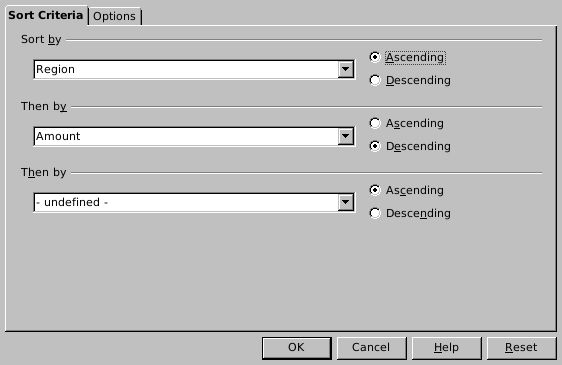
Native 4.1.17: the verified two-key sort used for the expected result.

Native 4.1.17 after ODS reopen: compare whole records, not only the amount total.

Native 4.1.17 after ODS reopen: filtering changes row visibility; the source records remain intact.
Evidence and limits: Independent record ordering and arithmetic were checked separately from native execution. Screenshots are genuine, unmodified captures. The test covers the shown two-key sort, Open/All AutoFilter and ODS persistence. Deletion, copied-output sorting, custom sort orders, Standard/Advanced Filter, filtered-row editing, named database-range setup, other platforms/locales and cross-format persistence were not tested.