

DAYSPERYEAR in FreeOffice PlanMaker: Syntax and Worked Examples
Return 365 or 366 for the calendar year containing a date, with century controls and clear calendar-versus-financial scope.
Verification status: See the evidence and test scope described in this guide. How formula examples are checked
Quick answer
=DAYSPERYEAR(DATE(2024,1,1)) is expected to return 366. For a date in 2025, the expected result is 365. DAYSPERYEAR measures the full calendar year containing the supplied date.
It does not count days elapsed since January 1 or days remaining until December 31. January 1 and December 31 of the same year identify the same year length.
Syntax and date argument
=DAYSPERYEAR(Date)
There is one required argument and no optional year or basis argument. Supply an actual date value, preferably created with DATE or referenced from a date cell. Passing the integer 2024 alone is not the same as explicitly providing a date in the year 2024; a spreadsheet can interpret an ordinary number as a date serial.
The result is a day count. Use number formatting, rather than a date format, to display 365 or 366 plainly.
Step-by-step: a year-length control table
Put the dates below in column A using DATE, and enter =DAYSPERYEAR(A2) in B2. Fill the formula down alongside your dates.
| Date formula | Expected day count |
|---|---|
=DATE(2024,1,1) |
366 |
=DATE(2024,12,31) |
366 |
=DATE(2025,2,15) |
365 |
=DATE(2000,6,15) |
366 |
=DATE(2100,6,15) |
365 |
=DATE(2026,10,18) |
365 |
The matching 2024 results show that the day within the year does not change the count. The 2000 and 2100 rows distinguish the Gregorian century exception: years divisible by 400 are leap years, while other century years are not. These expected values are independently determined from the calendar rule, not from formatting the date cell.
Practical use: normalize a yearly total
Suppose a fictional annual production target is 3,660 units and the model allocates it evenly over all calendar days. For a reference date in 2024, dividing the total by DAYSPERYEAR gives 10 units per day. For a date in 2025, the same total divided by 365 gives approximately 10.0273972603.
Make the allocation assumption visible. DAYSPERYEAR does not know the number of working days, weekends excluded, shutdown periods or holidays. A calendar-day average is different from a working-day productivity target.
The function is also useful as a calendar control: if every row refers to a date in the same year, its year-length result should be consistent. That does not prove the dates themselves are correct, so retain the dates and year labels in the report rather than hiding all inputs behind one denominator.
Avoid confusing calendar years with day-count bases
A fixed conversion unit such as CONVERT’s documented 365.25-day yr is an average duration, whereas DAYSPERYEAR answers a date-specific calendar question. Neither is automatically the denominator required by a financial year-fraction convention.
For a span crossing December 31, one year-length value does not describe the whole interval’s day count. A financial actual/actual calculation may need separate treatment for portions in different years, and actual/360 uses a different convention entirely. Do not substitute DAYSPERYEAR for a contractual basis without checking the rule being modeled.
Errors and compatibility
Use DATE instead of locale-dependent text where possible. The official page does not document an exhaustive error/coercion table for blanks, invalid dates or arbitrary text. This guide therefore does not assign invented outputs to those cases or infer that a missing date means the current year. Early date-system edge cases are outside the modern-date examples.
SoftMaker explicitly warns that the function does not exist in Microsoft Excel and that Excel-format saving replaces its calculations with their current fixed results. Preserve an editable native PMDX master. If the input date will change in an exported workbook, a fixed 365 or 366 is insufficient: verify a portable replacement and inspect the saved formulas before relying on future recalculation.
Native leap-year and century checks
The six direct DATE-based year checks were calculated in FreeOffice PlanMaker 2024 revision F1238.1005. The results were 366, 366, 365, 366, 365 and 365, including 366 for 2000 and 365 for 2100. All six formulas survived native PMDX save and reopen. The daily-allocation example remains an independent arithmetic illustration.
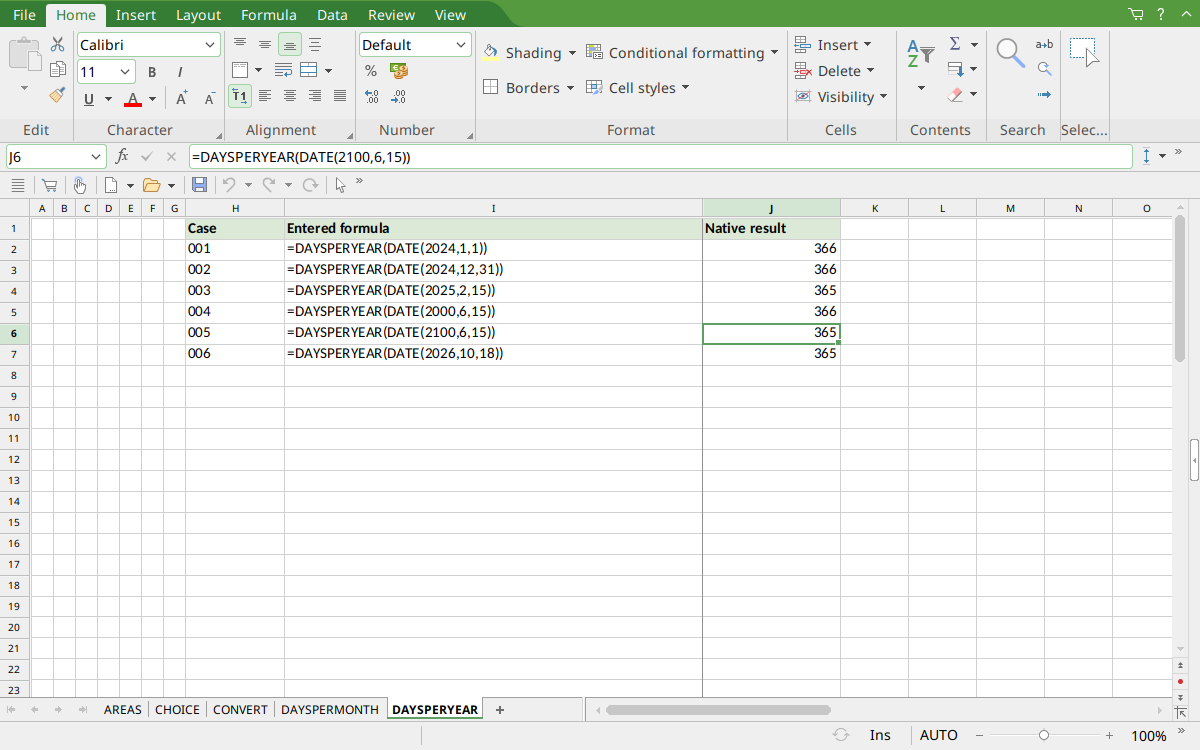
Selected J6 shows the year 2100 returning 365. J5 shows 366 for 2000, while J2:J3 demonstrate the same year length at both ends of 2024.
Version and verification scope
The official FreeOffice PlanMaker 2024 reference was checked October 18, 2026. The installed application is FreeOffice PlanMaker 2024 revision F1238.1005. The original introduction version is not established by this evidence; the current reference does not identify the function as deprecated or retired. No availability claim for a different edition or a 2026 release is implied.
The native section identifies the exact tested subset and results from revision F1238.1005. Other examples are documentation-derived or independently calculated as indicated. Screenshots were captured after saving and reopening the native workbook. Excel-export behavior is a vendor warning, not an export test performed here. English formulas in this guide use commas; use the separators required by your formula settings.