

PlanMaker DCOUNTA Function: Count populated fields in selected records
Use DCOUNTA in FreeOffice PlanMaker 2024 with a headed database, explicit criteria, worked results and data-type limits.
Verification status: See the evidence and test scope described in this guide. How formula examples are checked
Quick answer: =DCOUNTA(A11:D20,"Amount",A1:A2) returns 5 for the database below. Of six East records, five Amount cells are populated: three numbers, one text value, and one logical value.
Syntax and range contract
=DCOUNTA(DatabaseArea, Column, SearchCriteriaArea)
The result is the count of populated cells in the selected field. DatabaseArea contains the header row and records beneath it. Column identifies the result field by its quoted header, such as "Amount", or by its one-based position inside the database. SearchCriteriaArea contains its own header row and the condition rows below it. Keep header spelling consistent and avoid ambiguous duplicate database headers.
In A11:D20, Amount is field 4, regardless of where a copied database starts on the worksheet. Thus =DCOUNTA(A11:D20,4,A1:A2) targets the same field as the quoted-header form. A wrong field number or a header that does not identify a database column is not a request to scan every column.
Enter the example database
Create the database in A11:D20, including the header row. Enter pending as text, leave D18 genuinely empty, and enter D20 as logical TRUE, not the text string "TRUE". The mixed types are intentional so that the example reveals which records contribute to the result.
| Row | A: ID | B: Region | C: Item | D: Amount |
|---|---|---|---|---|
| 11 | ID | Region | Item | Amount |
| 12 | 1 | East | Pen | 10 |
| 13 | 2 | East | Pen | 20 |
| 14 | 3 | East | Book | 30 |
| 15 | 4 | West | Pen | -5 |
| 16 | 5 | West | Book | 0 |
| 17 | 6 | East | Pen | pending |
| 18 | 7 | East | Book | (leave genuinely empty) |
| 19 | 8 | West | Pen | 40 |
| 20 | 9 | East | Pen | TRUE |
Put Region in A1 and East in A2. This is the two-cell criteria range A1:A2. Keep it above the database, with no overlap: that placement is explicitly required by the FreeOffice 2024 database-function instructions. The database header belongs inside the first range; the criteria header belongs inside the third range.
Now enter =DCOUNTA(A11:D20,"Amount",A1:A2) in J2. Leave the source cells unchanged while checking the result.
East matches IDs 1, 2, 3, 6, 7, and 9. Amount values 10, 20, 30, text pending, and Boolean TRUE each contribute one to the independently expected count of 5. D18 is genuinely blank and contributes nothing. The official reference distinguishes DCOUNTA from DCOUNT by including text and logical values, not only numbers.
Combine conditions deliberately
These small criteria blocks use the same database. Enter comparisons such as >=1 as criterion text, not as formulas that return TRUE or FALSE.
| Block | Cells to enter | Meaning |
|---|---|---|
| C1:D2 | C1 Region; D1 Item; C2 East; D2 Pen |
East and Pen |
| F1:F3 | F1 Region; F2 East; F3 West |
East or West |
| A5:B6 | A5 ID; B5 ID; A6 >=1; B6 <=2 |
ID at least 1 and at most 2 |
Conditions in the same criteria row are joined by AND. Separate criteria rows are alternatives joined by OR. Repeating a field header in two columns lets two bounds apply to the same field. Keep the range exactly as shown: an additional blank criteria row can change selection behavior and is not a harmless spacer.
| Formula | Result: independently calculated and native-tested |
|---|---|
=DCOUNTA(A11:D20,"Amount",C1:D2) |
4 |
=DCOUNTA(A11:D20,"Amount",F1:F3) |
8 |
=DCOUNTA(A11:D20,"Amount",A5:B6) |
2 |
The East-and-Pen block has four populated contributors: IDs 1, 2, 6, and 9, containing 10, 20, text pending, and Boolean TRUE. The bounded-ID block selects IDs 1 and 2, giving two populated cells. The OR block includes every record, but the blank Amount on ID 7 does not contribute, leaving eight populated cells. These explicit row lists make the expected counts independently reproducible without relying on another spreadsheet engine.
Practical use: measure presence separately from validity
A populated amount is not necessarily a usable numeric amount. Place three results together: =DCOUNTA(A11:D20,"Amount",A1:A2) → 5 populated cells, =DCOUNT(A11:D20,"Amount",A1:A2) → 3 numeric cells, and =DCOUNT(A11:D20,,A1:A2) → 6 matching records.
These three quantities answer different questions. Five of six selected records have some content in Amount, but only three of six have numeric content. The difference 5 − 3 = 2 identifies the number of populated nonnumeric cells in this deliberately bounded dataset: pending and TRUE. It does not identify their row positions or prove they are valid business values.
A status such as pending may be useful information even though it prevents that row from contributing to a numeric average. Keep a separate status field in a real table if the Amount field is intended to remain strictly numeric. DCOUNTA can monitor completeness, while DCOUNT helps check numeric coverage.
Errors and selection pitfalls
This example uses a genuinely empty cell, not a formula returning an empty string. A formula result of "", a space, an error, and a true blank are distinct cell states. Their detailed treatment is not established by the examples here, so do not infer a universal “looks blank” rule from the displayed result.
A zero is content and should not be excluded merely because its value is zero. The OR example includes all nine records but only eight populated Amount cells. The tested South no-match selection returns 0. The omitted-field form =DCOUNTA(A11:D20,,A1:A2) returns 6, the number of matching East records, in this build. Use the explicit "Amount" field for the different question of how many selected Amount cells are populated; that result is 5.
For a no-match check, put Region in D5 and South in D6 and use D5:D6 as the criteria range. For field validation, replacing "Amount" with "Missing" deliberately requests a nonexistent header. Keep those checks separate: an empty selection and a malformed request are different situations.
Use an exact criteria range rather than selecting entire columns. Preserve genuine blanks when building this example; do not type the explanatory text from the table into D18. Wildcards, formula criteria, case sensitivity, error-valued records, and text-number coercion are not established by these bounded examples.
Observed criteria boundaries
In FreeOffice PlanMaker 2024 rev F1238.1005, =DCOUNTA(A11:D20,"Amount",F5:F6) returns 8 when F5 contains Region and F6 is genuinely empty. This blank condition selects the entire database in this tested layout. Keep the criteria range narrow so an unintended blank condition does not broaden the question.
The nonexistent field request =DCOUNTA(A11:D20,"Missing",A1:A2) returns #REF! in the same build. These specific results are native observations, not an error-code specification for all malformed databases or criteria.
Compatibility and related functions
The examples use English function names and comma separators from the official help. Follow the separators accepted by your installed locale. Database and criteria references are ordinary cell ranges; a worksheet’s visible filter state is not a substitute for the explicit third argument. When copying formulas, lock ranges with dollar signs if they should not move.
Native example
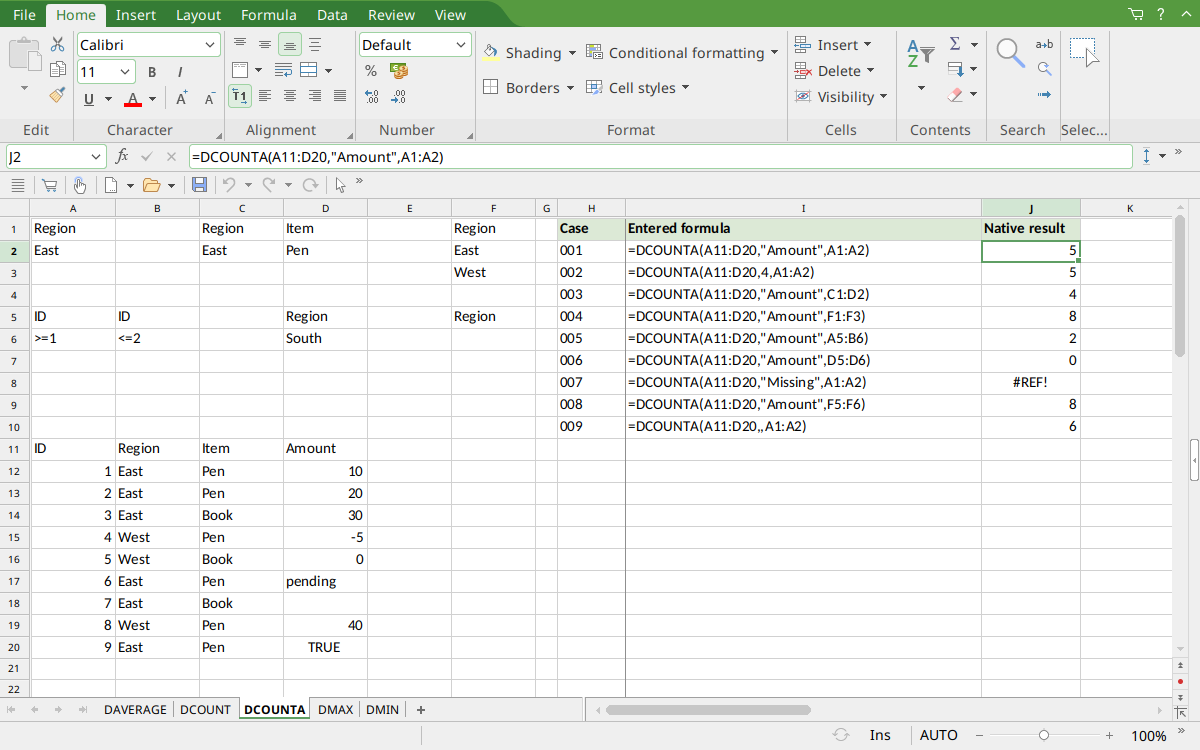
FreeOffice PlanMaker 2024 rev F1238.1005: selected cell J2 contains =DCOUNTA(A11:D20,"Amount",A1:A2) and displays 5. The screenshot shows the criteria above the database, the genuinely blank Amount at D18, and Boolean TRUE at D20. Additional result rows show AND, OR, repeated-field criteria, and boundary checks.
Version and evidence scope
The official FreeOffice PlanMaker 2024 DCOUNTA reference and shared database instructions were checked October 18, 2026. They establish the documented interface and criteria construction. The first introduction release is unknown from these references; current documentation does not establish deprecation, retirement, or identical support in every edition.
The 9 selected formulas for this function were tested on October 18, 2026 in FreeOffice PlanMaker 2024 rev F1238.1005, 64-bit. The native PMDX workbook was saved, closed, and reopened with formulas and results preserved; the typed input grid was checked, including the genuine blanks and Boolean TRUE. Independent row selection and arithmetic agree with the bounded expected results. Advanced coverage ratios, combined spreads, subgroup explanations, and additional suggested formulas are independent reasoning rather than separately executed native tests. Proprietary implementation code has not been inspected, and these observations do not establish behavior for every data type, range, edition, or file format.