

MINIFS in FreeOffice PlanMaker: Syntax and Worked Examples
Find the smallest value meeting multiple conditions, with negative-value examples and safeguards against misleading zero results.
Verification status: See the evidence and test scope described in this guide. How formula examples are checked
Quick answer
For the table below, =MINIFS(B2:B7,A2:A7,"East",C2:C7,"Open") is expected to return −5. The matching values are 10, −5 and 0. Negative values participate in the minimum; zero is not an automatic lower bound.
Use MINIFS for the lowest eligible measurement, amount or score. It returns the minimum value, not a unique record identifier. If several rows tie, the result alone cannot tell you which row to choose.
Syntax and criteria
=MINIFS(MinRange, Range1, Criterion1, [Range2, Criterion2], ...)
MinRange supplies the values being compared. Range1 supplies the values tested against Criterion1. Each criterion range must have the same dimensions as MinRange, and additional range/criterion pairs add conditions.
Use explicit criteria such as "East", "Open", ">0" or ">=0", following the official help’s quoted-criterion examples. A strict positive filter and a nonnegative filter answer different questions. The range addresses themselves remain ordinary references without quotes.
Step-by-step: keep negative and zero values visible
Enter the following data in A1:C7:
| Row | A: Region | B: Value | C: Status |
|---|---|---|---|
| 1 | Region | Value | Status |
| 2 | East | 10 | Open |
| 3 | East | 30 | Closed |
| 4 | West | 20 | Open |
| 5 | East | −5 | Open |
| 6 | West | 40 | Closed |
| 7 | East | 0 | Open |
Enter =MINIFS(B2:B7,A2:A7,"East"); expected result is −5. Then enter =MINIFS(B2:B7,A2:A7,"East",C2:C7,"Open"); the expected result is still −5 because the negative East value is also Open.
This unchanged result does not mean the second criterion was ignored. It removes the East/Closed value 30, which was not the minimum anyway. Inspect the included records, rather than judging whether a criterion worked solely from whether the result changed.
Independent controls and boundary choices
| Formula | Matching values | Expected minimum |
|---|---|---|
=MINIFS(B2:B7,A2:A7,"West",C2:C7,"Open") |
20 | 20 |
=MINIFS(B2:B7,B2:B7,">0") |
10, 30, 20, 40 | 10 |
=MINIFS(B2:B7,A2:A7,"East",B2:B7,">=0") |
10, 30, 0 | 0 |
The last formula intentionally excludes −5 but includes zero. If the intended rule is “smallest positive value,” ">=0" is the wrong boundary. Make that distinction visible in report labels and validation rules.
Practical case: low eligible values and data quality
Suppose the numbers are fictional inventory adjustments. A negative minimum can be meaningful, representing a decrease. If instead they represent a quantity that should never be negative, −5 may signal a data problem. MINIFS selects by the stated conditions; it does not decide whether the underlying value is plausible.
Keep the source rows and units available for inspection. Do not filter out negative values merely to make the result look reasonable. Add an explicit positive-only criterion only when it is part of the question being asked.
A legitimate matched zero and an absent matching subset are conceptually different. Pair important minima with a matched-record check or an inspected subset so a displayed zero cannot silently stand in for missing data.
Errors and unestablished cases
All example ranges align on rows 2 through 7. Equal dimensions are required, but equal size alone does not protect against shifted rows: A3:A8 would have the same size as B2:B7 while testing different records.
The reference does not specify every no-match, blank, text or embedded-error outcome, or the exact error token for a dimension mismatch. The native checks below record a missing North region and a shortened A2:A6 criterion range. Do not interpret those limited results as a complete coercion specification.
The examples do not rely on wildcard syntax or case-insensitive matching. Use consistent labels and inspect whitespace or text-versus-number inconsistencies when results are surprising.
Compatibility
The official FreeOffice 2024 page warns that older Excel versions do not support the function and identifies Excel 2019 or later. That is a compatibility reference, not a test of every destination build or file format. Verify formula preservation and recalculation when exchanging a workbook, especially when a displayed result could have been cached.
Native filtered minima and edge observations
Seven MINIFS cases were calculated with the exact A2:C7 dataset in FreeOffice PlanMaker 2024 revision F1238.1005. The five predicted minima were −5, −5, 20, 10 and 0. The no-match North criterion also returned numeric 0, while the shortened A2:A6 criterion range returned #VALUE!. Thus a legitimate matched zero and this no-match case look the same numerically; check the matching subset separately. The inputs and all seven formulas survived native PMDX save and reopen. Other data types and malformed ranges remain outside these observations.
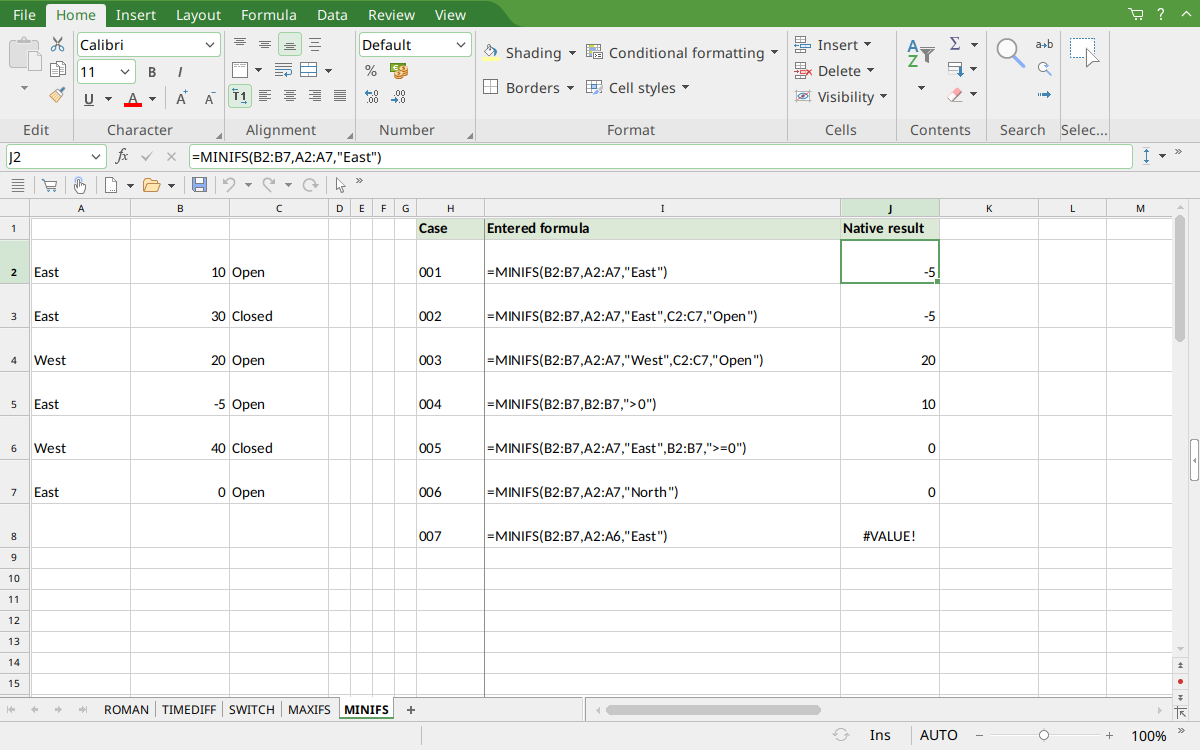
Selected J2 shows −5 for East. J6 is a genuine matched zero, J7 is the no-match zero, and J8 shows the unequal-range #VALUE! error.
Version and verification scope
The official FreeOffice PlanMaker 2024 reference was checked October 18, 2026. The installed application is FreeOffice PlanMaker 2024 revision F1238.1005. The original introduction version is not established by this evidence; the current reference does not identify the function as deprecated or retired. No availability claim for a different edition or a 2026 release is implied.
The native section identifies the exact tested subset, saved results and screenshots from revision F1238.1005 after native PMDX save and reopen. Other worked arithmetic and cell-reference variations are explanatory unless identified as tested. File-exchange compatibility statements are vendor guidance; no Excel-export test was performed here. English formulas in this guide use commas; use the separators required by your formula settings.