

PlanMaker SORTV Function: Sort a vector or return associated labels
Sort a vector or associated labels with SORTV in FreeOffice PlanMaker 2024, including case-order observations and export limits.
Verification status: See the evidence and test scope described in this guide. How formula examples are checked
Quick answer: SORTV sorts a one-row or one-column range. With scores 30, 10, 20, the ascending result is 10, 20, 30. Its optional Data argument can instead return labels in the order determined by those scores.
Syntax and defaults
=SORTV(Range [, Descending] [, Mode] [, Data])
Range must be one-dimensional: one row or one column. Descending defaults to FALSE, meaning ascending order; TRUE reverses the order. Mode defaults to FALSE, meaning case-insensitive text sorting. TRUE distinguishes case. The help and tested build disagree on case order: the help says lowercase comes first, but the native a/A/b control returns A, a, b, with uppercase A first.
Data is optional. If supplied, it must have exactly the same size as Range. The function sorts by Range but returns corresponding values from Data. It does not sort the source cells in place. A two-dimensional table needs a different contract; SORTV is not a general table-sort replacement.
The official help requires array-formula entry for its vector result. The examples below use scalar INDEX wrappers to inspect individual elements. Those readbacks establish neither automatic spill behavior nor the keyboard sequence needed to enter a full vector result in a particular interface.
Reproduce score and label ordering
Enter this data:
| Cell row | A: Score | B: Label |
|---|---|---|
| 2 | 30 | Cedar |
| 3 | 10 | Ash |
| 4 | 20 | Birch |
Use =INDEX(SORTV(A2:A4),1,1) to read the first sorted score. Change the INDEX row to 2 and 3 in two more cells. The independent results are 10, 20, 30. =INDEX(SORTV(A2:A4,TRUE),1,1) reads the largest score, 30.
For associated labels, use:
=INDEX(SORTV(A2:A4,FALSE,FALSE,B2:B4),1,1)
=INDEX(SORTV(A2:A4,FALSE,FALSE,B2:B4),2,1)
=INDEX(SORTV(A2:A4,FALSE,FALSE,B2:B4),3,1)
The corresponding labels are Ash, Birch, Cedar. Each label follows its score; sorting B independently would answer a different question. The explicit FALSE arguments preserve ascending, case-insensitive defaults while reaching the fourth argument.
Case sensitivity and ties
Put a, A, b in C2:C4. The official help predicts lowercase before the matching uppercase letter, but the native scalar readbacks of SORTV(C2:C4,FALSE,TRUE) return A, a, b. This concrete discrepancy applies to the tested strings and build; it does not establish a complete locale-specific collation order. Verify actual ordering before relying on case to rank records.
Case-insensitive comparison can make otherwise different strings compare equally. The short reference does not promise stable ordering among equal keys, nor does it specify every accent, locale or mixed-type ordering rule. Do not use an assumed tie order to decide which record should win. Supply a clear tie-handling policy in the workbook’s data design.
Practical use: rank a labelled list
The score-and-label pattern is useful for a short ranked list when the score and label remain in aligned ranges. For descending scores, change Descending to TRUE; the mathematical order for the example becomes Cedar, Birch, Ash. Keep an adjacent score result so a reader can audit why each label occupies its position.
Sorting does not remove duplicates, calculate ranks with ties, or validate the scores. If the labels and keys are independently edited or filtered into different lengths, the association can become invalid. The Data-size requirement is part of the contract, not a cosmetic layout preference.
Errors and preservation
A mismatched example such as =INDEX(SORTV(A2:A4,FALSE,FALSE,B2:B3),1,1) violates the size requirement. In the tested build that mismatched Data-length expression returns #VALUE!. The short page also does not exhaustively specify blanks, error cells or arbitrary two-dimensional inputs.
SoftMaker states that SORTV does not exist in Microsoft Excel. Saving to Excel format replaces calculations using it with their current results as fixed values. A sorted list can therefore look correct after conversion even though its formula is gone. Preserve a PMDX working copy and inspect formulas when interoperability matters.
The first PlanMaker introduction release is not established by this current help page. The function is documented for FreeOffice PlanMaker 2024 without a retirement declaration.
Native results and scope
Native scalar readbacks returned scores 10, 20, 30, descending first score 30, and associated labels Ash, Birch, Cedar, matching the numerical permutation controls. The case-sensitive control returned A, a, b, contrary to the help’s lowercase-first wording. The mismatched Data range returned #VALUE!.
These observations verify individual returned elements; a complete SORTV output region was not entered through the array interface in this example. The case-order discrepancy is retained rather than treating the documented prediction as a successful application result.
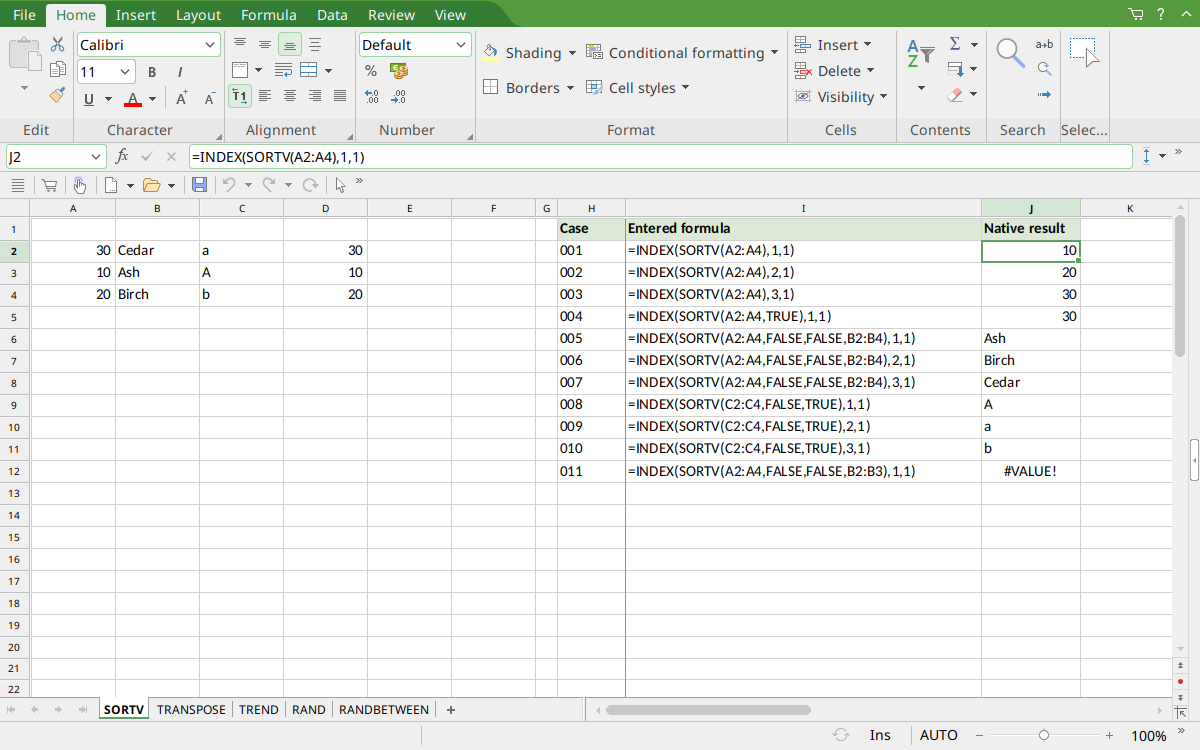
FreeOffice PlanMaker 2024 rev F1238.1005: selected J2 contains =INDEX(SORTV(A2:A4),1,1) and displays 10. The case-sensitive outputs A, a, b and mismatched-range error are also visible.
Version and evidence scope
Official FreeOffice PlanMaker 2024 reference, checked October 18, 2026. No introduction release is inferred from current support.
Selected examples were tested on October 18, 2026 in FreeOffice PlanMaker 2024 rev F1238.1005, 64-bit. The actual observations are distinguished from independent mathematical references and from teaching extensions not individually executed. Proprietary implementation code has not been inspected. Scalar INDEX readbacks do not establish array-entry or automatic-spill behavior.