

PlanMaker 2026 · Sorting and filtering · Intermediate
Extract Records with a Special Filter in PlanMaker 2026
Use PlanMaker Special filter dialog conditions and Copy to position to extract checked records without a worksheet criteria grid.
Official documentation reviewed; native application verification pending · Editorial standards
Scope: PlanMaker 2026 paid desktop, English ribbon interface; official 2026 documentation reviewed on 19 October 2026. NX builds require matching controls; compatibility with every NX build is not established here. Native application verification remains pending. FreeOffice and mobile parity are not claimed.
Extract a short list of qualifying orders while retaining the original records. PlanMaker’s Special filter uses conditions in a dialog, with a copy-to-output option. It does not use the worksheet criteria-grid workflow familiar from some other spreadsheets; this guide does not invent one.
Set up the source and separate output
In a blank worksheet enter the full table in A1:D9. Put no totals, controls or notes inside these nine rows. Reserve A12:D30 as a disposable output area, with A11 containing Extracted orders. This location stays below all source rows even if you later try in-place row filtering.
| ID | Region | Channel | Amount |
|---|---|---|---|
| P01 | North | Online | 120 |
| P02 | South | Retail | 80 |
| P03 | North | Retail | 60 |
| P04 | South | Online | 150 |
| P05 | North | Online | 90 |
| P06 | South | Retail | 110 |
| P07 | North | Retail | 140 |
| P08 | South | Online | 40 |
There are eight records totaling 790. Save special-filter-inputs.pmdx, then a working copy special-filter-work.pmdx. The IDs make verification more reliable than judging a row count alone.
Extract North orders of at least 100
- Select A1:D9 and choose Data → Filter → Special filter.
- Enable Range contains headings and choose Filter row by row under Mode.
- In 1st condition, choose the Region column, equality as the operator, and
Northas the comparison value. - In 2nd condition, choose Amount, the greater-than-or-equal operator, and numeric
100. Select And beside the second condition: both conditions must apply. Leave the third condition column at (none). Do not place the criteria in worksheet cells. - Under Results, choose Copy to position and enter
A12as the starting cell. Enable Copy headers to include the headings. Prefer a single start address: the documentation warns that an undersized fixed output rectangle can truncate the copy. - Confirm and inspect the extracted records. Expect P01 and P07, with amounts 120 and 140, totaling 260. Verify the source still contains all eight IDs.
If P05 is present, the amount comparison or connector is wrong. If P04 is present, the region condition or connector is wrong. These deliberately chosen counterexamples distinguish a correct conjunctive filter from one that only appears plausible.
Narrow, then rerun without stale rows
Change the amount threshold to 130. Before running again, clear the previous contents of the reserved output area A12:D30, leaving A11 and A1:D9 alone. Select the original source and reopen Special filter; recheck both conditions and Copy to position A12. Expect only P07, amount 140. Clearing the old result is important when a replacement extract is shorter than its predecessor.
For a three-condition example, restore the threshold to 100 and add Channel equal to Online as 3rd condition, with And beside the third condition so all three conditions must hold. Clear the output and rerun. Expect P01 only, amount 120. The official 2026 workflow permits up to three linked dialog conditions. It does not document arbitrary worksheet criteria ranges or unlimited nested expressions.
Try a disjunction as a separate experiment
Clear the output and set a two-condition request: Region equals North OR Amount is at least 140, selecting Or beside the second condition. Set the third condition column to (none); it must not remain active. Expect P01, P03, P04, P05 and P07, totaling 560. P04 tests the amount-only branch; P03 and P05 test the region-only branch.
Do not mix And and Or in a three-condition exercise until you have checked the intended grouping of the logic. This two-condition disjunction has no precedence ambiguity. The screenshot below supports the exact labels; current installed behavior still requires native verification.
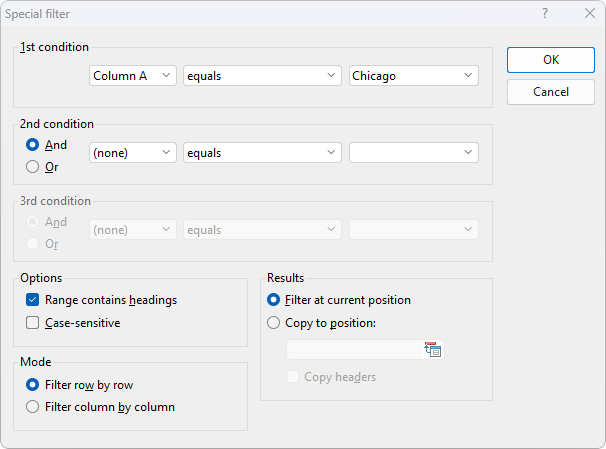
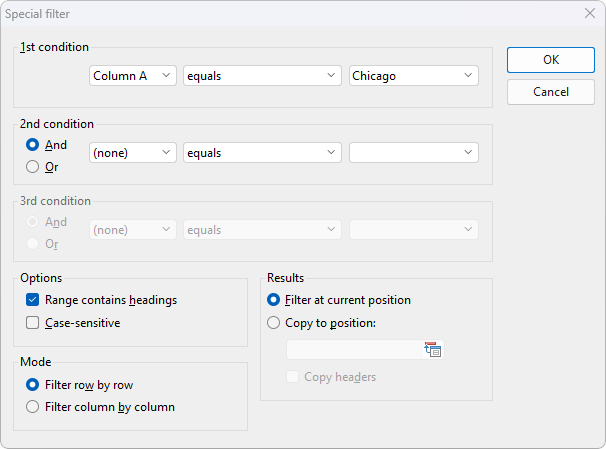
Documentation screenshot from SoftMaker’s PlanMaker 2026 English help, retrieved 19 October 2026. The original capture date and application build are not stated. Its Chicago example is not this tutorial’s fixture, and this image is not evidence of a native run. Original image.
Grow the source and test output freshness
Return to the two-condition North-and-100 request. Enter P09, North, Online, 160 in A10:D10. The source now totals 950. Keep the output starting at A12; the label in row 11 still separates source and output. Clear A12:D30, select the expanded A1:D10 explicitly, and rerun the extract. Expect P01, P07 and P09, totaling 420. If P09 is absent, check that you enlarged the source selection.
Change P09’s amount to 95 and rerun from a cleared output area. It should drop out, leaving P01 and P07 totaling 260. This extract is a generated copy, not a live formula report: repeat the filter after changes to source data. To retain the expanded scenario, restore P09’s amount to 160, clear A12:D30, and rerun the North-and-100 extract from A1:D10 with Copy to position set to A12 and Copy headers enabled. Check P01, P07 and P09 total 420.
Save special-filter-work.pmdx and reopen it now, before the optional experiments or reset below. Verify all nine source records total 950, and the saved extract contains exactly P01, P07 and P09 totaling 420. This is the completed expanded result; do not overwrite it with the reset exercise.
Optional in-place filtering and reset
For a separate display experiment, save a copy as special-filter-reset-practice.pmdx, then use Filter at current position instead of Copy to position. Nonmatching source rows are hidden. Use Data → Filter → Show all to reveal them again before editing or counting source records. Showing all does not clear the copied result area; clear that explicitly if you no longer need it.
To reset this disposable copy to the initial baseline, show all source rows, clear A10:D10 and A12:D30, and verify eight source records P01 through P08 total 790 and the output area A12:D30 is empty. Save and reopen only special-filter-reset-practice.pmdx for this reset check; retain the completed expanded file separately. If uncertain, reopen the untouched input workbook and create a new working copy. Do not delete hidden source rows to reset a filter.
Completion and troubleshooting
Wrong headings suggest that Range contains headings was omitted. Missing final records suggest an old source selection or a too-small fixed output rectangle. Text amounts may compare differently from numeric amounts; correct their types in the source. Unexpected old rows below a new extract indicate the destination was not cleared.
The saved expanded checkpoint has nine source records totaling 950 and an extract totaling 420; the optional reset copy has eight source records totaling 790 and no extract. Check the state appropriate to the file you reopened. Expected IDs and totals were calculated independently; dialog interactions and newly captured native screenshots are not claimed. For interactive hide/show filtering, see PlanMaker AutoFilter.
Official documentation and verification scope
PlanMaker 2026 paid desktop, English ribbon interface; official 2026 documentation reviewed on 19 October 2026. NX builds require matching controls; compatibility with every NX build is not established here. Native application verification remains pending. FreeOffice and mobile parity are not claimed.
The included screenshot is archived first-party documentation, not a newly captured native screenshot. These are original practice fixtures and documentation-backed instructions; rendering a website or calculating expected values is not a native application test.