

AVERAGEIF in Calligra Sheets: Average Only Rows That Pass One Criterion
Learn Calligra Sheets AVERAGEIF with exact arguments, reproducible inputs, independently checked results and implementation-specific cautions.
Verification status: See the evidence and test scope described in this guide. How formula examples are checked
Quick answer
AVERAGEIF calculates a mean from rows meeting one condition. The checked range and the averaged range may be different: for example, check a team’s name in column A and average its recorded hours in column C. A matching numeric zero is included in the mean; it is not the same thing as a missing observation.
Exact syntax and defaults
=AVERAGEIF(check_range;criterion[;average_range])
Two arguments are required. The optional third range supplies the values to average. If omitted, the checked values themselves are averaged. There is no default criterion. The 26.08.2 statistical module registers two or three arguments and calls the shared conditional-average implementation; absence from an older handbook list must not be mistaken for absence from this release.
Use a quoted comparison such as ">=7" for a numeric threshold and a quoted label such as "East" for text. A cell reference can supply the criterion, and concatenation can build it: if E1 holds 7, ">="&E1 means at least that value. Quotes belong around the operator, not the entire formula.
Reproduce a team-hours report
- Enter headers Team, Units and Hours into A1:C1.
- Enter this five-row dataset. All entries in B and C must be numbers, including zero.
| Row | A: Team | B: Units | C: Hours |
|---|---|---|---|
| 2 | East | 3 | 10 |
| 3 | West | 7 | 20 |
| 4 | East | 8 | 30 |
| 5 | East | 4 | 0 |
| 6 | West | 9 | 40 |
- In E2 enter:
=AVERAGEIF(A2:A6;"East";C2:C6)
Expected: 13.333333 to six decimals. Rows 2, 4 and 5 qualify, giving (10 + 30 + 0)/3 = 40/3. The zero is a real observation, so removing it changes the mean.
- In E3 enter a two-argument version:
=AVERAGEIF(B2:B6;">=7")
Expected: 8, from (7 + 8 + 9)/3. Here there is no separate average range. These are independently calculated expected results derived from the release algorithm; selected native results are recorded below.
Advanced example: a reusable group summary
Put East in G2 and West in G3. In H2 enter the following formula and fill down to H3:
=AVERAGEIF($A$2:$A$6;G2;$C$2:$C$6)
Expected values are 13.333333 for East and 30 for West. The dollar signs preserve the original data ranges while the criterion reference changes from G2 to G3. Put 7 in G5 and use =AVERAGEIF(B2:B6;">="&G5;C2:C6) for expected 30, the mean of 20, 30 and 40. This separates report controls from source data and makes the threshold visible.
Do not average the two group means to recover the overall mean when group sizes differ. East has three numeric observations and West has two. Their unweighted mean is 21.666667, whereas the overall mean is (10+20+30+0+40)/5 = 20. Retain group counts when aggregating summaries.
Calligra-specific criteria and range behavior
The shared criteria parser recognizes numeric comparison operators, including >=, <=, <> and =. Bare text uses the document’s simple-text, wildcard or regular-expression matching mode. The matching path is case-insensitive, but an explicit text equality criterion such as "=East" takes a different, case-sensitive equality branch in this source. Do not assume these two strings are always equivalent.
Pattern syntax is therefore not universally Excel-style. Check the document’s calculation settings before using *, ? or regex characters, and prefer simple labels and explicit numeric comparisons for a portable report. This guide does not assert an import-preserved default matching mode.
For a supplied average range, the implementation starts at its top-left cell and walks the dimensions of the check range. Use equally sized, aligned rectangles. A small third range is not a safe way to restrict the number of averaged rows; this implementation may read corresponding cells beyond that displayed range.
Errors and edge cases
- Matching text or empty cells in the averaged values are not counted as numbers in the normal rectangular-range path; numeric zero is counted. Numbers stored as text should be cleaned explicitly.
- With a multi-cell range, no matching numeric observations leave the count at zero and cause division by zero. Do not replace that with a reported average of zero unless that is your explicit reporting policy.
- The source has a separate scalar path: a nonmatching single value returns 0. Do not generalize this behavior to a multi-row range.
- Keep examples rectangular, not nested arrays. Error propagation and numeric coercion of criteria cells should be separately tested for error-filled source data.
- For more than one condition, do not add additional arguments here. Use AVERAGEIFS, whose average range comes first and whose handling of nonnumeric average values differs in the inspected Calligra implementation.
Compatibility
This source establishes the 26.08.2 function and its argument order. It does not prove full Excel/Calc interchangeability: pattern settings, scalar no-match behavior and range expansion are particular hazards. Recalculate a small control dataset after importing a workbook, rather than trusting cached results. The plain numeric and exact-label fixtures here deliberately avoid advanced patterns.
Availability and verification
- Release checked: Calligra Sheets 26.08.2, using KDE’s release source package and release information, inspected on October 18, 2026. Relevant locations:
sheets/functions/statistical.cpplines 122–126 and 757–770;sheets/engine/ValueCalc.cpplines 2114–2190 and 2466 onward. - Introduced: The original introduction version is not established by these sources. Current registration establishes presence in 26.08.2, not the first release.
- Lifecycle: Registered in the inspected release; no retirement or deprecation marker was found in this function’s registration. Retirement (removed support) and deprecation (discouraged but retained support) are different claims; neither is asserted here.
- Native testing: Selected examples were recalculated and saved in Calligra Sheets 25.04.2. The source discussion concerns 26.08.2; these are different evidence scopes. Other examples and edge cases remain source-derived or independently calculated.
Related guides and sources
- AVERAGE
- AVERAGEA
- SUMIF
- COUNTIF
- Calligra function guide index
- KDE formula entry instructions, checked October 18, 2026. Examples use leading
=and semicolons, with a period for decimal numbers. Confirm regional separators in your installation before pasting.
Selected native results and screenshot
The following results were observed in Calligra Sheets 25.04.2 after loading a corrected ODS fixture, recalculating and saving it. Saved formula expressions were read back and checked against the displayed results. An earlier XLSX import had rewritten range references incorrectly; those results are excluded. This confirms these selected cases, not a successful XLSX round trip or a native test of 26.08.2.
| Executed expression shown in native notation | Native displayed result |
|---|---|
=AVERAGEIF(A2:A6;"East";C2:C6) |
13.3333333333 |
=AVERAGEIF(B2:B6;">=7") |
8.0000000000 |
=AVERAGEIF(A2:A6;"North";C2:C6) |
#DIV/0! |
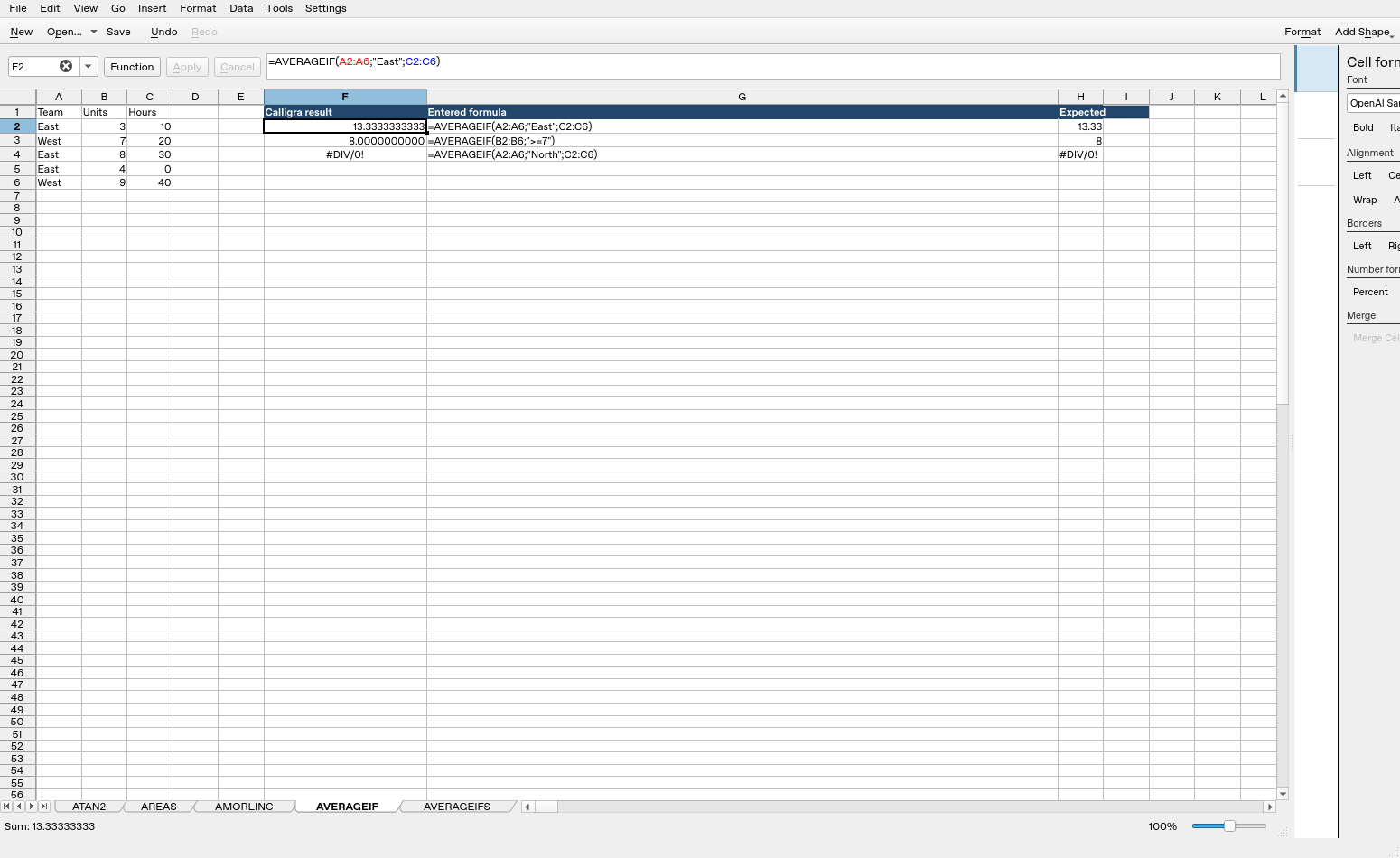
Screenshot: Genuine native 25.04.2 capture. Cell F2 shows =AVERAGEIF(A2:A6;"East";C2:C6) and displays 13.3333333333. Column F contains native results; column G contains fixture labels and column H contains reference expectations, sometimes rounded to two decimals, not additional application calculations.
Relevant released function source was independently compared between 25.04.2 and 26.08.2 and found byte-identical for the inspected implementations. This supports the source discussion without upgrading an older-version GUI run into a 26.08.2 native test. Other platforms, locales and unlisted edge cases remain unverified.