

COUNTIFS in Calligra Sheets: Count Rows That Meet Several Conditions
Learn Calligra Sheets COUNTIFS with exact arguments, reproducible inputs, independently checked results and implementation-specific cautions.
Verification status: See the evidence and test scope described in this guide. How formula examples are checked
Quick answer
COUNTIFS counts the positions where all supplied conditions are true. Use it to count East-team records with enough units and an Open status, or to count measurements lying between two limits. It counts records rather than summing a value column, and it applies the conditions to corresponding positions.
Syntax and complete pairs
=COUNTIFS(criteria_range1;criterion1[;criteria_range2;criterion2;...])
The syntax is a sequence of range/criterion pairs. Every criterion needs its corresponding range; there is no default for a missing criterion. The registration accepts two or more arguments, and the function body reads them two at a time. Supply an even number of arguments, not an incomplete trailing pair.
Scope of this guide: the release source’s one-pair and scalar paths have implementation concerns, including accessing extra range metadata beyond the first pair. The worked examples therefore use at least two pairs of matching multi-cell rectangular ranges. For one condition, use the separately documented COUNTIF rather than assuming the registered two-argument COUNTIFS path is safe. One-pair behavior remains a native-verification item, not a promised equivalent.
A numeric comparison is quoted, for example ">=4"; a label criterion can be "East". A criterion may also be in a cell. To construct a threshold from G2, use ">="&G2. The function counts one when every test passes for a position, regardless of how large that position’s numeric values are.
Reproduce a two-condition count
- Enter Team, Units and Status into A1:C1.
- Enter the dataset below, with numeric units in B2:B6.
| Row | A: Team | B: Units | C: Status |
|---|---|---|---|
| 2 | East | 3 | Open |
| 3 | West | 7 | Open |
| 4 | East | 8 | Closed |
| 5 | East | 4 | Open |
| 6 | West | 9 | Closed |
- In E2 enter:
=COUNTIFS(A2:A6;"East";B2:B6;">=4")
Expected: 2, for rows 4 and 5. Row 2 has the right team but not enough units. Row 3 has enough units but the wrong team. This row-by-row check is more informative than counting each condition independently.
- In E3 add the status pair:
=COUNTIFS(A2:A6;"East";B2:B6;">=4";C2:C6;"Open")
Expected: 1, for row 5 only. These counts were independently enumerated from the input rows and checked against the source loop; selected native cases are recorded below.
Advanced example: an editable interval report
Put 4 in G2 and 8 in H2. To count units in that inclusive interval, repeat the same range with two different conditions:
=COUNTIFS(B2:B6;">="&G2;B2:B6;"<="&H2)
Expected: 3, for values 7, 8 and 4 in rows 3, 4 and 5. Repeating the range is deliberate: each pair expresses one boundary. Reversing the endpoints without changing the operators can leave no qualifying rows; make the lower/upper labels visible.
For a group summary, put East in G5 and West in G6. Enter this in H5 and fill down:
=COUNTIFS($A$2:$A$6;G5;$B$2:$B$6;">="&$G$2)
With G2 = 4, expected counts are 2 and 2. The fixed data ranges and fixed threshold remain in place while G5 changes to G6. Retain the source rows so another reader can inspect exactly which records were counted.
AND, OR and overlapping categories
Two criteria pairs express AND, not OR. COUNTIFS(A2:A6;"East";A2:A6;"West") asks for the same position to match both different labels, so its expected count for this clean dataset is 0. It does not count either label.
Adding counts for two categories is safe only when they do not overlap, or when you account for the intersection. For example, East and West are distinct labels in this dataset, but units>=4 and units<=8 overlap. Adding those two counts would count some rows twice. Define the membership rule before choosing the formula.
Calligra criteria and error behavior
- Bare text such as
"East"uses the document’s simple, wildcard or regular-expression matching mode, with case-insensitive matching in this source path. Do not assume*is universally an Excel-style wildcard. - An explicit text equality criterion such as
"=East"uses a separate case-sensitive equality branch. Rewriting criteria can change membership even when the wording looks equivalent. - The shared matcher rejects truly empty values before comparisons. Do not assume blank-cell or empty-criterion behavior copied from another program.
- Keep all ranges the same dimensions and aligned to the same records. The source loops over the first range’s dimensions; this guide does not promise a clean error for every mismatched shape.
- In ordinary multi-cell cases, no matched rows gives 0, which is a valid count. It is not the undefined-mean case encountered in a conditional average.
- The first argument must carry reference metadata; the function explicitly rejects a nonreference first argument. Literal scalar tests are outside the examples here.
- Error-valued cells and scalar branches have special implementation paths. Clean or separately test them instead of promising generic Excel-equivalent error propagation.
Compatibility
COUNTIFS is registered in the inspected 26.08.2 math module even if an older handbook list is incomplete. Registration alone does not establish every arity, scalar branch or imported criterion behaves as another spreadsheet does. Check recalculated multi-row fixtures after migration, including text matching settings and blank values. Use COUNTIF for a single condition and COUNTIFS for the carefully specified multi-condition cases above.
Availability and verification
- Release checked: Calligra Sheets 26.08.2, using KDE’s release source package and release information, inspected on October 18, 2026. Relevant locations:
sheets/functions/math.cpplines 246–250 and 1028–1052;sheets/engine/ValueCalc.cpplines 2278–2326 and criteria parsing at 2466 onward. - Introduced: The original introduction version is not established by these sources. Current registration establishes presence in 26.08.2, not the first release.
- Lifecycle: Registered in the inspected release; no retirement or deprecation marker was found in this function’s registration. Retirement (removed support) and deprecation (discouraged but retained support) are different claims; neither is asserted here.
- Native testing: Selected cases were recalculated and saved in Calligra Sheets 25.04.2. The source discussion concerns 26.08.2. Unlisted examples and edge cases remain source-derived or independently calculated.
Related guides and sources
- COUNTIF
- COUNT
- COUNTA
- SUMIF
- Calligra function guide index
- KDE formula entry instructions, checked October 18, 2026. Examples use leading
=and semicolons, with a period for decimal numbers. Confirm regional separators in your installation before pasting.
Selected native results and screenshot
These results were observed in Calligra Sheets 25.04.2, after loading a corrected ODS input, recalculating and saving. Formula references and results were read back from the saved workbook. This is not a 26.08.2 native test or certification of XLSX import behavior. Other examples and unlisted edge cases remain separate source or mathematical evidence.
| Native formula | Observed display |
|---|---|
=COUNTIFS(A2:A6;"East";B2:B6;">=4") |
2.0000000000 |
=COUNTIFS(A2:A6;"East";B2:B6;">=4";C2:C6;"Open") |
1.0000000000 |
=COUNTIFS(B2:B6;">=4";B2:B6;"<=8") |
3.0000000000 |
=COUNTIFS(A2:A6;"North";B2:B6;">=4") |
0.0000000000 |
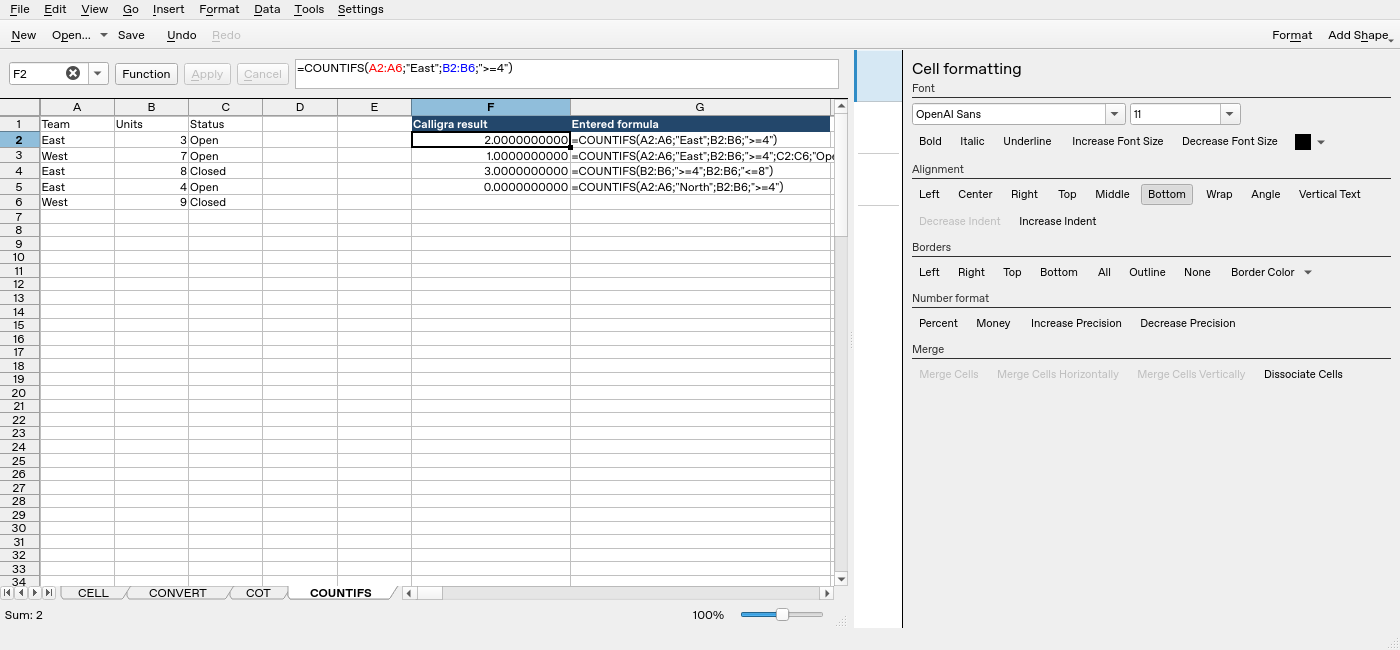
Screenshot: Genuine native 25.04.2 capture. Selected F2 contains =COUNTIFS(A2:A6;"East";B2:B6;">=4") and displays 2.0000000000. Column F contains application results; column G contains descriptive formula labels. The selected formula is visible in the formula bar; long labels in other rows may be clipped by the panel.