

SUMIFS in Calligra Sheets: Add Values Matching Several Conditions
Learn Calligra Sheets SUMIFS with exact arguments, reproducible inputs, independently checked results and implementation-specific cautions.
Verification status: See the evidence and test scope described in this guide. How formula examples are checked
Quick answer
SUMIFS(sum_range; criteria_range1; criterion1; …) adds numeric values at positions satisfying all supplied conditions. In Calligra, use aligned multi-cell rectangular ranges and complete criteria pairs. Scalar and malformed-argument cases have implementation hazards; this guide does not promise Excel-compatible handling of them.
Syntax and safe working scope
=SUMIFS(sum_range; criteria_range1; criterion1; criteria_range2; criterion2; ...)
The registration permits at least three arguments, corresponding to one sum range and one criteria pair. The wrapper loops through range/criterion pairs without a separate odd-argument-count guard, so always supply complete pairs. The worked examples use two pairs and genuine multi-cell arrays. For one criterion, the established SUMIF interface is often clearer.
The helper traverses positions of the sum array and adds only numeric sum values where every comparison matches. It does not intentionally convert numeric-looking strings in that sum array. Use ranges of exactly the same shape and alignment; no mismatch-repair behavior is promised.
Reproduce a team-and-volume total
Enter this table into A1:C6:
| Team | Units | Amount |
|---|---|---|
| East | 3 | 10 |
| West | 7 | 40 |
| East | 8 | 30 |
| East | 4 | 20 |
| West | 9 | 50 |
Enter =SUMIFS(C2:C6;A2:A6;"East";B2:B6;">=4") in E2. Expected result: 50, from 30+20. Changing the units criterion to ">=8" leaves only 30. Changing East to North gives 0 because no positions match.
The first range is the amount to add; putting the Team range first changes the calculation. The two conditions are ANDed, not ORed. These expectations come from independently selecting the table rows and adding their amounts.
Practical example: a controlled threshold report
Put the requested team in E5 and the minimum units in F5. Use =SUMIFS(C2:C6;A2:A6;E5;B2:B6;">="&F5). For E5=East and F5=4, expect 50. Keep the header cells outside the ranges and extend all three ranges together when adding data.
If adding a maximum, append another pair using the same Units range and a criterion such as "<=8". Define whether boundary values are included: 4 through 8 includes both qualifying East rows, whereas greater than 4 excludes the 20 amount on the four-unit row.
Criteria and errors
- Numeric comparisons include operators inside quoted criteria, for example
">=4". - Bare text follows the engine’s pattern-matching path, which depends on document wildcard/regular-expression settings. Do not assume
*always has Excel wildcard meaning. - Explicit
"=East"takes the equality path and can differ in case sensitivity from bare"East". Keep source labels consistent rather than treating these forms as universally interchangeable. - The scalar helper path returns early and uses a start-cell supplied from a criterion-position range. Single-cell cases are outside the reliable examples here.
- Errors in criteria ranges and unequal range dimensions are not covered by a blanket error guarantee. Validate the input ranges before aggregating.
- This function is registered in the 26.08.2 source. The source wrapper and helper, rather than another product’s function guide, establish the scope above.
Availability and verification
- Release checked: Calligra Sheets 26.08.2, using KDE’s release source package and release information, inspected on October 18, 2026. Relevant locations:
sheets/functions/math.cpplines 334–338 and 558–579;sheets/engine/ValueCalc.cpplines 2072–2116 and criteria helpers. - Introduced: The original introduction version is not established by these sources. Current registration establishes presence in 26.08.2, not the first release.
- Lifecycle: Registered in the inspected release; no retirement or deprecation marker was found in this function’s registration. Retirement (removed support) and deprecation (discouraged but retained support) are different claims; neither is asserted here.
- Native testing: Selected cases were recalculated and saved in Calligra Sheets 25.04.2. The source discussion concerns 26.08.2. Unlisted examples and edge cases remain source-derived or independently calculated.
Related guides and sources
- SUM
- SUMIF
- SUMPRODUCT
- COUNTIF
- Calligra function guide index
- KDE formula entry instructions, checked October 18, 2026. Examples use leading
=and semicolons, with a period for decimal numbers. Confirm regional separators in your installation before pasting.
Selected native results and screenshot
These results were observed in Calligra Sheets 25.04.2, after loading a corrected ODS input, recalculating and saving. Formula references and results were read back from the saved workbook. This is not a 26.08.2 native test or certification of XLSX import behavior. Other examples and unlisted edge cases remain separate source or mathematical evidence.
| Native formula | Observed display |
|---|---|
=SUMIFS(C2:C6;A2:A6;"East";B2:B6;">=4") |
50.0000000000 |
=SUMIFS(C2:C6;A2:A6;"East";B2:B6;">=8") |
30.0000000000 |
=SUMIFS(C2:C6;A2:A6;"North";B2:B6;">=4") |
0.0000000000 |
The native formulas used clean, aligned A2:A6, B2:B6 and C2:C6 ranges. These cases validate only the multi-cell, complete-pair examples; scalar cases remain outside the stated scope.
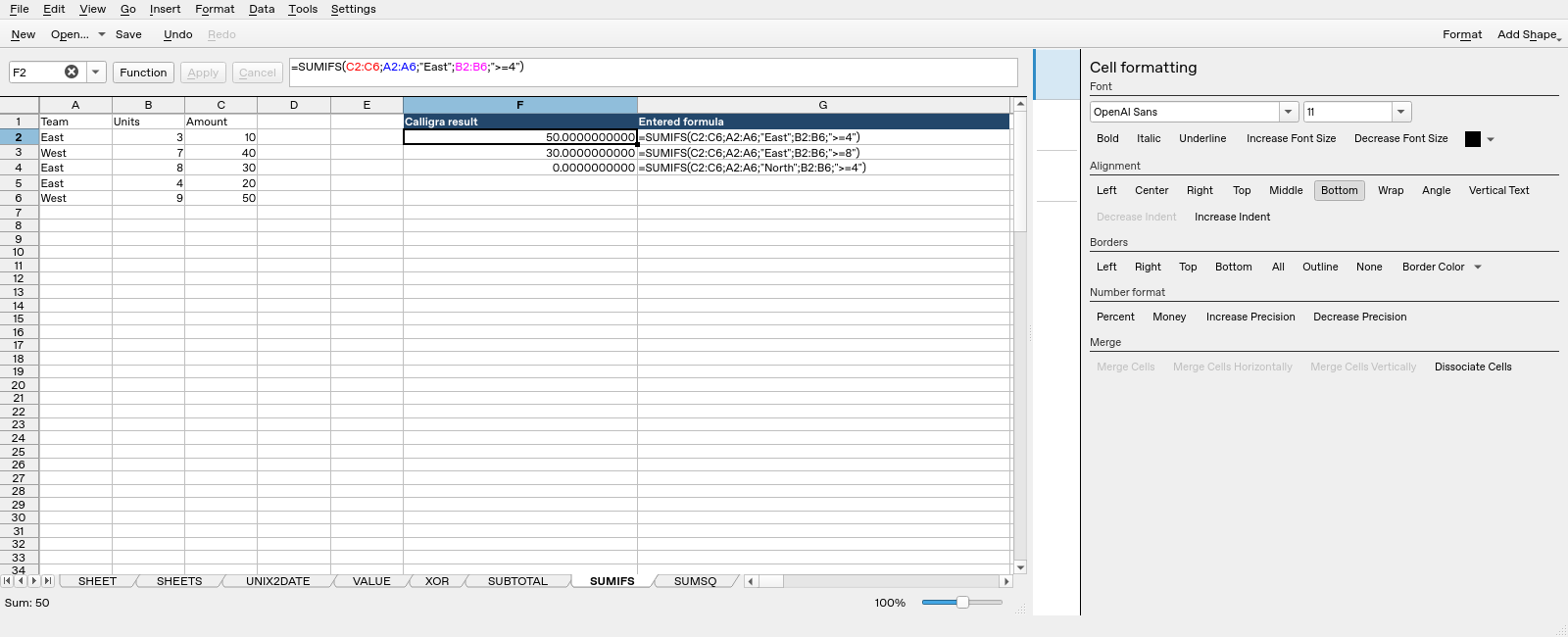
Screenshot: Genuine native 25.04.2 capture. Selected F2 contains =SUMIFS(C2:C6;A2:A6;"East";B2:B6;">=4") and displays 50.0000000000. Column F contains application results; column G contains descriptive formula labels. The selected formula is visible in the formula bar; long labels in other rows may be clipped by the panel.