

Calligra Sheets · Summaries and analysis · Beginner
Consolidate Monthly Expense Sheets in Calligra Sheets
Combine three matching expense sheets with Calligra Sheets Consolidate, verify each source once and reconcile category totals to 600.
Native-tested scoped in 25.04.2; documentation/source reviewed in 26.08.2 · Editorial standards
Use Data → Consolidate with Sum to combine matching numeric ranges from several sheets into a separate summary. For this positional example, each category must occupy the same row in every source; equal-sized ranges alone are not enough.
Version and testing: This positional consolidation, generated references, source-change recalculation and ODS close/reopen were tested in Calligra Sheets 25.04.2 on Linux (Debian 13, Qt 6.8.2), with English UI and the default en_US environment, on October 16, 2026. Source-change and restoration checks were repeated after reopening. The documentation review uses official v26.08.2 source and the hosted handbook revision 2.7, dated March 11, 2013; v26.08.2 was not run. The relevant Consolidate source matches v25.04.2. Label matching, static Copy data and automatic inclusion of new rows were not tested. Labels may differ in other releases or translations.
Build the three source sheets
Create sheets named January, February, March and Summary. On each monthly sheet put Category in A1 and Amount in B1, then enter the relevant column below into B2:B4. Put Travel, Supplies and Training in A2:A4 in exactly that order on all three sheets.
| Category | January | February | March | Expected combined |
|---|---|---|---|---|
| Travel | 120 | 90 | 110 | 320 |
| Supplies | 35 | 45 | 40 | 120 |
| Training | 80 | 20 | 60 | 160 |
| Total | 235 | 155 | 210 | 600 |
The Total row is a check, not part of the source range. You can use the synthetic source data as a transcription checklist; its wide CSV layout is not a multisheet workbook and must be arranged as described.
On Summary, put Category in A1, Combined amount in B1 and the three category labels in A2:A4. Keep B2:B4 empty. Work in a copy of your document before consolidating actual data.
Consolidate only the numeric blocks
- On Summary select B2 and choose Data → Consolidate.
- In Reference, enter
January!B2:B4and press Add. Confirm it appears once in the entered-reference list. - Add
February!B2:B4andMarch!B2:B4the same way. You should have exactly three references, each three rows by one column. Remove an accidental duplicate instead of leaving it in the calculation. - In Details, leave Description in rows and Description in columns unchecked. This example matches positions and excludes all labels from its source ranges. Leave Copy data unchecked; this guide does not rely on that option.
- After selecting or entering the sources, explicitly return to Summary and select B2 as the top-left destination while the modeless dialog remains open. Source selection can change the active sheet and selection; check the final target before confirming. In the native test, selecting the destination changed the Reference field to B2 while the entered-reference list retained the three monthly ranges. Do not press Add again and accidentally add the destination as a fourth source.
- Choose Sum as Function and press OK. Inspect B2:B4 on Summary, expecting 320, 120 and 160 respectively.
- In Summary B5 enter
=SUM(B2:B4). Expect 600 and compare it with the independent monthly total check:235 + 155 + 210 = 600.
The destination must have enough empty space for the output and must not overlap any source. A separate Summary sheet makes this much easier to inspect. Do not rely on an overlap warning to protect unrelated existing cells.
Select a screenshot to open the full-size image.
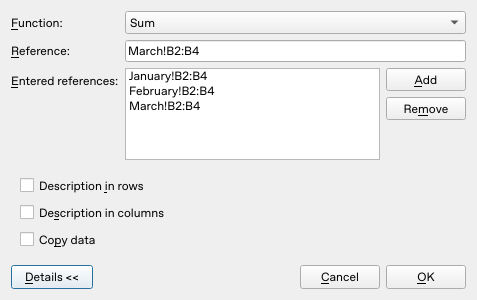
The actual Consolidate dialog lists exactly three numeric source ranges, with positional matching and Copy data off.
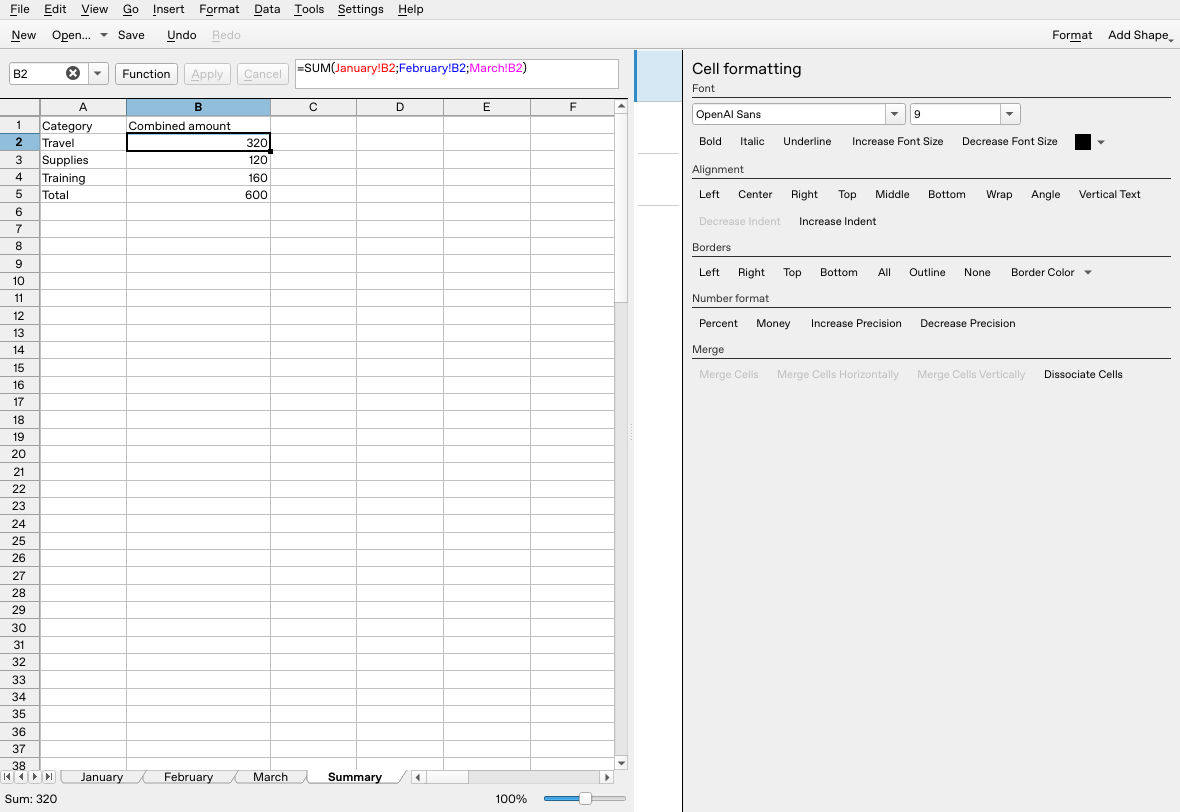
The native output matches the independent category totals and grand total 600. B2’s formula visibly includes each month once.
Inspect the formulas, not just the totals
The inspected v26.08.2 implementation constructs formulas using the selected function and sheet-qualified source cells; the native 25.04.2 test produced and preserved those formulas. For B2, inspect the formula bar and confirm that January B2, February B2 and March B2 each occur once. Its meaning should be equivalent to:
=SUM(January!B2;February!B2;March!B2)
B3 should use row 3 of the same sheets, and B4 row 4. Generated reference spelling or absolute markers may differ; verify the referenced cells rather than demanding identical text.
As a deliberate check, change March B2 from 110 to 115. The recalculated Travel total should be 325 and the grand total 605. Both were observed in the native test before and after reopening. Restore 110 and check for 320 and 600 again. If values do not update, inspect the actual output formulas and calculation state before trusting the summary.
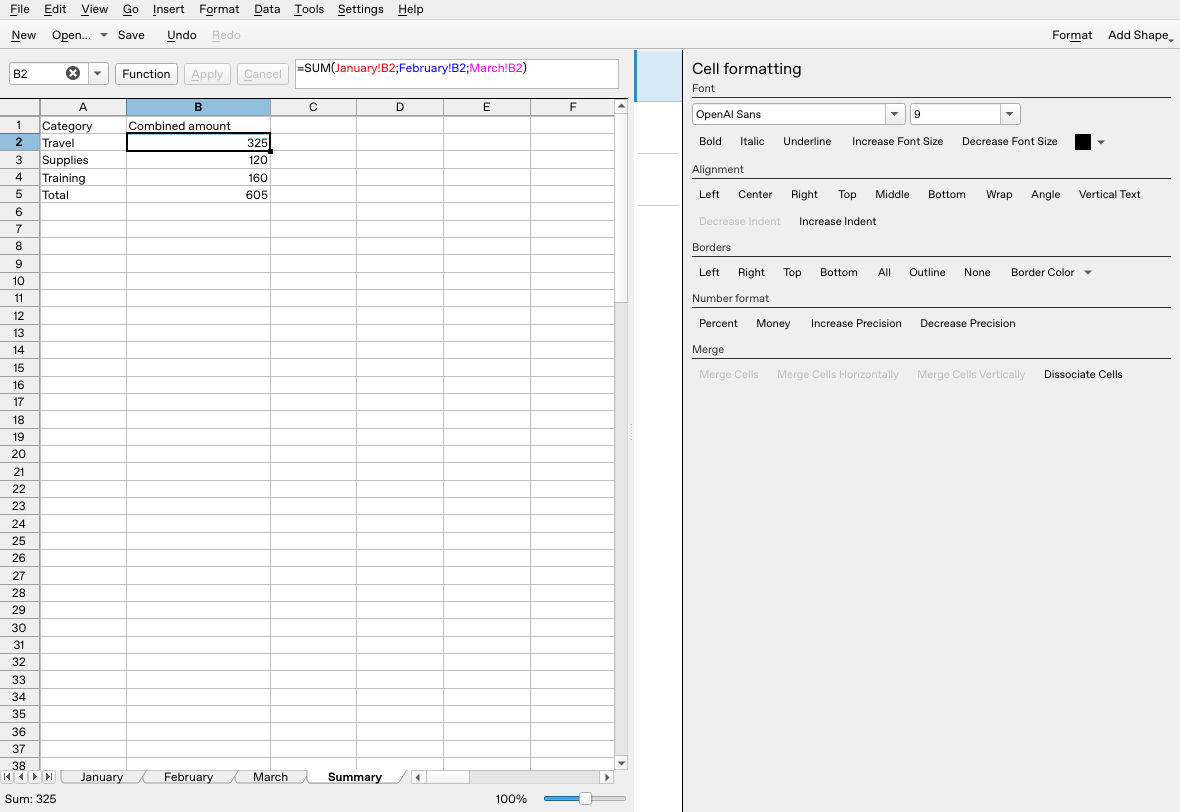
After reopening the ODS, changing March B2 to 115 again updates Travel to 325 and the total to 605. Restoring March B2 to 110 returned them to 320 and 600, then the file was saved. That final save was not reopened a second time.
Avoid plausible but wrong summaries
- One month is counted twice: inspect all entered references and each generated formula.
- A category total looks wrong: compare the row order across sheets. Positional consolidation does not read the category meaning in column A.
- A new category is missing: rows outside B2:B4 are not automatically included. Review all ranges, category alignment and the destination before rebuilding.
- A source contains a subtotal: exclude it or it can be counted alongside its component rows.
- The dialog rejects a range: use a bounded, sheet-qualified rectangle, not an entire column, and check the exact sheet spelling.
Label-matching controls are a different workflow, useful only after defining which source labels should match. They are deliberately off here. Do not switch them on with these numeric-only ranges. The older handbook describes static-value copying, but that behavior is unresolved in the inspected current action, so this tutorial makes no promise about Copy data.
Save as .ods, reopen a copy and repeat the source-change and formula checks before relying on a reusable summary. The native test reopened the base 600 result and repeated the source-change/restoration checks; other applications and expanded source ranges were not tested. See absolute references for how copied formulas move, and create a chart for displaying checked totals.
For the total formulas used here, see SUM in Calligra Sheets.
Official evidence
- KDE multiple-worksheet handbook: the older documented consolidation workflow.
- v26.08.2 Consolidate action: positional matching and formula construction.
- v26.08.2 Consolidate dialog and Details controls: sources, target, functions and range checks.