

Calligra Sheets · Import and export · Beginner
Import CSV Delimiters, UTF-8 Text and IDs in Calligra Sheets
Import a semicolon CSV into Calligra Sheets, check accented text and quotes, and preserve leading-zero and long IDs with Text columns.
Native-tested scoped in 25.04.2; documentation/source reviewed in 26.08.2 · Editorial standards
Open the CSV through File → Open, choose its delimiter in the import preview, and assign identifier columns the Text type before confirming. For encoding, prepare a UTF-8 copy upstream: the v26.08.2 importer reviewed here has no character-encoding selector.
Version and testing: The sample import, exact text and numeric cell types, SUM result and ODS save/close/reopen were tested in Calligra Sheets 25.04.2 on Linux (Debian 13, Qt 6.8.2), with English UI and the default en_US environment, on October 16, 2026. The documentation review uses official KDE source tagged v26.08.2 and the hosted handbook revision 2.7, dated March 11, 2013; v26.08.2 was not run. The relevant CSV importer and dialog source also match v25.04.2. Legacy encodings, multiline fields, large files and changed inputs after reopening were not tested. Labels may differ in other releases or translations. The test installation displays some toolbar controls as text rather than icons; the menu workflow below was usable.
A small file that catches import mistakes
Download the synthetic UTF-8 semicolon CSV. It contains:
OrderID;Customer;Note;Quantity
000042;José;"Desk; blue";2
123456789012345678;Zoë;"He said ""OK""";3
The file has four columns and three rows including its header. The semicolon inside Desk; blue belongs to one field. The doubled quotes represent literal quote characters. Neither ID is a quantity: keep both as text, including all 18 digits of the second ID.
Keep the original file untouched. CSV stores characters and separators, not spreadsheet column types. Quoting an ID does not by itself stop numeric conversion.
Import and inspect before committing
- Choose File → Open and open the downloaded
.csvfile. This workflow uses the CSV file-opening filter. If your installation does not offer a CSV import dialog, cancel rather than accept an unreviewed conversion; its CSV filter may be missing. - In the import dialog’s Format tab, select Semicolon as the delimiter. Keep the double quote (
") in Textquote. The preview should split into exactly four columns. Do not select comma just because the filename ends in.csv. - Include the complete input, starting with the header. On Ranges, verify Import lines 1 to 3 and Import columns 1 to 4 for this sample. If you change the delimiter, check the preview and ranges again. The test left the Data tab’s first-row/first-column-header options off and imported the header as ordinary worksheet row 1.
- In the preview, select the OrderID column, then choose Text in the column-format selector. Check that its preview heading shows Text. Do the same for Customer and Note. Leave Quantity as Generic for numeric import. The current dialog applies a format to selected preview columns; confirm the selected column before changing it.
- Inspect José and Zoë, the unbroken
Desk; bluenote, and the literal quotes around OK. If any are damaged, cancel and repair the source encoding or quoting before import. - Confirm the import. Compare A2 and A3 with the original identifiers character for character. Check that D2 and D3 are numeric 2 and 3, then enter
=SUM(D2:D3)in D5. The expected total is 5. - Save the working spreadsheet as a new
.odsfile so you retain the sheet and its cell types. Close and reopen that copy, then compare the exact strings and total again. In the native test, both identifiers, names, notes, numeric quantities and SUM result 5 survived. Keep the original CSV for comparison.
Native import checkpoints
Select a screenshot to open the full-size image.
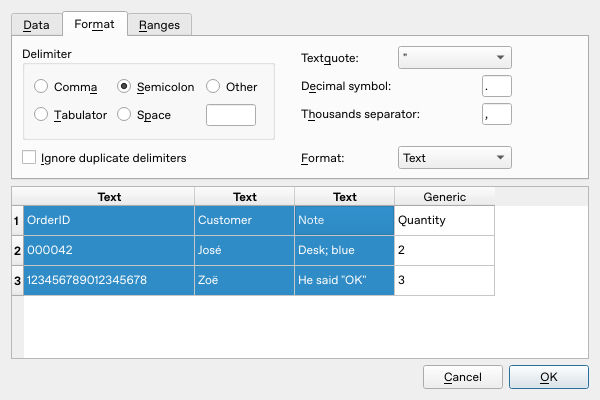
The actual Format-tab preview uses Text for the first three columns and Generic for Quantity. All four columns and all three lines are included.
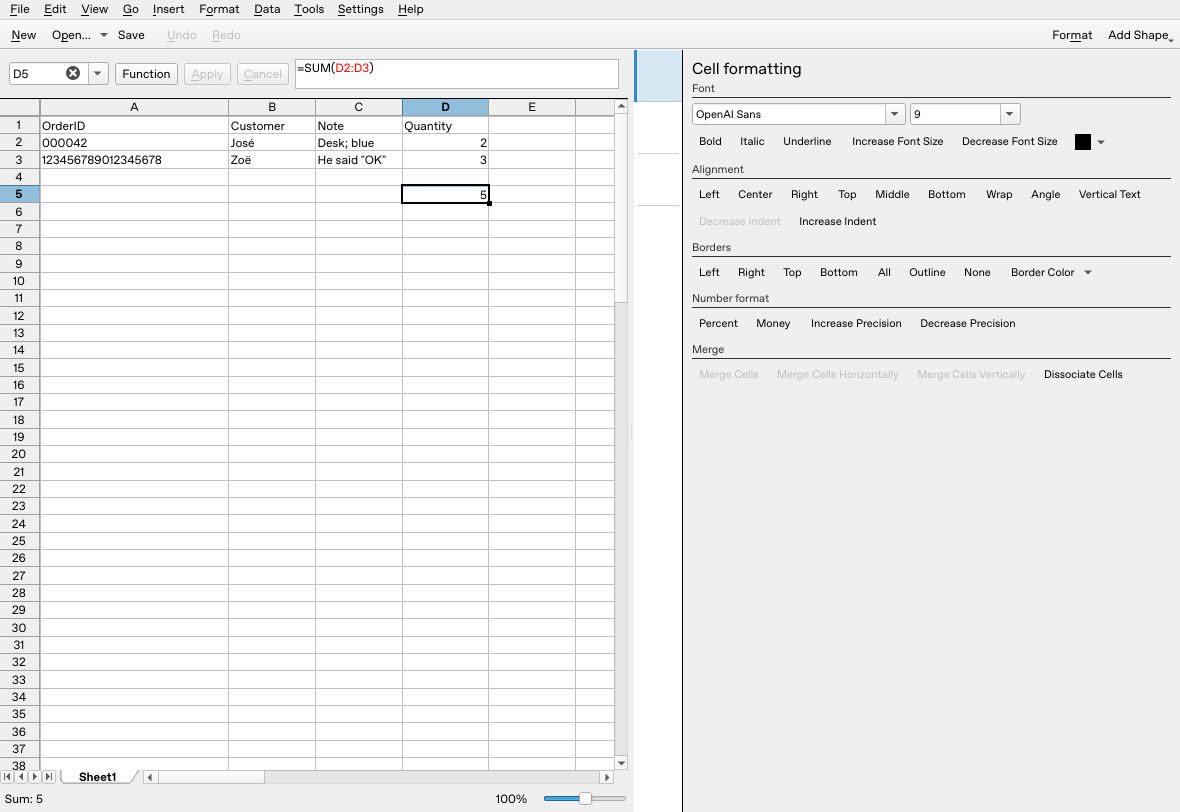
After closing and reopening the ODS, the exact identifiers and quoted UTF-8 text remain intact. D5 shows =SUM(D2:D3) and the result 5.
What to do about encoding
For a file exported from another system, request UTF-8 explicitly. If you already have a legacy-encoded file, use its originating program or a text editor that lets you open it using the known original encoding and save a separate UTF-8 copy. Reinterpreting already-corrupted text as UTF-8 cannot restore lost characters.
The current importer reads through Qt’s text stream without setting a different encoding. The release requires Qt 6.5 or later; Qt 6 documents UTF-8 as its default, with automatic detection of a UTF-8, UTF-16 or UTF-32 byte-order mark enabled by default. That supports the UTF-8 preparation above; it does not establish a Calligra menu for choosing Windows-1252 or every legacy encoding. Cancel if the preview is wrong. A file containing only ASCII letters is a poor encoding test, which is why this sample includes accents.
Diagnose common failures
- Everything appears in one column: select the actual separator. Semicolon files and comma files are different inputs.
- The note becomes two columns: confirm the double-quote setting and check that the source has balanced quotes.
- An ID loses zeros or changes digits: discard that import and reopen the original with Text selected. Formatting an already-converted number as Text does not recover the original spelling.
- Amounts import as text or wrong numbers: decimal and thousands settings are separate from character encoding. This sample deliberately uses integer quantities; inspect source conventions before importing decimal amounts.
- A preview selection changes after adjusting options: recheck the Text column assignments before confirming.
Only import files you trust. Treat formula-like fields as Text when they are meant to be literal data; Generic import can parse user input. This tutorial does not claim every CSV input is safe or that CSV retains spreadsheet formulas, validation or formatting.
For the resulting numeric table, see sort with headers and build an expense sheet.
For the total formulas used here, see SUM in Calligra Sheets.
Official evidence
- KDE v26.08.2 CSV file importer: file-opening filter, numeric parsing and Text handling.
- KDE v26.08.2 CSV dialog: preview, delimiters, quotes and selected-column types.
- Qt 6.8 QTextStream documentation: UTF-8 default and Unicode decoding. This is implementation context, not a native import test.