

Calligra Sheets · Formula troubleshooting · Beginner
Fix Formulas That Are Not Recalculating in Calligra Sheets
Check per-sheet automatic recalculation, run Recalculate Document and distinguish stale results from text values, wrong references and display settings.
Native-tested scoped in 25.04.2; documentation/source reviewed in 26.08.2 · Editorial standards
First finish the cell edit, then use Tools → Recalculate Document. If that updates the result, check Automatic recalculation in the affected sheet’s Sheet Properties. Calligra’s setting is per sheet; do not assume an Excel-style workbook calculation switch.
Evidence and applicability: Automatic and manual recalculation, Show formula, numeric/text checks and ODS close/reopen were tested in Calligra Sheets 25.04.2 on Linux (Debian 13, Qt 6.8.2), with English UI and the default en_US environment, on October 16, 2026. Official source review uses v26.08.2; that runtime was not run. The online handbook is revision 2.7, dated March 11, 2013. The test used a small synthetic sheet, not a complex dependency model. Menu wording can vary by release and translation.
Establish one simple expected result
In a spare area of a copy of your document, enter:
| Cell | Entry |
|---|---|
| A1 | 10 |
| B1 | =A1*2 |
B1 should initially be 20. Change A1 to 12 and finish the edit by pressing Enter. The expected new value is 24. This small test separates basic recalculation from a complicated original formula. Both 20 and 24 were independently calculated and observed in the native test. Verify that the source cell actually changed: one rapid Return sequence during the reopen check left the old input in place; committing through the formula bar’s Apply button produced the expected new result. An uncommitted edit does not demonstrate a recalculation failure.
Run the appropriate recalculation
- Make sure the edited value has been committed and the cell editor is no longer active.
- Choose Tools → Recalculate Sheet for the current sheet, or Tools → Recalculate Document for the whole workbook. For formulas connected across sheets, use the document command for diagnosis.
- The tested native menus show Shift+F9 for Recalculate Sheet and F9 for Recalculate Document; those assignments also match the reviewed source. The test used menu clicks, so keyboard delivery or interception was not tested. Use the menu if the desktop or keyboard intercepts those shortcuts.
- Inspect B1 again. If it now shows 24, inspect automatic recalculation rather than rewriting a working formula.
- Open Format → Sheet → Sheet Properties for the sheet containing the result. Enable Automatic recalculation, confirm, and repeat the change test, such as changing A1 to 13 and expecting 26.
- If the workbook has several dependent sheets, inspect their automatic-recalculation settings too. Restore your test inputs when finished.
The pinned recalculation manager filters automatic work according to a cell’s sheet setting, while separate sheet/document commands explicitly request recalculation. This supports the distinction above; it is not a runtime performance or dependency-completeness guarantee.
Observed automatic and manual checkpoints
With B1 containing =A1*2, the native sequence was:
| Mode and action | A1 | B1 observed |
|---|---|---|
| Automatic on; change input | 12 | 24 |
| Automatic off; change input | 13 | 24 (stale) |
| Tools → Recalculate Sheet | 13 | 26 |
| Still automatic off; change input | 14 | 26 (stale) |
| Tools → Recalculate Document | 14 | 28 |
| Automatic restored; change input | 13 | 26 |
Select a screenshot to open the full-size image.
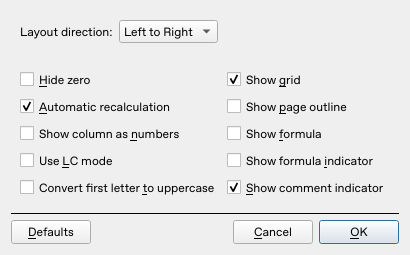
Automatic recalculation and Show formula are separate Sheet Properties controls.

With automatic recalculation disabled, the committed input is 13 while B1 still displays 24.
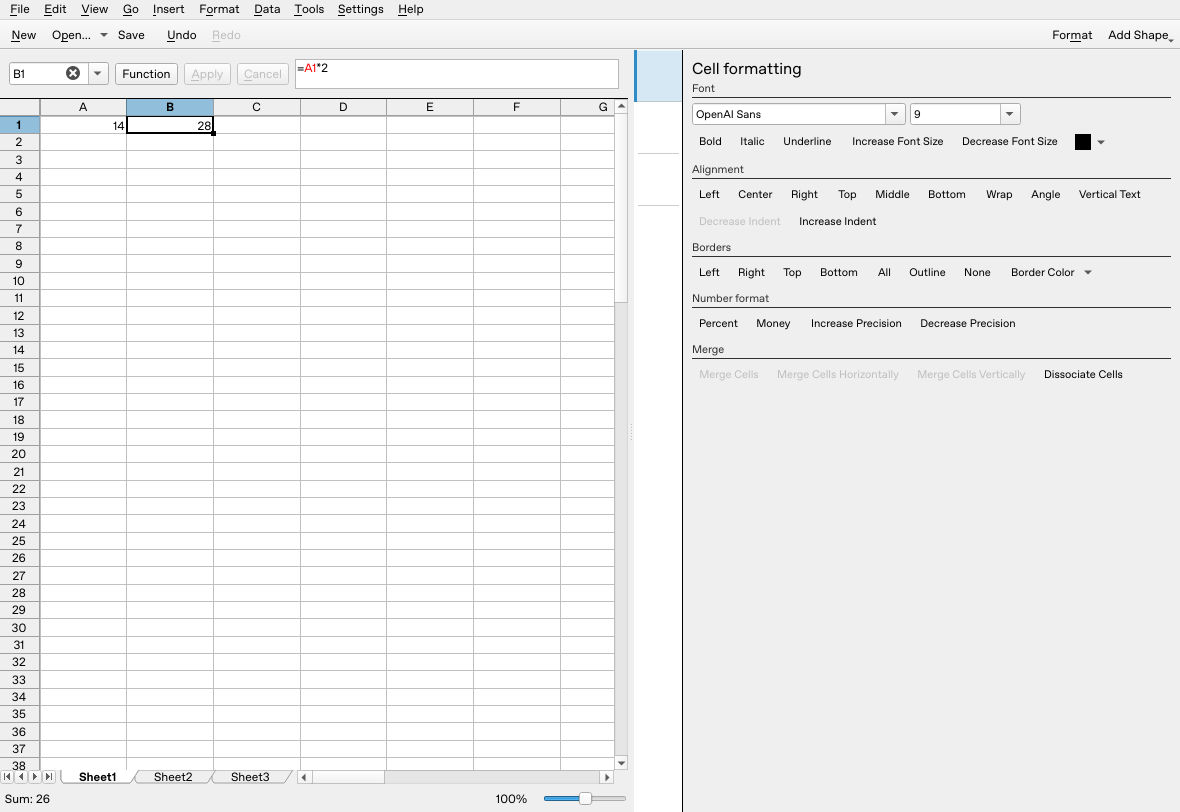
The document recalculation command updates the later 14 input to 28. Automatic recalculation was then restored.
When recalculation does not fix it
Check the formula itself. Select the result cell and inspect its actual formula. =A2*2 will not react to a change in A1. Cross-sheet names, copied references and dollar signs can also point somewhere other than intended. Use absolute references to inspect copying behavior.
Check source types. An imported amount may be text rather than a number. In spare cells, use ISNUMBER and ISTEXT against the source cell. A numeric source should satisfy ISNUMBER; an ID intended as text should not be converted merely to satisfy a calculation. Repair numeric data from the original source with the correct decimal conventions, then retest. In the native diagnostic, A4 contained numeric 10, B4 was entered as apostrophe-prefixed text '10, A5 contained =ISNUMBER(A4) and B5 contained =ISTEXT(B4). Both checks returned true. This distinguishes the tested types; it is not a test of every imported-text repair.
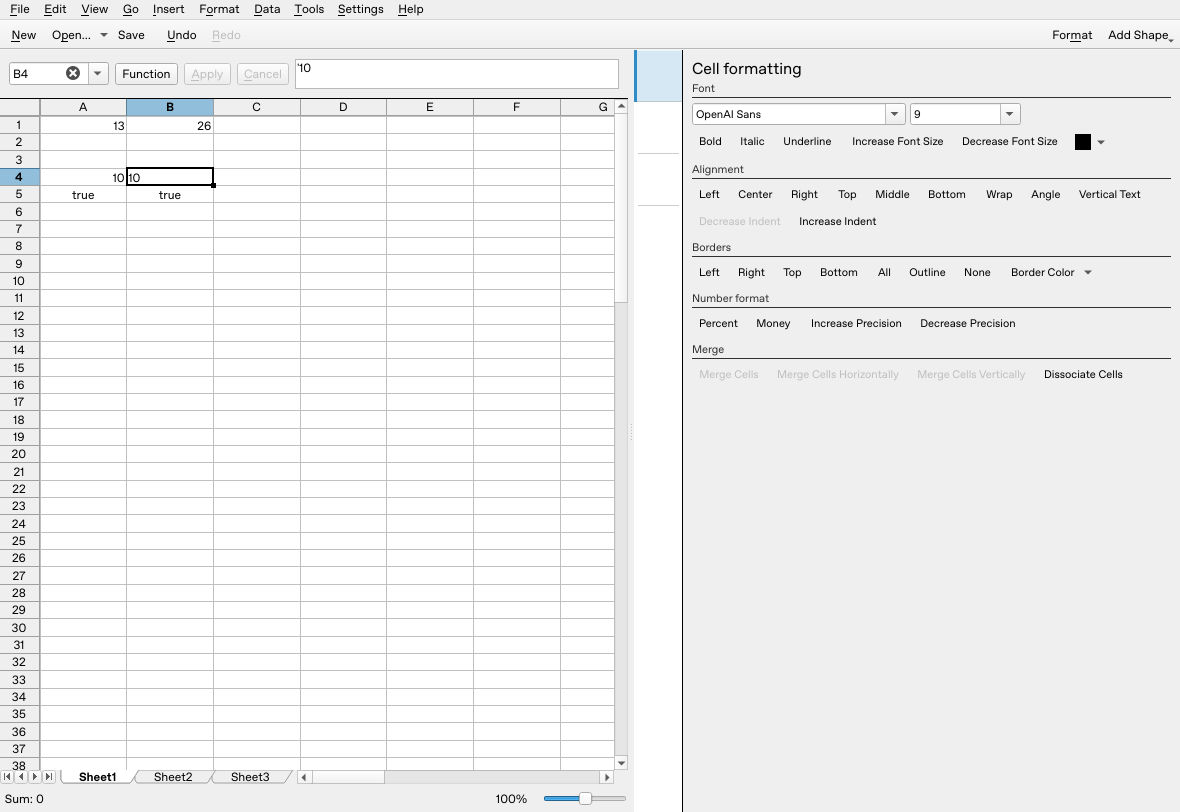
A4 and B4 both display 10, but the separate type checks confirm numeric A4 and text B4.
Check whether a formula is present. The expression must start with =. Literal text copied from a document, a leading apostrophe or an unintended extra character can prevent it being a formula. Retype the small known formula in a fresh ordinary cell and compare. Changing a display format is not a guaranteed conversion of existing literal text into a formula.
Check the view. If cells show formula expressions instead of results, inspect the sheet’s Show formula setting. The native test toggled Show formula on to display =A1*2, then off to restore the result. Formula display is different from a stale computed value. If a result appears unchanged after a small input adjustment, increase displayed precision before concluding that no recalculation occurred.
Check actual errors. A reference error, circular dependency or unsupported formula needs a formula/data repair. Repeatedly pressing F9 does not make an invalid formula correct. Reduce the expression to a small example and compare the involved cells rather than replacing errors with zero.
A safe finish
Once the spare test behaves as expected, verify a known result in the real model. Record the source values and independent expected total. Save a separate .ods copy, reopen it and repeat one source-value change before relying on it. The native ODS reopened with the formula and type checks preserved. With automatic recalculation enabled, committing A1=12 produced B1=24, then A1=13 produced B1=26. The final 13/26 state was saved; that final save was not reopened a second time.
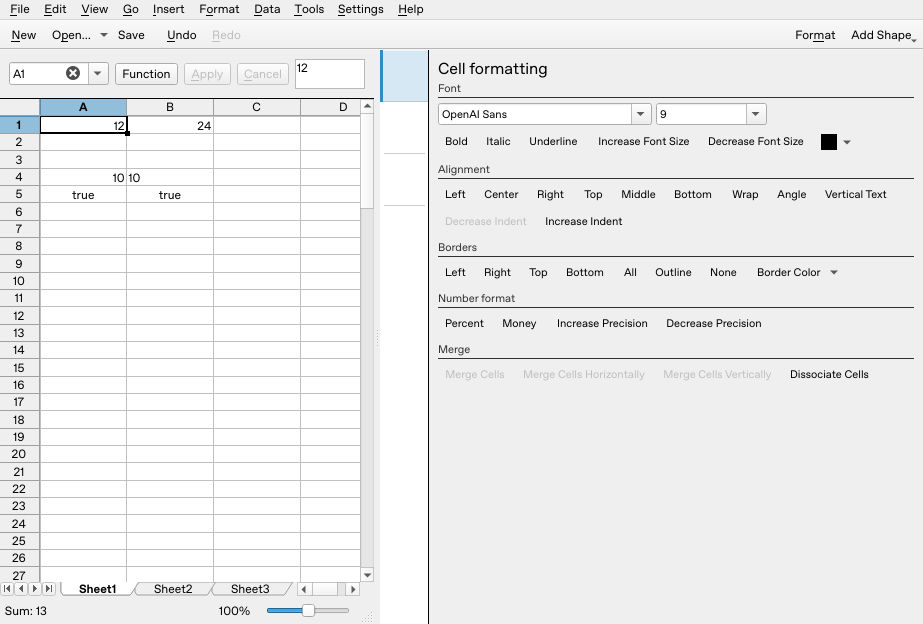
After reopening, the explicitly committed input 12 produces 24. A subsequent committed 13 produced 26 before the final save.
For a simple model to compare against, see the first expense sheet. Use SUM for a small independent total check, while remembering that a wrong source range can still produce a plausible total.