

Calligra Sheets · Number, date and currency formatting · Beginner
Keep ZIP Codes and Item IDs as Text in Calligra Sheets
Set Text before entering leading-zero ZIP codes and long item IDs, check exact characters and distinguish stored data from number formatting.
Native-tested scoped in 25.04.2; documentation/source reviewed in 26.08.2 · Editorial standards
Set the destination cells to Text before typing identifiers such as 00123 or 123456789012345678. Reformatting a number after zeros or digits have been lost cannot reconstruct the original identifier.
Evidence and applicability: Typed identifiers, their exact strings and lengths, numeric formatting and ODS close/reopen were tested in Calligra Sheets 25.04.2 on Linux (Debian 13, Qt 6.8.2), with English UI and the default en_US environment, on October 16, 2026. Values survived, while currency presentation and column widths changed after reopening as noted below. The documentation review uses official v26.08.2 source and handbook revision 2.7 dated March 11, 2013; v26.08.2 was not run. The relevant Text-input source matches v25.04.2. Arbitrary paste, Custom formats and other-application round trips were not tested. Menu wording can vary by release and translation.
Enter identifiers without numeric conversion
Use an empty sheet with Identifier in A1 and Description in B1.
- Select A2:A4 while the cells are still empty.
- Open Format → Cell Format and its Data Format page, or use the toolbar Format command, which was the successful route in the native test. Select Text, then choose Set Cell Format to apply and close. Reopen the dialog to verify Text is retained before entering identifiers. A highlighted control alone is not proof that its format was applied.
- Type
00123into A2,000042into A3 and123456789012345678into A4. Complete each entry and inspect the selected cell before continuing. The native test used the formula editor’s Apply control after each observed entry. - In B2:B4 enter
ZIP example,Item exampleandLong item example. These are synthetic values. - Select each identifier and inspect its full content in the editor, not just a narrow column display. Compare every character with the source. Widen the column if needed.
The reviewed current Cell implementation returns a string for non-formula input when its style is Text. That supports setting Text before entering numeric-looking identifiers. These IDs are labels, so numeric addition is not a useful preservation test.
Use LEN in C2 as =LEN(A2) and copy down, or enter =LEN(A3) and =LEN(A4) individually in C3 and C4. The native test used individual formula entries and obtained lengths 5, 6 and 18 before and after reopening. Length is only a partial check: an 18-character ID with the wrong final digit still fails. You must compare the exact strings too.
Select a screenshot to open the full-size image.
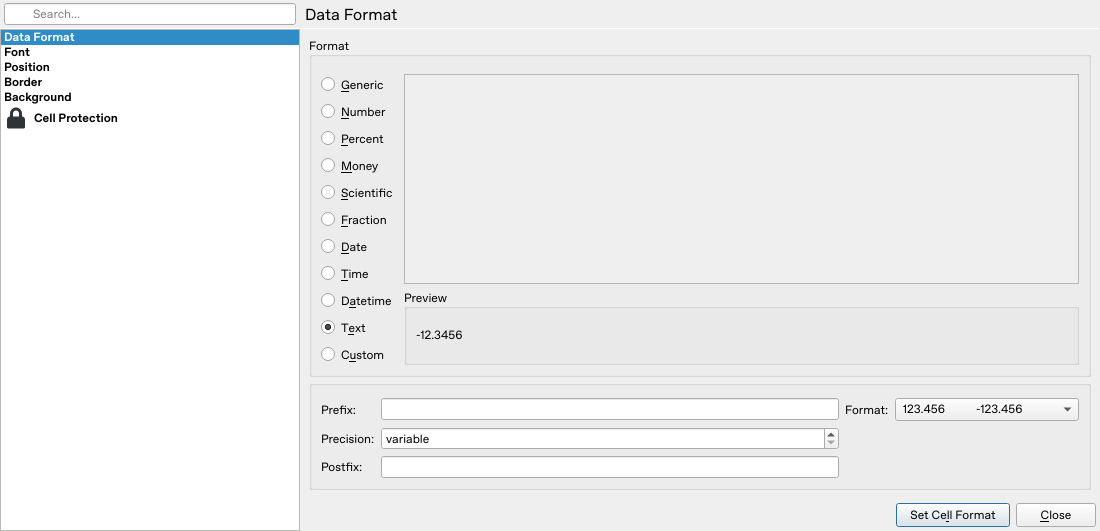
Text is still selected when the dialog is reopened, before the corrected identifier entries. The dialog preview uses a sample value, not the selected cell’s content.
Handle CSV imports separately
A CSV does not store the spreadsheet’s Text format. Even quoted digits can be converted if the importer treats the column as numeric or Generic.
For an imported ID column, use the import preview’s per-column Text selection before completing the import. Inspect a leading-zero value and a long value in the preview and again in the imported cells. If they have already changed, close the affected copy and import again from the untouched original. Do not try to fix a rounded identifier by adding displayed zeros.
This is a cell-type lesson. For a complete delimiter, quote and UTF-8 import example, use the tested CSV import workflow; the controls are supported by the current CSV importer. Ordinary pasting from another application may carry other cell types and formats, so check the resulting cells rather than assuming it behaves like typing into preformatted Text cells.
Keep genuine numbers numeric
The original formatting benchmark remains useful for comparing value and display. Put these in a separate numeric area, not in the Text-formatted ID column:
| Input | Format to try | What to check |
|---|---|---|
| 1234.5 | Money, two decimal places | Amount remains 1234.5; display uses the selected currency |
| 0.075 | Percent, one decimal place | Display represents 7.5%, not 0.075% or 750% |
| A date recognized in your locale | Date | Display changes without changing the intended day |
| 00123, entered after Text is set | Text | All five characters survive |
In the data-format dialog, use the preview and Precision controls. For a reproducible date rather than ambiguous typed text, =DATE(2026;10;14) supplies October 14, 2026; verify your locale’s separators and consult DATE. Avoid interpreting 03/04/2026 without knowing the intended order.

The native Money-format test selected USD ($) with Precision 2, then applied the setting with Set Cell Format. Percent used Precision 1; the date used a predefined ISO-style display.
Reduced displayed precision is not a guarantee that the underlying calculation was rounded. An imported text amount also does not become a reliable numeric amount merely because Money was selected. Check both the value and a simple arithmetic result.
Recover from common mistakes
- Zeros disappeared: re-enter from the original source after setting Text. Do not guess how many zeros belonged there.
- Long digits changed: recover the exact identifier from the original system; changing display format cannot restore lost precision.
- Percent is 100 times too large: distinguish the stored fraction 0.075 from the displayed 7.5%.
- Date means a different day: fix interpretation before changing its appearance.
- Currency symbol is wrong: inspect currency selection and locale; do not prepend a literal symbol to repair a numeric value.
The old handbook says Custom formatting was not implemented, and current dialog source still contains that warning despite also containing a Custom format code path. Its practical behavior remains unverified here, so this tutorial does not use Custom or promise compatibility with Excel custom formats.
Reopen and check values separately from appearance
Save a separate .ods file and recheck every identifier character and length after reopening. In the native test all three exact IDs and lengths 5, 6 and 18 survived. The numeric amount remained 1234.5, the fraction remained 0.075 with a 7.5% display, and the date remained October 14, 2026. Simple =B8+0 and =B9+0 checks in the numeric area returned 1234.5 and 0.075; displayed precision was increased to show the latter fully.
Appearance did not round-trip identically: the amount changed from 1234.50$ before save to 1234.50USD after reopen, while its numeric value remained 1234.5. The first saved ODS explicitly stored the currency code USD, but after reopening and resaving, that code was empty in the final file’s cell metadata. The arithmetic check also changed its stored value type from number to currency. Thus, the visible USD label is not proof that the currency metadata round-tripped correctly. Columns also reopened narrower. The Description column was widened again for the final readable screenshot, then saved; that final width adjustment was not reopened again. Check presentation as well as stored data instead of assuming successful ID preservation proves layout fidelity.
Recheck exact IDs after any later export/import round trip too; no cross-application round trip was tested here.
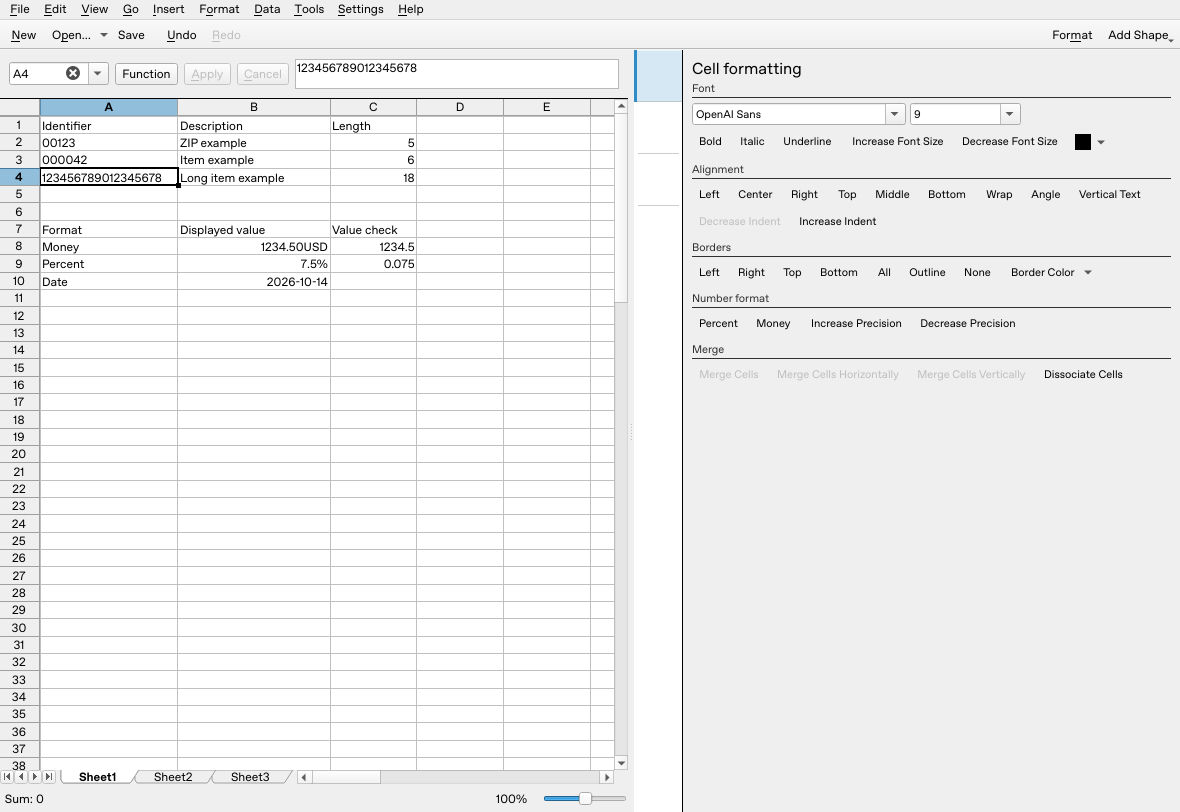
The reopened sheet preserves exact identifiers, lengths and numeric/date values. The screenshot is after widening the Description column and shows the observed USD currency display.
Official evidence
- KDE data-format handbook.
- v26.08.2 Cell input handling: Text-style non-formula input bypasses numeric parsing.
- v26.08.2 data-format dialog: Text, Money, Percent, precision and Custom paths.