

Calligra Sheets · Sheet and cell protection · Beginner
Protect Formulas but Keep Inputs Editable in Calligra Sheets
Unlock quantity inputs, retain protection on formulas, enable sheet protection and verify both editable and blocked cells in Calligra Sheets.
Native arithmetic and cell-flag setup only; active protection not tested · Editorial standards
Clear Protected for the input cells, keep it enabled for formula cells, then turn on Tools → Protect Sheet. Cell-level protection and sheet-level protection work together; marking a formula cell alone does not activate the restriction.
Evidence and applicability: The initial arithmetic and cell-protection attributes were checked in Calligra Sheets 25.04.2 on Linux (Debian 13, Qt 6.8.2), with English UI and the default en_US environment, on October 16, 2026. Active sheet protection, allowed/blocked edits while protected and protected-file reopening were not tested in the application. Activation was cancelled at the blank-password warning, leaving the saved practice file unprotected. The protection instructions and expected enforcement checks below remain documentation-based, reviewed against official KDE source tagged v26.08.2 and handbook revision 2.7 dated March 11, 2013. No v26.08.2 runtime test is claimed. Menu wording can vary by release and translation.
Practice with two products
Enter this small table in A1:C3. Decimal separators in the formulas may need to match your locale.
| Row | A: Item | B: Quantity input | C: Calculated total |
|---|---|---|---|
| 1 | Item | Quantity input | Calculated total |
| 2 | Notebook | 2 | =B2*4.50 |
| 3 | Pen | 3 | =B3*1.25 |
The independently calculated results are 9 and 3.75, totaling 12.75; the same values were obtained in the native setup test before any protection activation. The intention is that B2:B3 remains editable while C2:C3 keeps its formulas. This is protection against unwanted edits, not encryption or a way to keep secrets from someone who has the file.
Unlock inputs before protecting the sheet
- Start in an unprotected copy of the sheet. If it is already protected, use the sheet-protection command to turn protection off and supply the existing password if required. Do not work around someone else’s restrictions.
- Select B2:B3. Choose Format → Cell Format, then Cell Protection.
- Leave Hide all off and clear Protected. In the tested dialog, choose Set Cell Format to apply and close; Close alone dismisses it without applying. A mixed or indeterminate checkbox is not an explicit off state, so set each control deliberately. Do not hide the input cells: they need to stay visible and editable.
- Select C2:C3. Open the same page and ensure Protected is selected. Leave Hide all and Hide formula off for this exercise so you can inspect the formulas, then apply with Set Cell Format.
- Choose Tools → Protect Sheet and complete its password dialog. If you use a password, keep it securely; the sheet will need to be unprotected for later structural or format changes. The tested 25.04.2 dialog showed a Low Password Strength confirmation when both password fields were empty. That confirmation was declined, so the native test did not activate protection. Cancelling this dialog leaves the sheet unprotected; do not mistake the cell attributes for active enforcement.
- Test one selected input cell at a time; the inspected selection logic only exempts a single unprotected cell, so do not assume multi-cell paste into B2:B3 is permitted. Try the checks below before distributing the workbook. The source supports the protection model, but the results still need verification in your installation.
New cells are normally protected by default. Explicitly checking the formulas avoids relying on that default in a previously edited or imported sheet. Only B2:B3 is unlocked here; selecting an entire column would also create editable cells outside this small input area.
Native setup screenshots
Select a screenshot to open the full-size image.
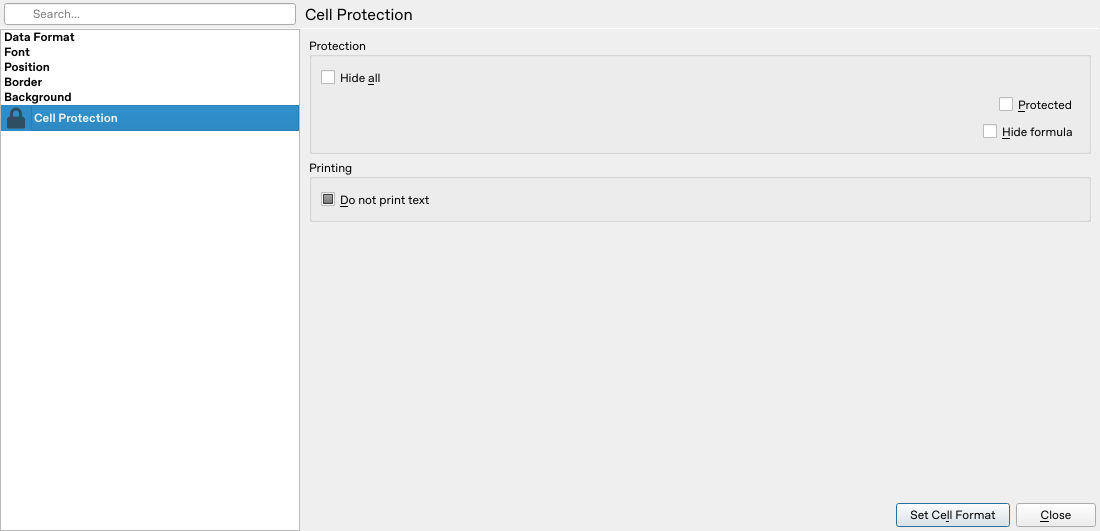
The input range’s Protected attribute is cleared. This was checked before activating sheet protection.
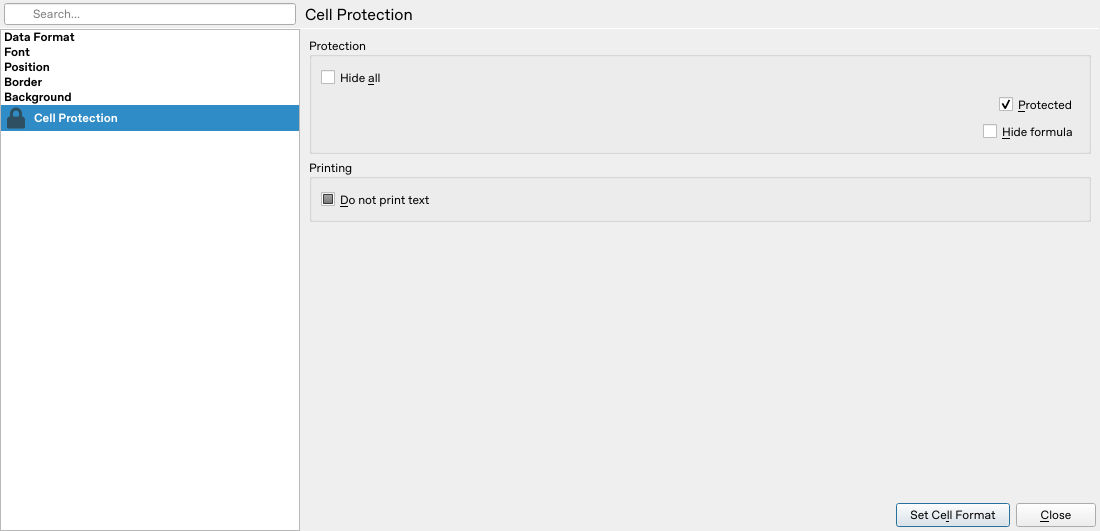
The formula range’s Protected attribute is selected. This screenshot proves the attribute setting only, not rejection of an edit.
Verify both sides of the boundary
- Change B2 from 2 to 4. It should remain editable; C2 should calculate 18.
- Keep B3 at 3. The combined total should now be 21.75.
- Attempt to replace the formula in C2 with
999. The protected cell should not accept the edit. Inspect the formula afterwards rather than treating an alert alone as proof. - Check a heading cell such as A1 if it is meant to remain protected.
- Restore B2 to 2. Save a separate
.odscopy, reopen it and repeat an allowed input edit and a blocked formula edit.
Those enforcement and protected-file reopening steps are expected checks, not recorded native results. The setup test saved an unprotected ODS only and did not close/reopen it. If a formula can be overwritten, confirm both its Protected attribute and sheet protection. If an input cannot be edited, unprotect the sheet and recheck the selected range, Protected and Hide all. Avoid turning off protection across the entire workbook simply to fix one input.
Keep protection and validation separate
An unlocked quantity can still be wrong: protection does not impose a numerical range or reject text. Review input quality separately. Sheet protection also differs from Protect Document, which concerns workbook structure; do not use the document command as a substitute for the cell-editing workflow.
The handbook contains an old instruction involving Hide all while clearing protection. Current dialog source shows Hide all disables the Protected control. For this visible-input exercise, keep Hide all off. Hiding formulas is a separate presentation option and does not turn sheet protection into strong confidentiality protection.
Do not assume protection survives a conversion to another file format. Retain the ODS working copy and test the actual copy someone will use. For formula basics, see the first expense sheet and absolute references.
Official evidence
- KDE protection handbook: cell/sheet distinction and security warning.
- v26.08.2 cell-protection controls and control definitions.
- v26.08.2 sheet-protection action and cell selection protection.